GRN Management
GRN Listing Page
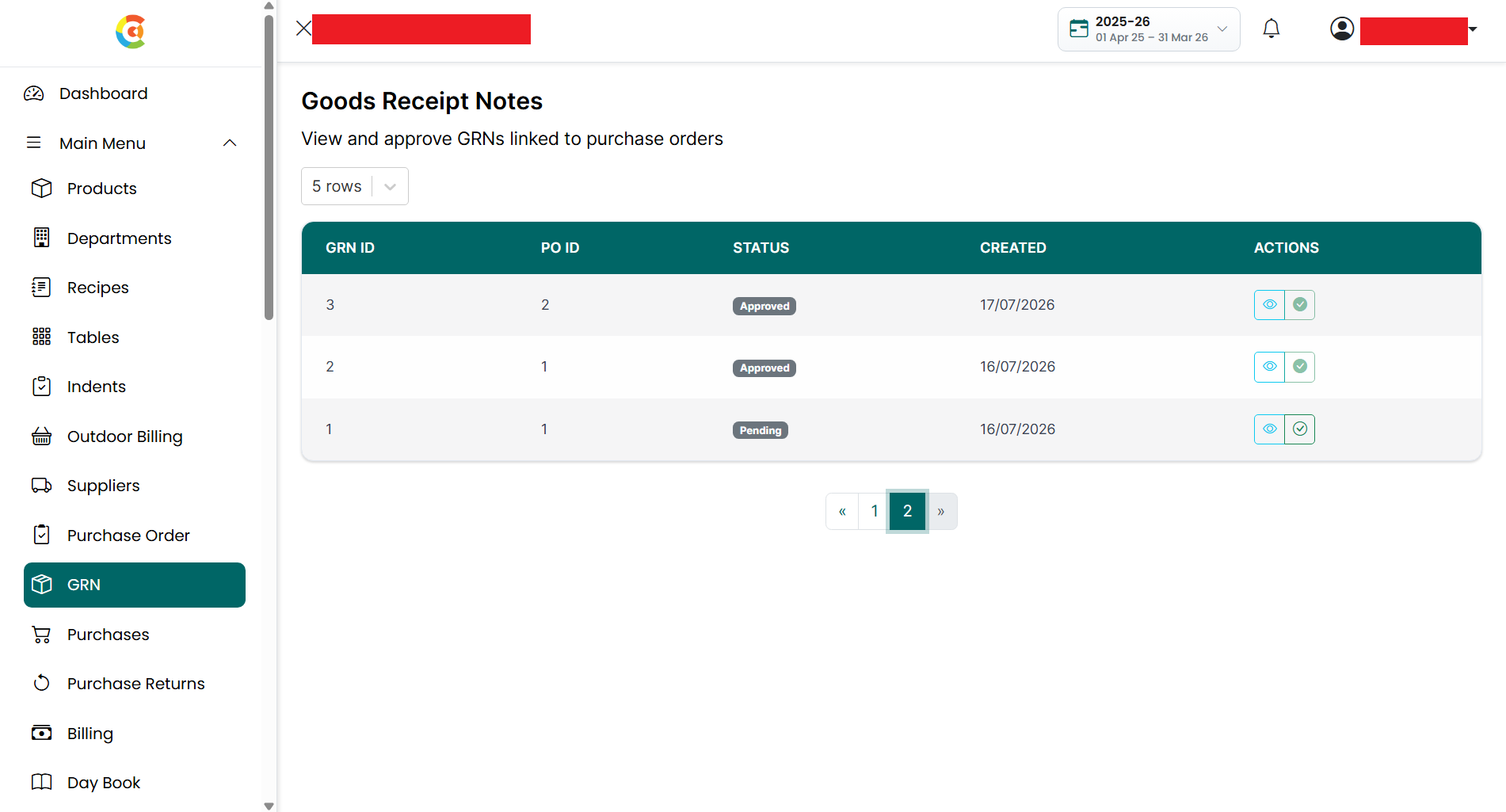
The GRN (Goods Receipt Note) Listing page shows all the Goods Receipt Notes created from Purchase Orders in the application, along with their Purchase Order reference, status, creation date, and other GRN details.
From this page, you can:
● View GRN details.
● Approve pending GRNs.
● Search and browse existing GRNs.
GRNs are created when products ordered through a Purchase Order are physically received from the supplier. They are used to record the actual quantities received before updating inventory and creating a Purchase.
When a GRN is approved, the system automatically:
● Updates the branch inventory with the received quantities.
● Creates a Purchase using the approved quantities and unit prices.
● Marks the GRN as Approved.
The GRN status is automatically updated based on its approval state:
● Pending – The GRN has been created and is waiting for approval.
● Approved – The GRN has been approved, the inventory has been updated, and the corresponding Purchase has been created.
Note: Only Pending GRNs can be edited and approved. Once a GRN is approved, it becomes read-only and cannot be edited or approved again. This helps maintain accurate inventory records and transaction history.
To open the GRN Listing page, follow the steps below.
- Go
to the Main Menu and click GRN.
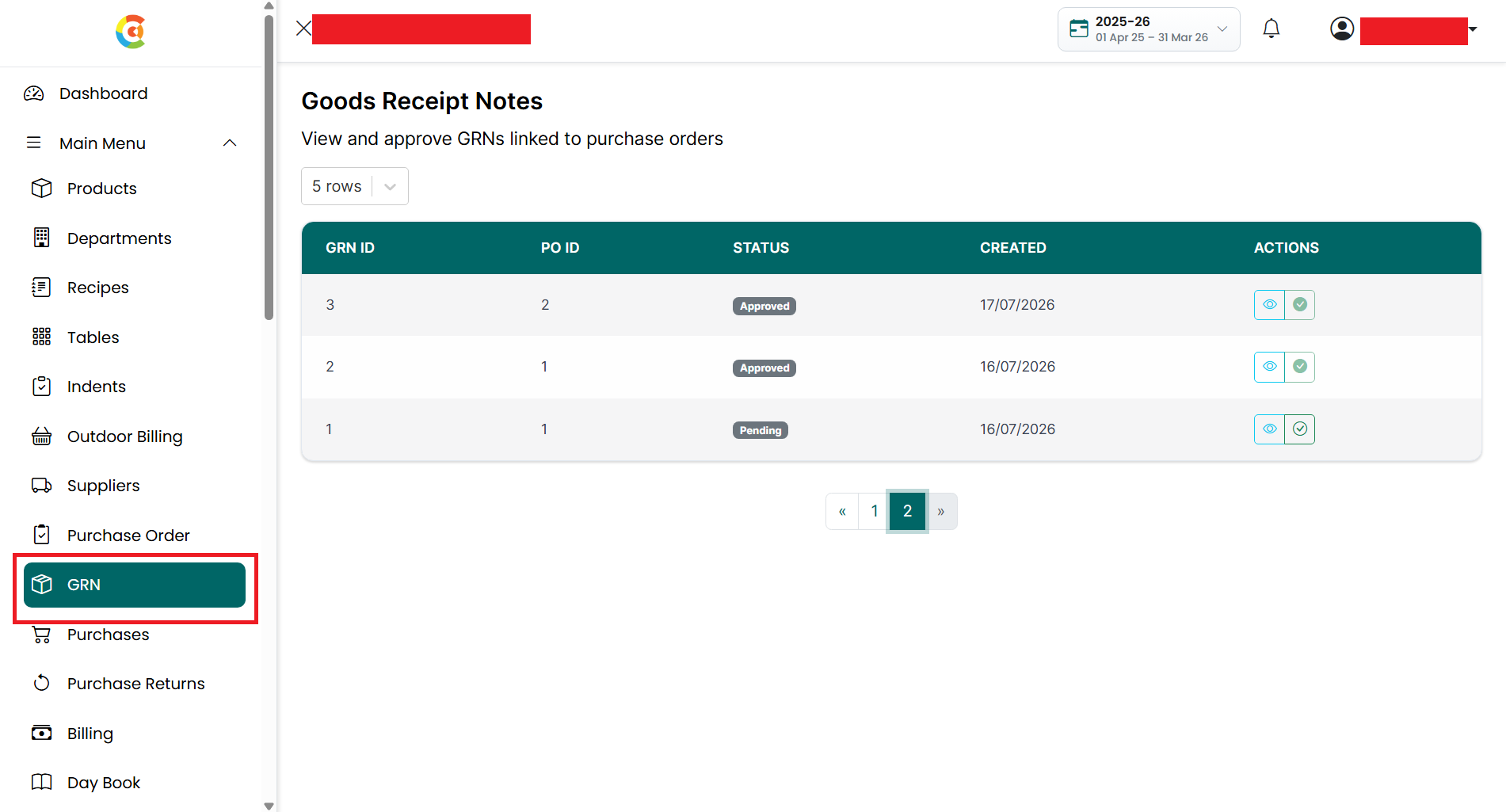
- The GRN Listing page is displayed.
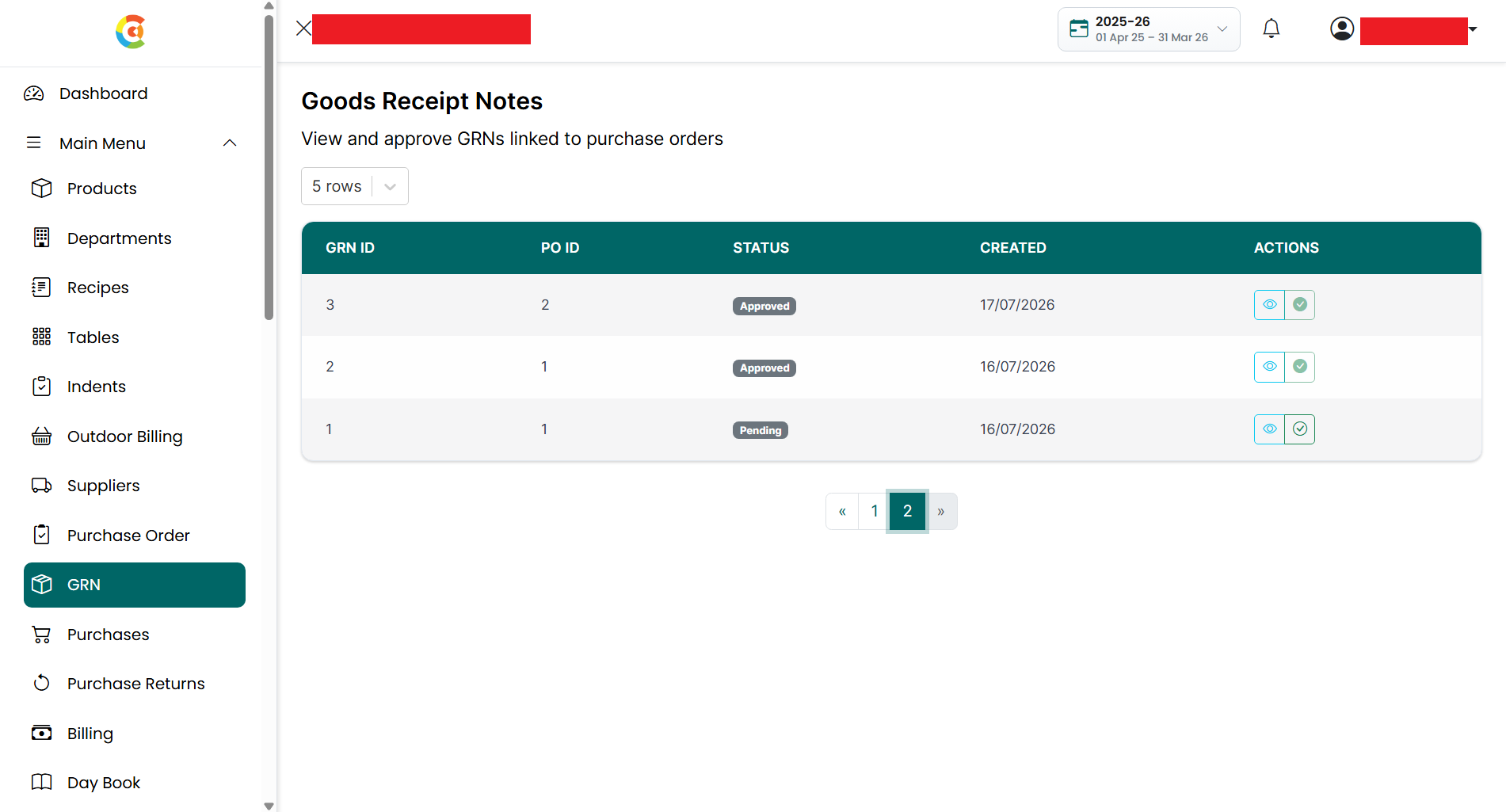
- The page includes the following sections:
• Rows
Per Page – Select how many GRNs you want to display on a single page.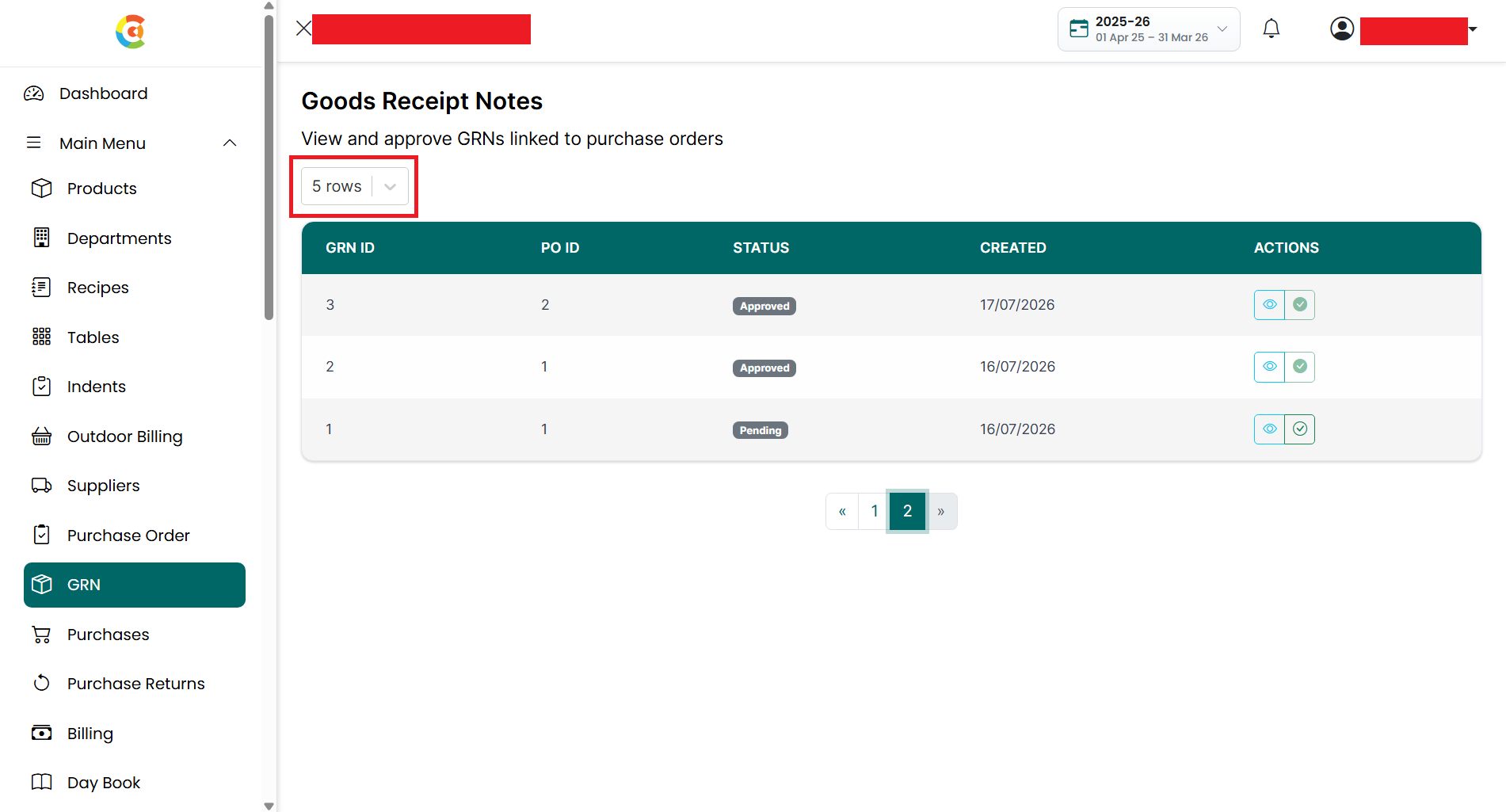
• GRN List – Displays all created GRNs with the following information:
■ GRN ID – Shows the unique Goods Receipt Note number.
■ PO ID – Shows the Purchase Order number associated with the GRN.
■ Status – Shows the current status of the GRN.
1. Pending – The GRN has been created but not yet approved.
2. Approved – The GRN has been approved, inventory has been updated, and a Purchase has been created.
■ Created – Shows the date on which the GRN was created.
■ Actions
– Displays the actions available for each GRN.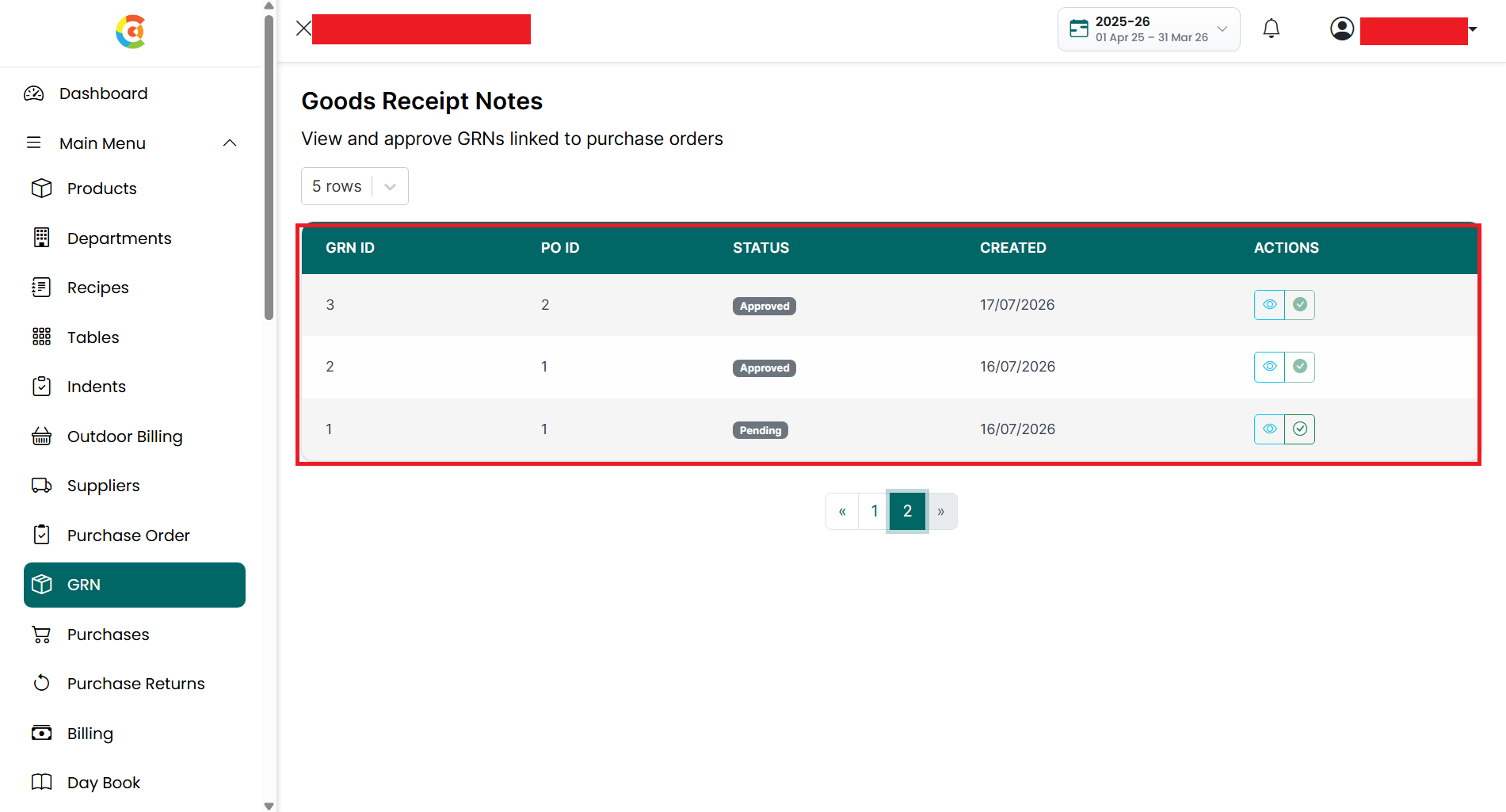
• View
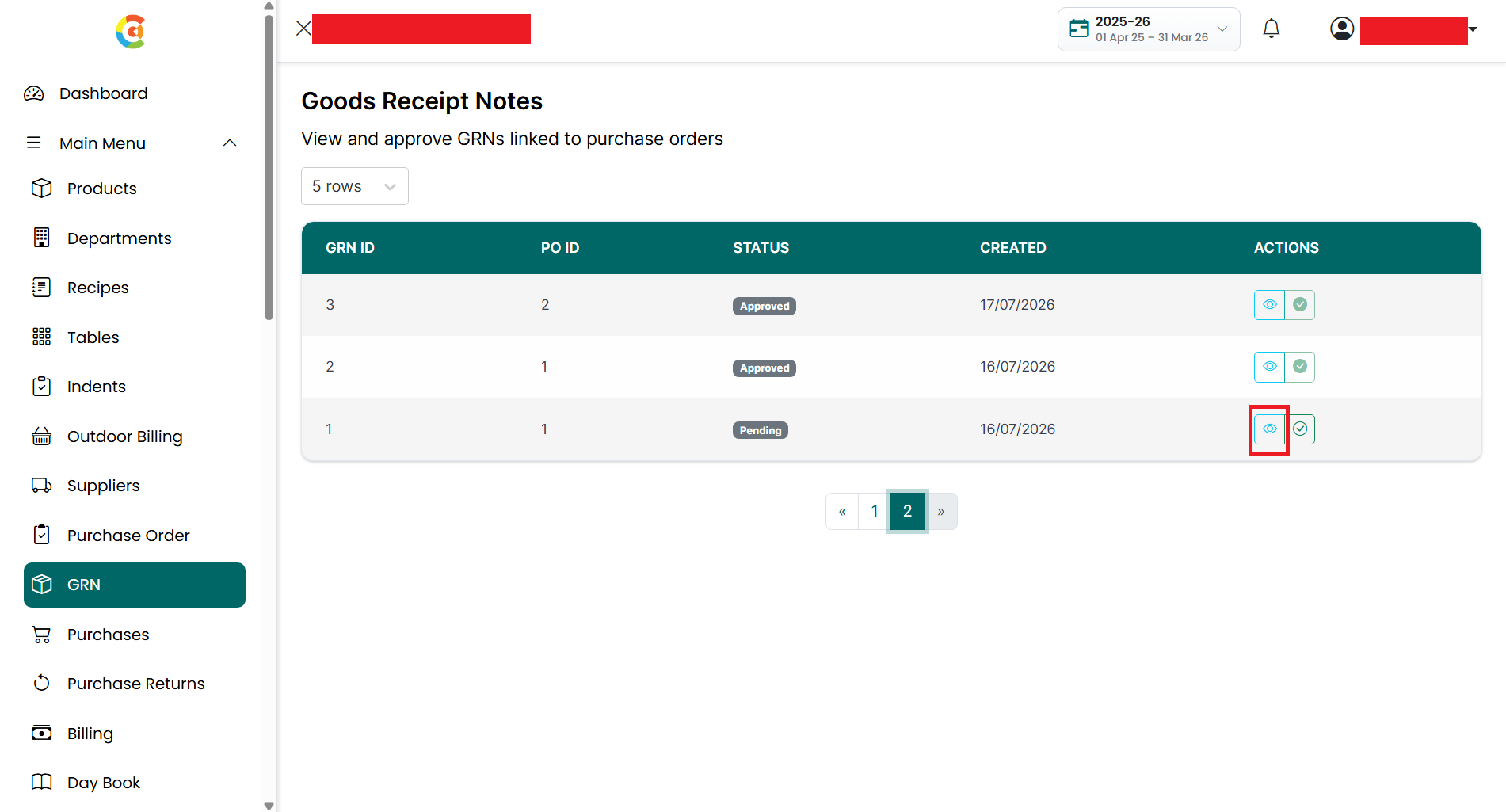
– Click the View icon to see the complete GRN details.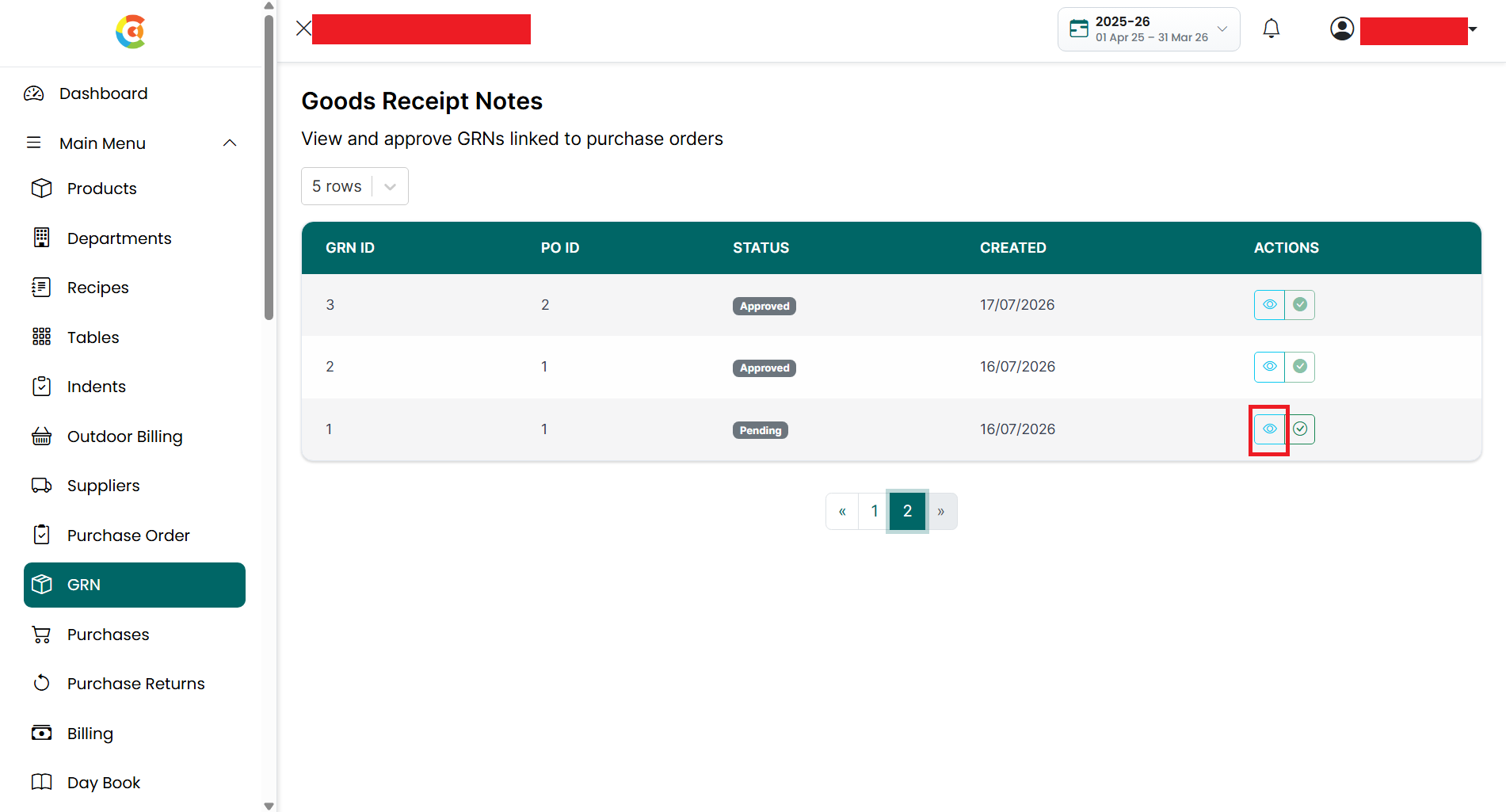
• Approve
– Click the Approve icon to approve a pending GRN. This option is available
only for GRNs with Pending status. Once approved, the Approve button is
replaced with an Approved indicator.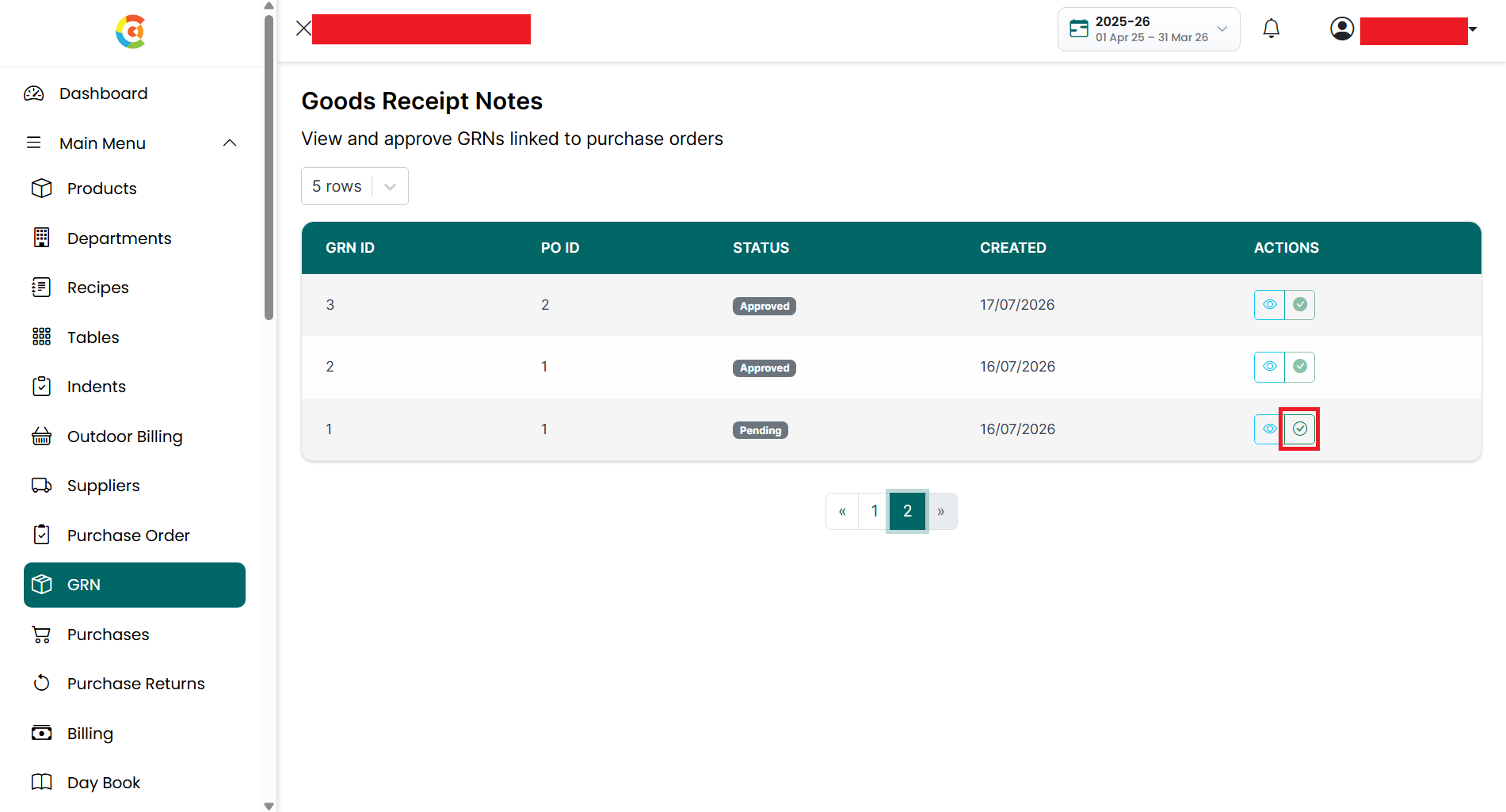
•
Pagination – Use the page numbers or the
Previous and Next buttons at the bottom of the page to move between different
pages.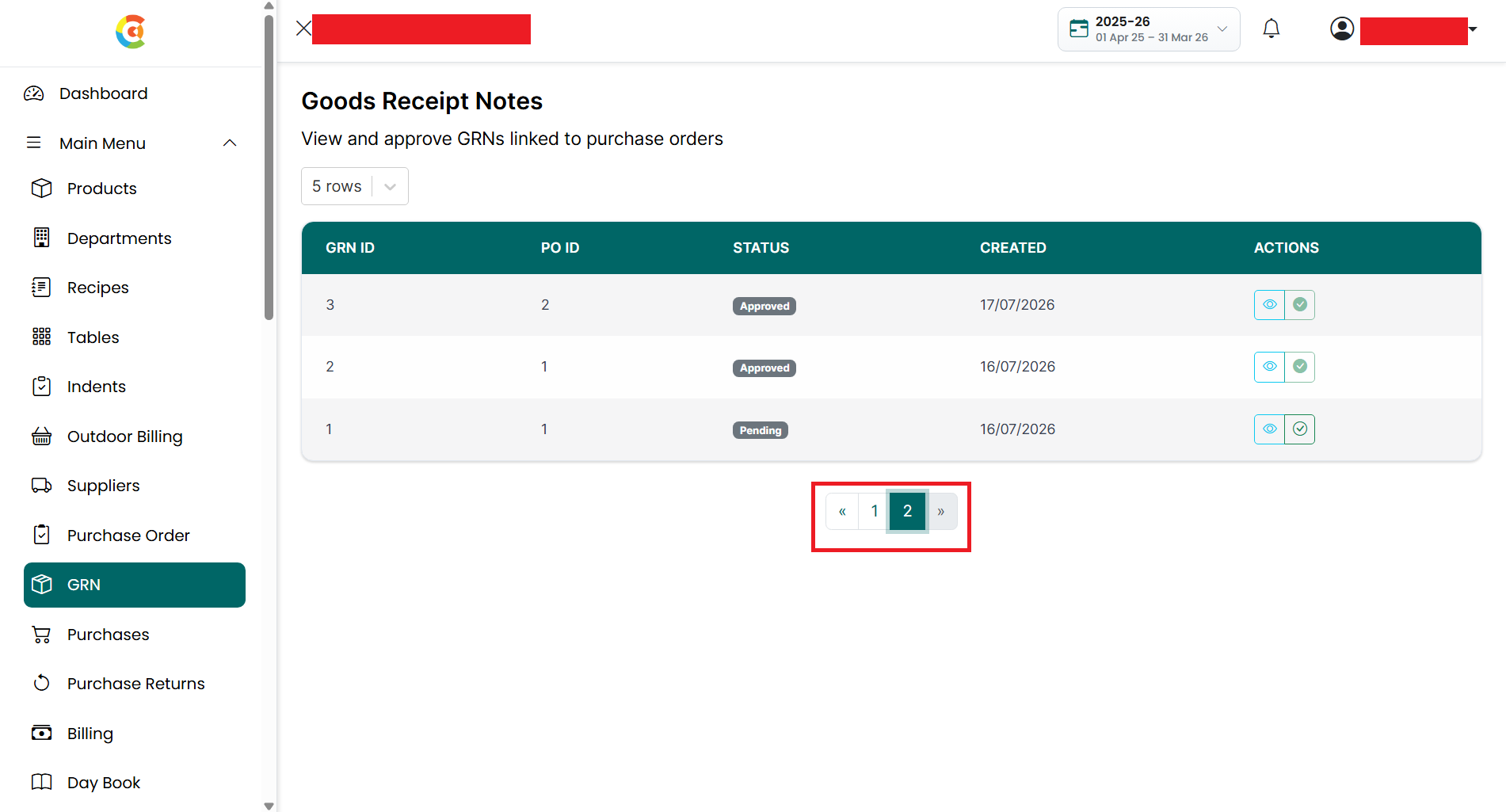
Note: Only Pending GRNs can be approved. An Approved GRN cannot be modified or approved again.
View GRN
To view the details of a Goods Receipt Note (GRN), follow the steps below.
- Go
to the Main Menu and click GRN.
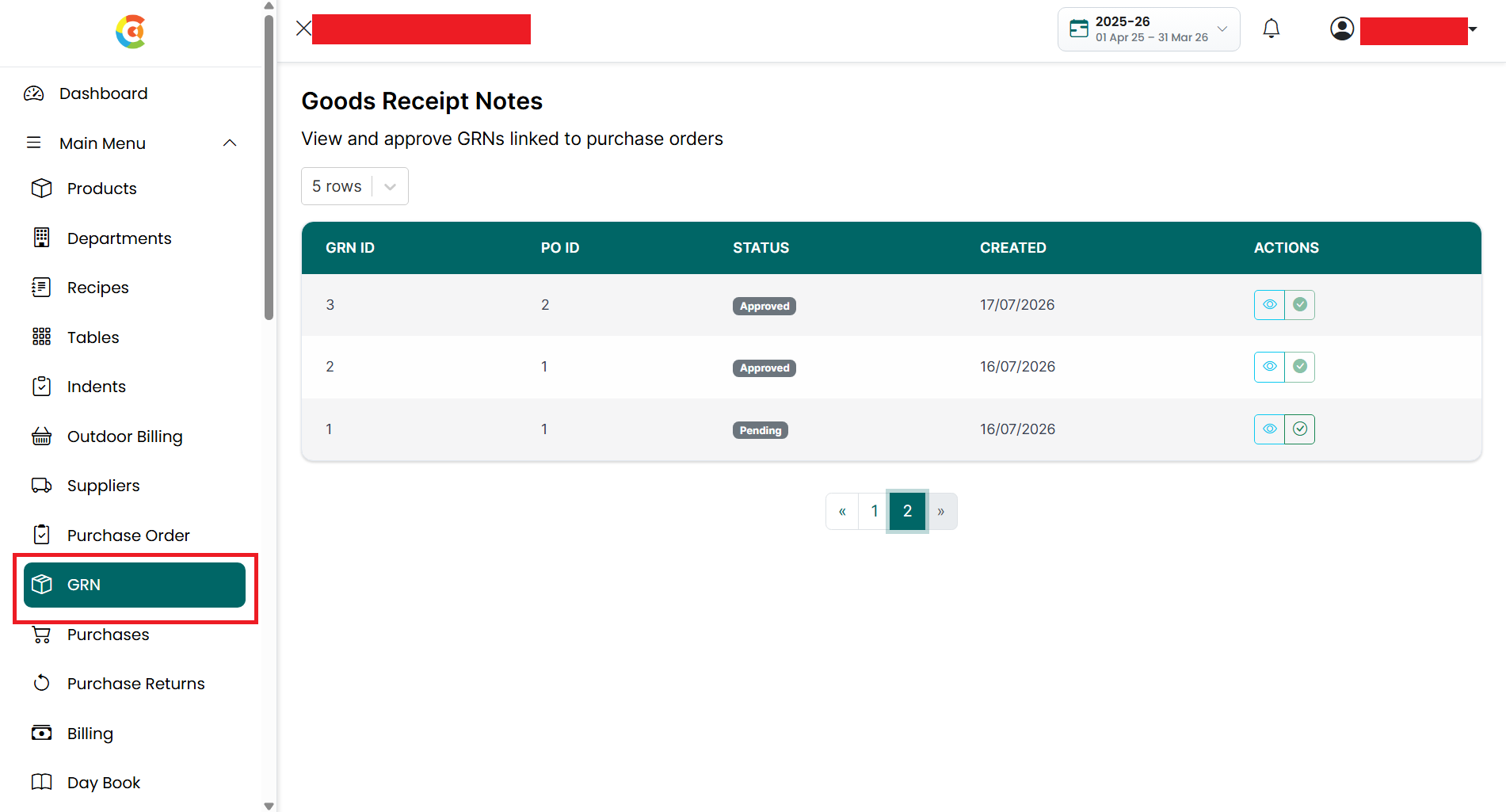
- The GRN Listing page is displayed.
- Find the GRN you want to view.
- Click the View icon.
- The View GRN page is displayed.
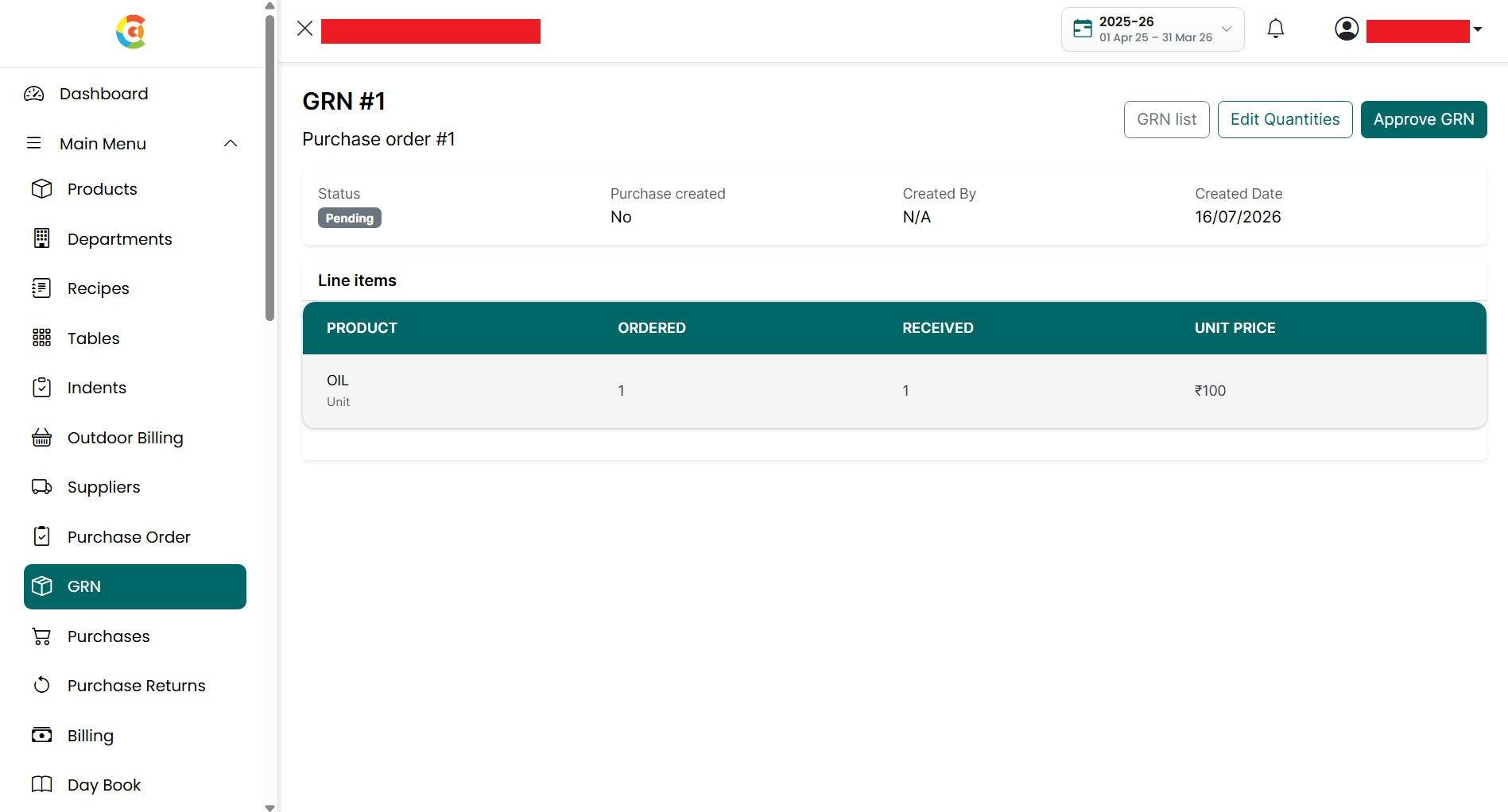
- The following information is available:
• GRN Information
■ GRN
Number – Displays the unique Goods Receipt Note number.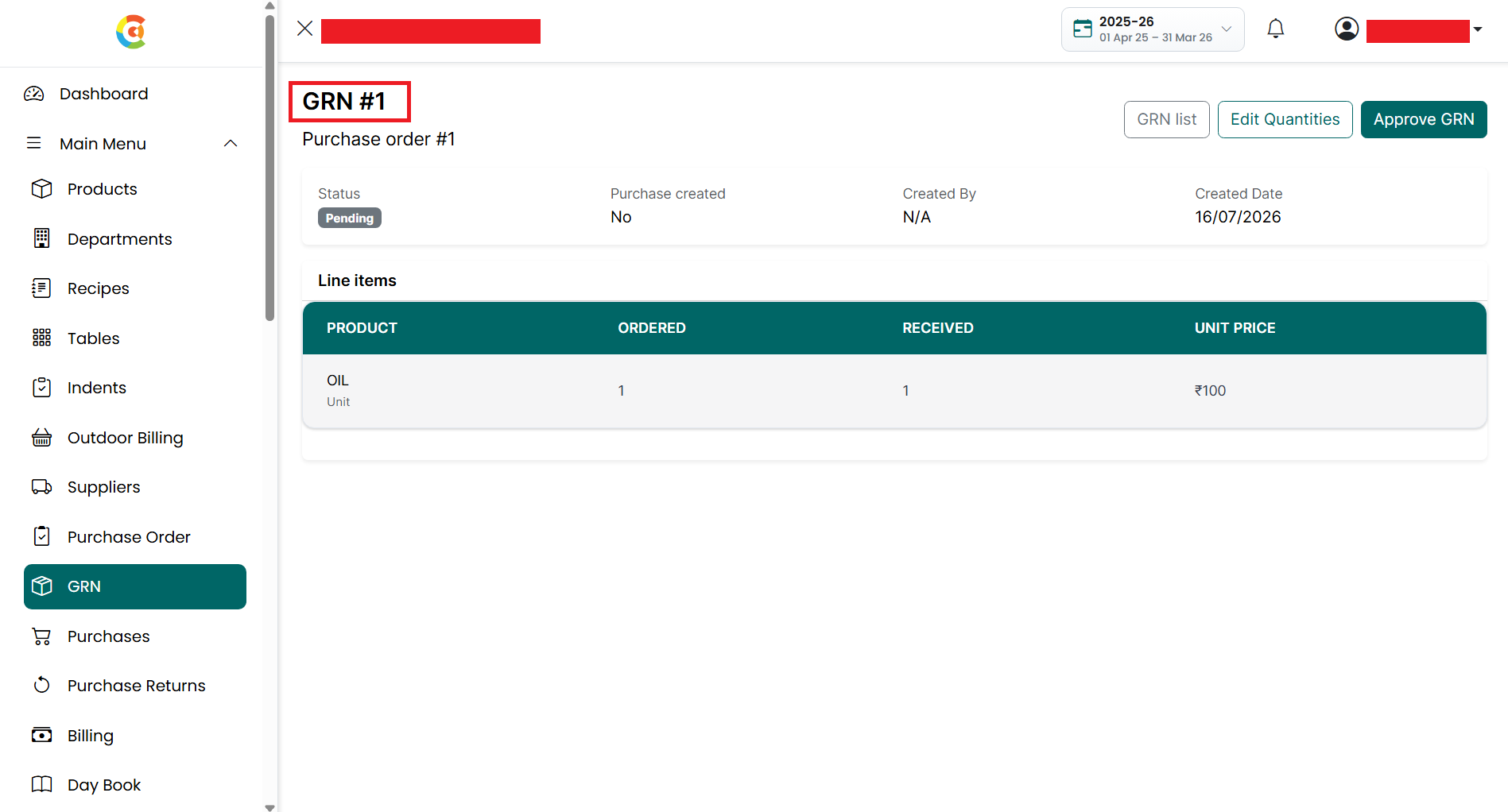
■ Purchase
Order Number – Displays the Purchase Order associated with the GRN.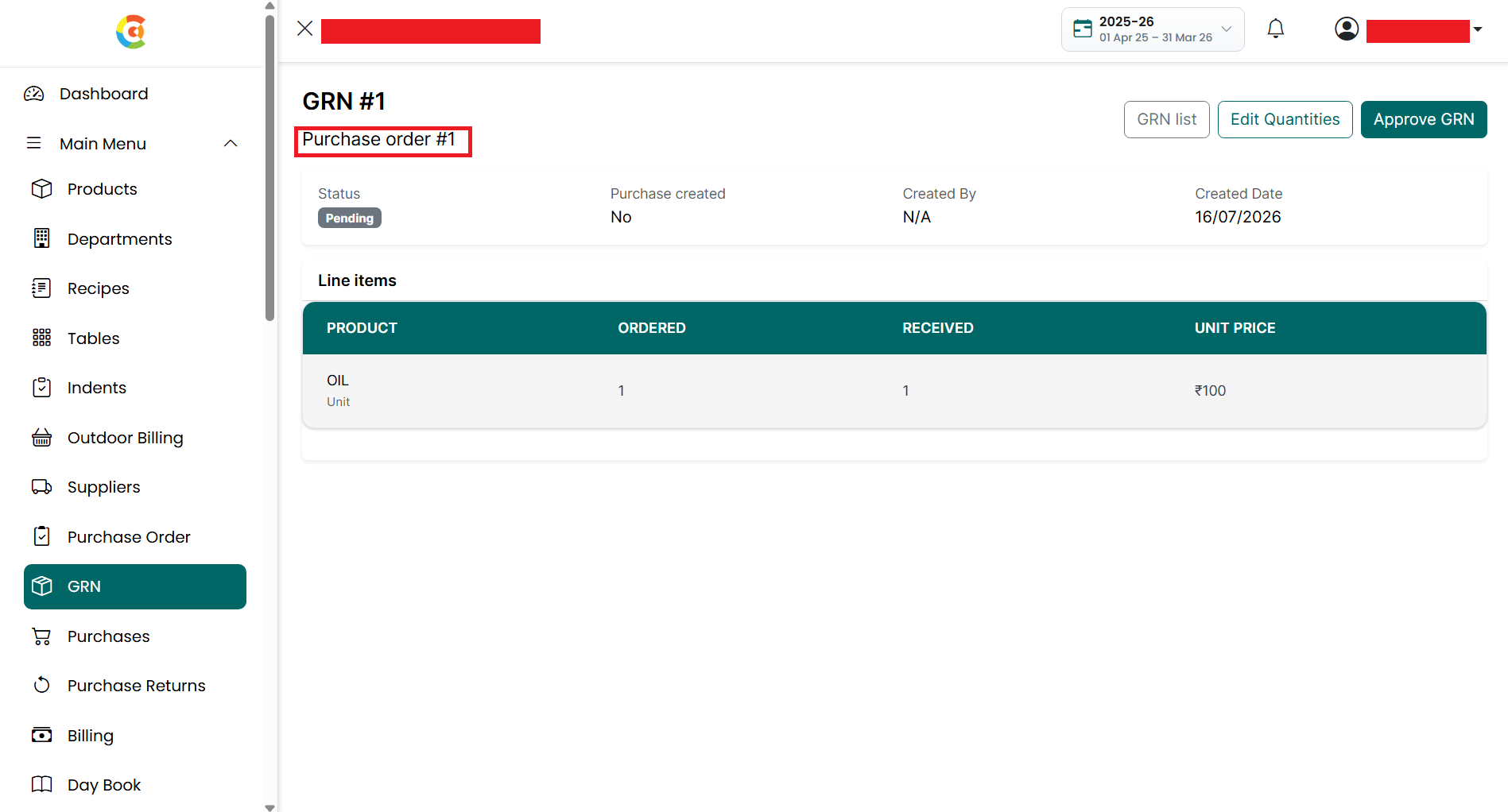
■ Status – Displays the current status of the GRN.
● Pending – The GRN is waiting for approval.
● Approved
– The GRN has been approved and inventory has been updated.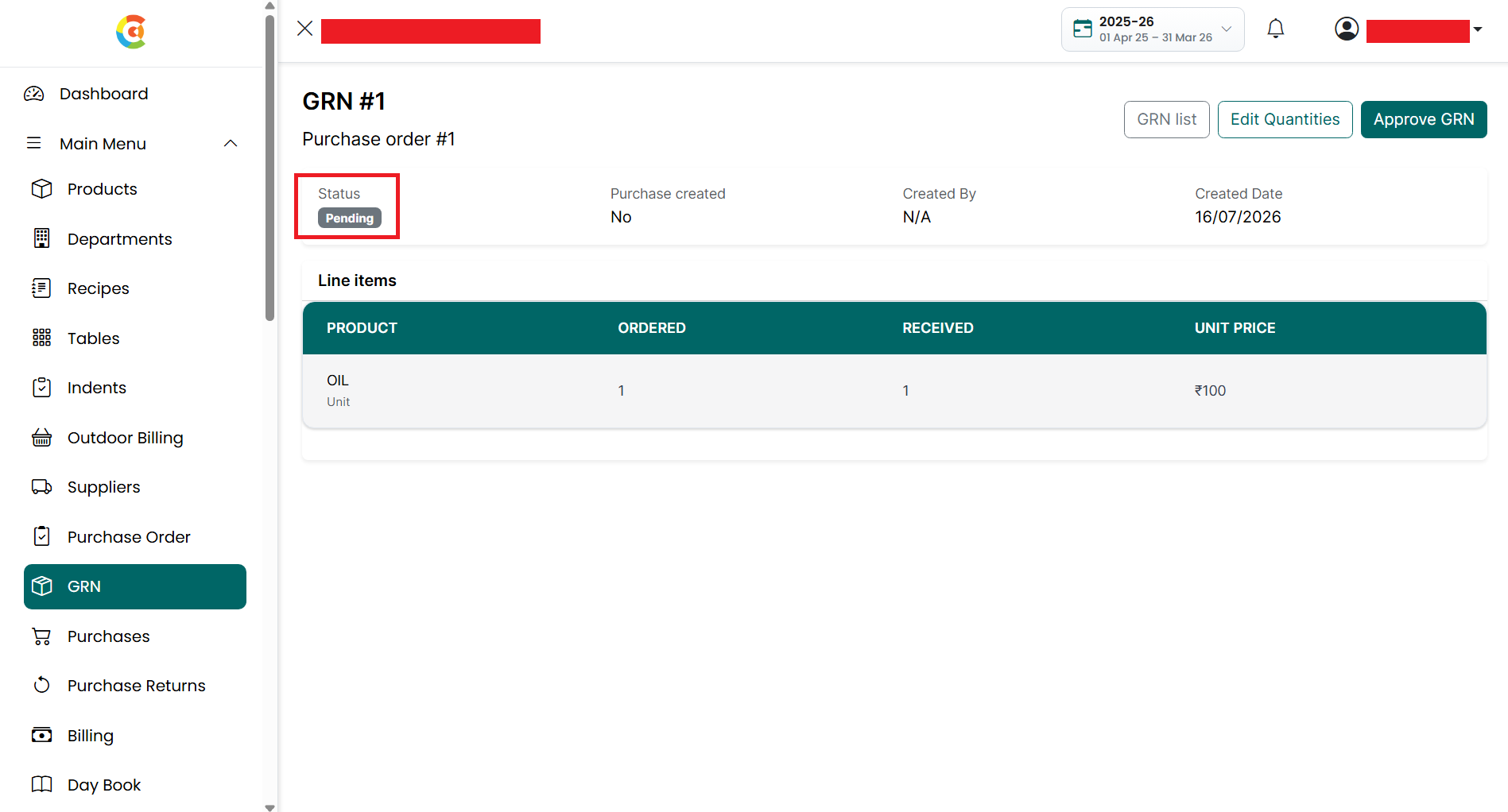
■ Purchase Created – Indicates whether a Purchase has been created from the GRN.
● If
the GRN has not been approved, the value is displayed as No.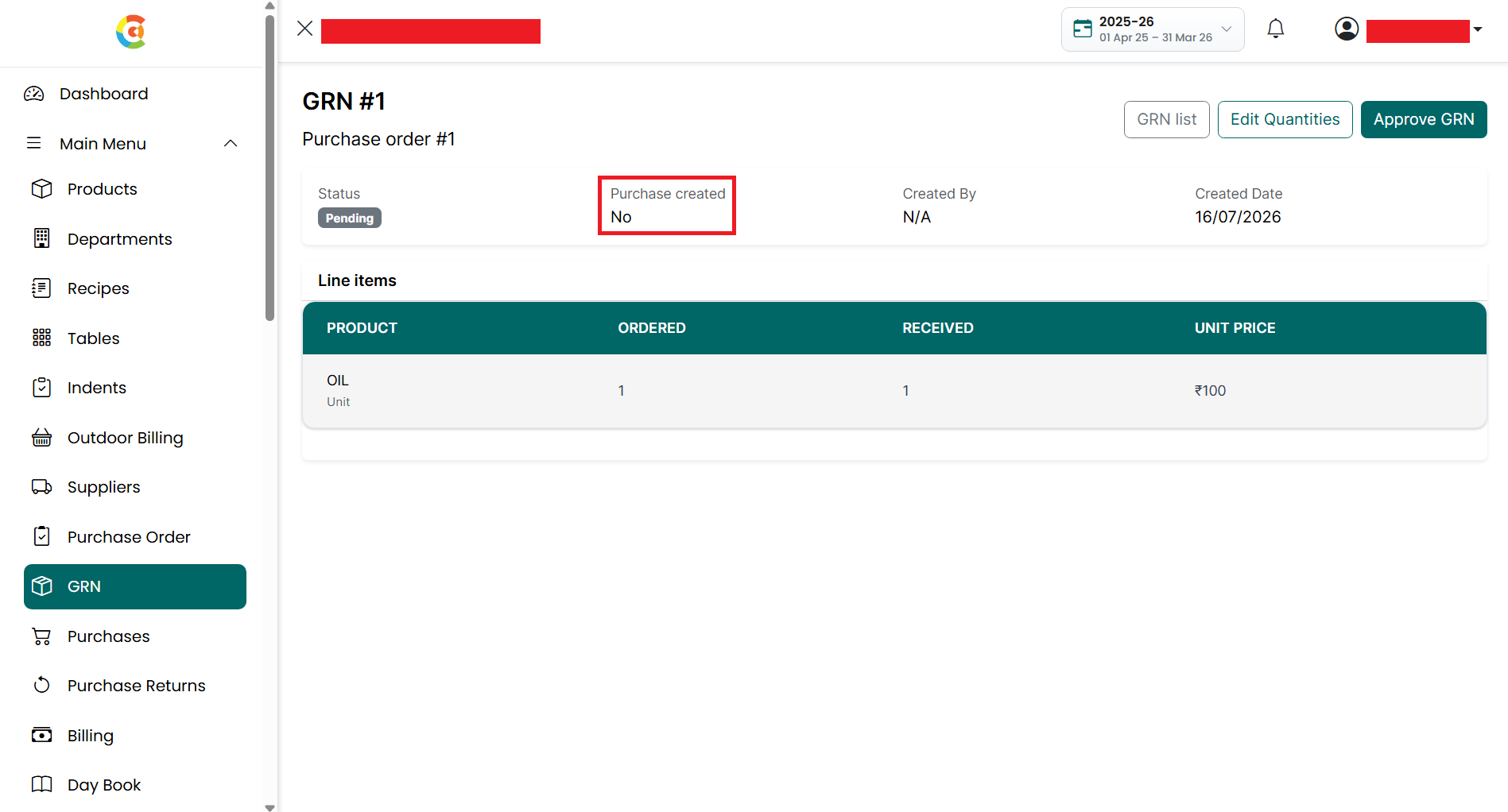
● After
approval, the value changes to Created, and a View Purchase link is displayed
to open the Purchase created from the GRN.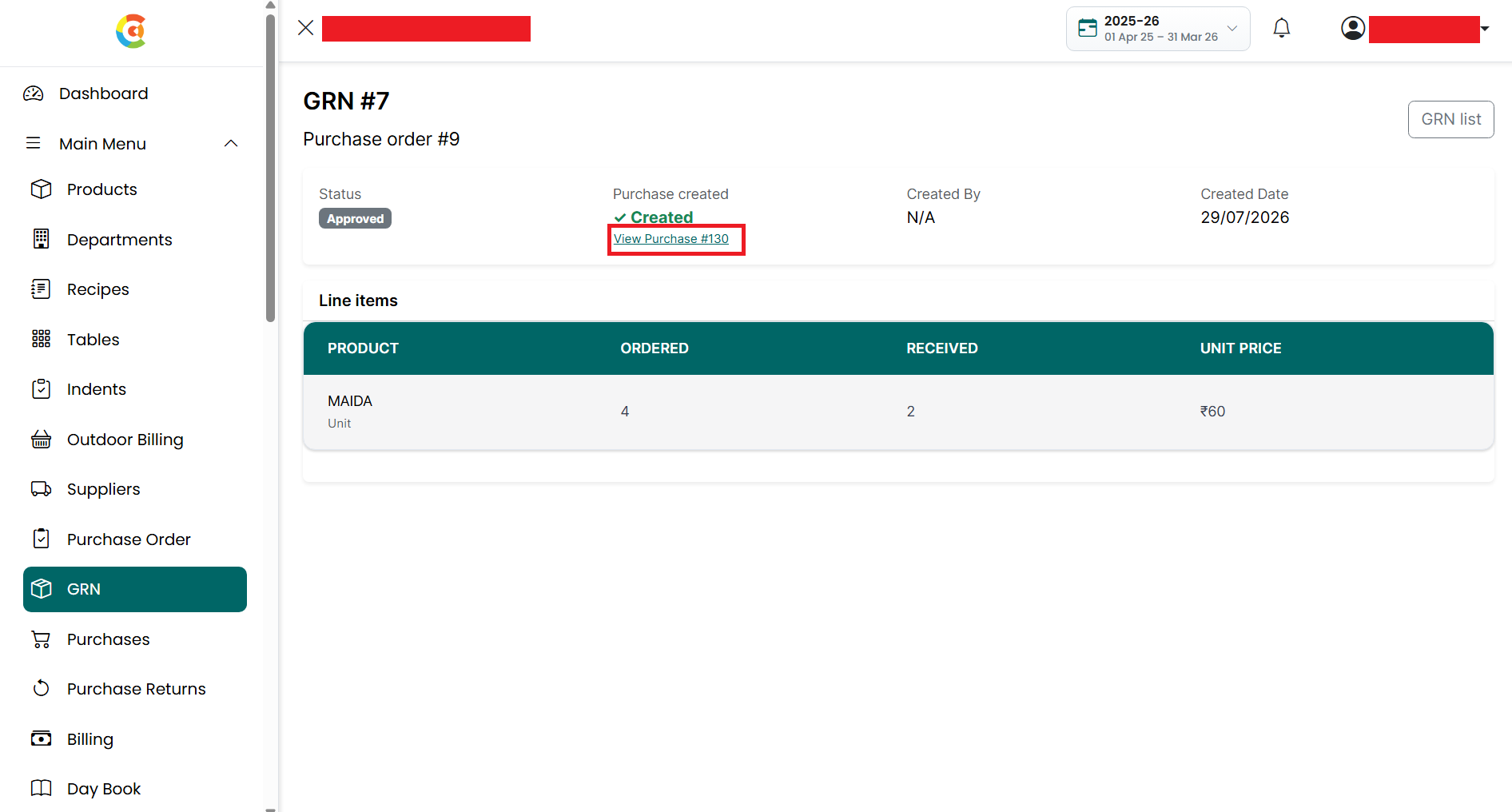
■ Created
By – Displays the user who created the GRN.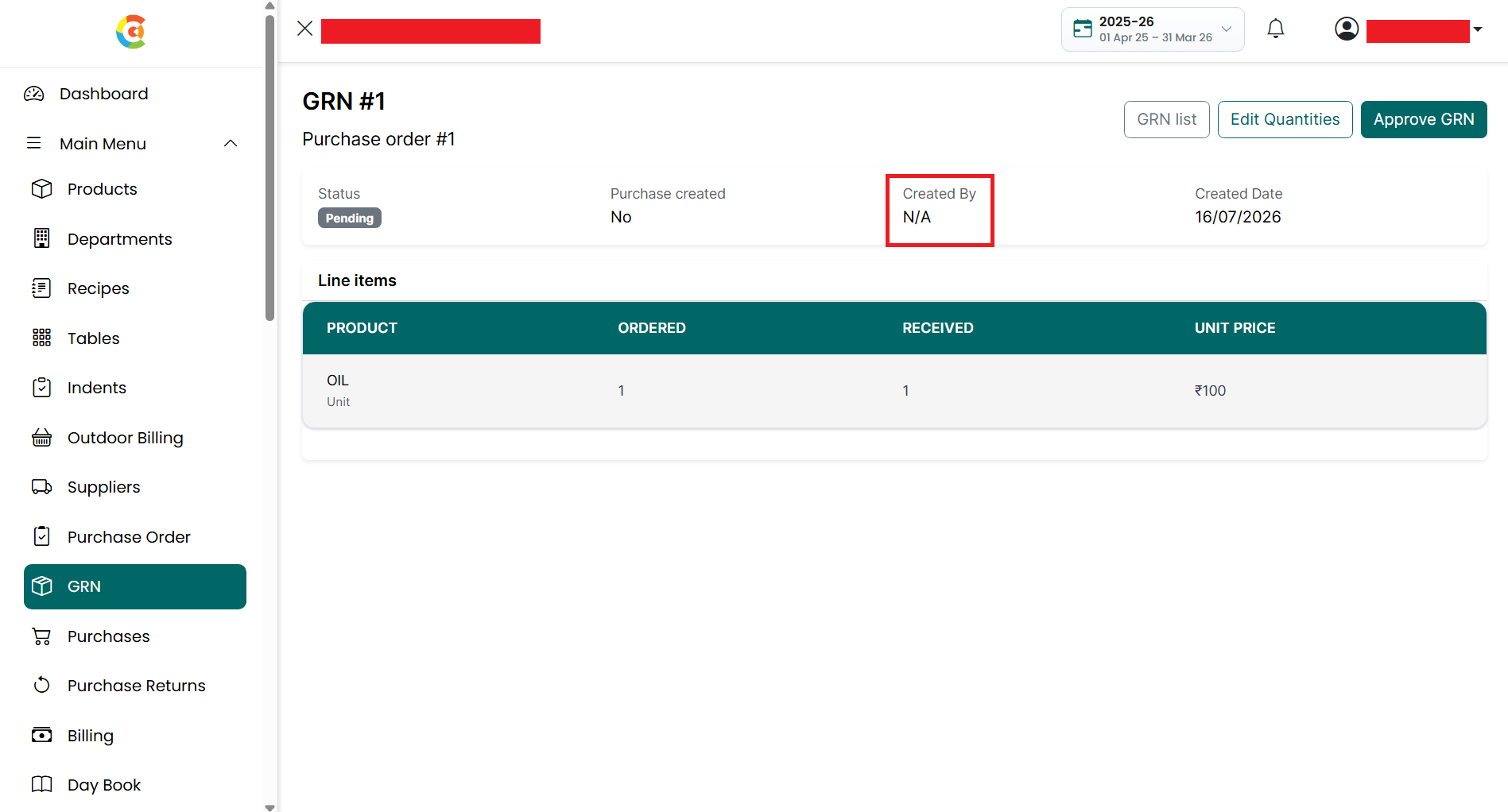
■ Created
Date – Displays the date on which the GRN was created.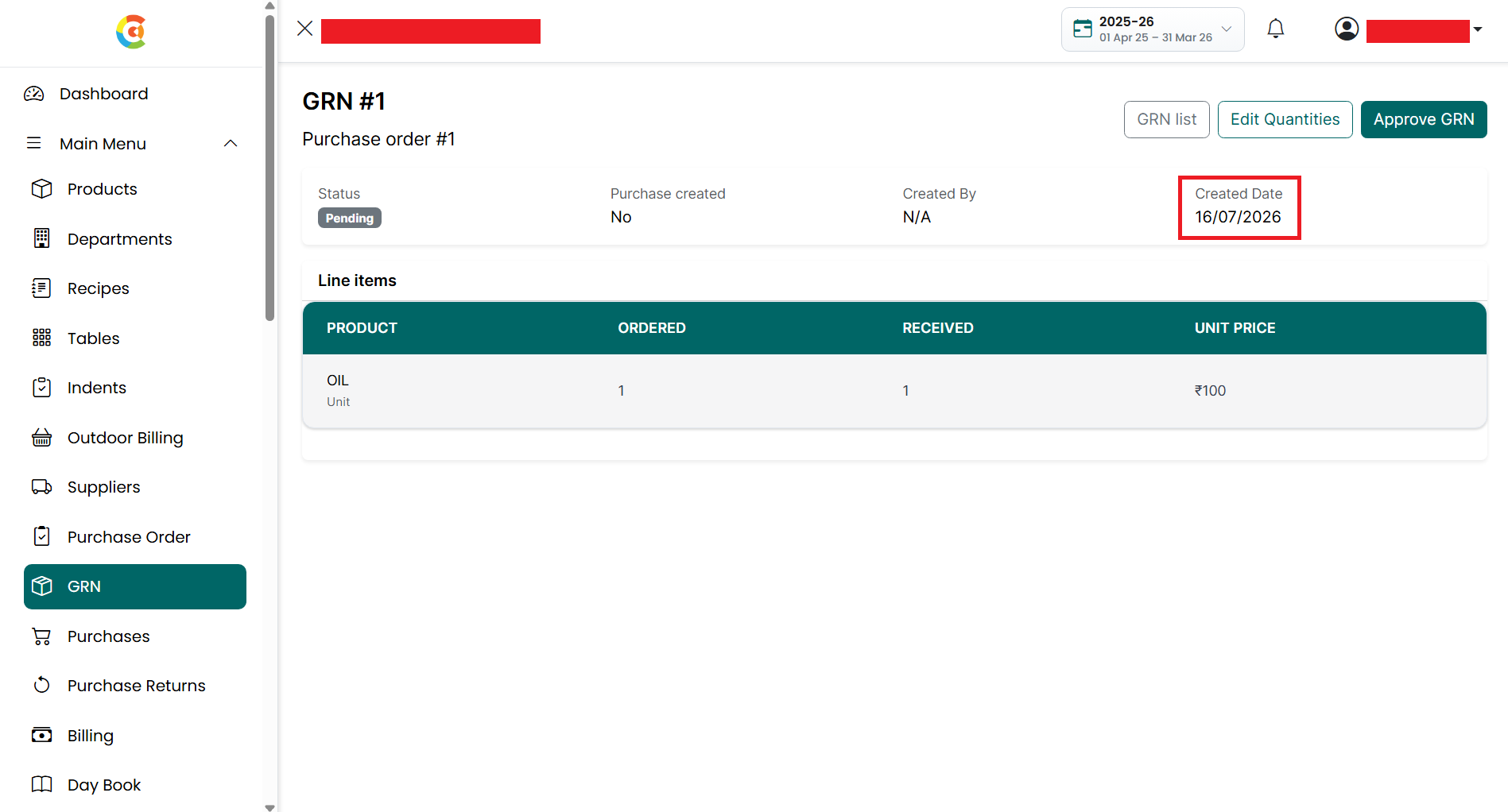
• Line Items - The Line Items section displays all products included in the GRN with the following information:
■ Product – Displays the product name.
■ Ordered – Displays the quantity ordered in the Purchase Order.
■ Received – Displays the quantity received through the GRN.
■ Unit
Price – Displays the purchase price entered for the received product.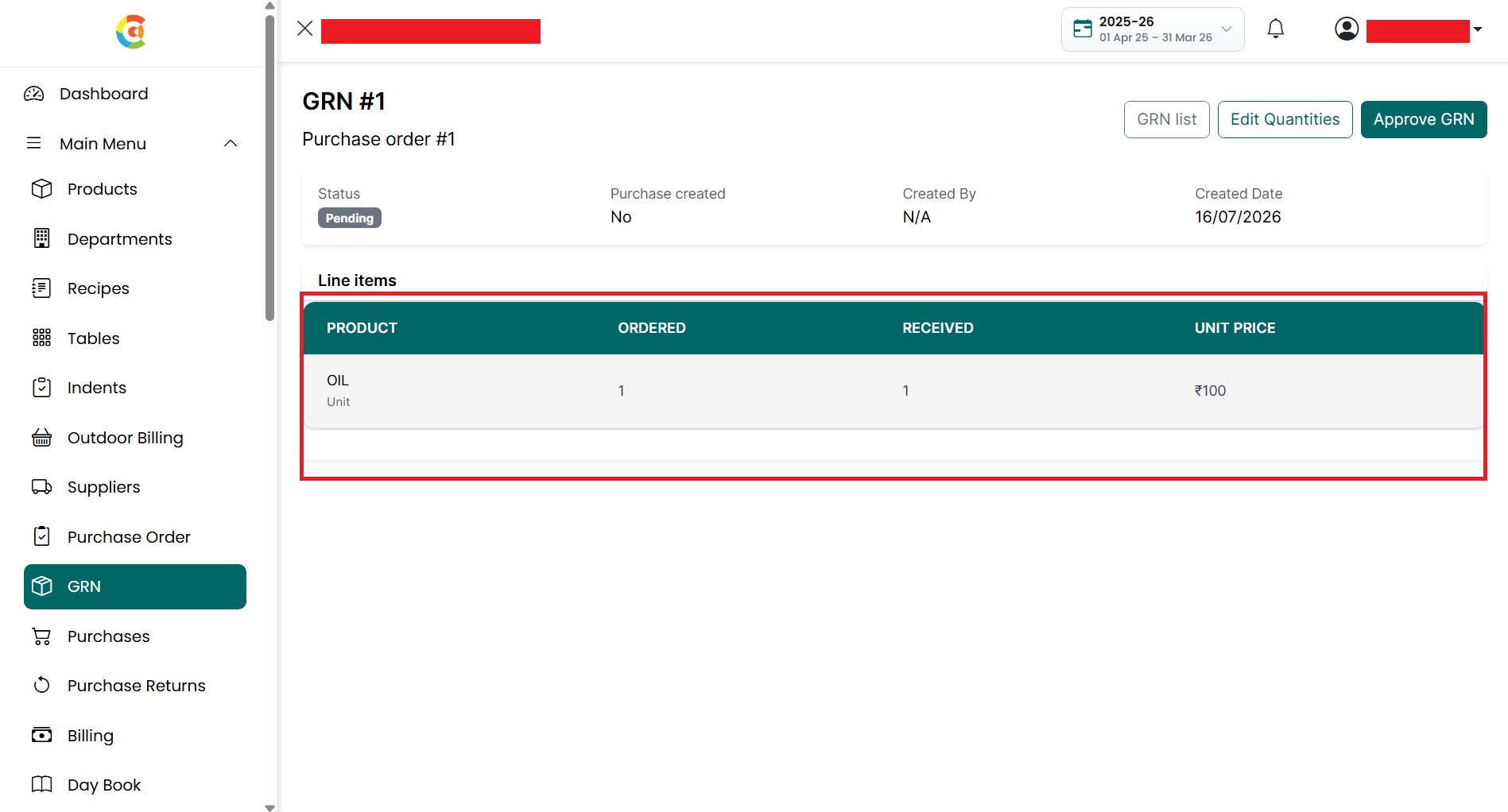
• The following actions are available depending on the GRN status:
■ GRN
List – Click the GRN List button to return to the GRN Listing page.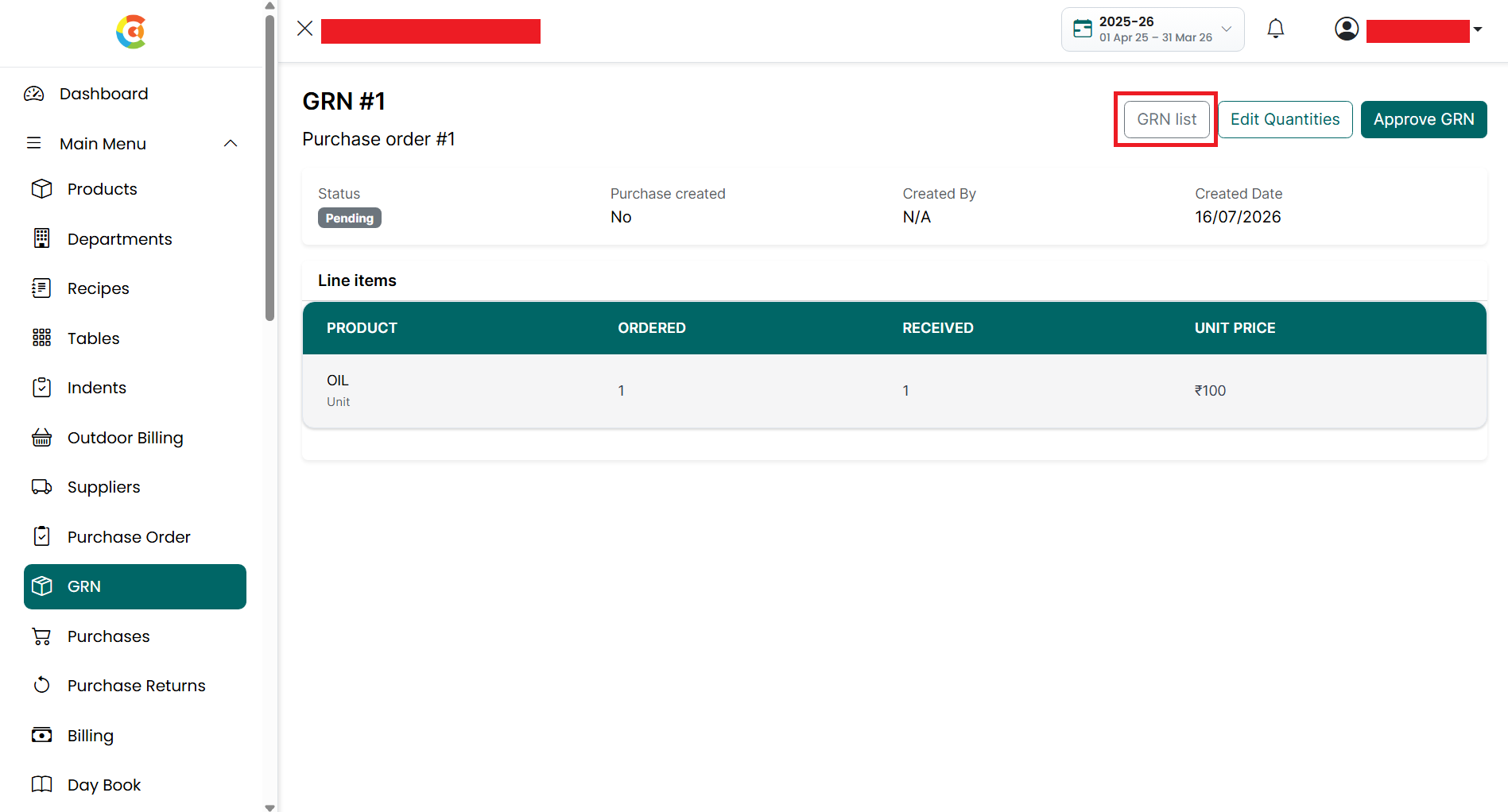
■ Edit
Quantities – Click the Edit Quantities button to modify the Received Quantity
and Unit Price for each product. This option is available only when the GRN
status is Pending.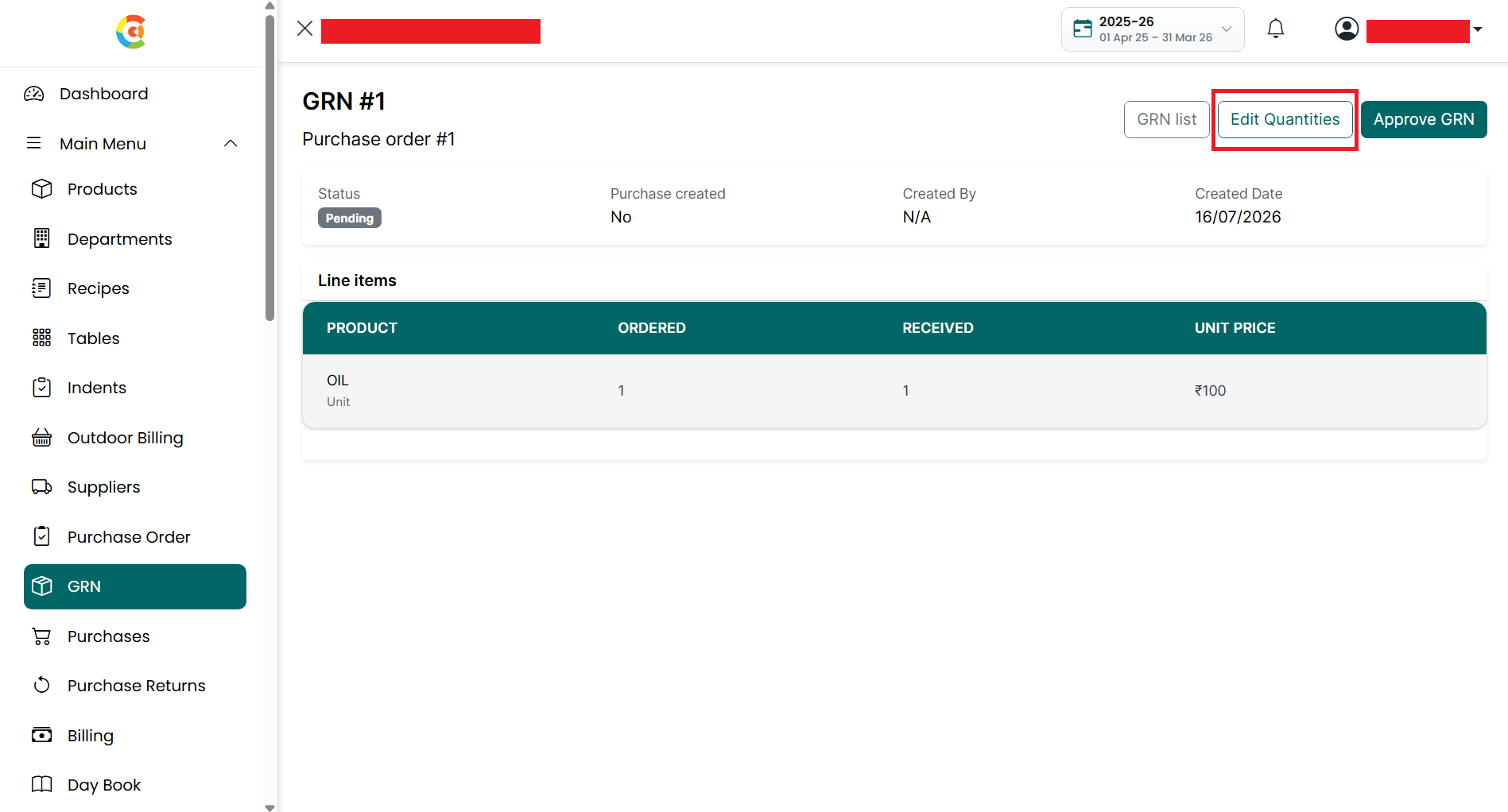
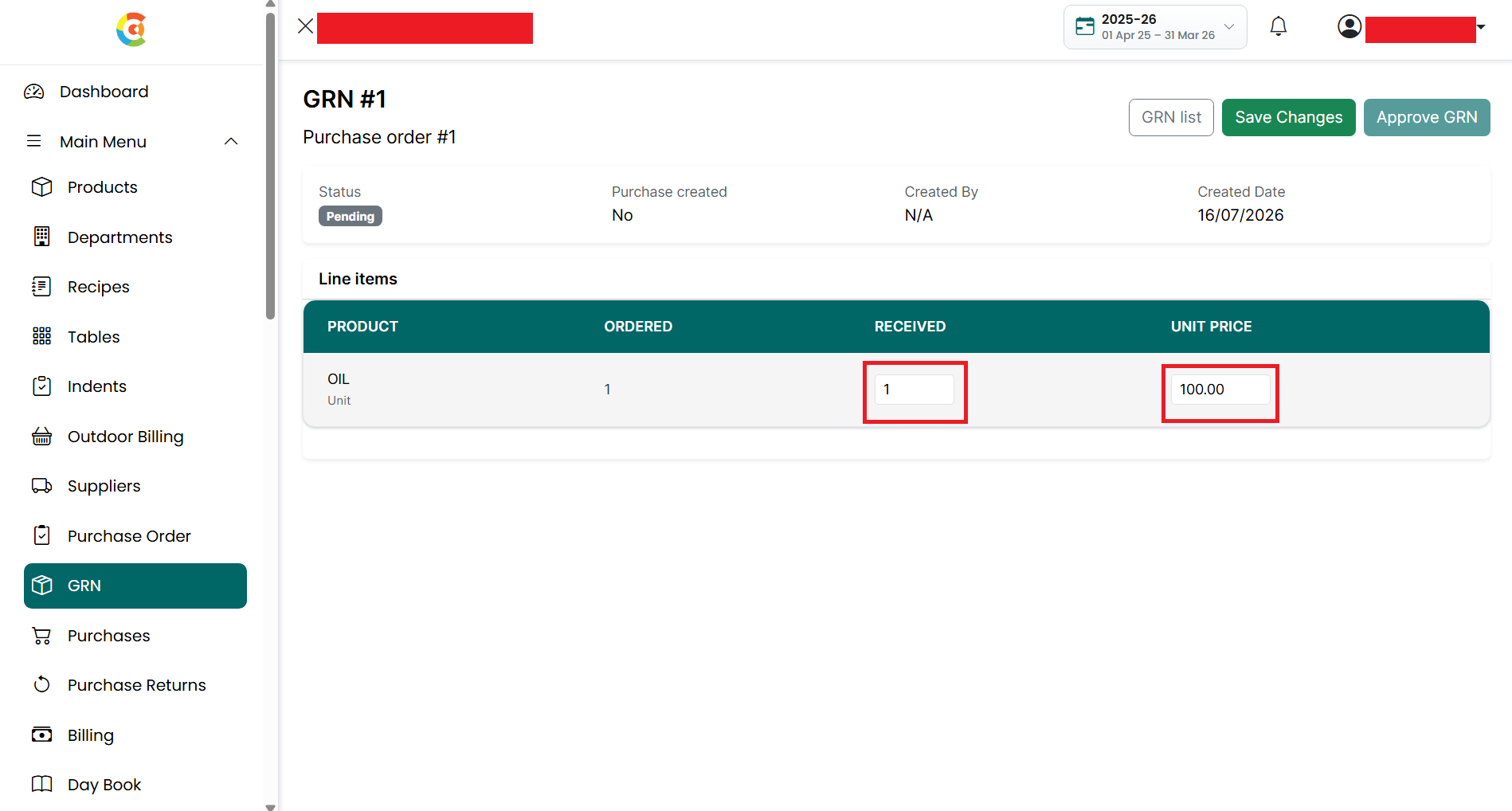
● Save
Changes – After updating the received quantities or unit prices, click Save
Changes to save the changes. This button is displayed only after clicking Edit
Quantities while the GRN is in Pending status.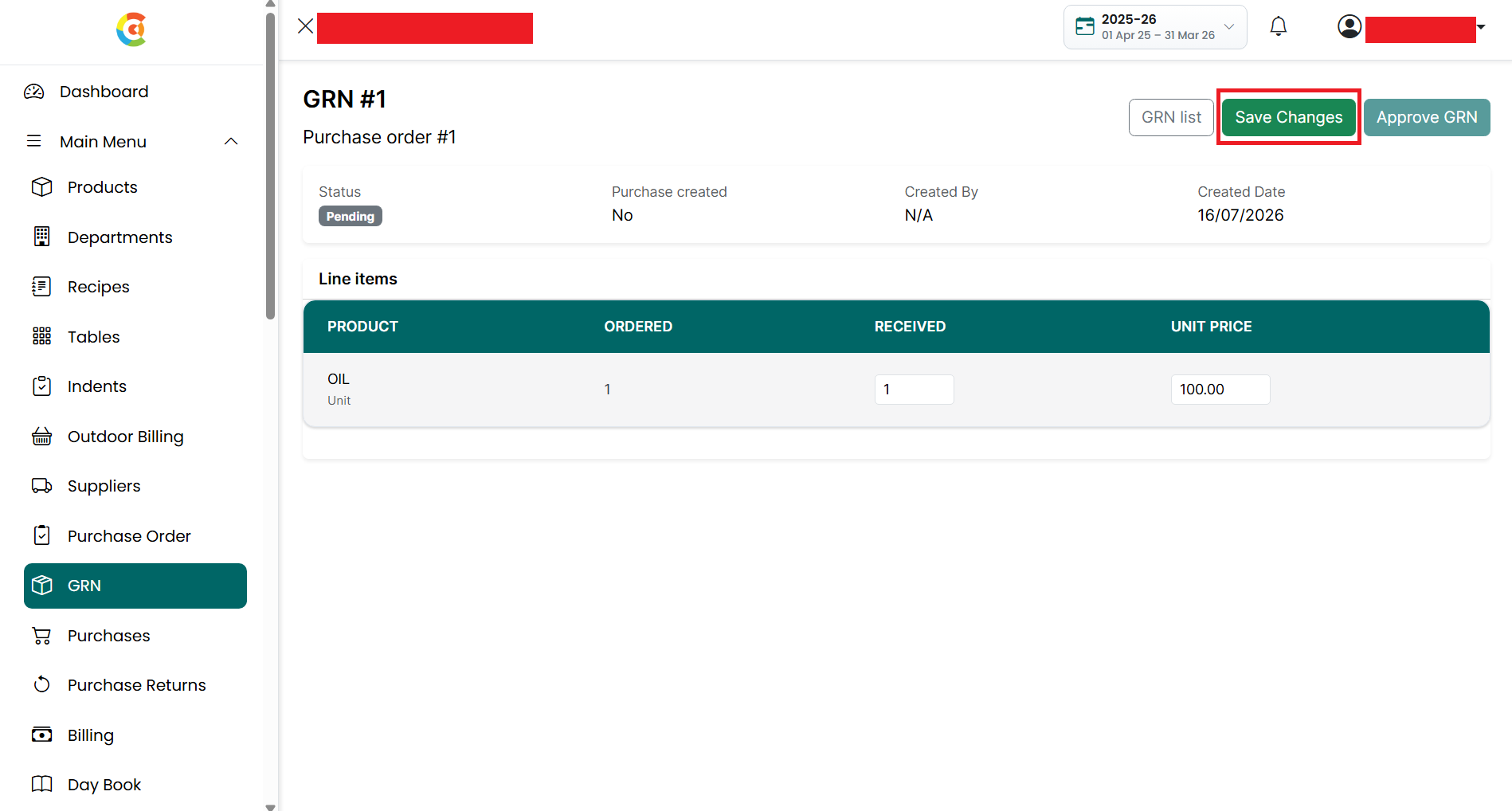
■ Approve
GRN – Click the Approve GRN button to approve the GRN. A confirmation message
is displayed before approval. This option is available only while the GRN status
is Pending.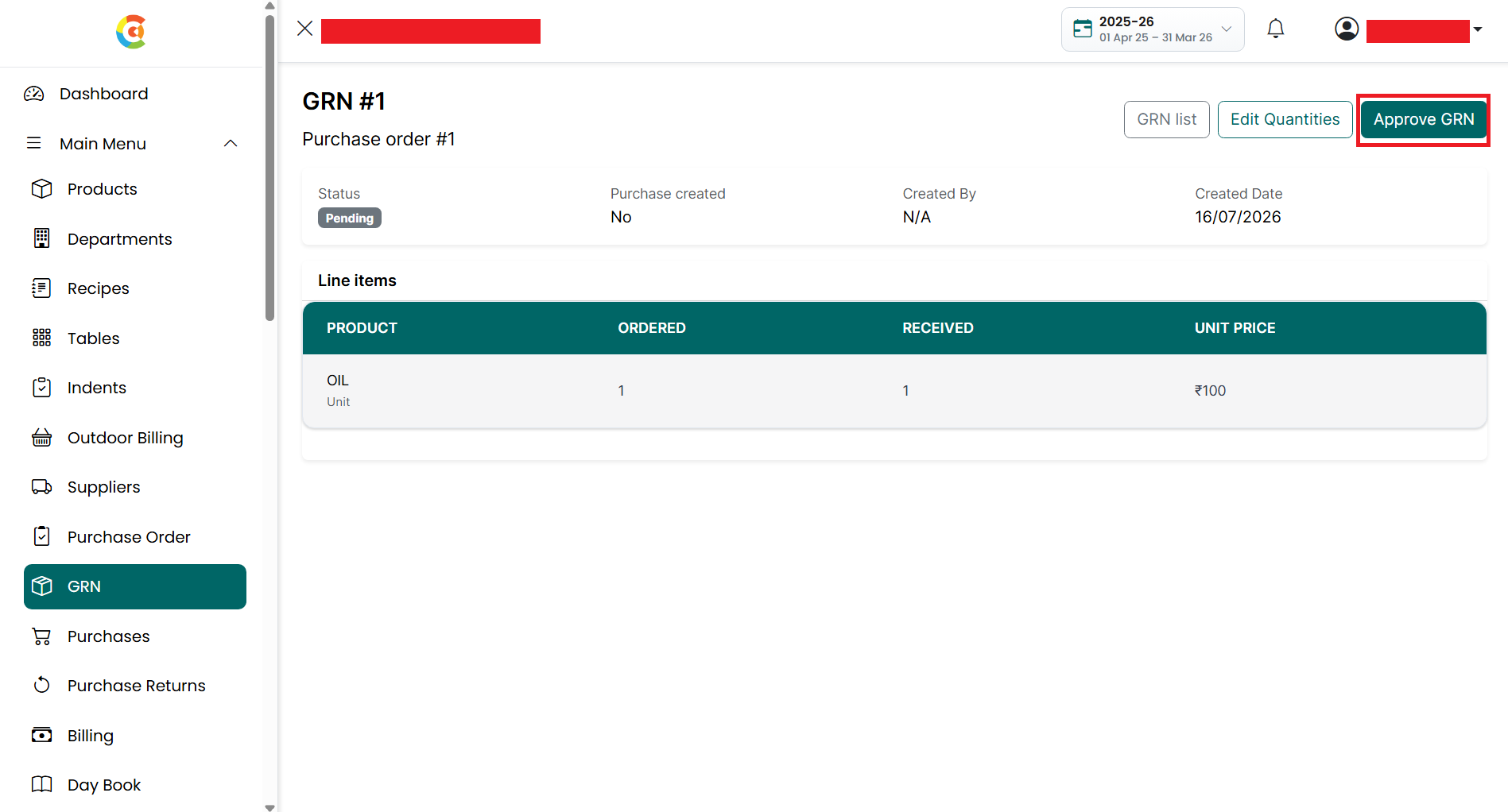
• After the GRN is approved successfully:
■ The Status changes to Approved.
■ The
Purchase Created field changes to Created.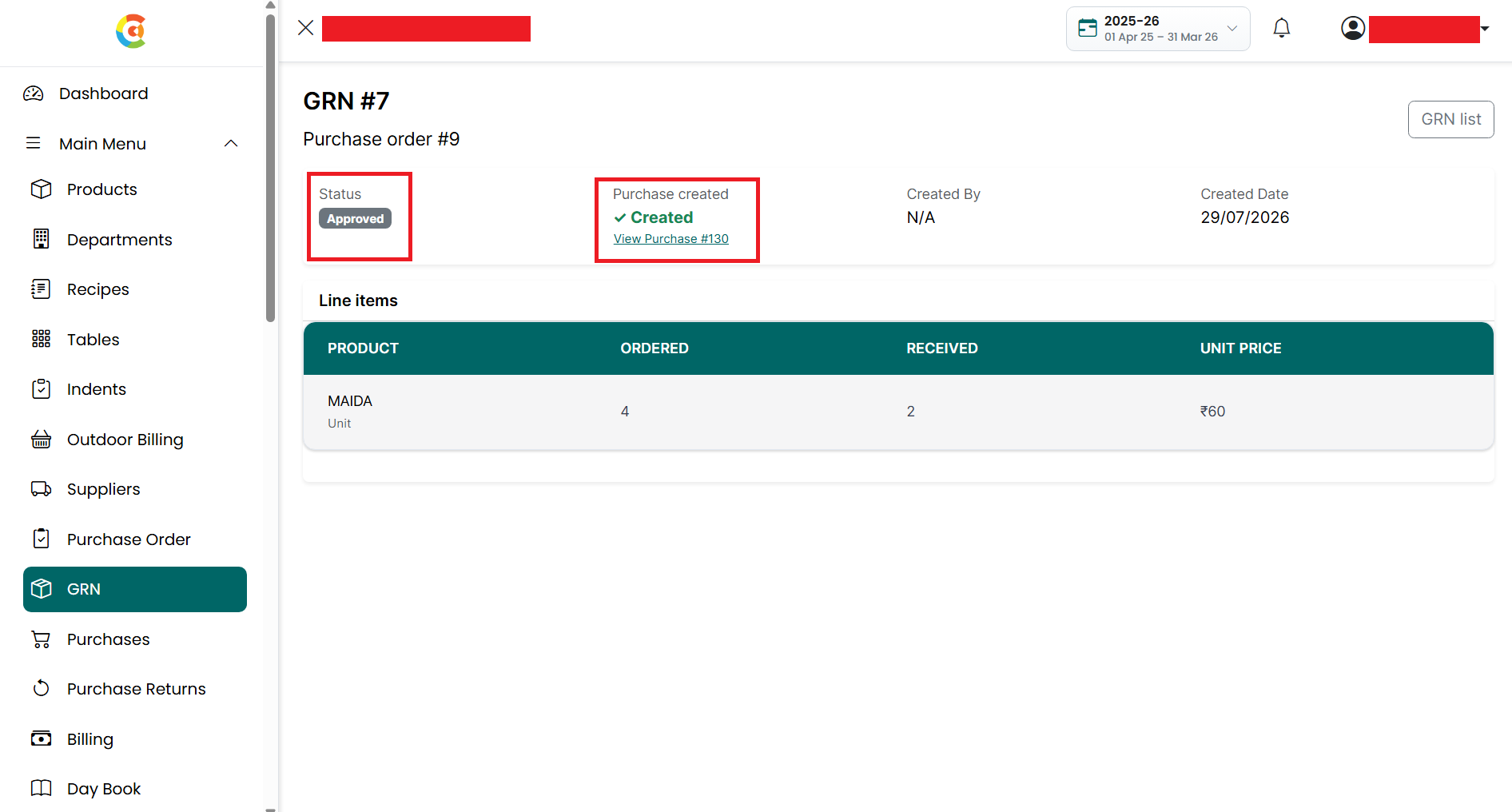
• A
View Purchase link is displayed, allowing you to open the Purchase created from
the GRN.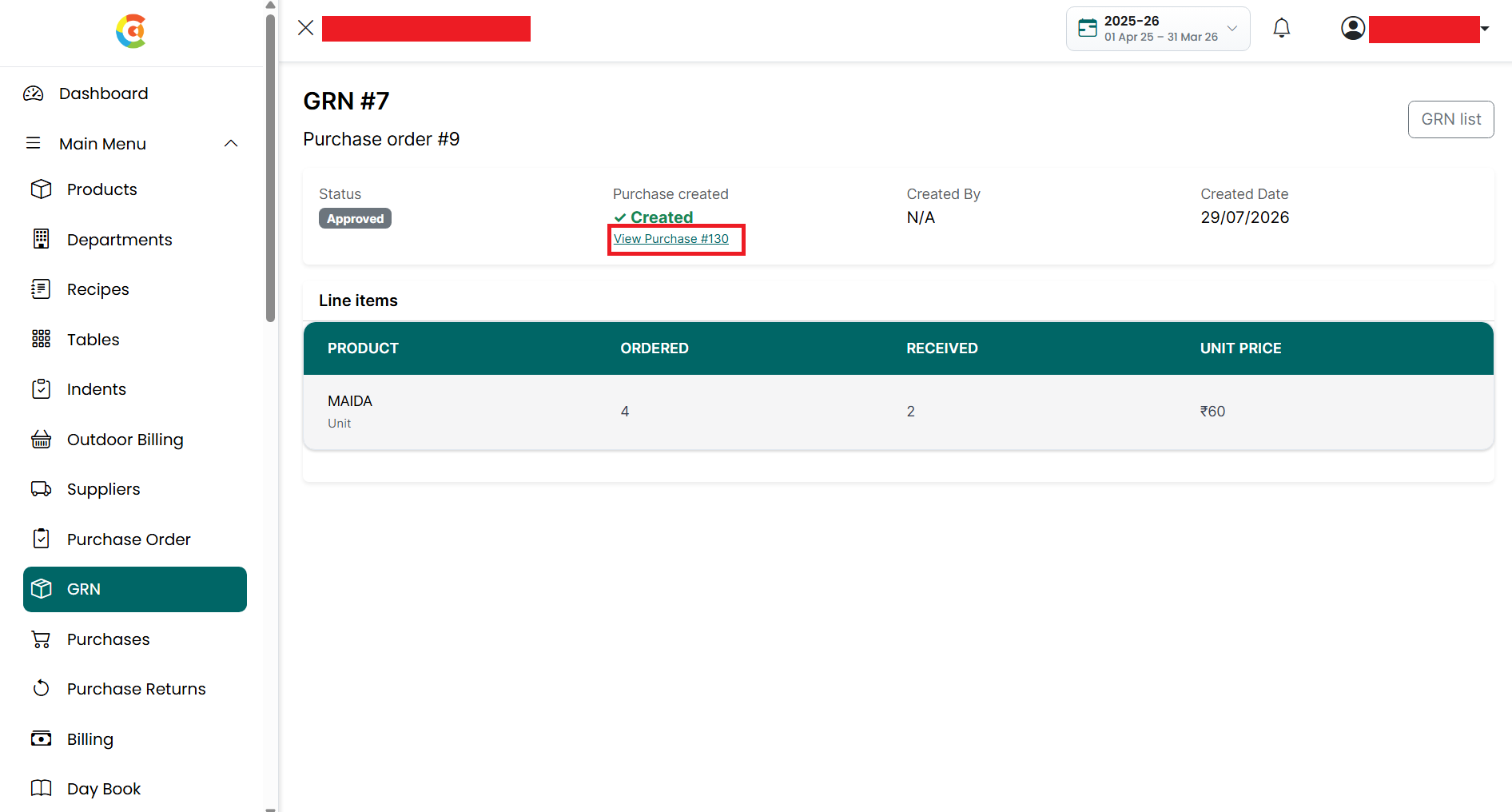
• The received quantities are added to the selected branch inventory.
• The GRN becomes read-only. The Edit Quantities, Save Changes, and Approve GRN buttons are no longer available.
Note: Verify the received quantities and unit prices carefully before approving the GRN. Once approved, the GRN cannot be edited, and the Purchase created from it can be accessed using the View Purchase link.
Approve GRN
A GRN must be approved after verifying that the received quantities and unit prices are correct. Once approved, the system updates the branch inventory and automatically creates a Purchase using the approved quantities.
To approve a GRN, follow the steps below.
- Go
to the Main Menu and click GRN.
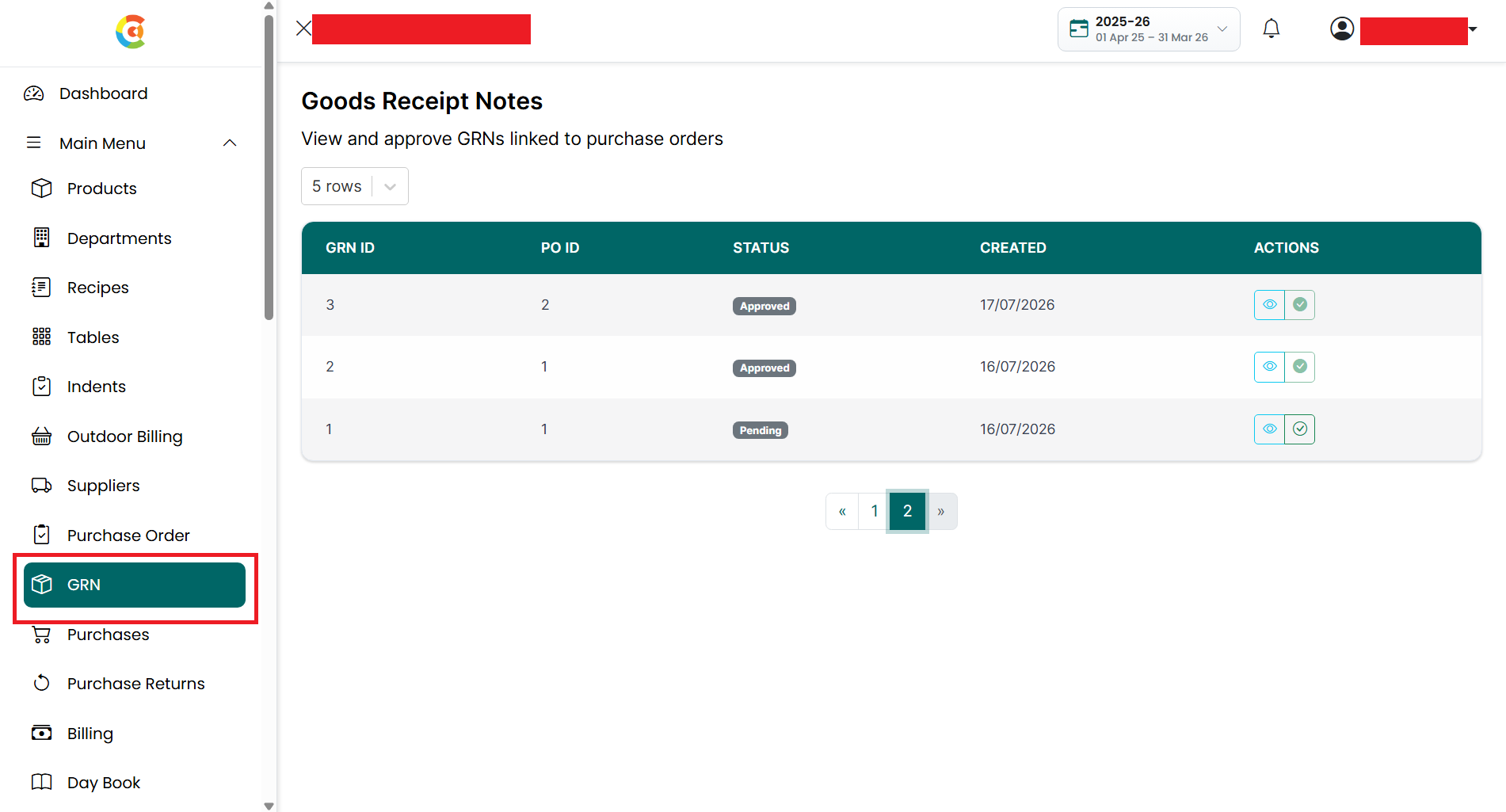
- The GRN Listing page is displayed.
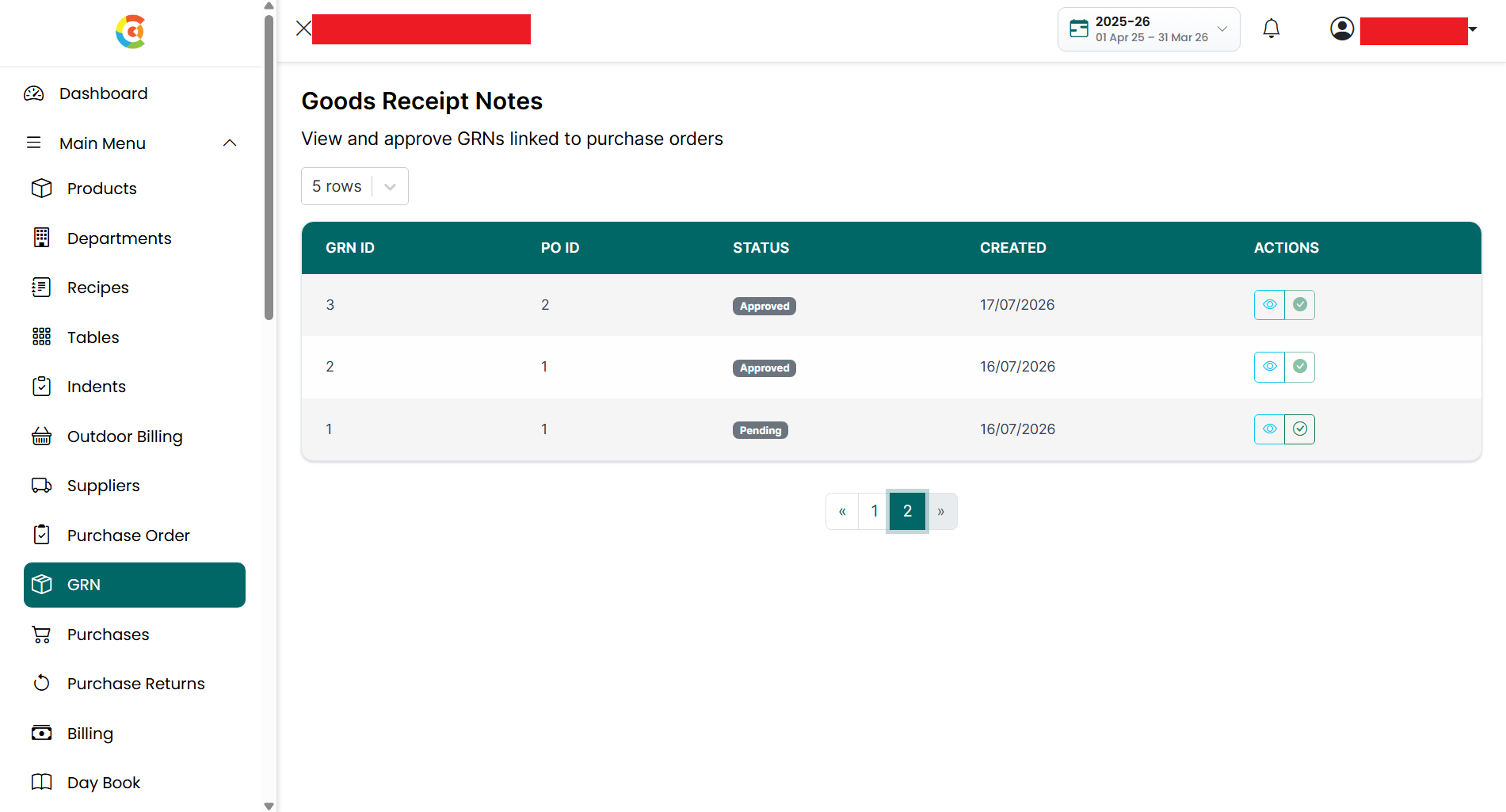
- Click the Approve icon for a Pending
GRN, or open the GRN using the View icon and click Approve GRN.
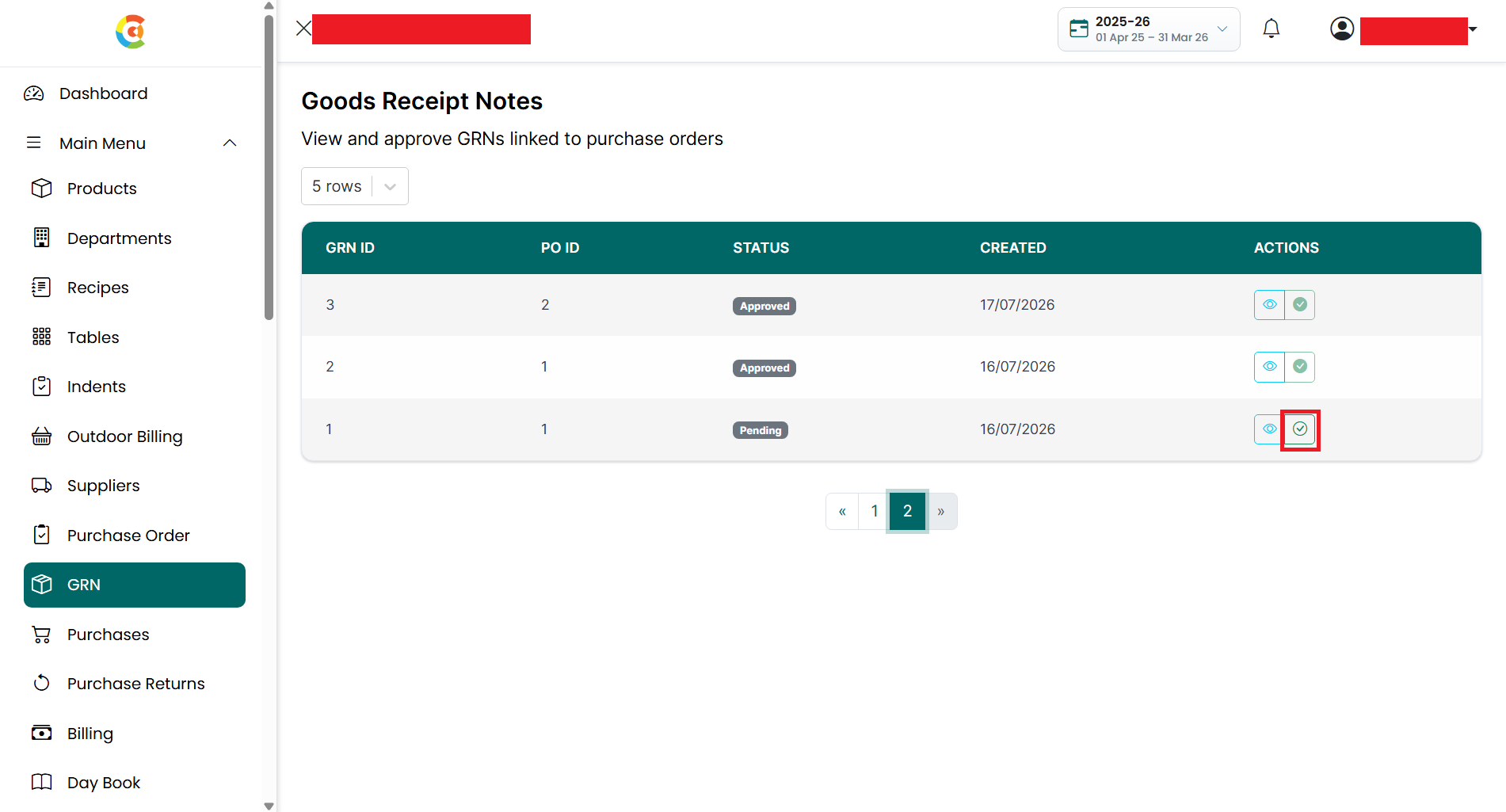
- A confirmation message is displayed.
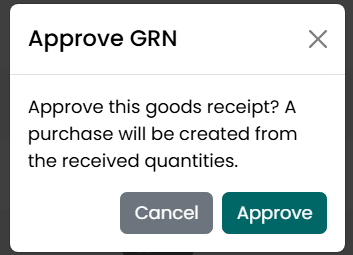
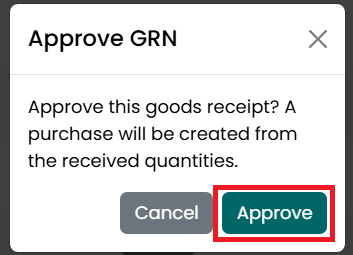
- Click Approve to confirm the
approval.
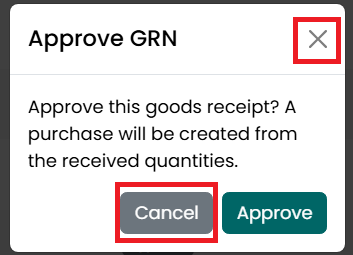
- Click Cancel to close the
confirmation window without approving the GRN.
- After the GRN is approved successfully:
• The GRN status changes from Pending to Approved.
• The received quantities are added to the selected branch inventory.
• A Purchase is automatically created using the approved quantities and unit prices.
• The GRN becomes read-only and can no longer be edited or approved again.
Note: Verify the received quantities and unit prices carefully before approving the GRN, as approved GRNs cannot be modified.