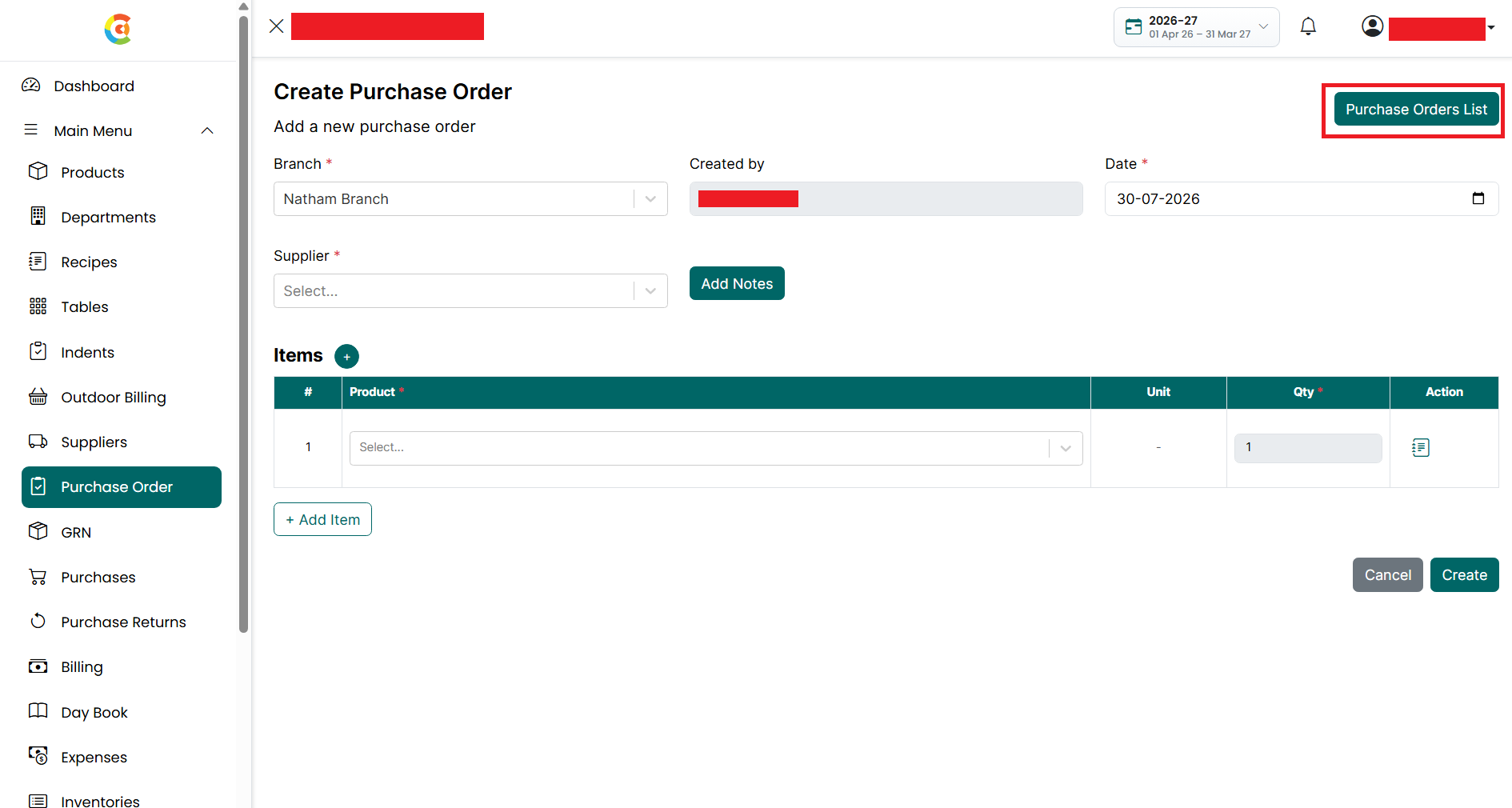
Create Purchase Order
The Purchase Order page allows you to create purchase orders for suppliers. Purchase orders are used to order Raw Materials from suppliers for a selected branch.
From this page, you can:
● Create a new purchase order.
● Add one or more products to the purchase order.
● Save the purchase order.
● View the list of all purchase orders.
Purchase orders created here can be converted into Goods Receipt Notes (GRNs) when the ordered products are received from the supplier, helping you maintain accurate inventory and purchase records.
To create a new purchase order, follow the steps below.
- Go
to the Main Menu and click Purchase Order.
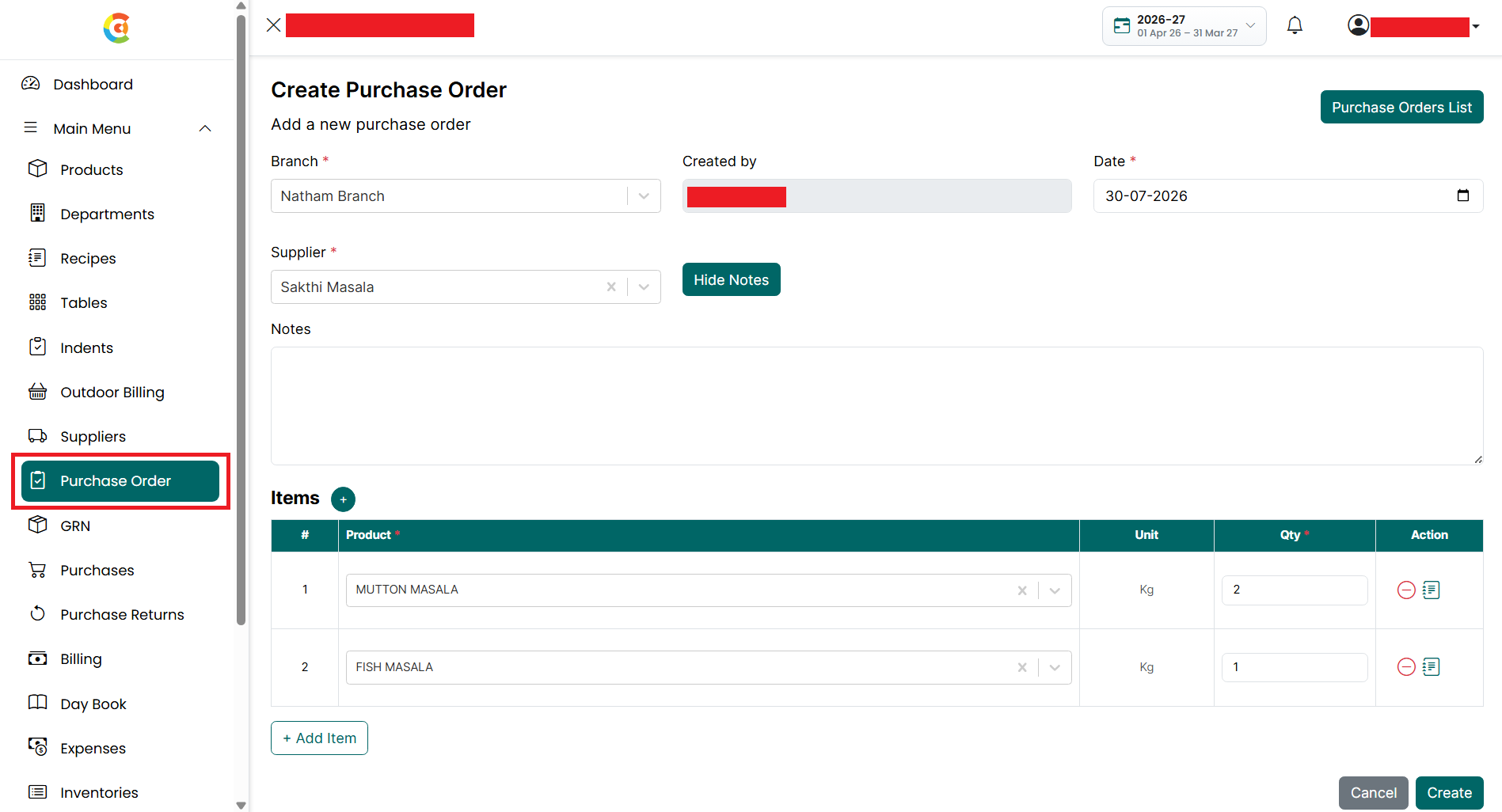
- The Create Purchase Order page is
displayed.
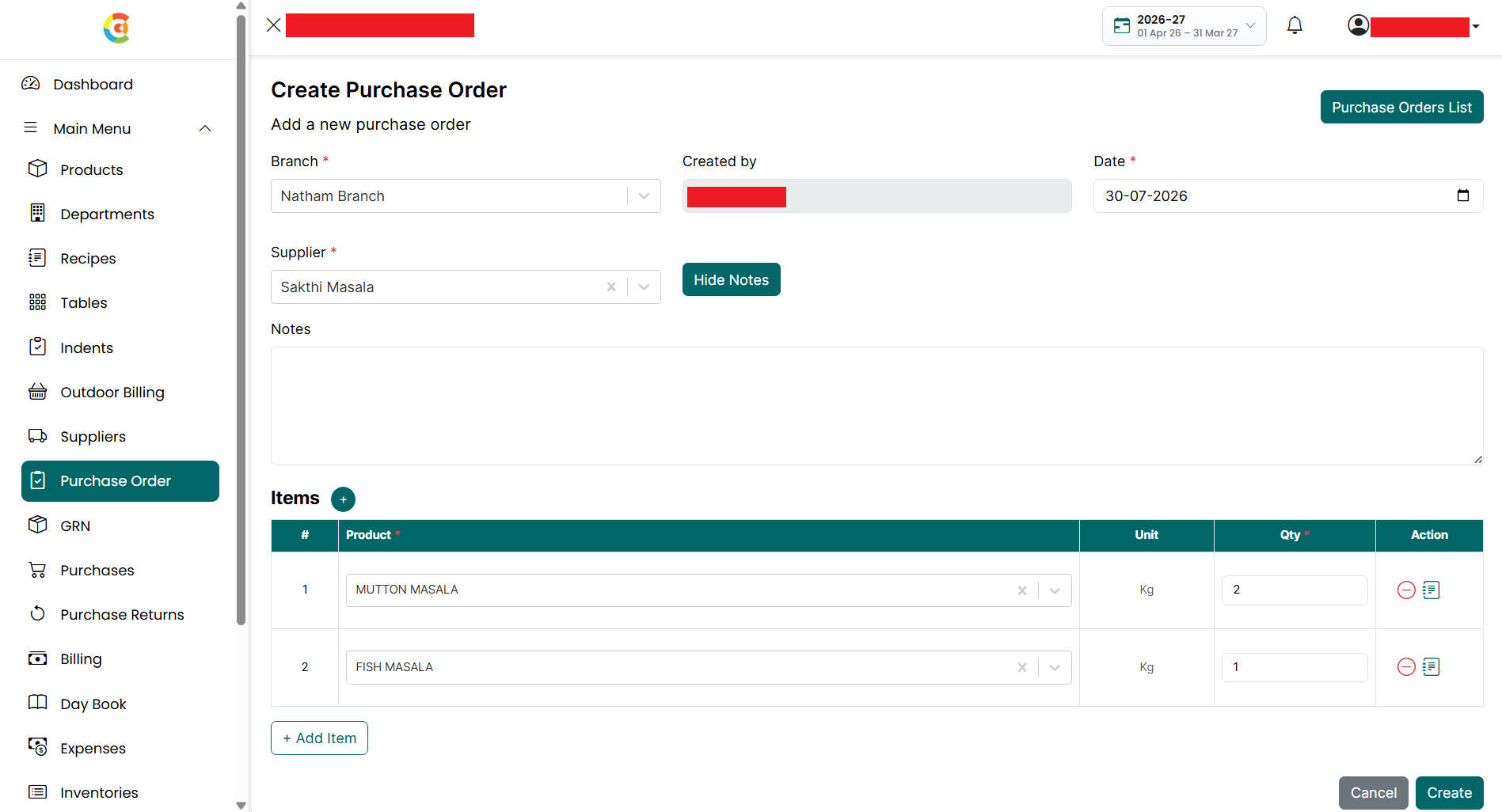
- Enter or select the following details:
- Branch – Select the branch for
which the purchase order is being created. This field is required.
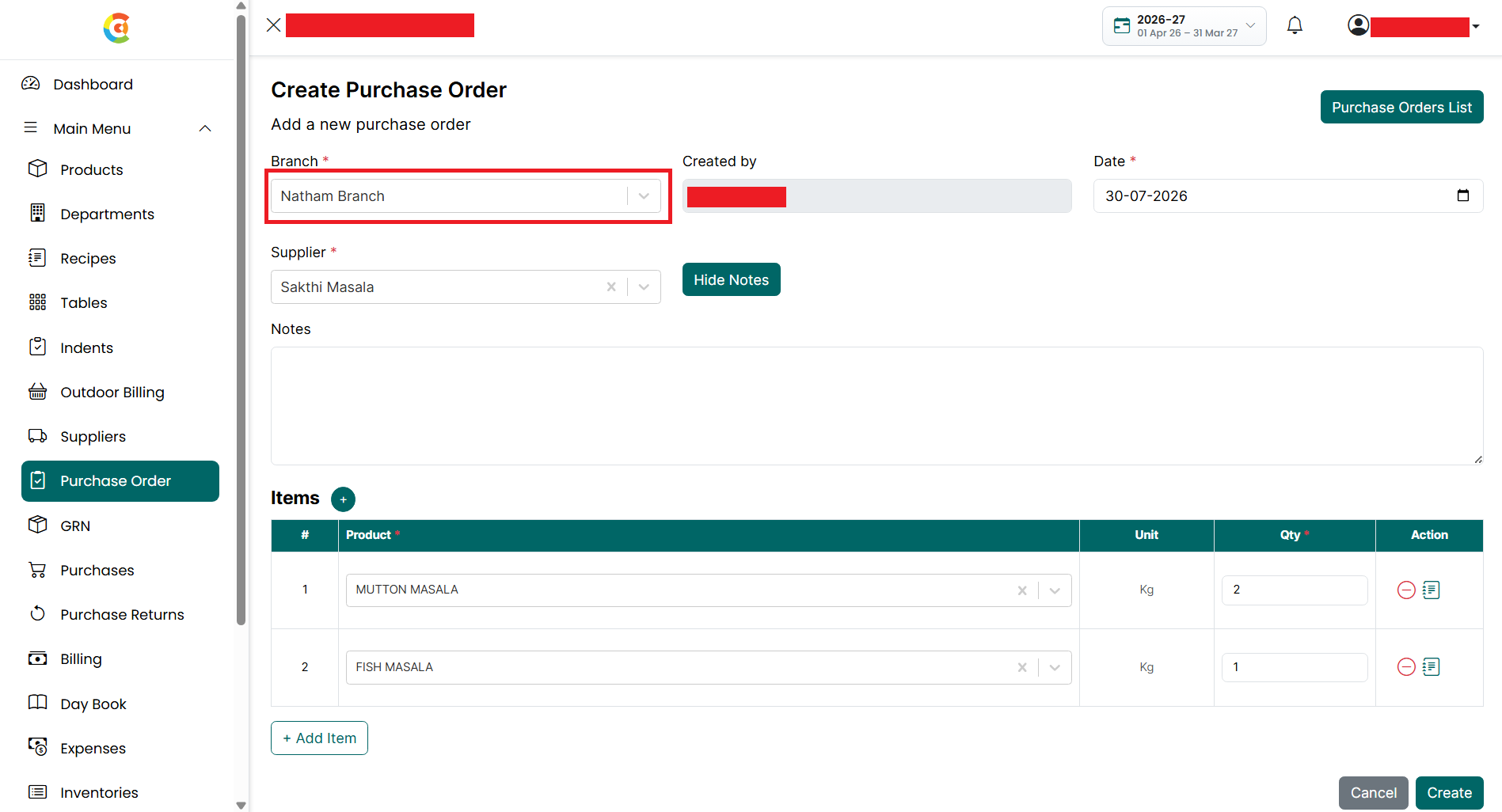
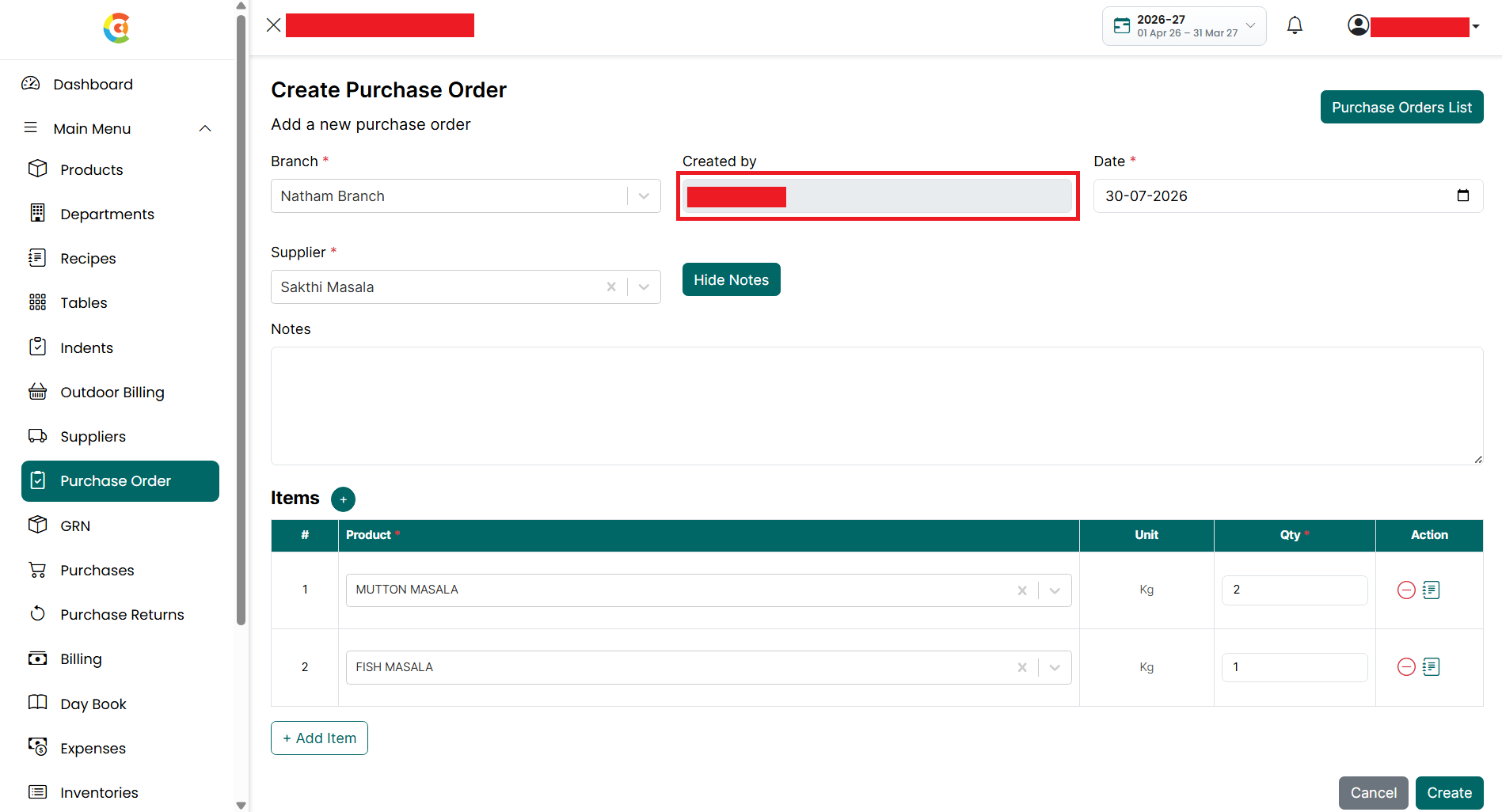
- Created By – Displays the name
of the user creating the purchase order. This field is filled
automatically and cannot be changed.
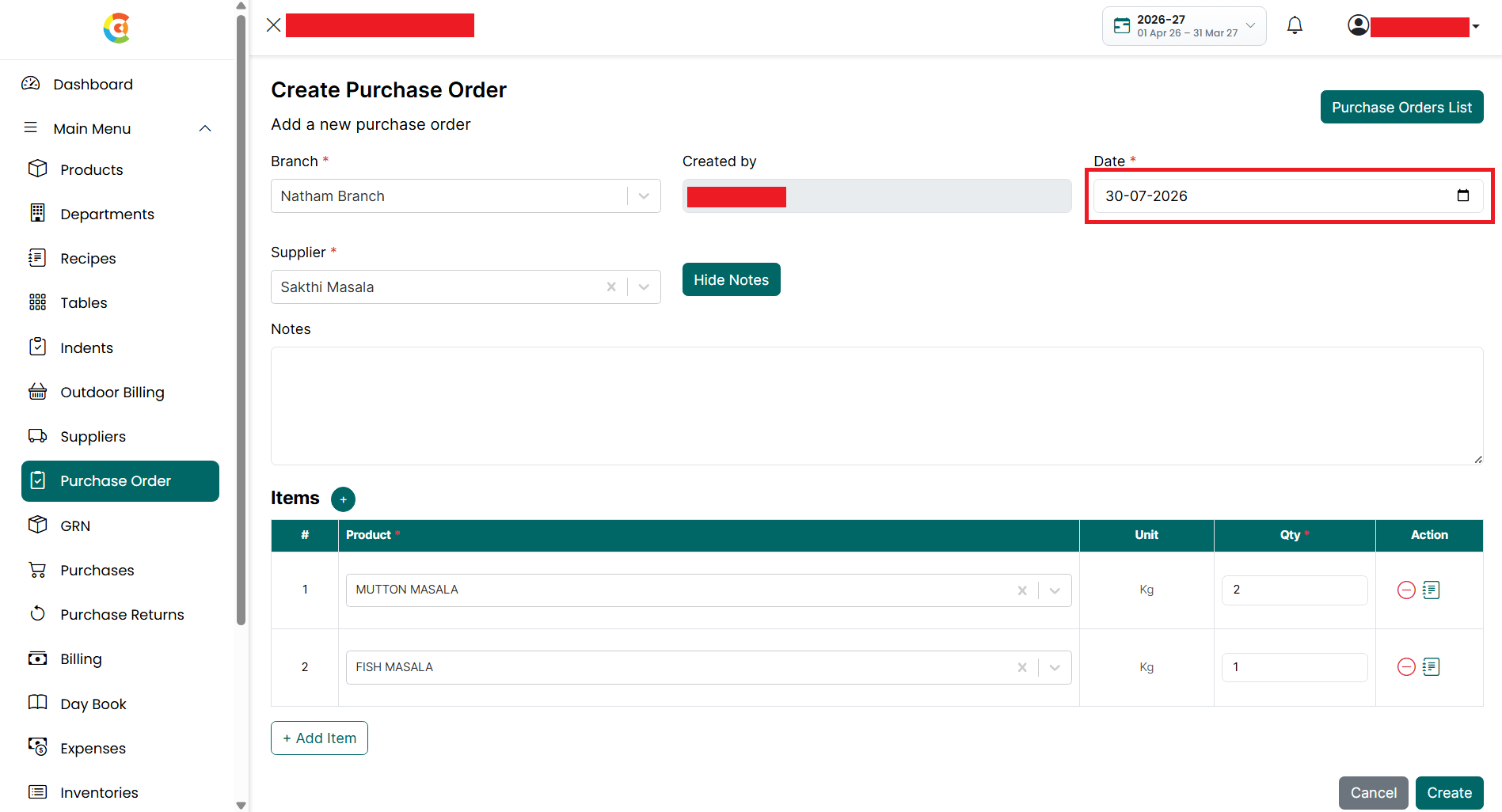
- Date – Select the purchase
order date. By default, the current date is displayed. This field is
required.
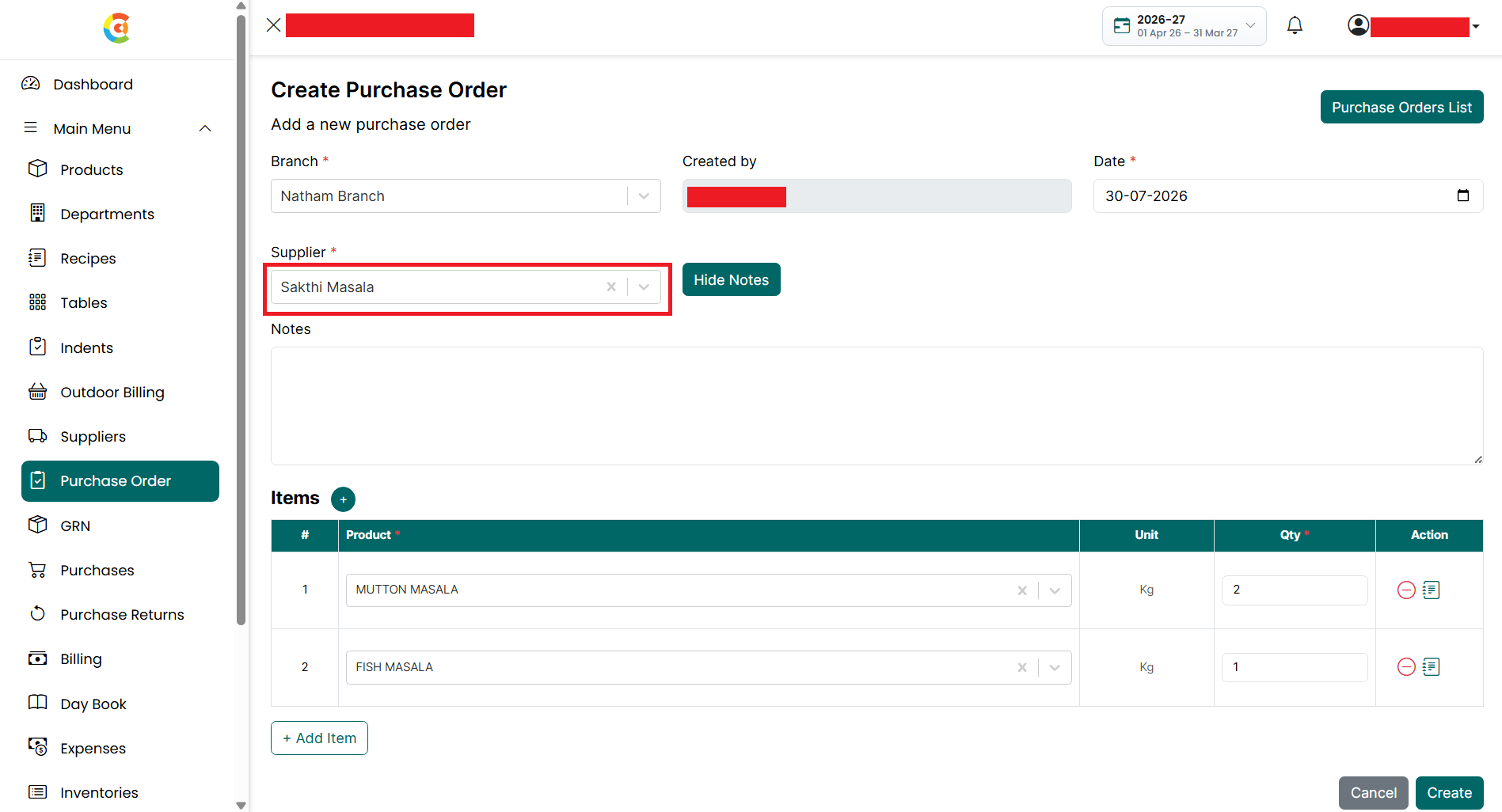
- Supplier – Select the supplier
from whom the products will be purchased. This field is required.
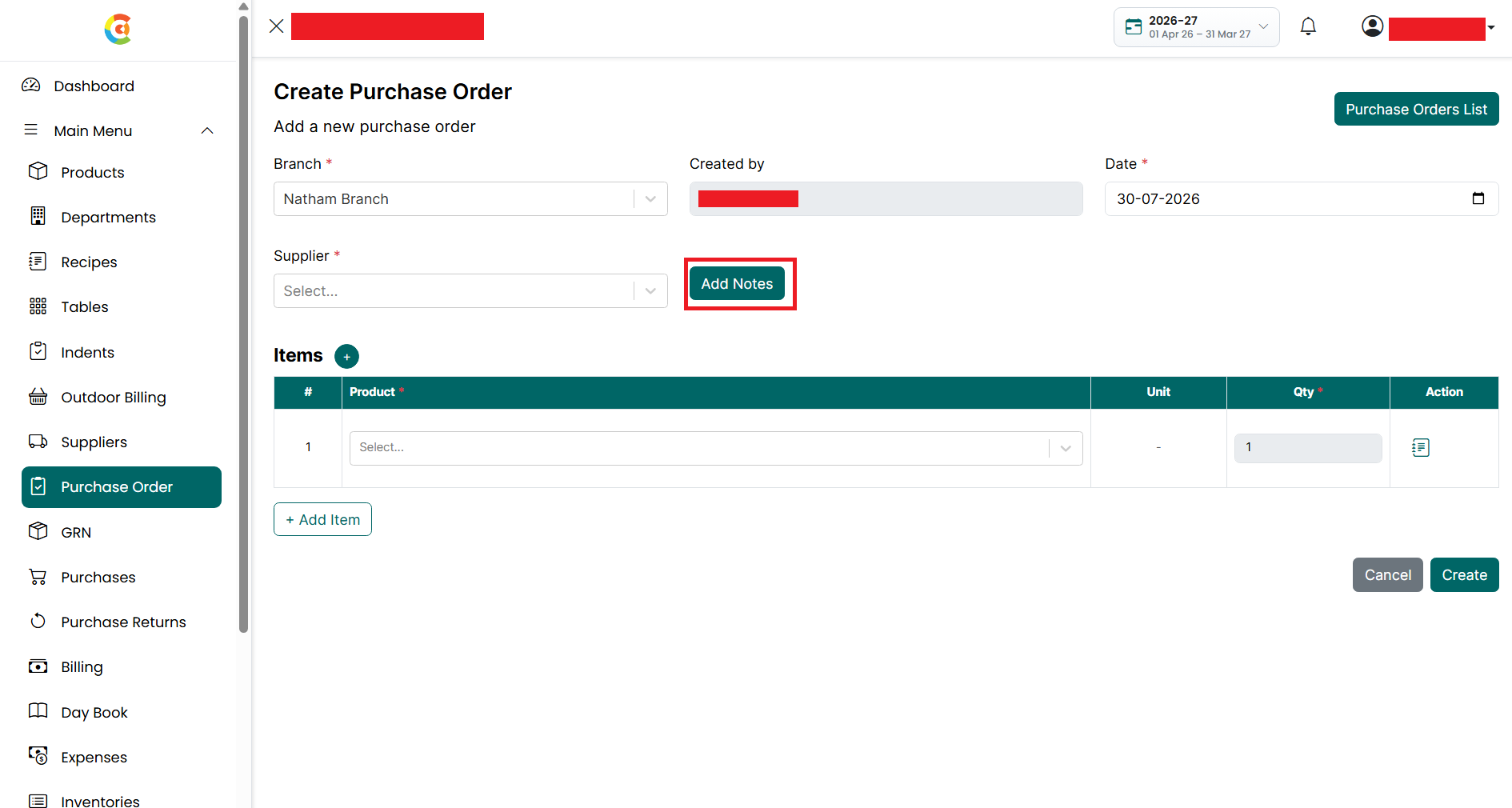
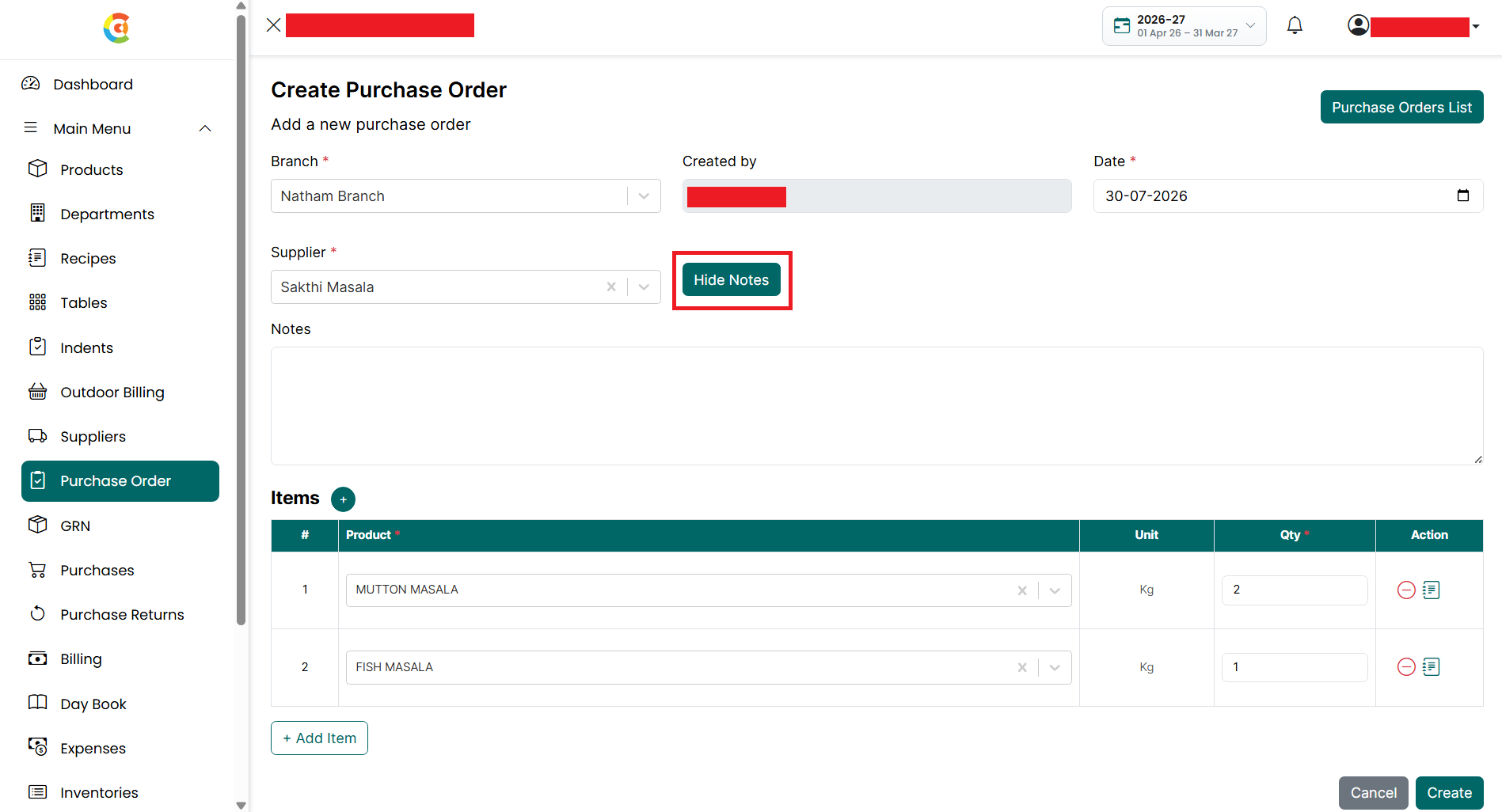
- Click Add Notes if you want to
enter additional information about the purchase order. This field is
optional.
- After the Notes section is
expanded, enter the required notes. Click Hide Notes to collapse the
Notes section without removing the entered information.
g. Items
■ Under the Items section, add the products required for the purchase order.
■ +
(Add Product) – Click the + icon next to the Items heading to create a new
product without leaving the Purchase Order page. After the product is created
successfully, it becomes available in the Product dropdown and can be selected
while creating the purchase order.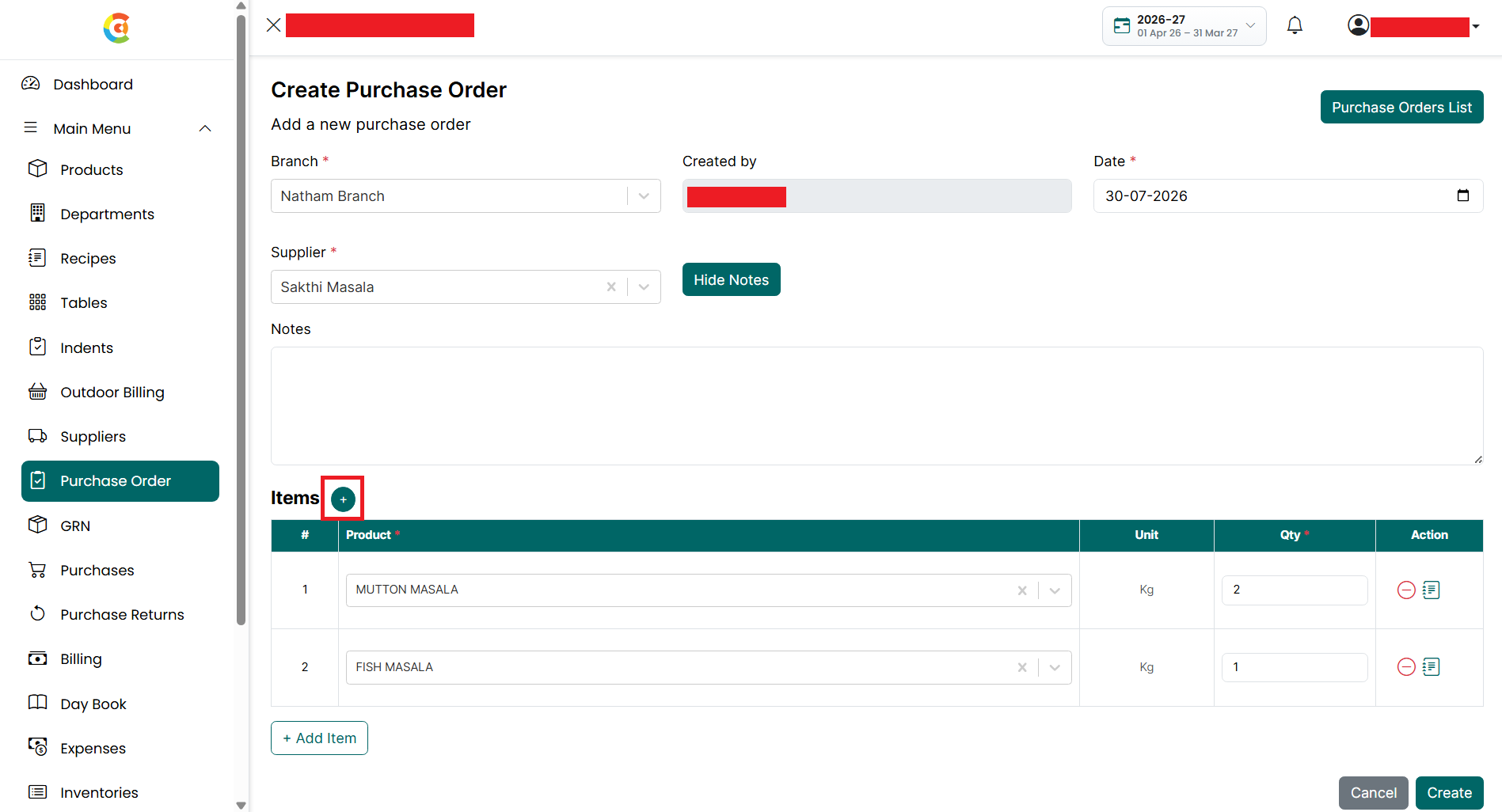
■ For each item, enter the following details:
● Product
– Select the product to be purchased. This field is required.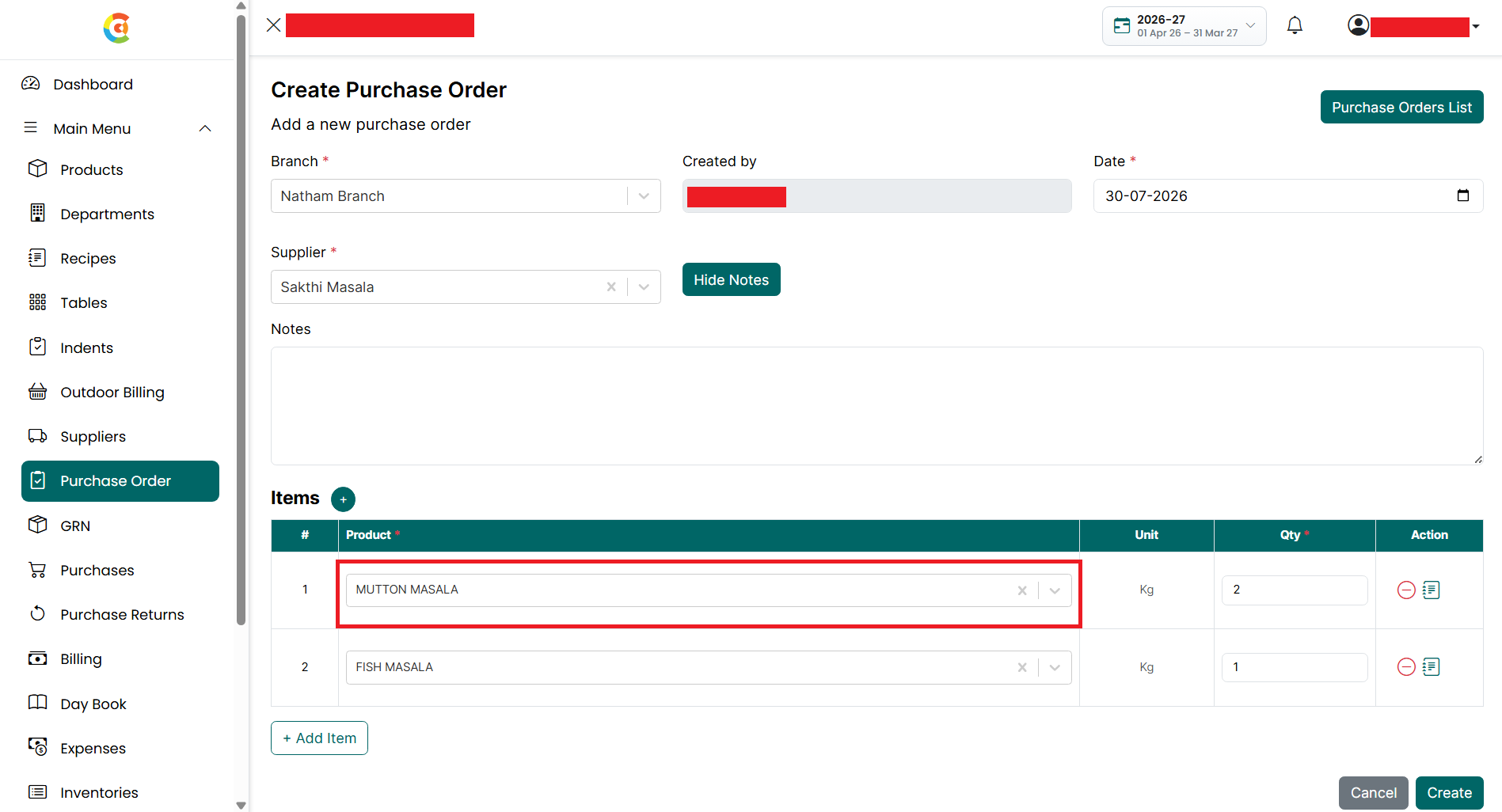
● Unit
– Displays the unit of measurement for the selected product. This field is
filled automatically.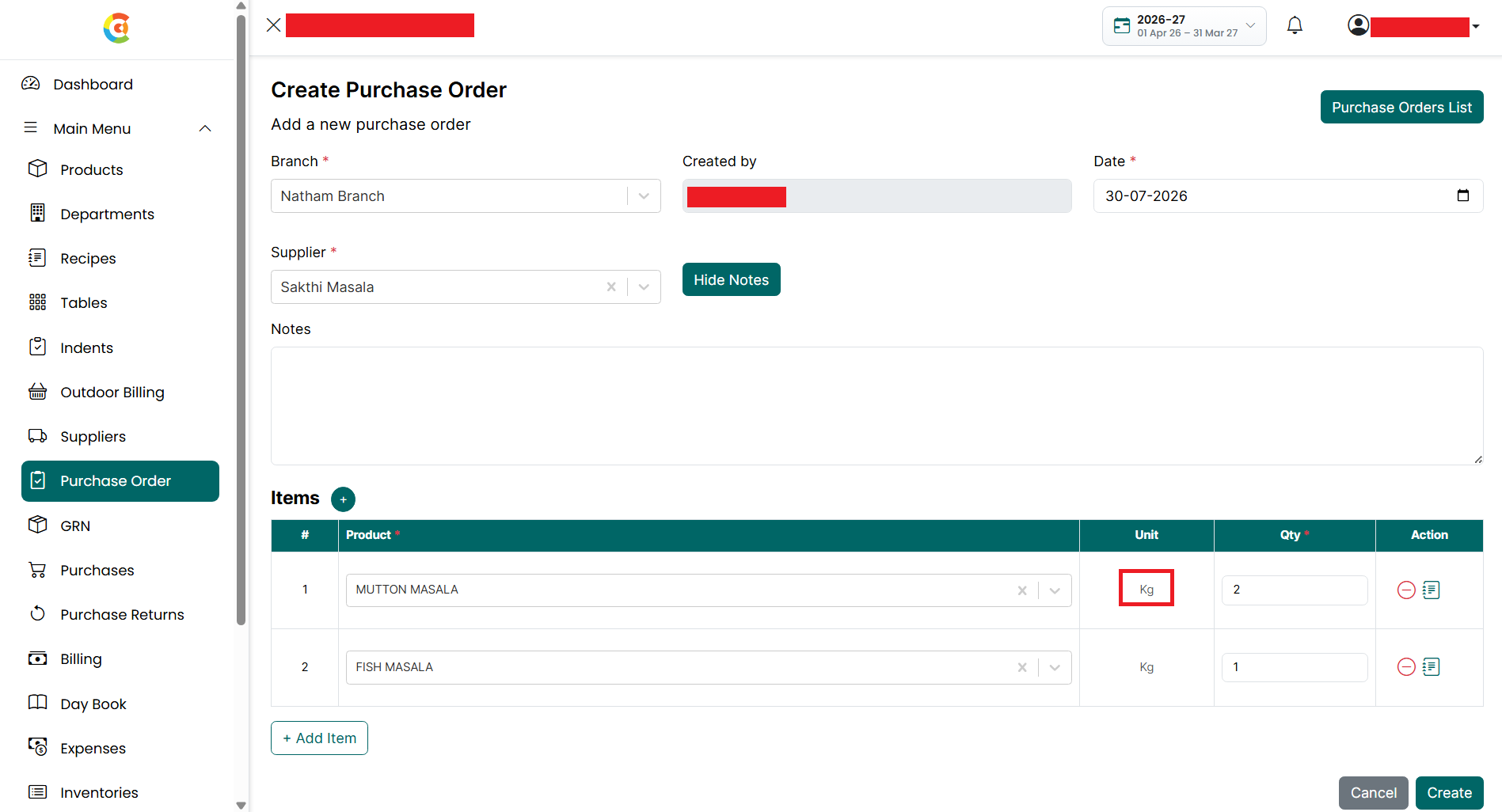
● Quantity
– Enter the required quantity. This field is required.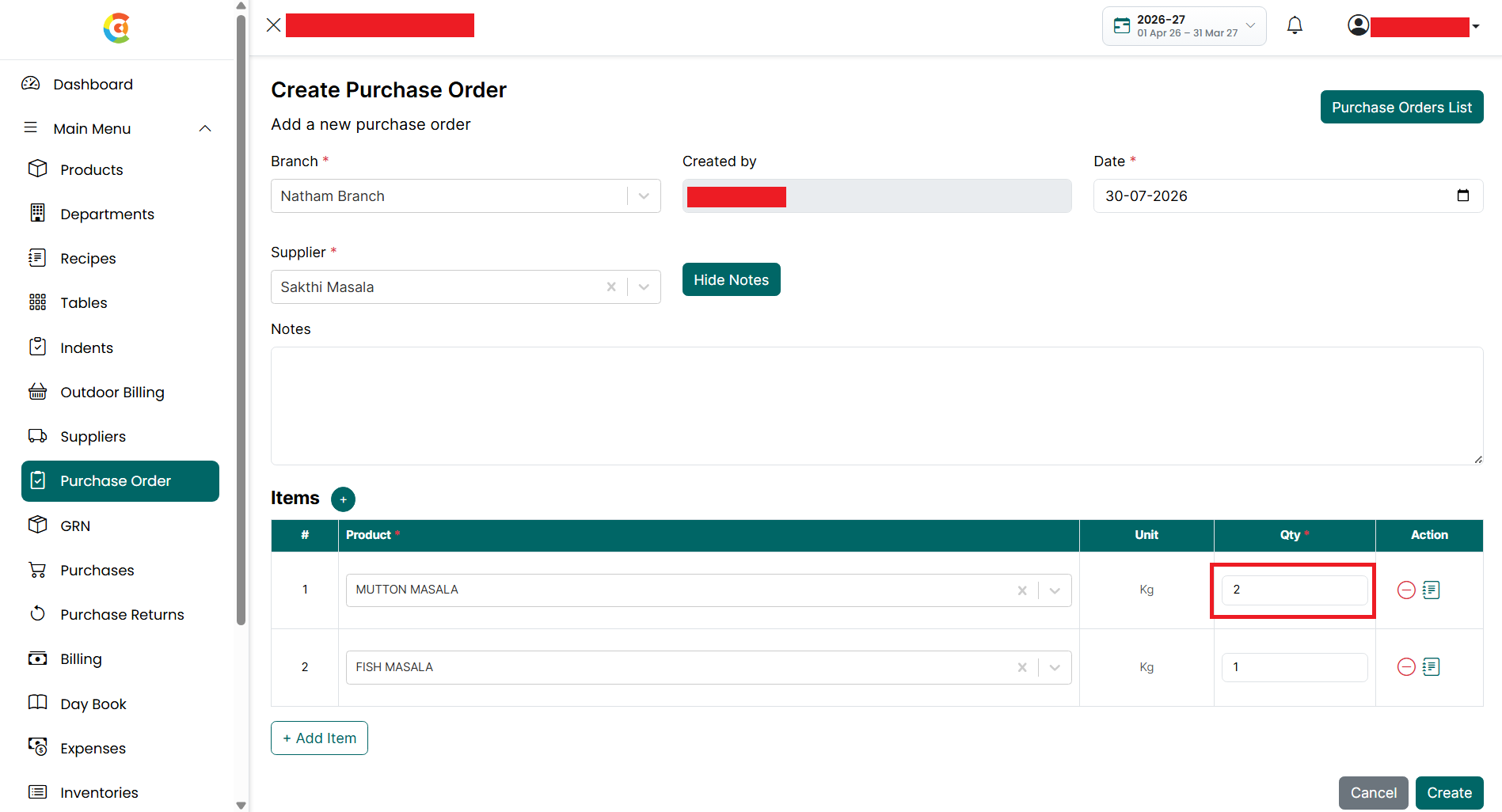
● Notes
– Click the Notes icon to add remarks for the selected product, if required.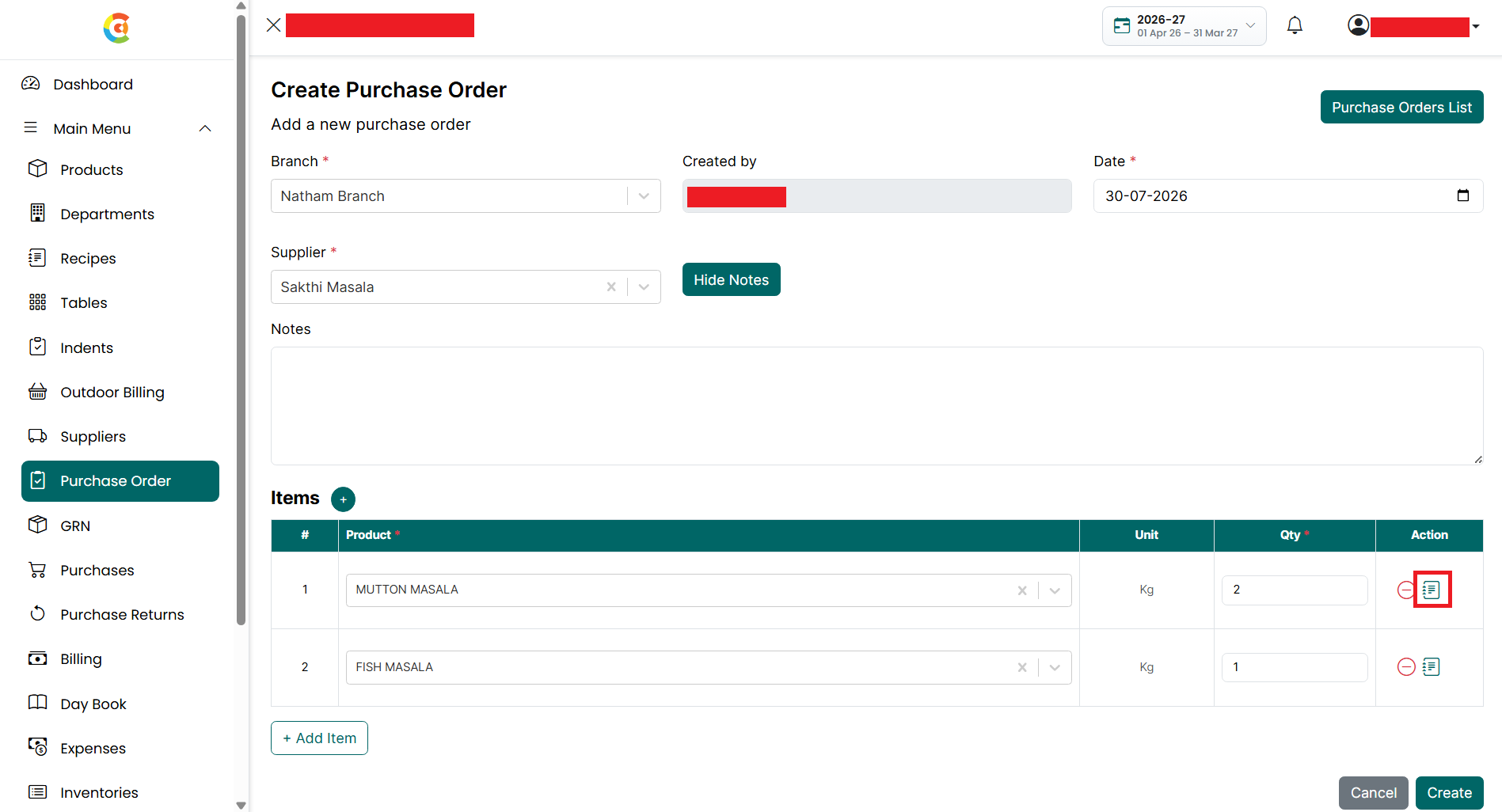
● Delete
Item – Click the Delete icon to remove the selected product from the purchase
order.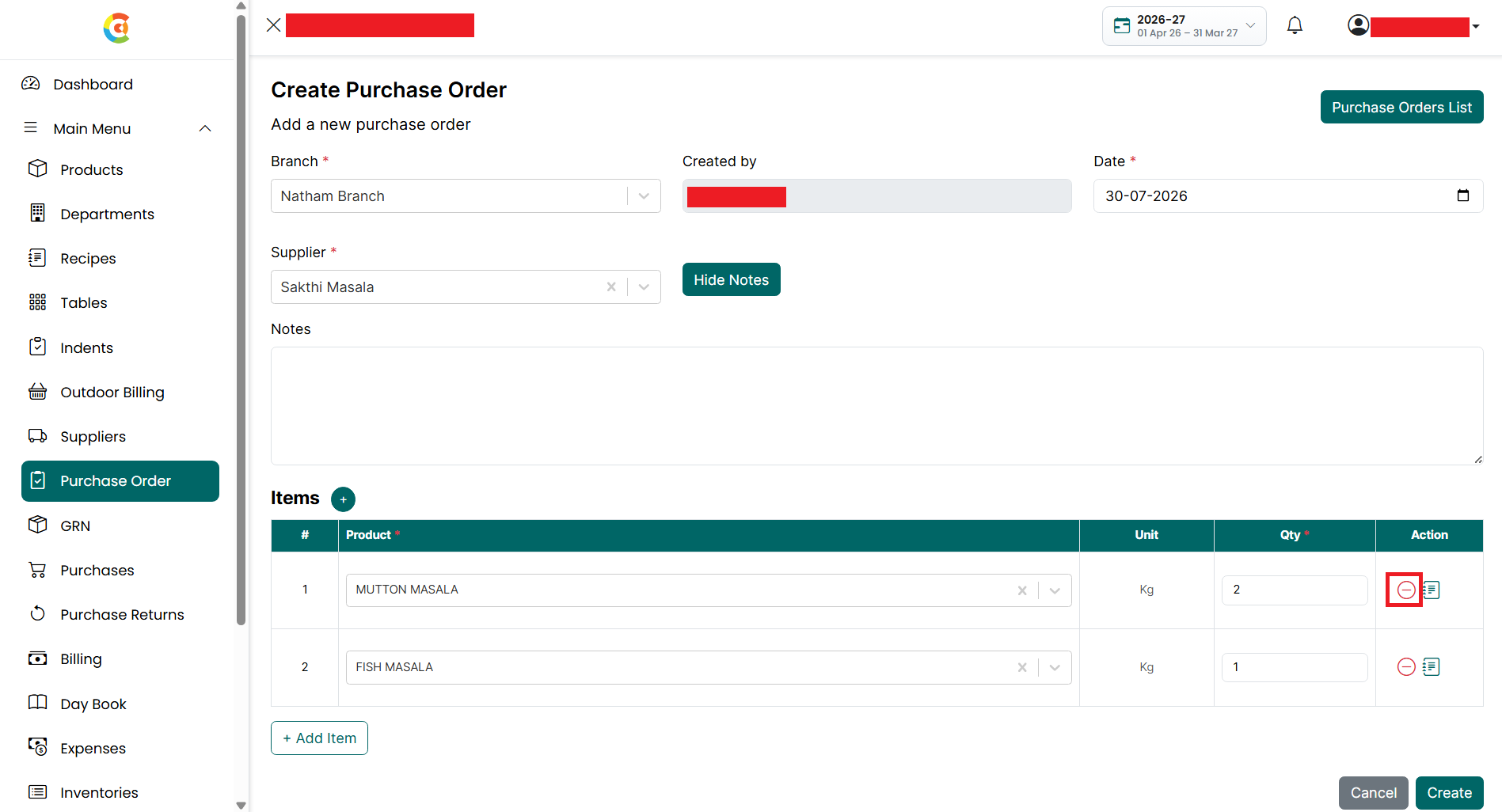
● Click
+ Add Item to add another product to the purchase order.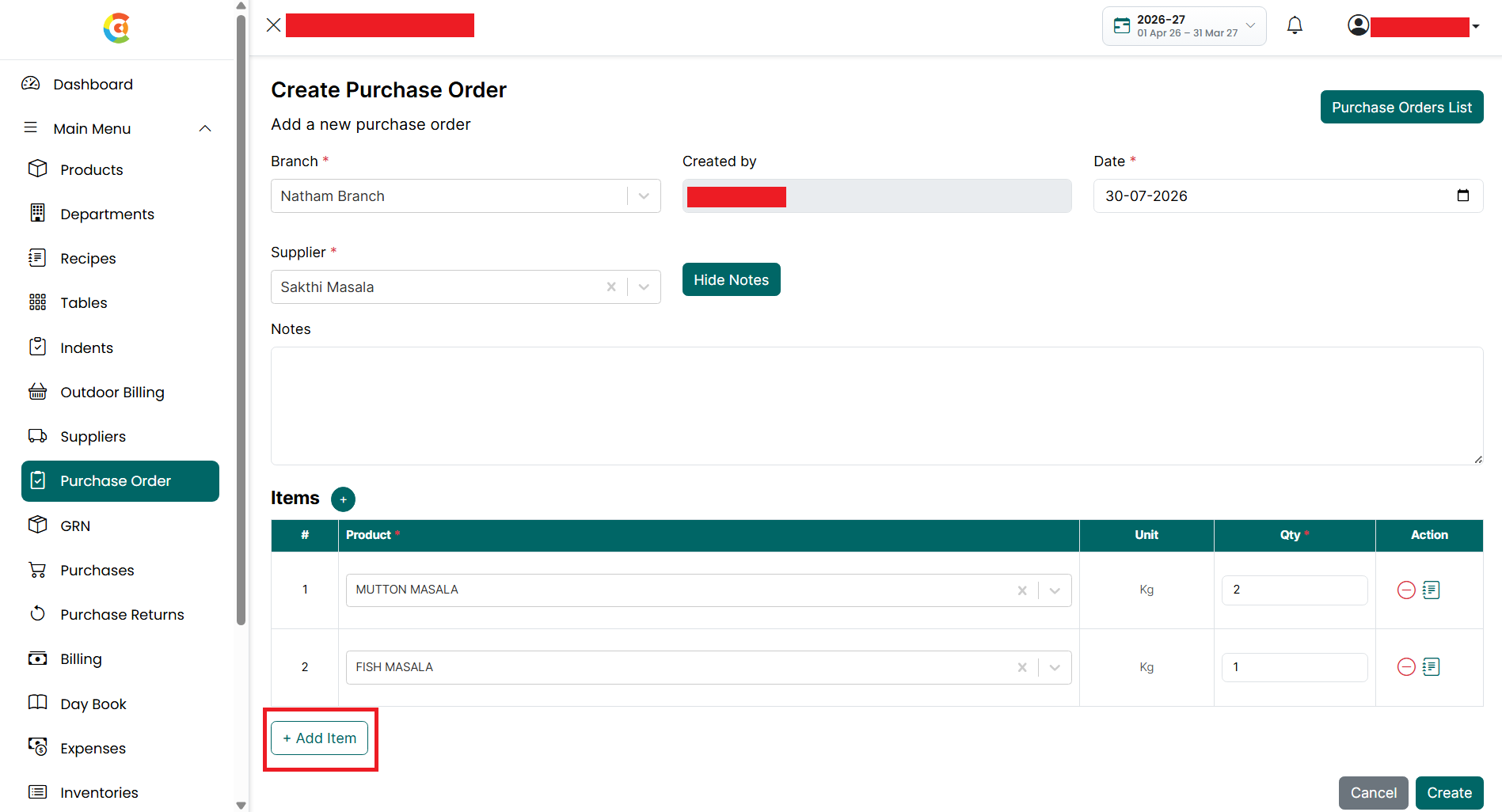
- Repeat the above steps until all the required products have been added.
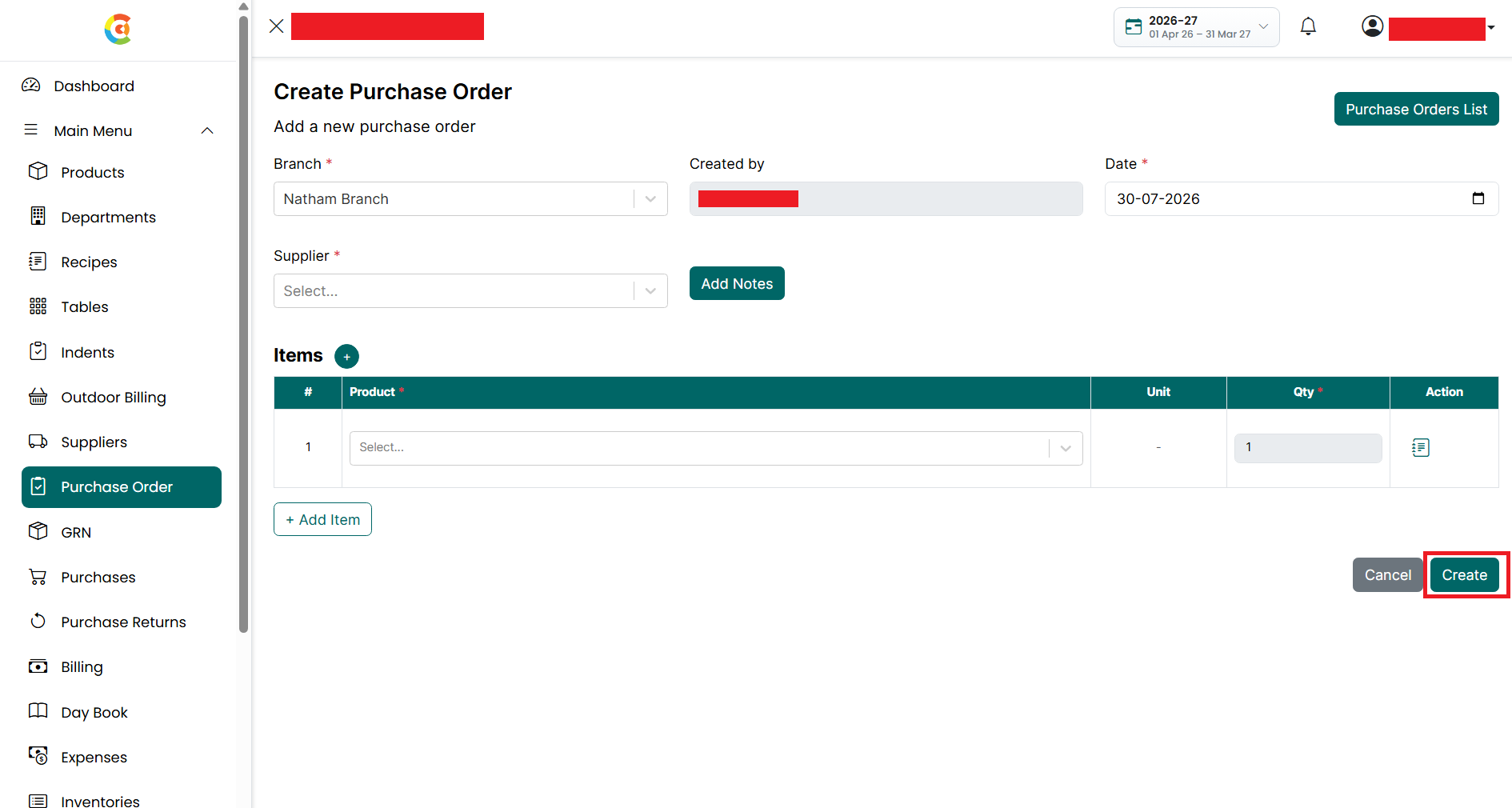
- Click Create to save the purchase
order.
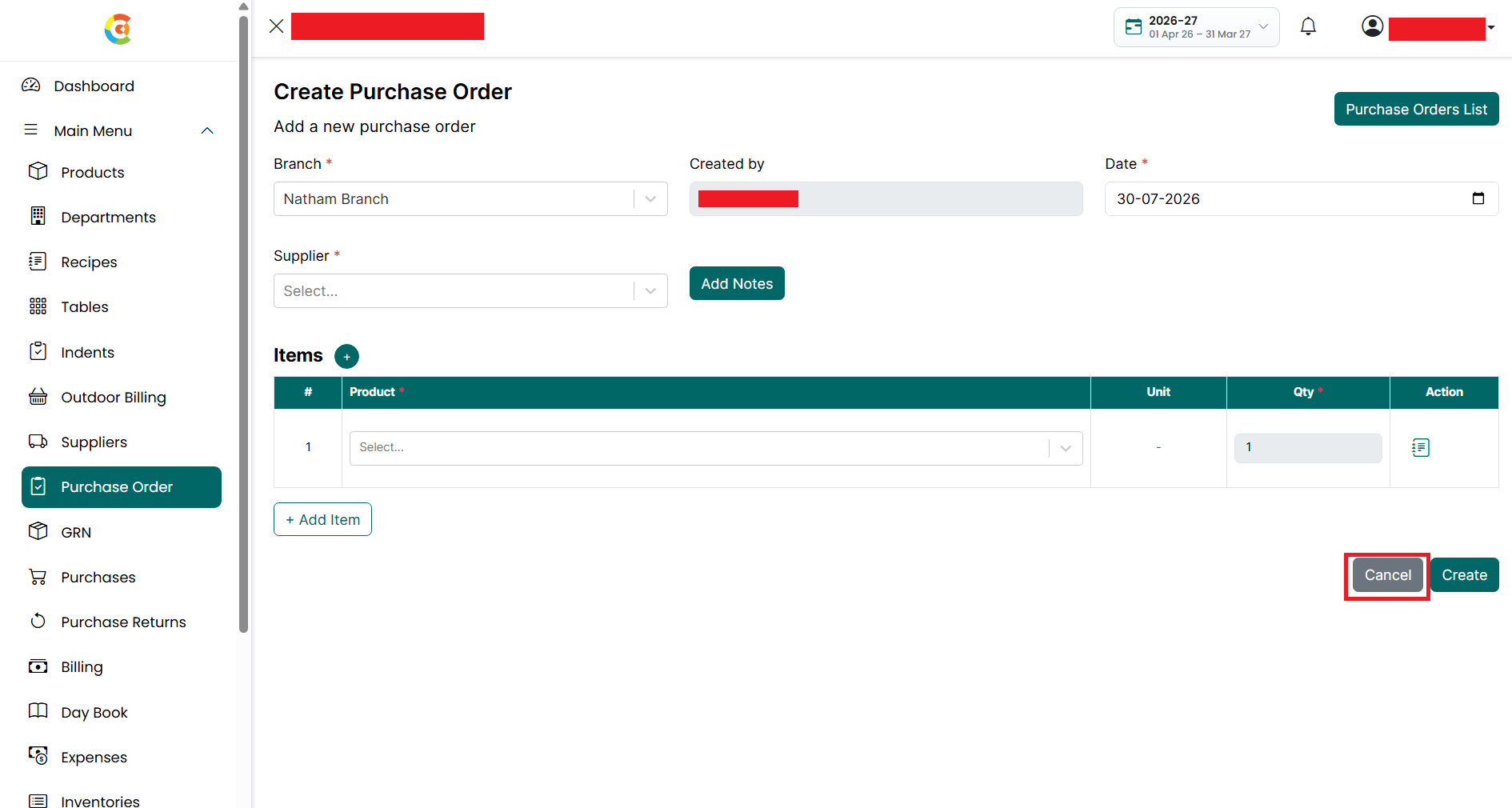
- Click Cancel to clear the details
without saving.
- After the purchase order is created successfully, a confirmation message is displayed.
- Click
Purchase Orders List to view all purchase orders created in the
application.