Inventory Management
Inventory Listing Page
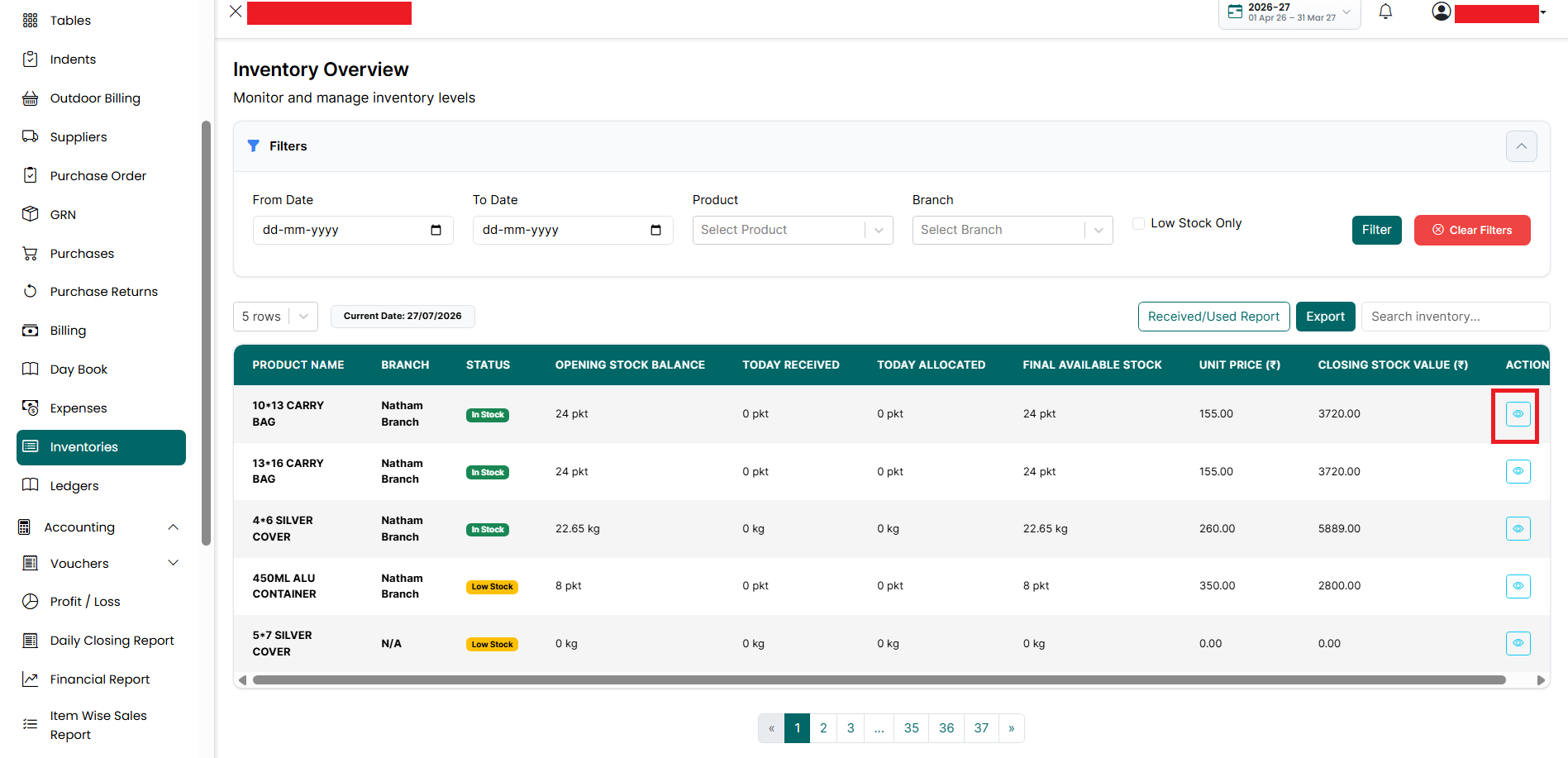
The Inventory Listing page shows the current stock available for all products across branches, along with their stock status, daily stock movement, unit price, and closing stock value.
From this page, you can:
● View the current stock available for each product.
● Check stock separately for each branch.
● Identify products that are in stock or running low.
● Track the quantity received and used during the selected period.
● View the opening stock and final available stock.
● Download the Received/Used Report.
● Export inventory reports.
● View product batch details and complete batch history.
● Search and filter inventory records.
The inventory balance is updated based on stock received and stock used in the application.
The main stock values are calculated as follows:
● Opening Stock Balance – The quantity available at the beginning of the selected day.
● Today Received – The quantity received through approved GRNs, purchases, opening stock, or branch transfers.
● Today Allocated – The quantity used or issued through sales, recipes, indents, stock transfers, or other inventory transactions.
● Final Available Stock – The remaining quantity after adding received stock and deducting allocated stock.
● Closing Stock Value – The total value of the remaining stock based on the unit price.
The stock status is displayed as:
● In Stock – The product has sufficient stock available.
● Low Stock – The available quantity has reached or fallen below the configured low stock level.
● Out of Stock – No stock is currently available.
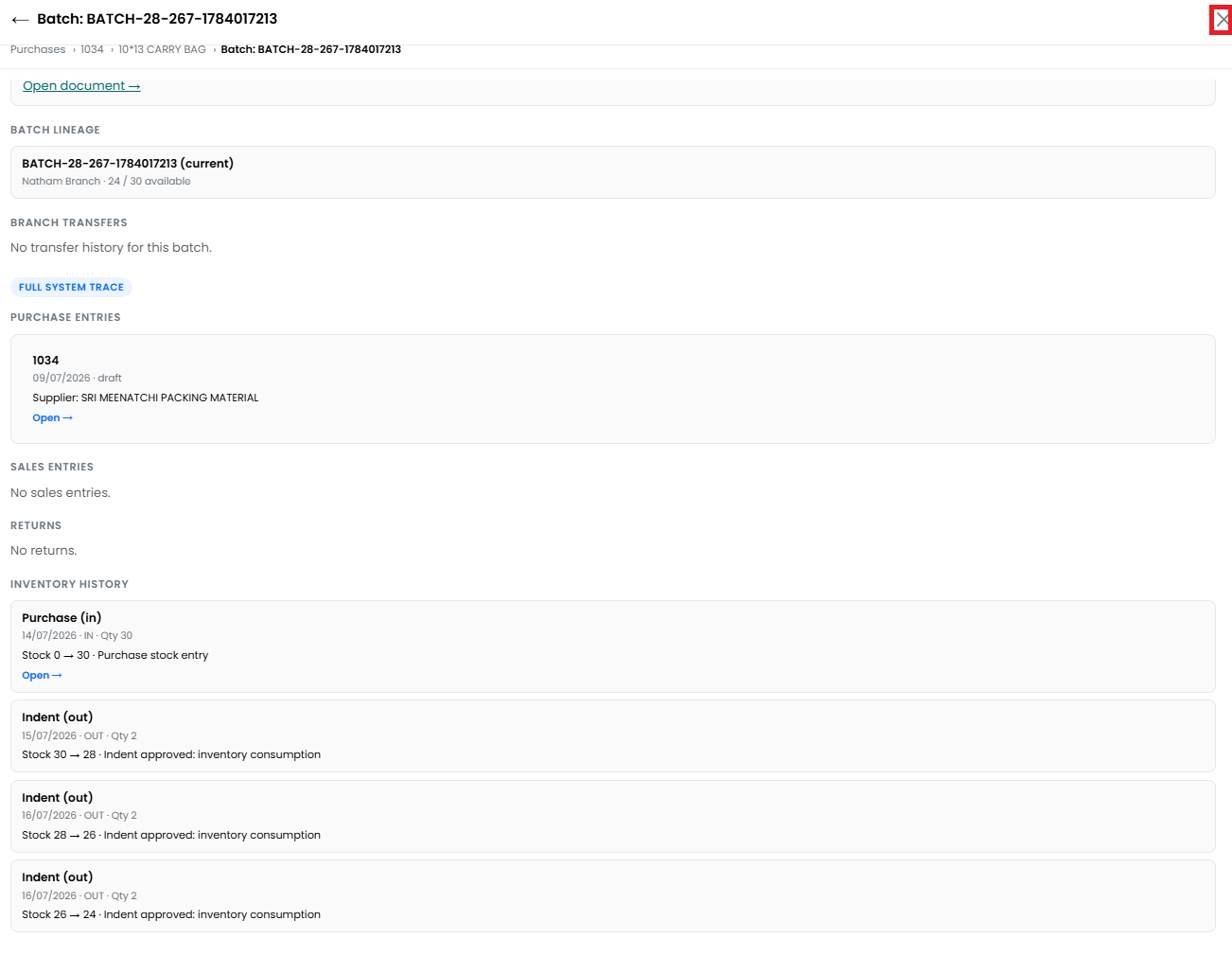
The View option displays the batches available for the selected product. Clicking a Batch Number opens the Batch Traceability details, where you can review the batch origin, original quantity, available quantity, related purchases, branch transfers, sales, returns, and other linked transactions.
Note: Inventory quantities and values are updated automatically when related transactions are completed. This helps maintain accurate branch-wise stock balances and provides a clear history of how each batch was received, transferred, used, or sold.
To open the Inventory Listing page, follow the steps below.
- Go
to the Main Menu. Click Inventories. The Inventory Listing page is displayed.
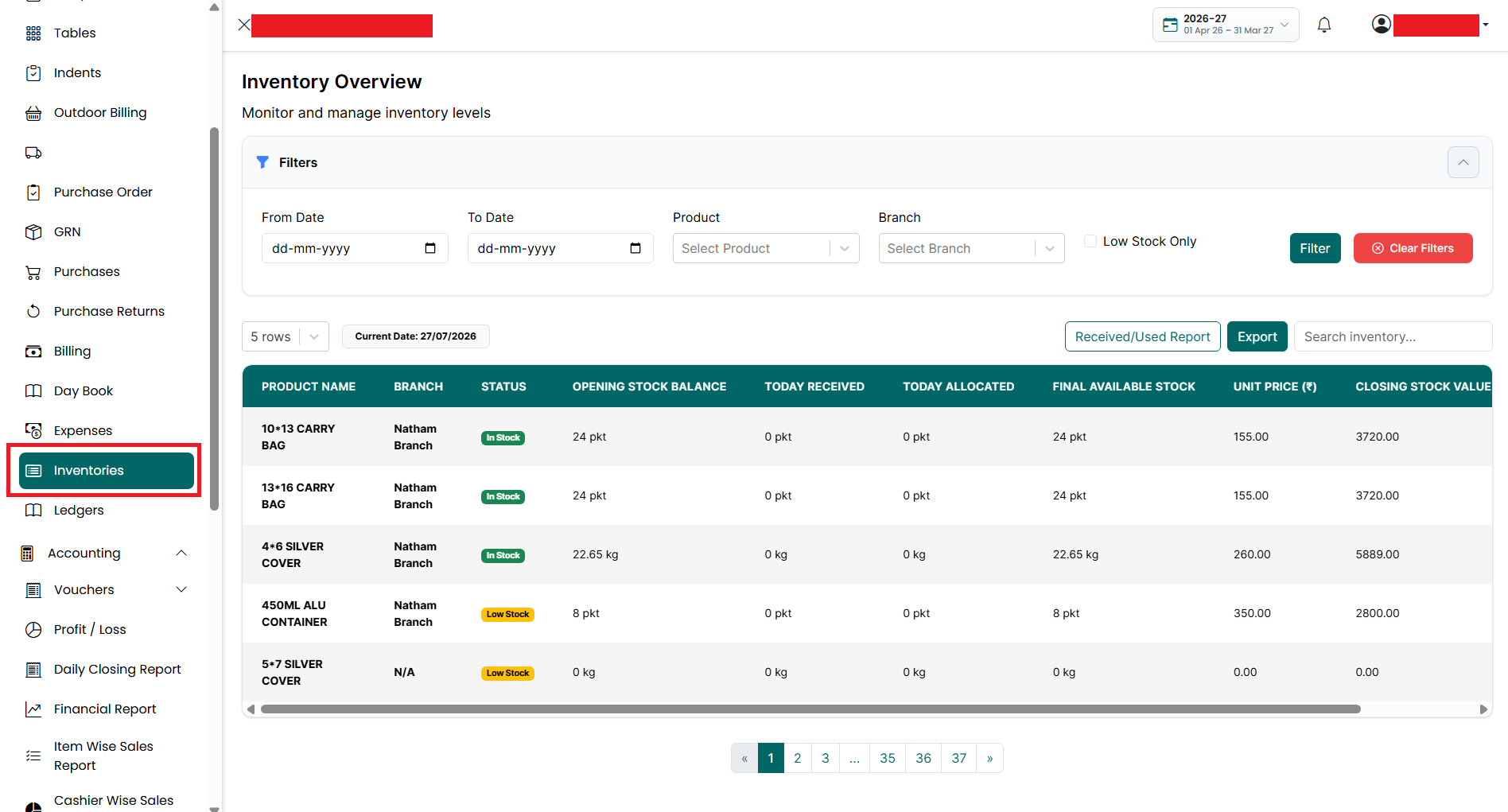
The page includes the following sections:
- Filters – Filter the inventory list using one or more of the following options:
• From Date – Select the starting date for the inventory report.
• To Date – Select the ending date for the inventory report.
• Product – Select a specific product.
• Branch – Select a specific branch.
• Low Stock Only – Enable this option to display only products that have reached or fallen below their low stock level.
• Filter – Click to apply the selected filters.
• Clear
Filters – Click to remove all applied filters and display the complete
inventory list.
- Rows Per Page – Select how many
inventory records you want to display on a single page.
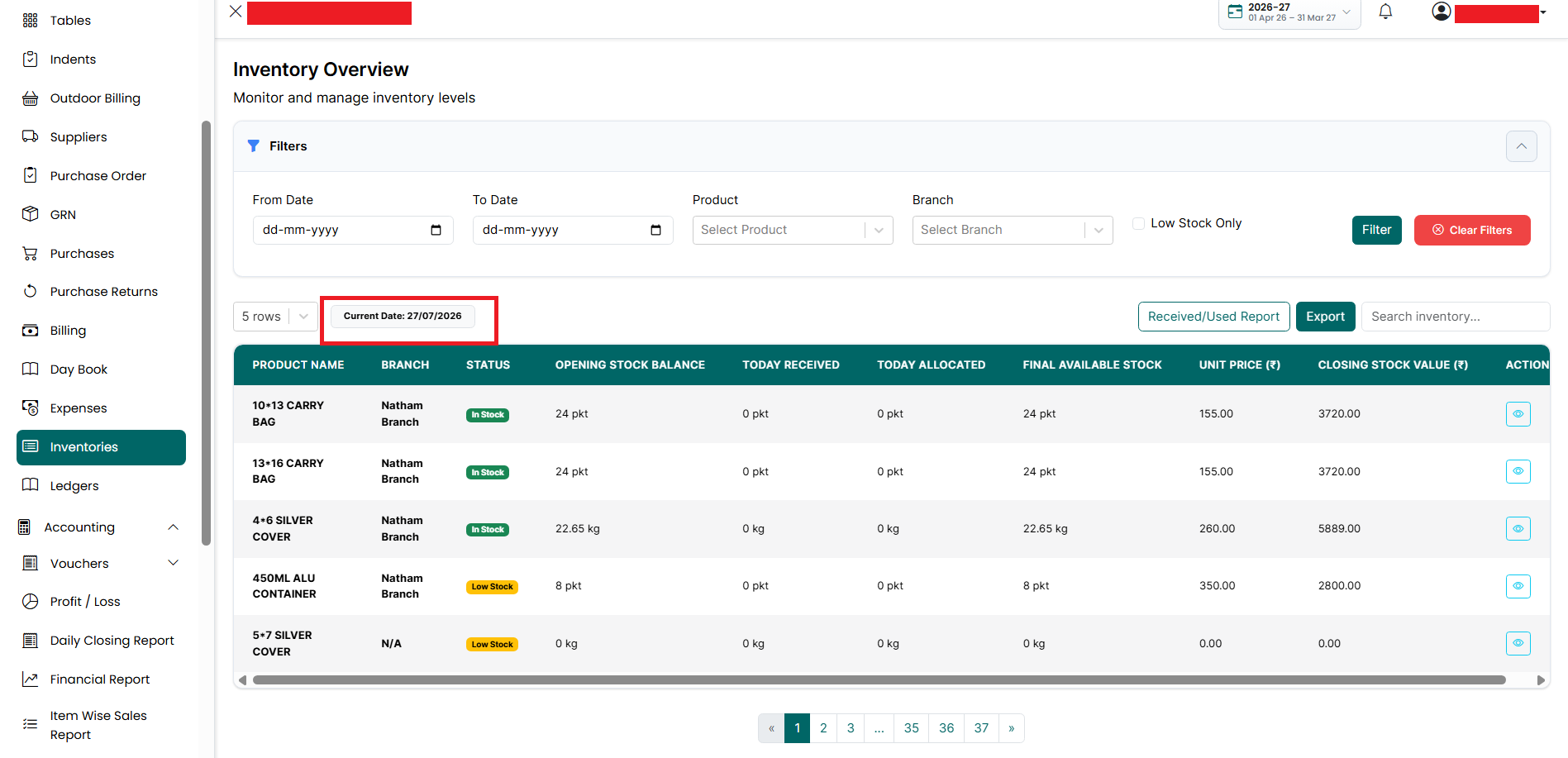
- Current Date – Displays the current
business date used for the inventory report.
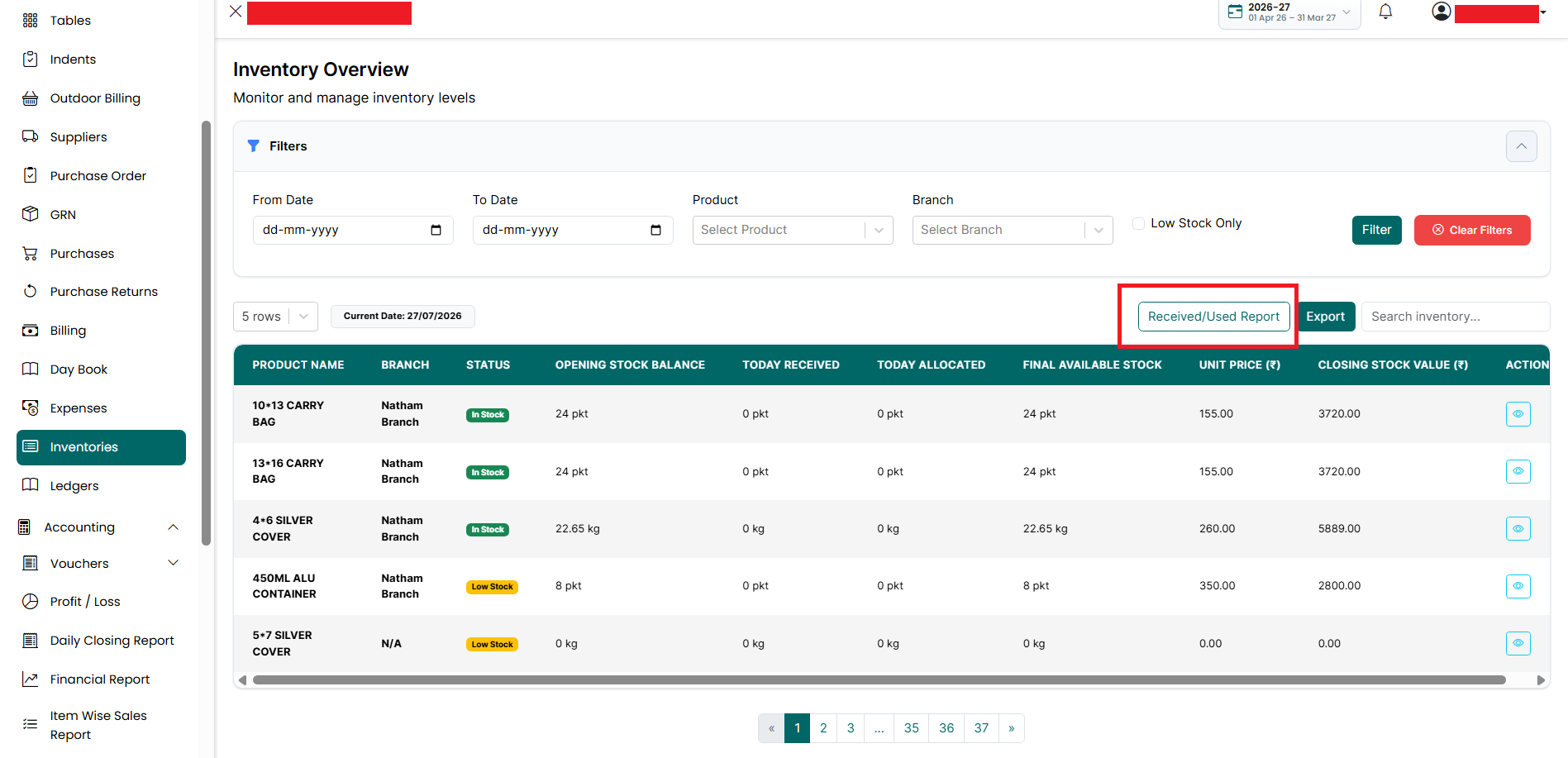
- Received/Used Report – Click to download the inventory received and used report for the selected filters.
• The report helps you monitor:
■ Opening Stock
■ Quantity Received
■ Quantity Used (Allocated)
■ Final
Available Stock
- Export – Click to export the inventory report. The following export options are available:
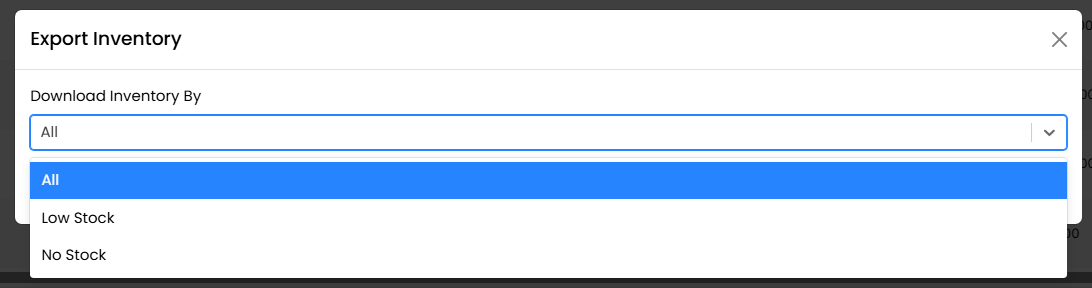
• Download Inventory By – Select the type of inventory to export.
■ All Stock – Exports all inventory items.
■ In Stock – Exports only products that currently have available stock.
■ Low Stock – Exports only products that are below or equal to the configured low stock level.
■ Out
of Stock – Exports only products with zero available stock.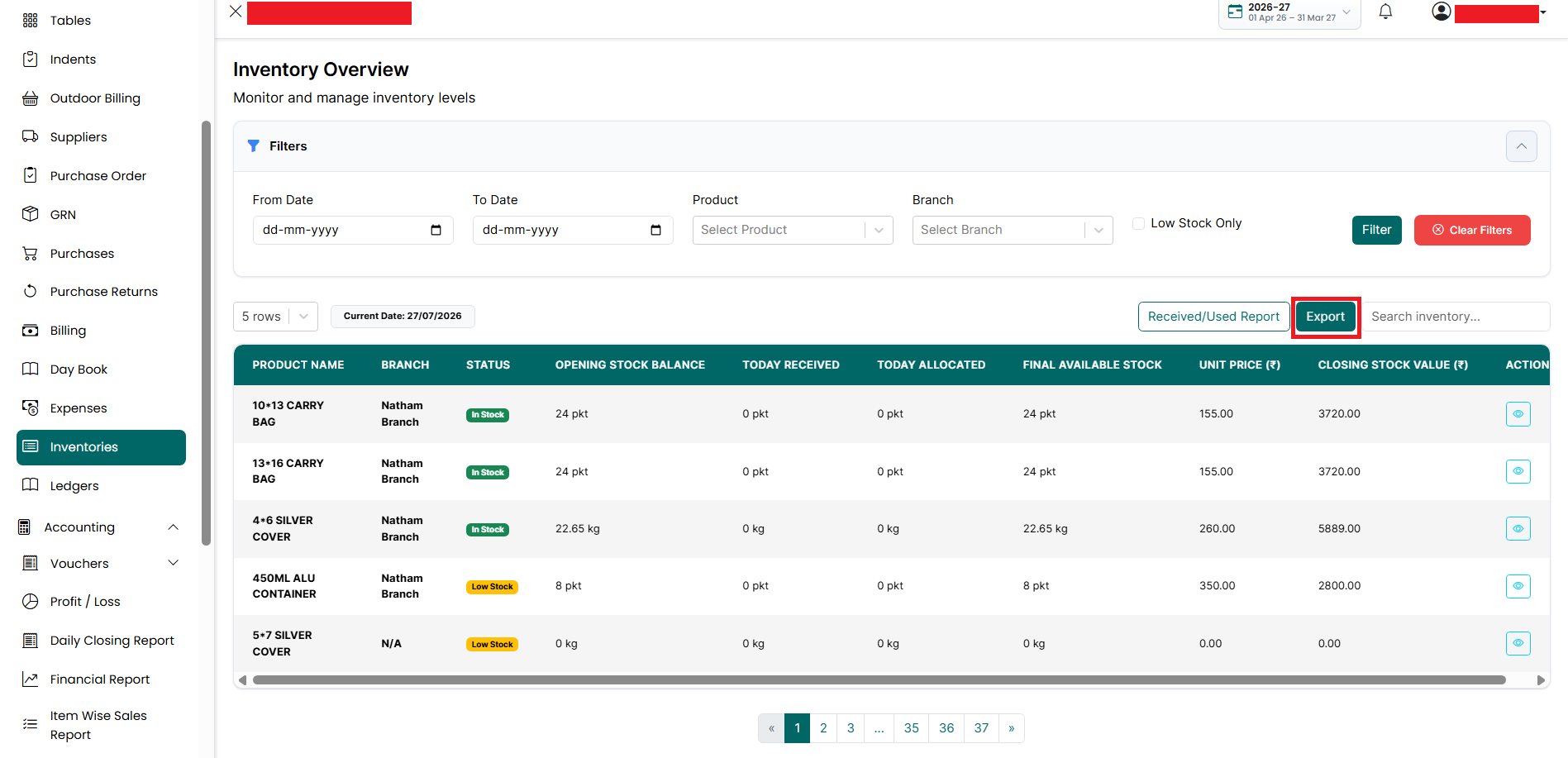
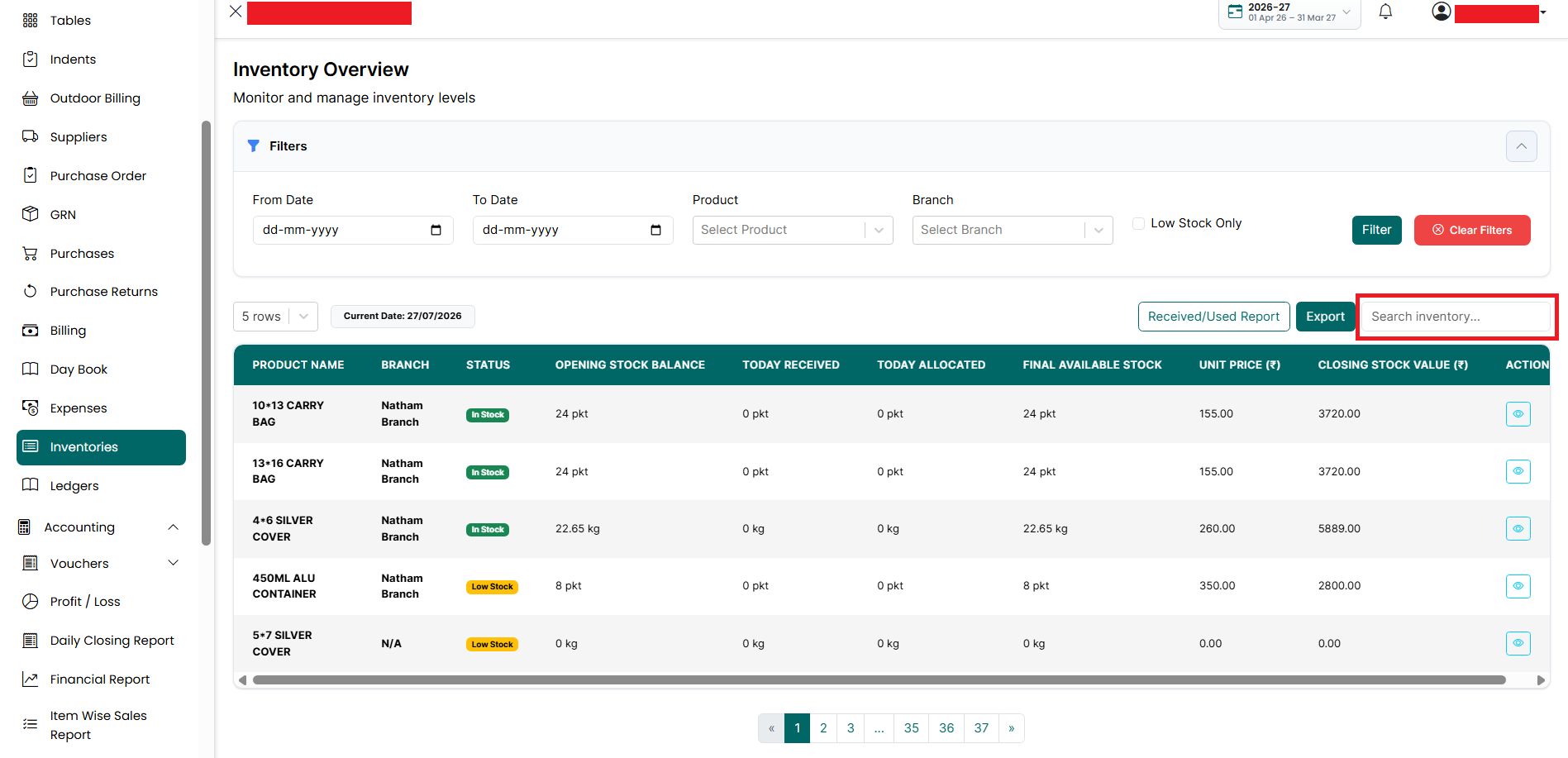
- Search – Enter the product name to
quickly find a product.
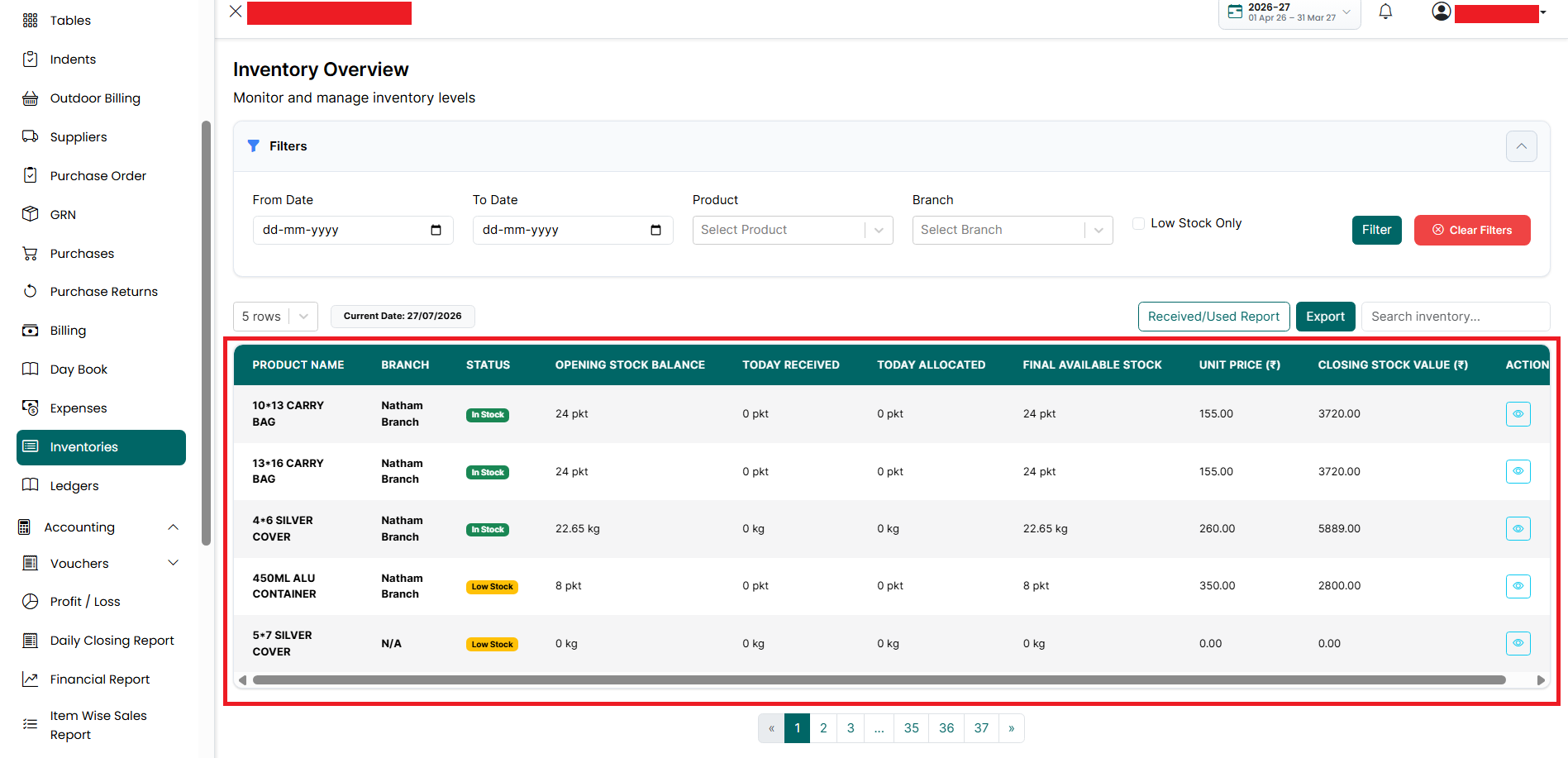
- Inventory List - The inventory list displays the following information for each product:
• Product Name – Displays the product name.
• Branch – Displays the branch where the stock is available.
• Status – Displays the current stock status.
■ In Stock – Sufficient stock is available.
■ Low Stock – Stock has reached or fallen below the configured low stock level.
• Opening Stock Balance – Displays the stock available at the beginning of the selected day.
• Today Received – Displays the quantity of stock received during the selected day.
• Today Allocated – Displays the quantity of stock used or issued during the selected day.
• Final Available Stock – Displays the current stock available after adding received stock and deducting allocated stock.
• Unit Price (₹) – Displays the cost price per unit.
• Closing Stock Value (₹) – Displays the total value of the available stock.
• Actions
■ View
– Click the View icon to see detailed batch information for the selected
product.
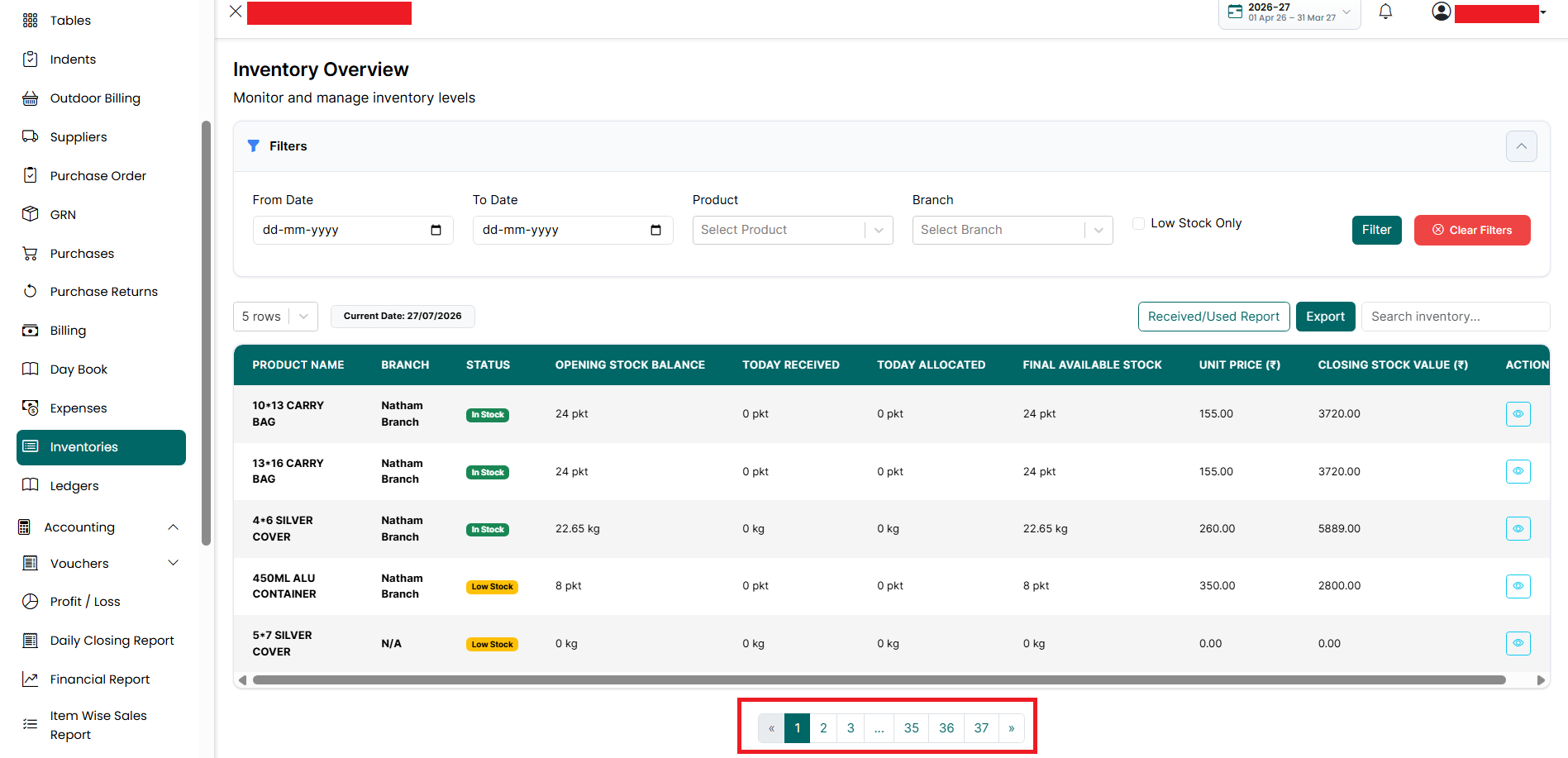
- Pagination
– Use the page numbers or the Previous and Next buttons at the bottom of
the page to move between different pages.
Note: The inventory list displays stock branch-wise. The stock values are automatically updated whenever purchases, GRNs, sales, stock transfers, or other inventory transactions are completed.
View Inventory
To view the batch details of a product, follow the steps below.
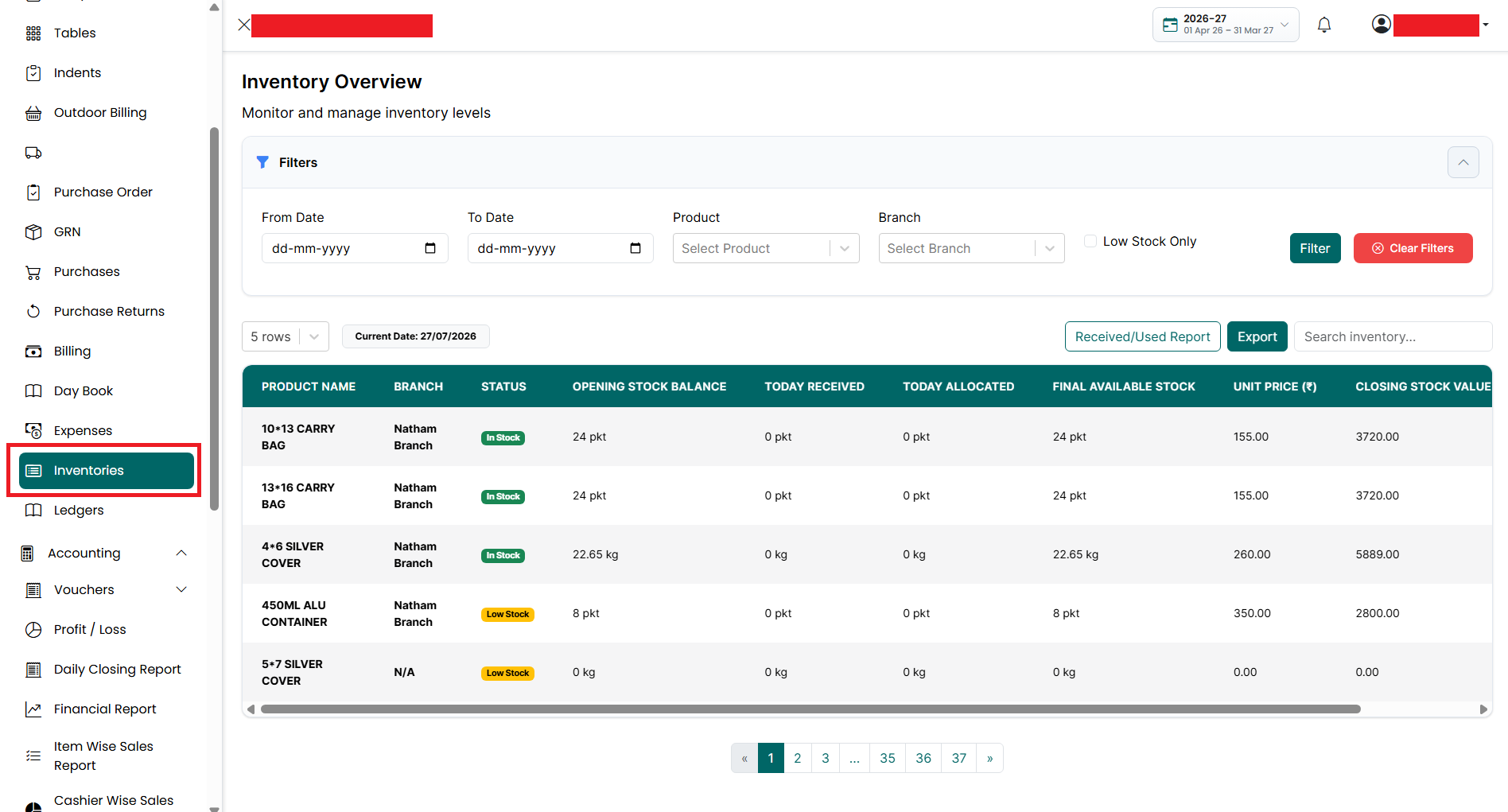
- Go
to the Main Menu. Click Inventories. The Inventory Listing page is
displayed.
- Find the product you want to view. Click
the View icon.
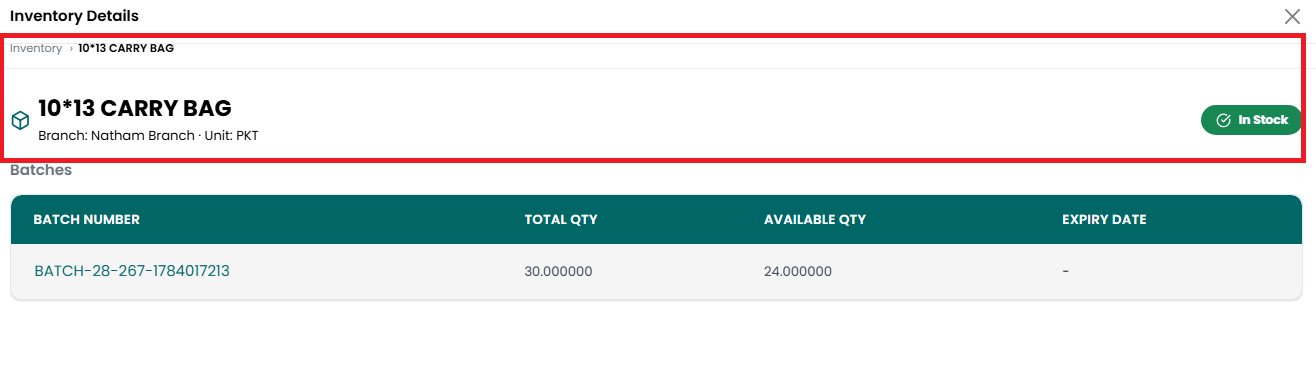
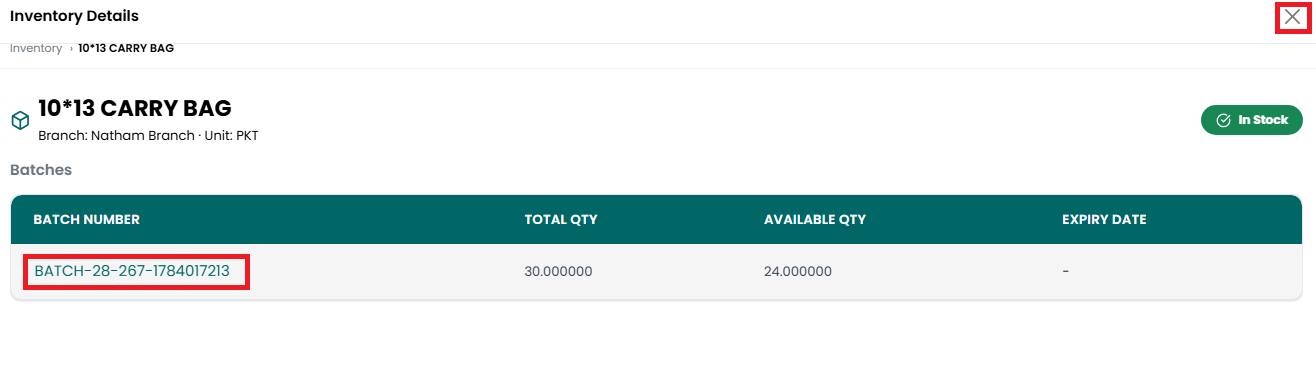
- The Inventory Details window is displayed. The following information is available:
• Product Information
■ Product Name – Displays the selected product name.
■ Branch – Displays the branch where the inventory is available.
■ Unit – Displays the unit of measurement for the product.
■ Status
– Displays whether the product is In Stock or Low Stock.
• Batch Details
■ Batch Number – Displays the unique batch number.
■ Total Quantity – Displays the total quantity originally available in the batch.
■ Available Quantity – Displays the remaining quantity available in the batch.
■ Expiry
Date – Displays the expiry date of the batch. If no expiry date is available, a
hyphen (-) is displayed.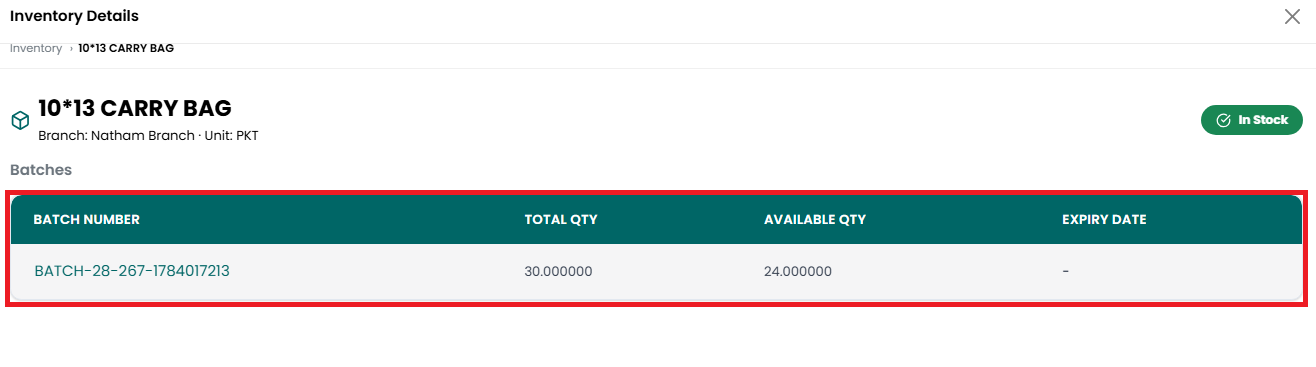
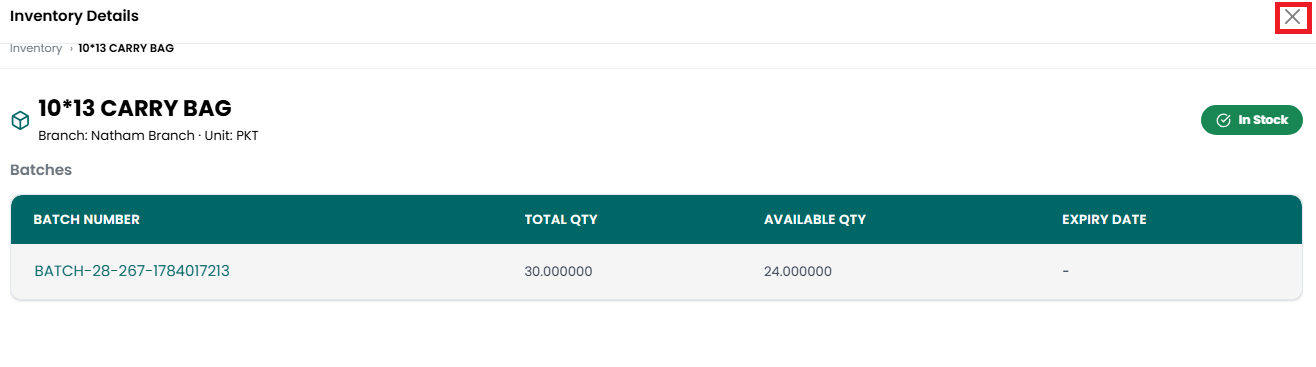
- Click
the X icon to close the Inventory Details window and return to the
Inventory Listing page.
Batch Details
- Under the View Inventory page, the Batches section shows the batch records available for the selected product.
- Click
the Batch Number to open the complete batch traceability details.
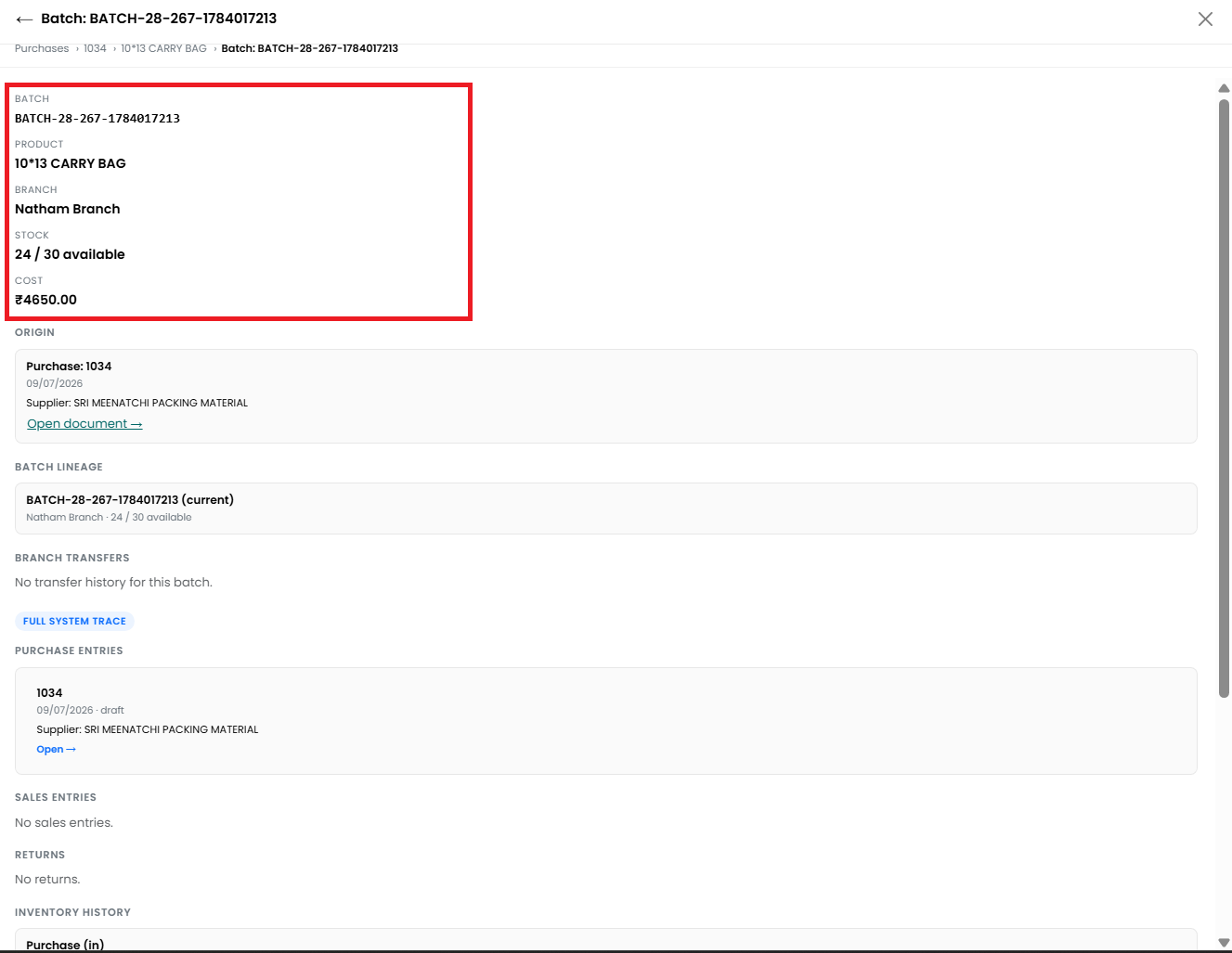
The Batch Details page displays the following information:
- Batch Number – Shows the unique number assigned to the batch.
- Product – Shows the product linked to the batch.
- Branch – Shows the branch where the batch is available.
- Stock – Shows the available quantity compared with the original batch quantity.
- Cost – Shows the total cost recorded
for the batch.
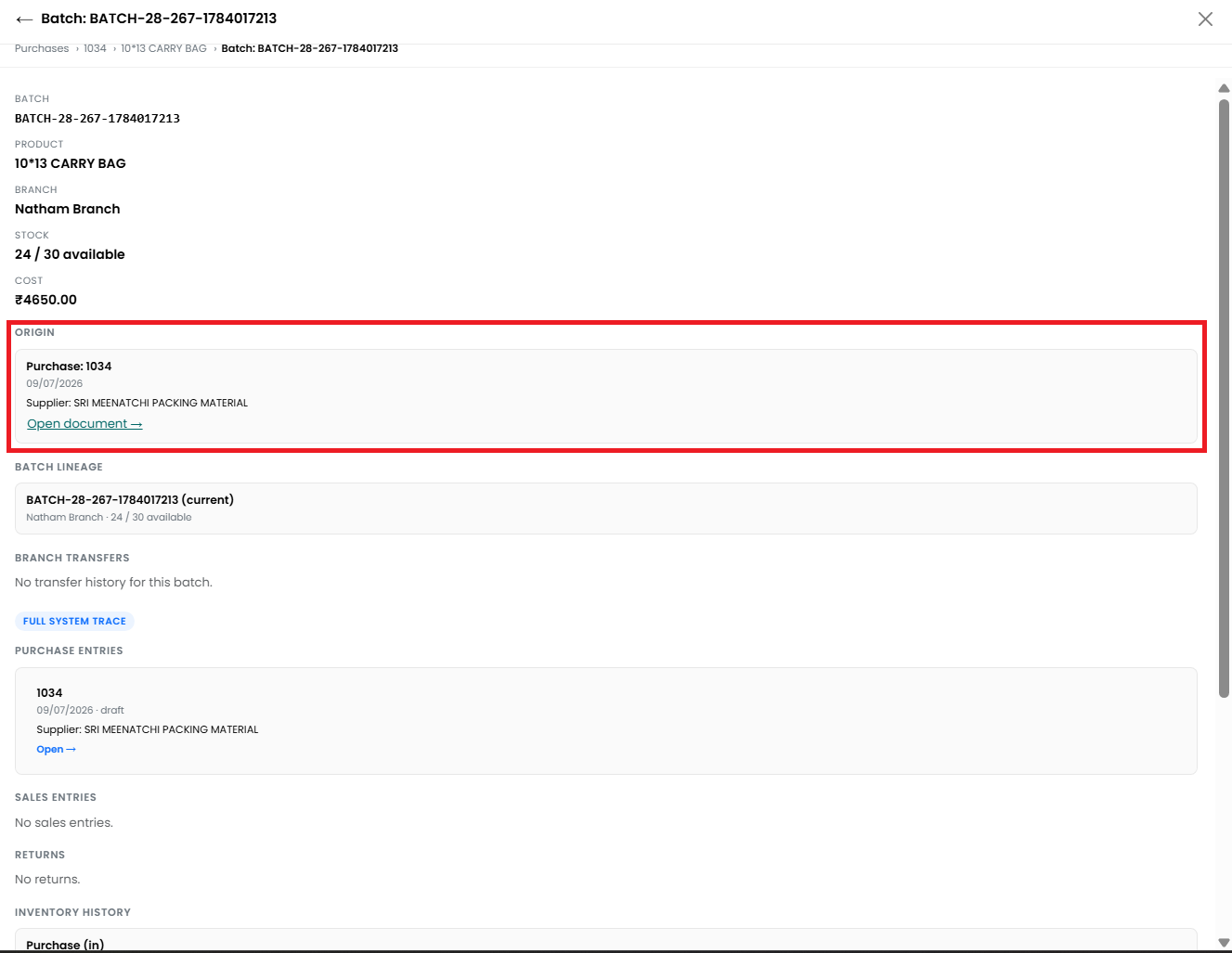
- Origin - The Origin section shows how the batch was created.
• The batch may have been created from:
■ A Purchase
■ An Opening Stock entry
■ A Branch Transfer
• For a batch created through a Purchase, the following details are displayed:
■ Purchase number
■ Purchase date
■ Supplier
name
• Click
Open Document to view the complete source transaction connected to the batch.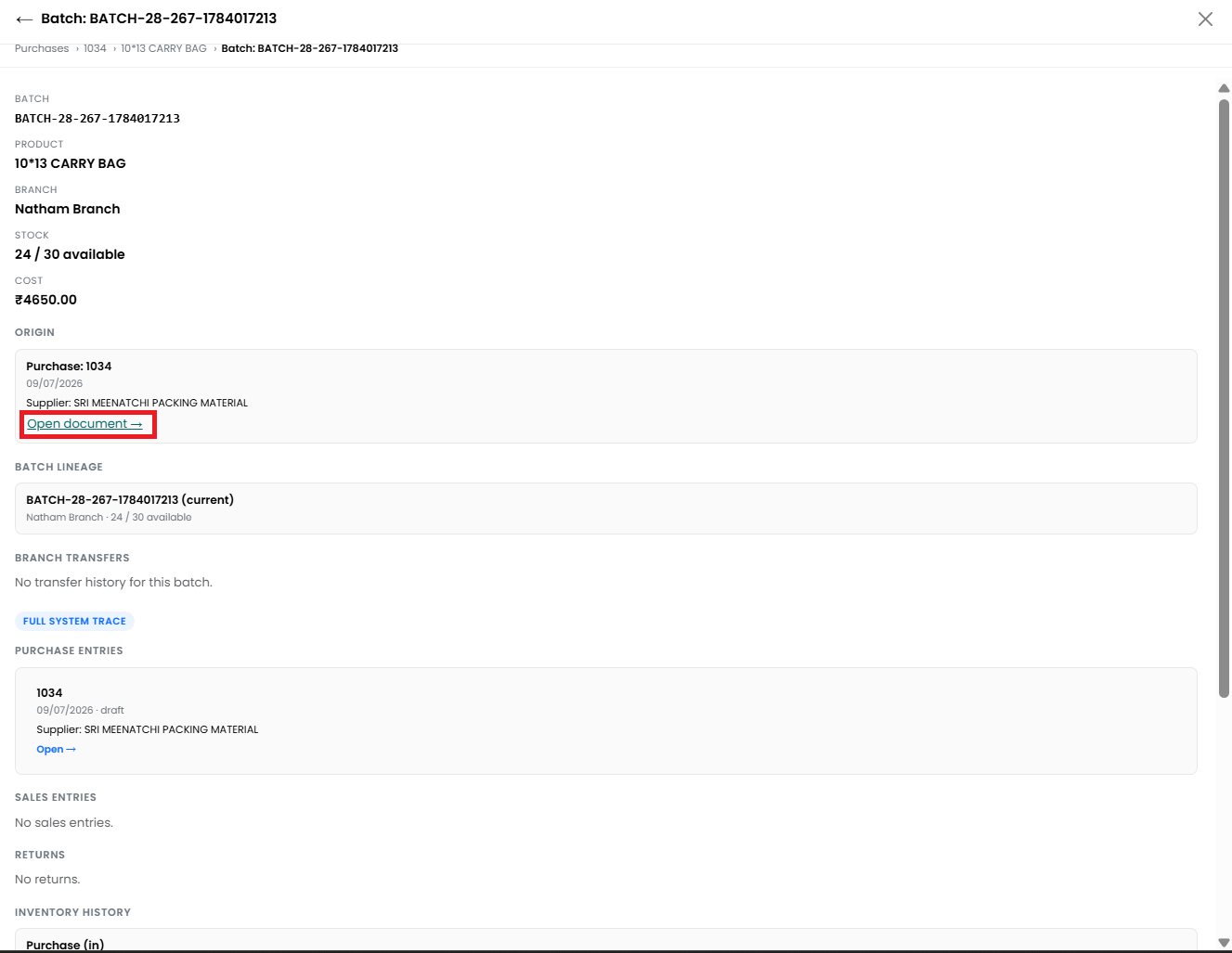
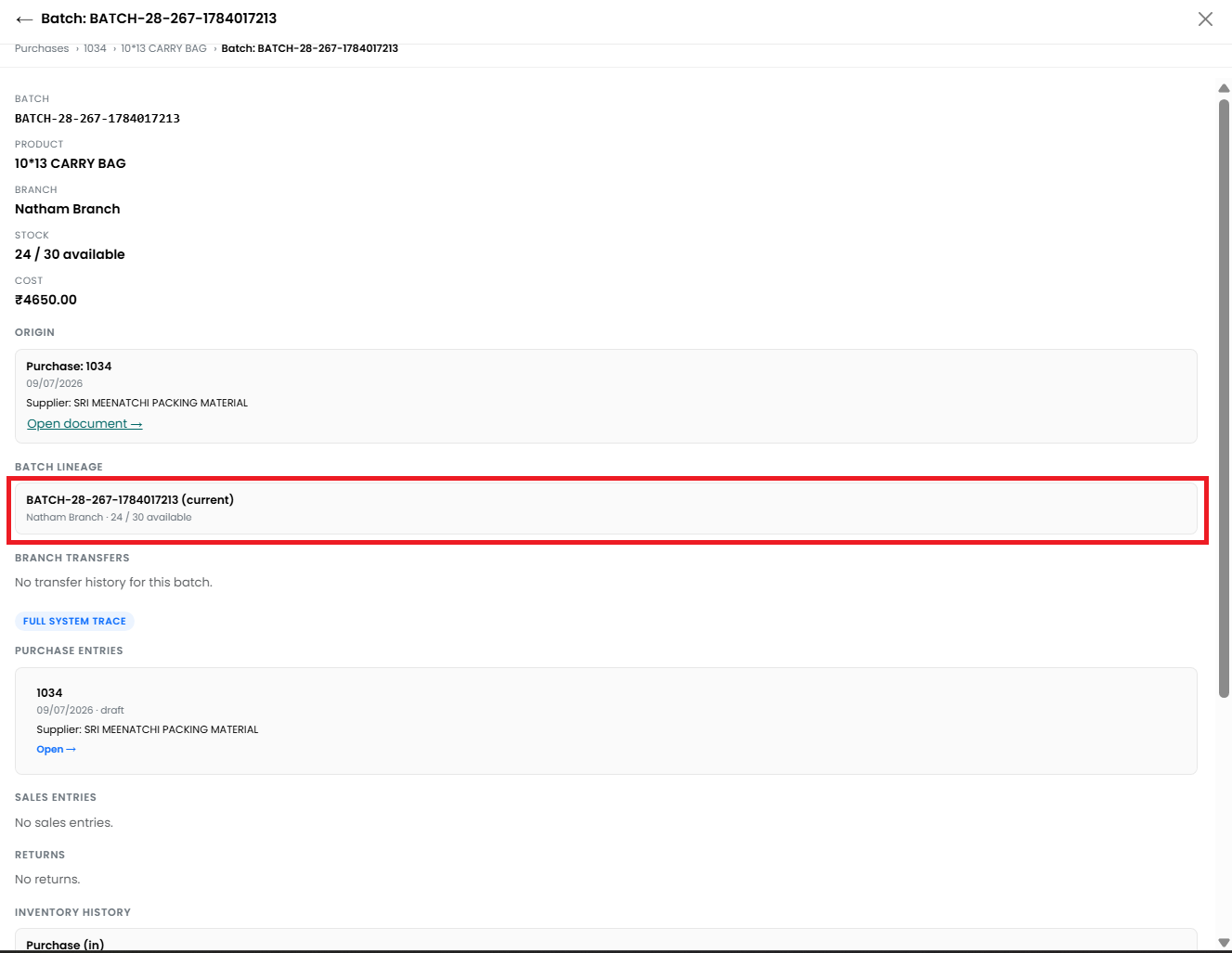
- Batch Lineage
• The Batch Lineage section shows the current batch and any parent or child batches connected to it.
• It also shows:
■ The branch where the batch is available.
■ The quantity currently available.
■ The original quantity created for the batch.
• This
section helps you understand whether the batch was transferred, divided, or
created from another batch.
- Branch Transfers
• The Branch Transfers section shows any stock transfers made using the selected batch.
• It displays the movement of stock between branches, including incoming and outgoing transfers.
• If
no transfer has been made, the message No transfer history for this batch is
displayed.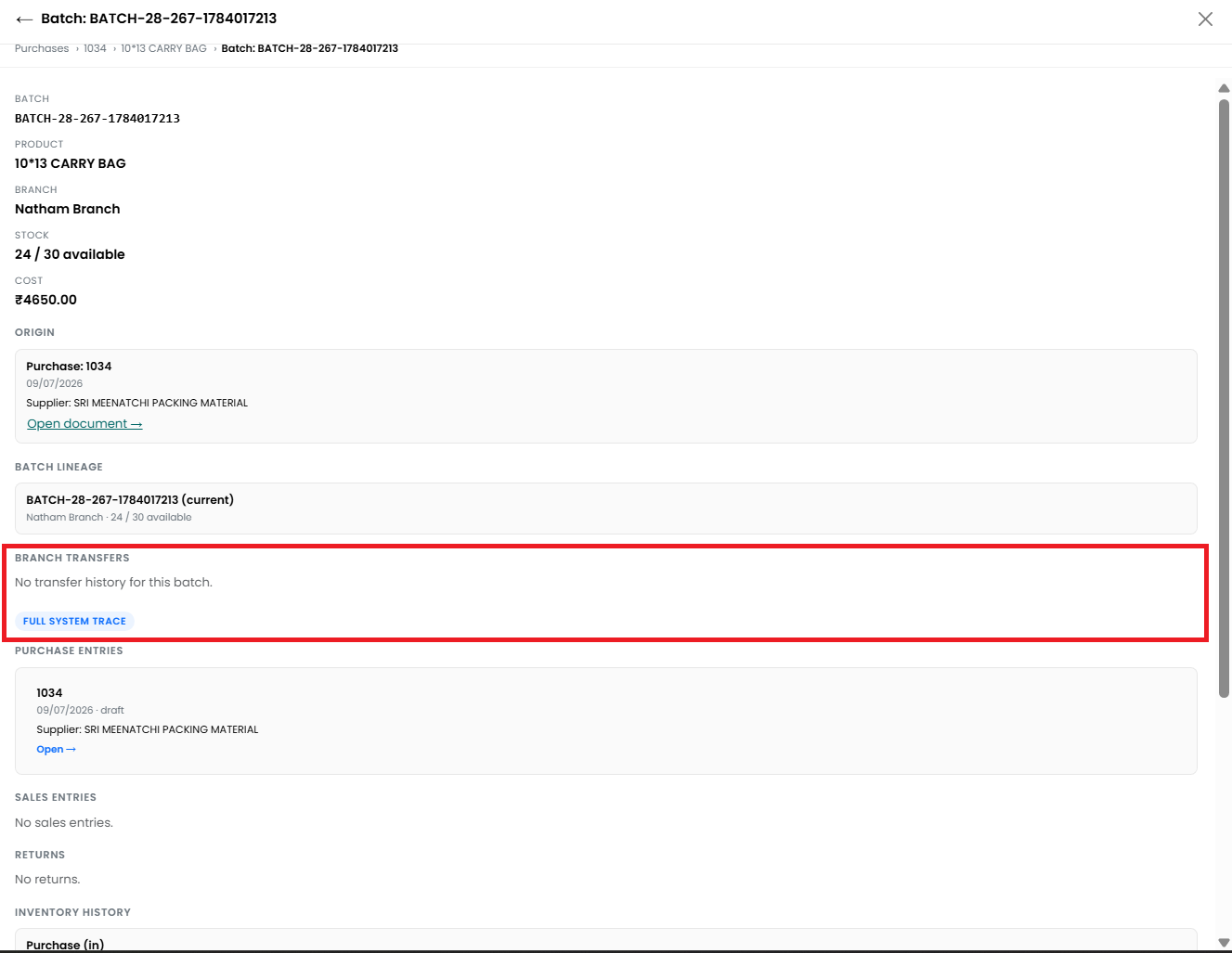
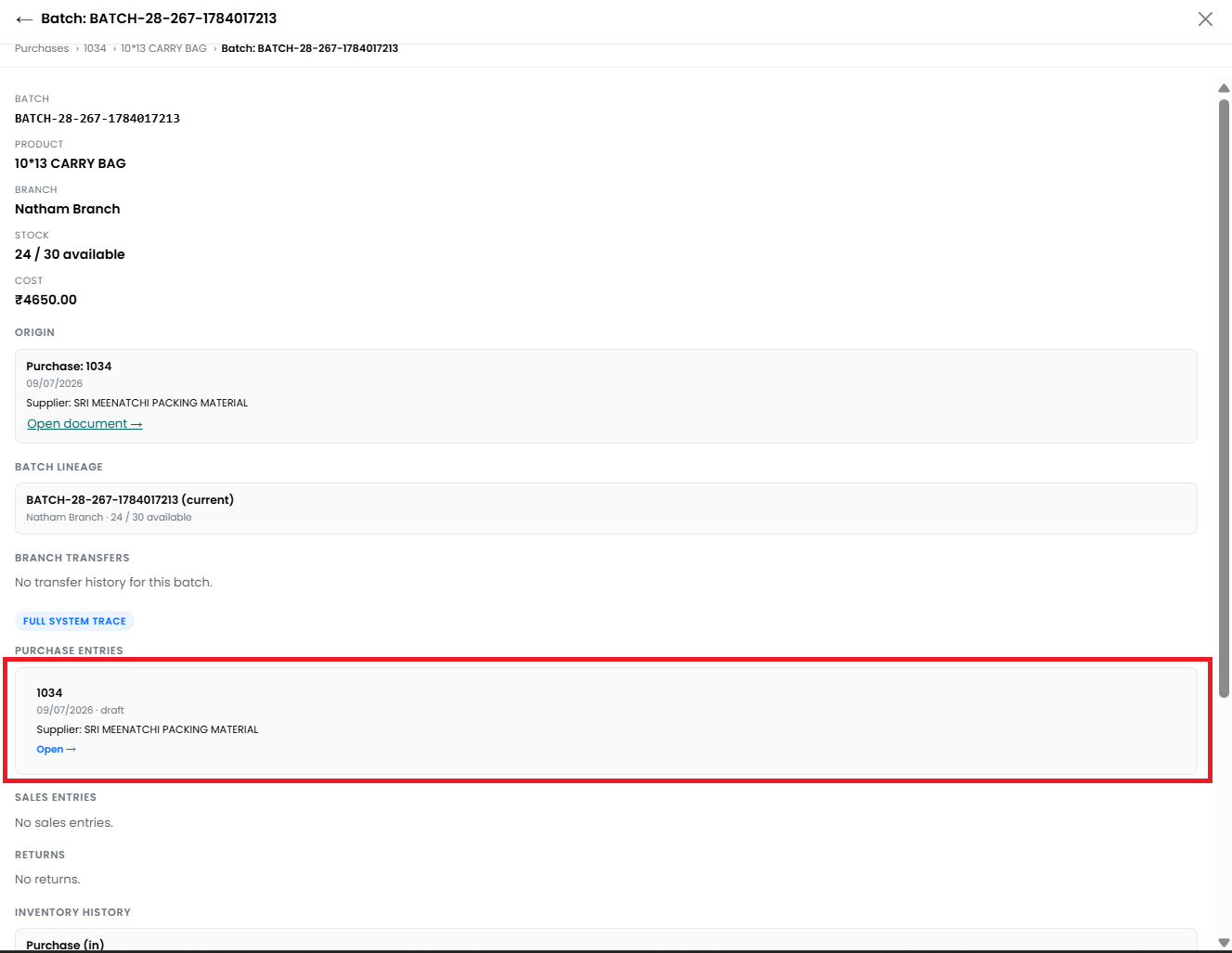
- Purchase Entries
• The Purchase Entries section shows all purchases connected to the selected batch.
• The following details may be displayed:
■ Purchase number
■ Purchase date
■ Purchase status
■ Supplier
name
• Click
Open to view the related Purchase record.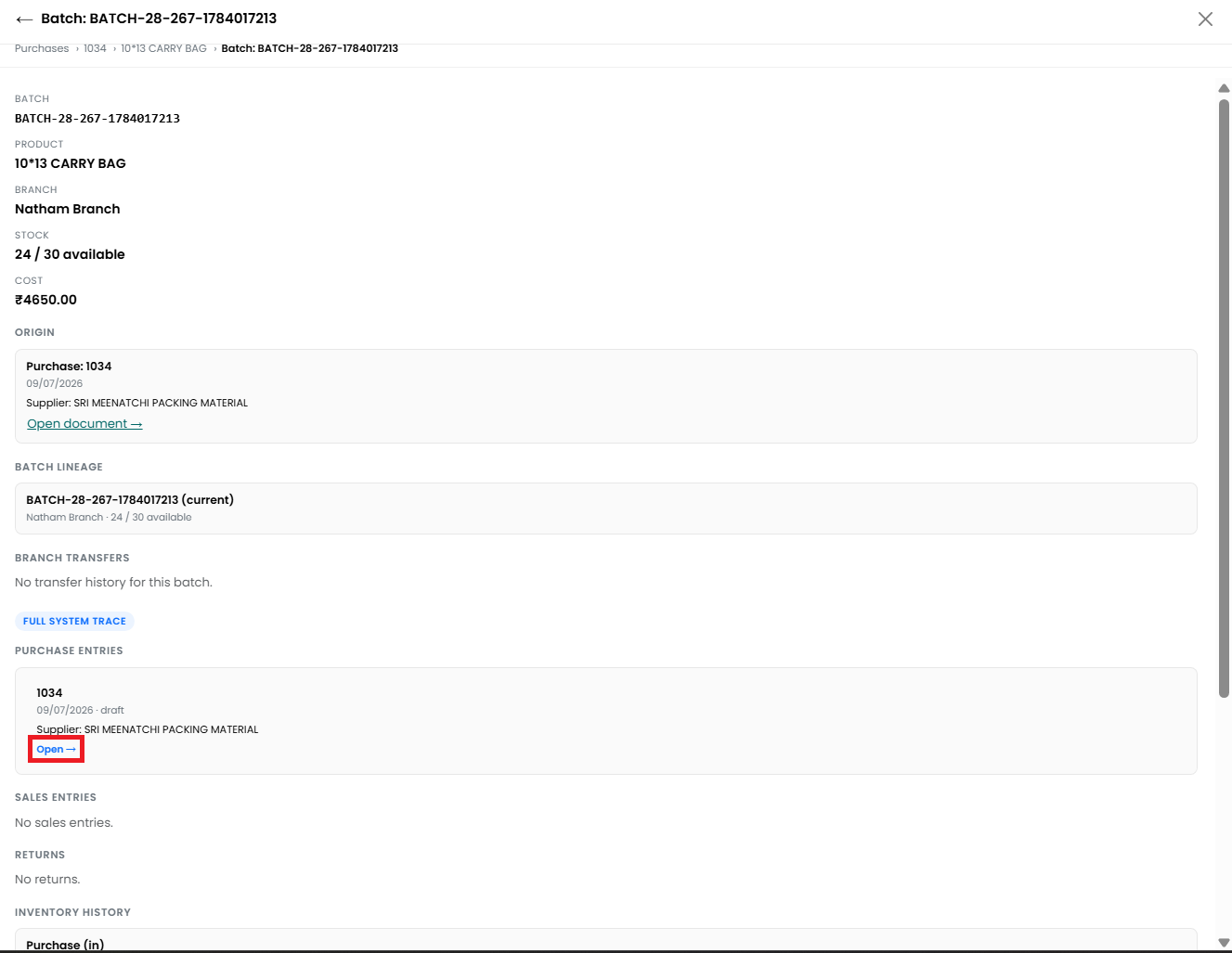
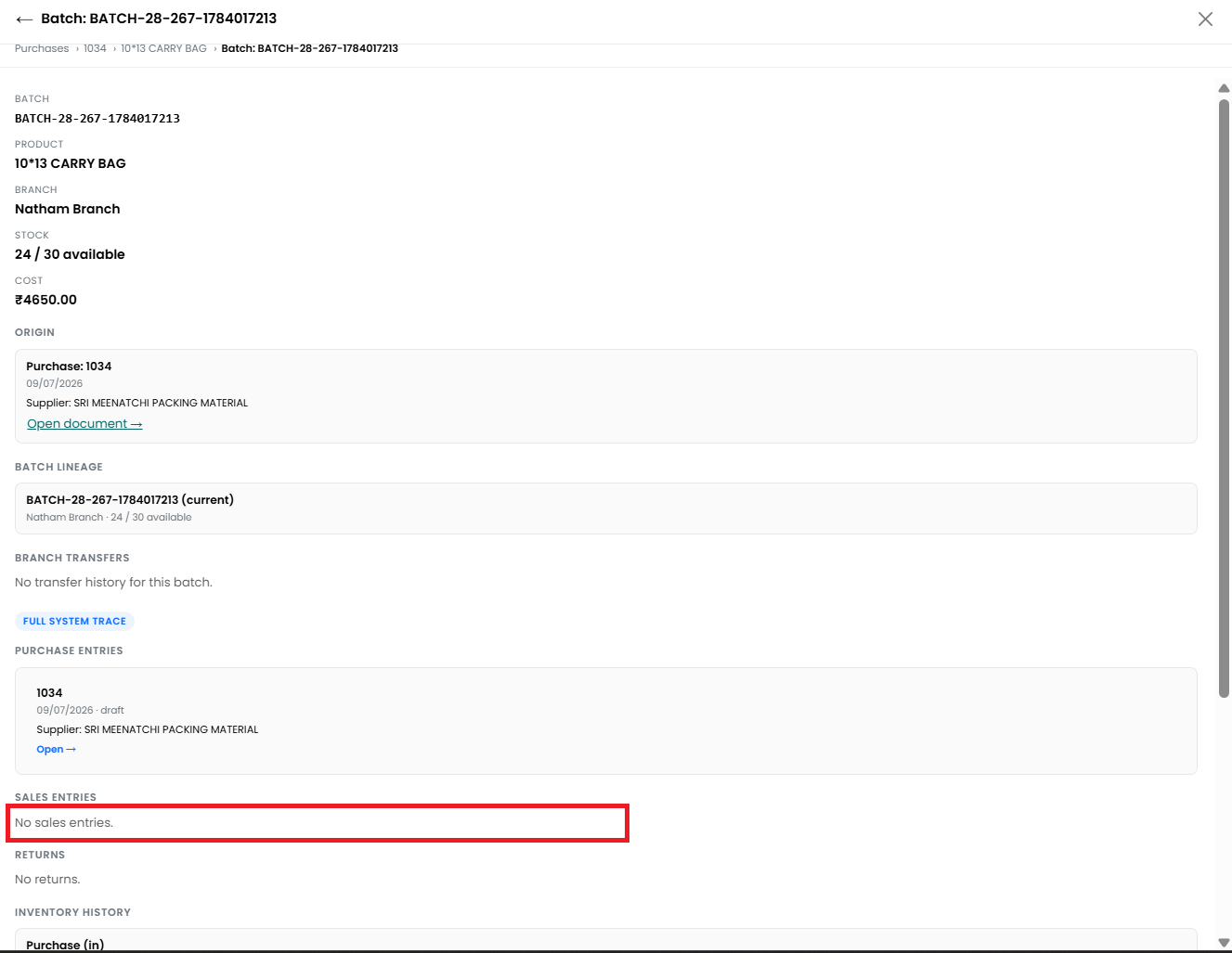
- Sales Entries
• The Sales Entries section shows sales transactions in which stock from the selected batch was used.
• If
the batch has not been used in any sales, the message No sales entries is
displayed.
- Returns
• The Returns section shows any return transactions linked to the batch.
• If
there are no returns, the message No returns is displayed.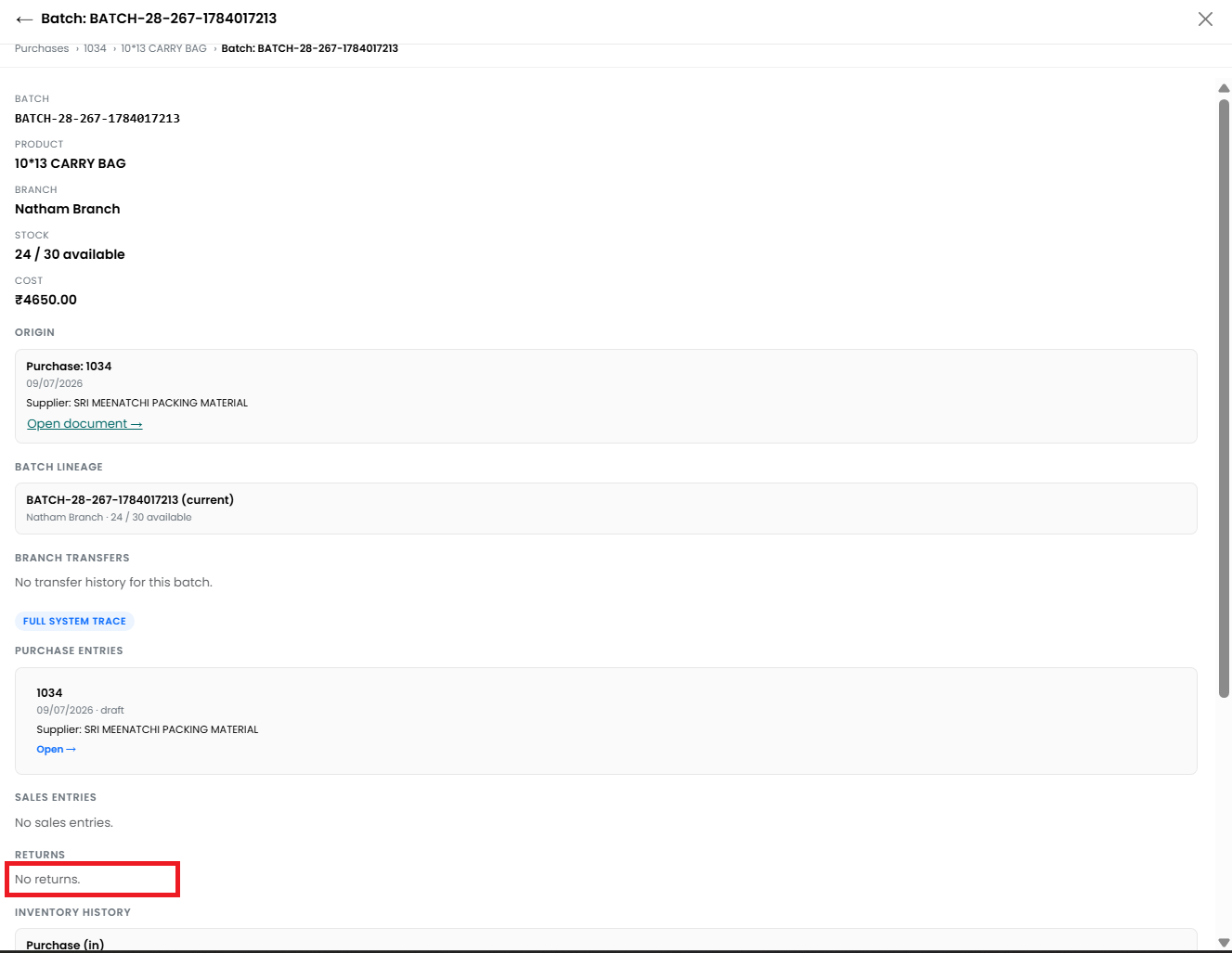
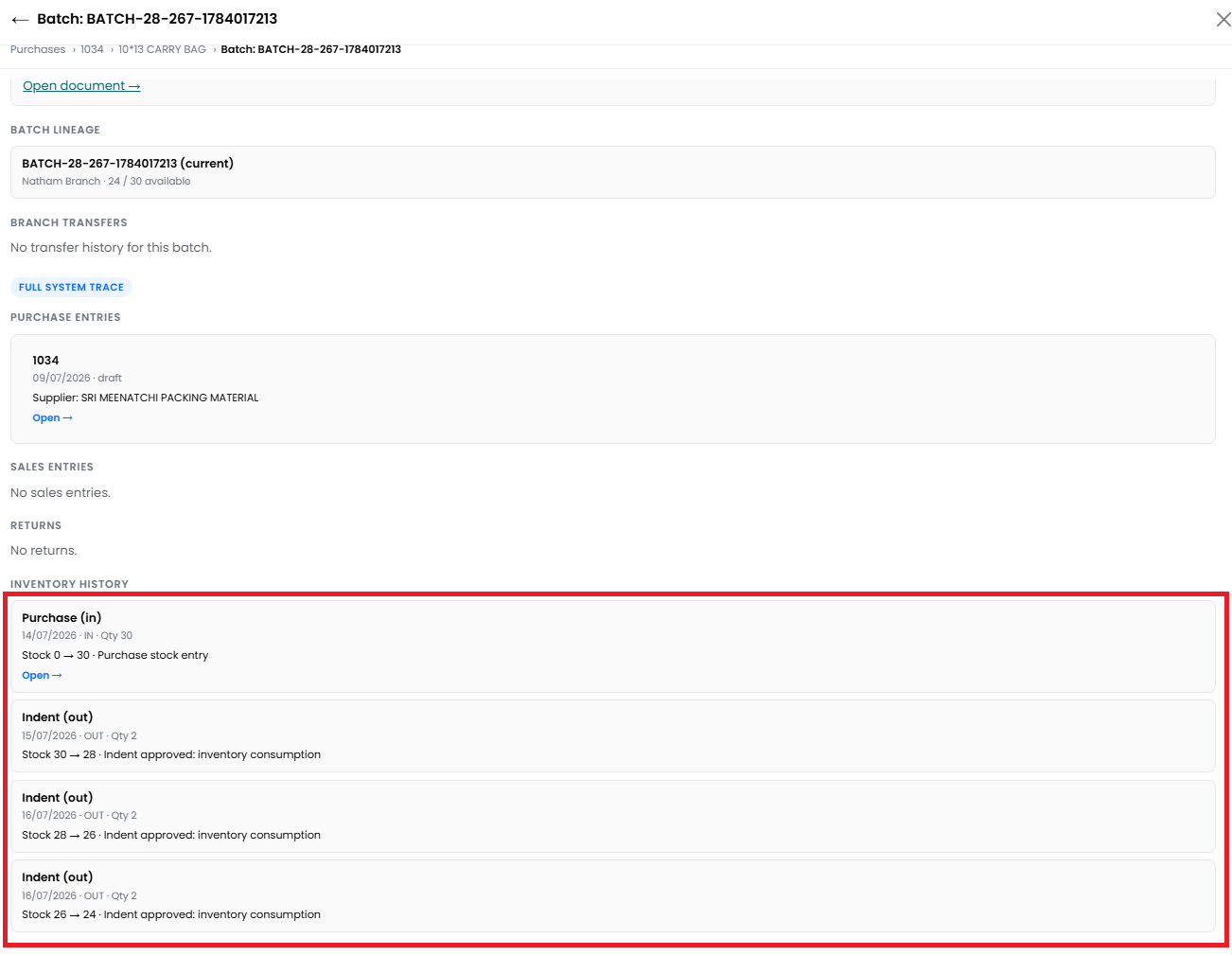
- Inventory History
• Inventory history may include:
■ Purchase (In) – Stock added through a purchase. Click Open to view the related Purchase record.
■ Indent (Out) – Stock deducted after an indent is approved.
■ Branch Transfer – Stock moved between branches.
■ Sale (Out) – Stock deducted through a sale.
■ Return
(In/Out) – Stock added or removed through a return.
- Use the navigation path at the top of
the page to return to the Purchase, Product, or Inventory details.
- Click
the X icon to close the Batch Details page.