Purchase Order Management
Purchase Order Listing Page
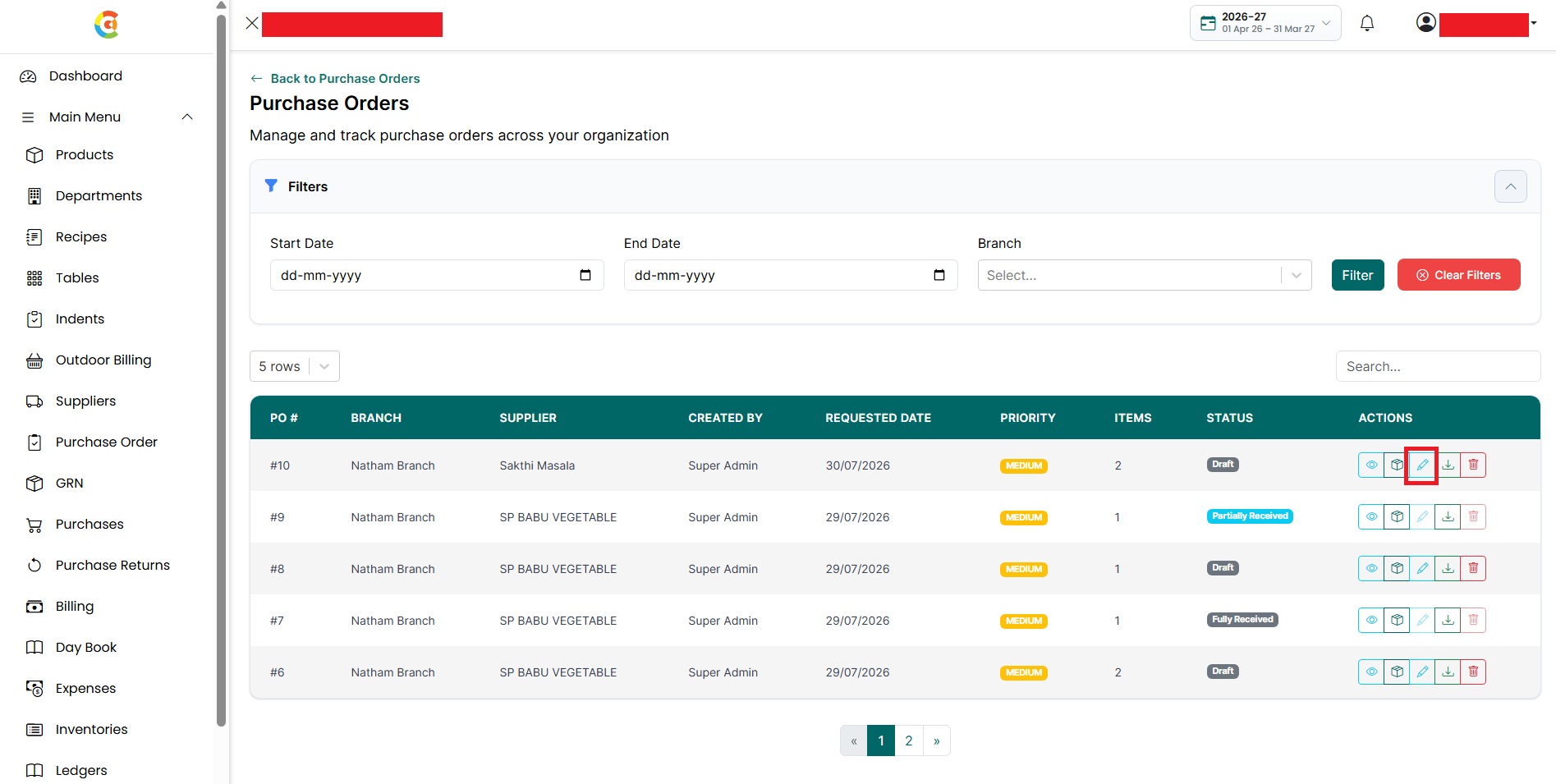
The Purchase Order List page shows all the purchase orders created in the application along with their supplier, branch, request date, priority, status, and other purchase order details.
From this page, you can:
- View purchase order details.
- Edit existing purchase orders.
- Create a Goods Receipt Note (GRN) for a purchase order.
- Download a purchase order as a PDF.
- Delete or restore purchase orders.
- Search and filter purchase orders.
Purchase orders created here are used to request products from suppliers for a specific branch. Once the ordered products are received, a Goods Receipt Note (GRN) can be created from the purchase order to update inventory.
The purchase order status is automatically updated based on the quantity received through GRNs:
- Draft - The purchase order has been created but no products have been received.
- Partially Received - Some of the ordered products have been received.
- Fully Received - All the ordered products have been received.
Note: Once a purchase order reaches the Fully Received status, it cannot be edited, deleted, or used to create another GRN. This helps maintain accurate inventory records and transaction history.
To open the Purchase Order List page, follow the steps below.
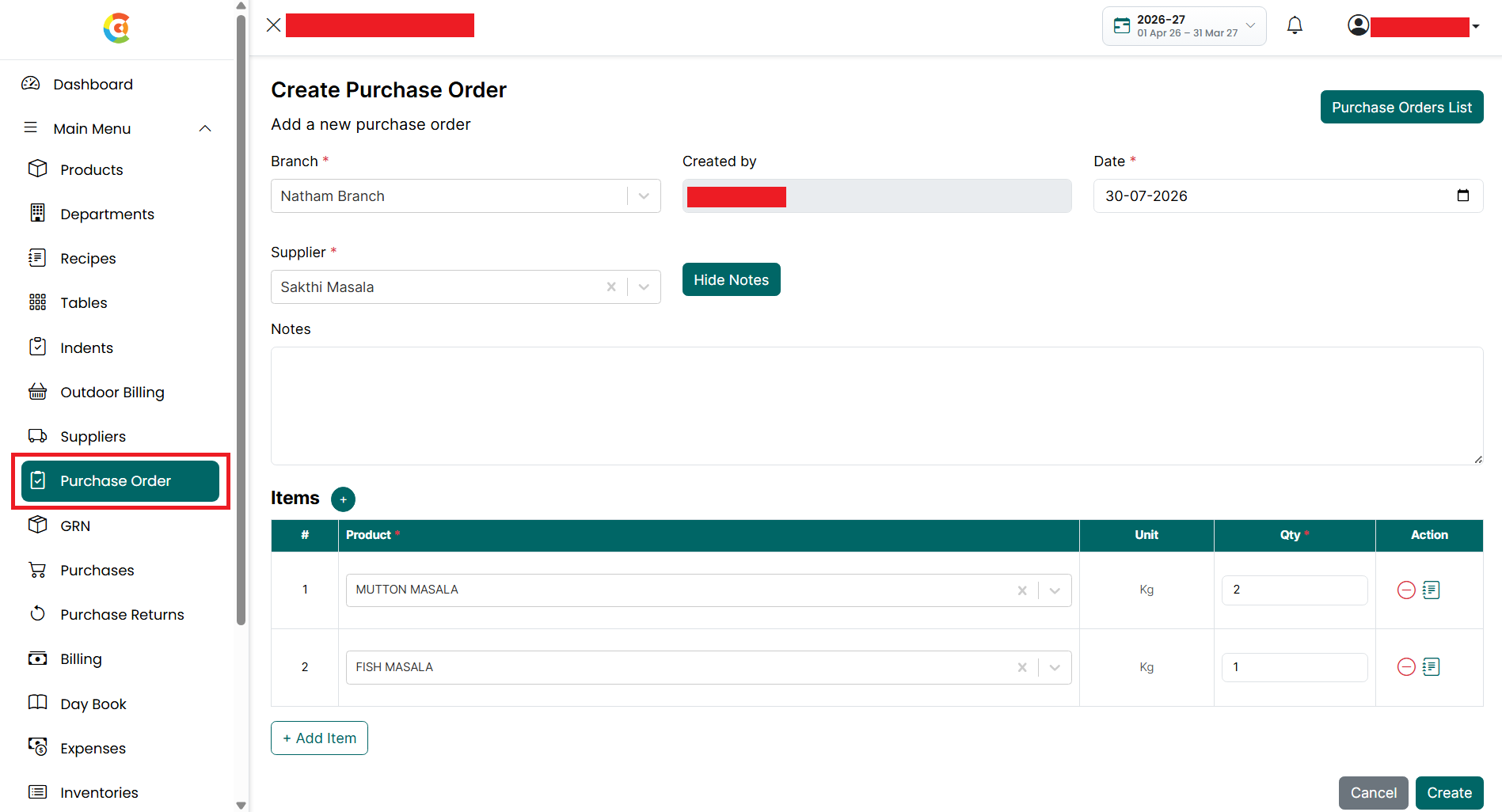
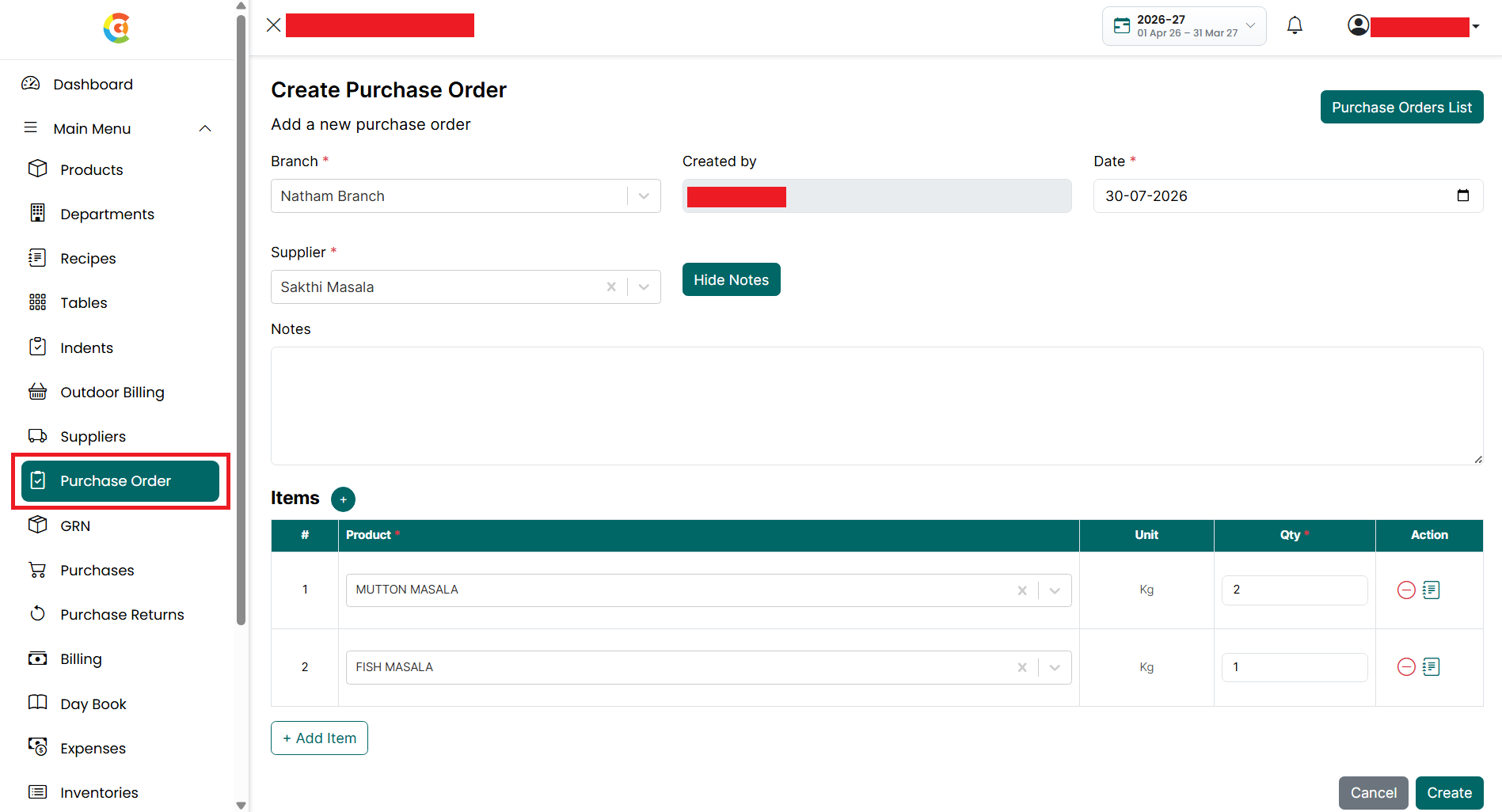
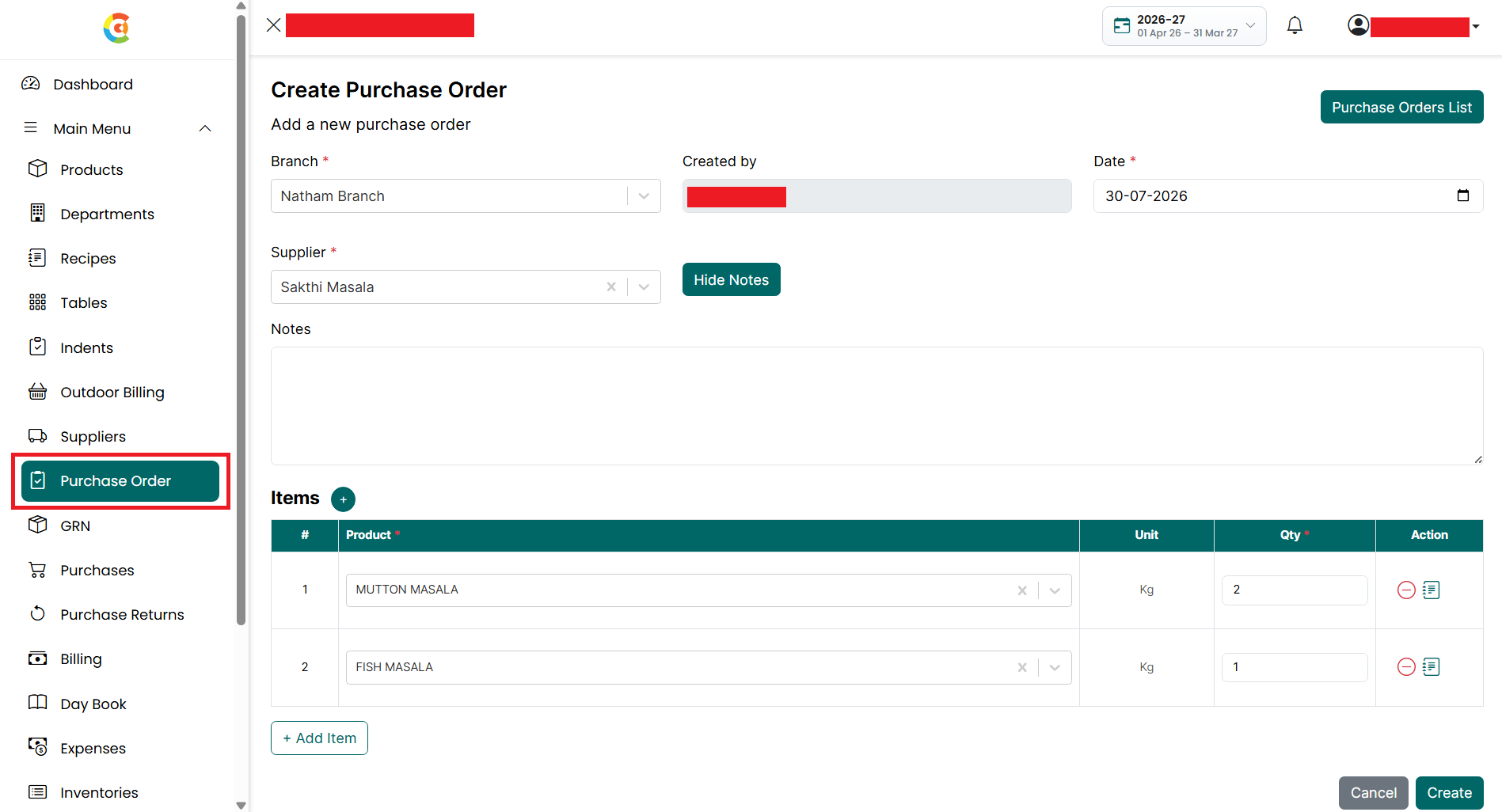
- Go to the Main Menu and click Purchase Order. The Create Purchase Order page is displayed.
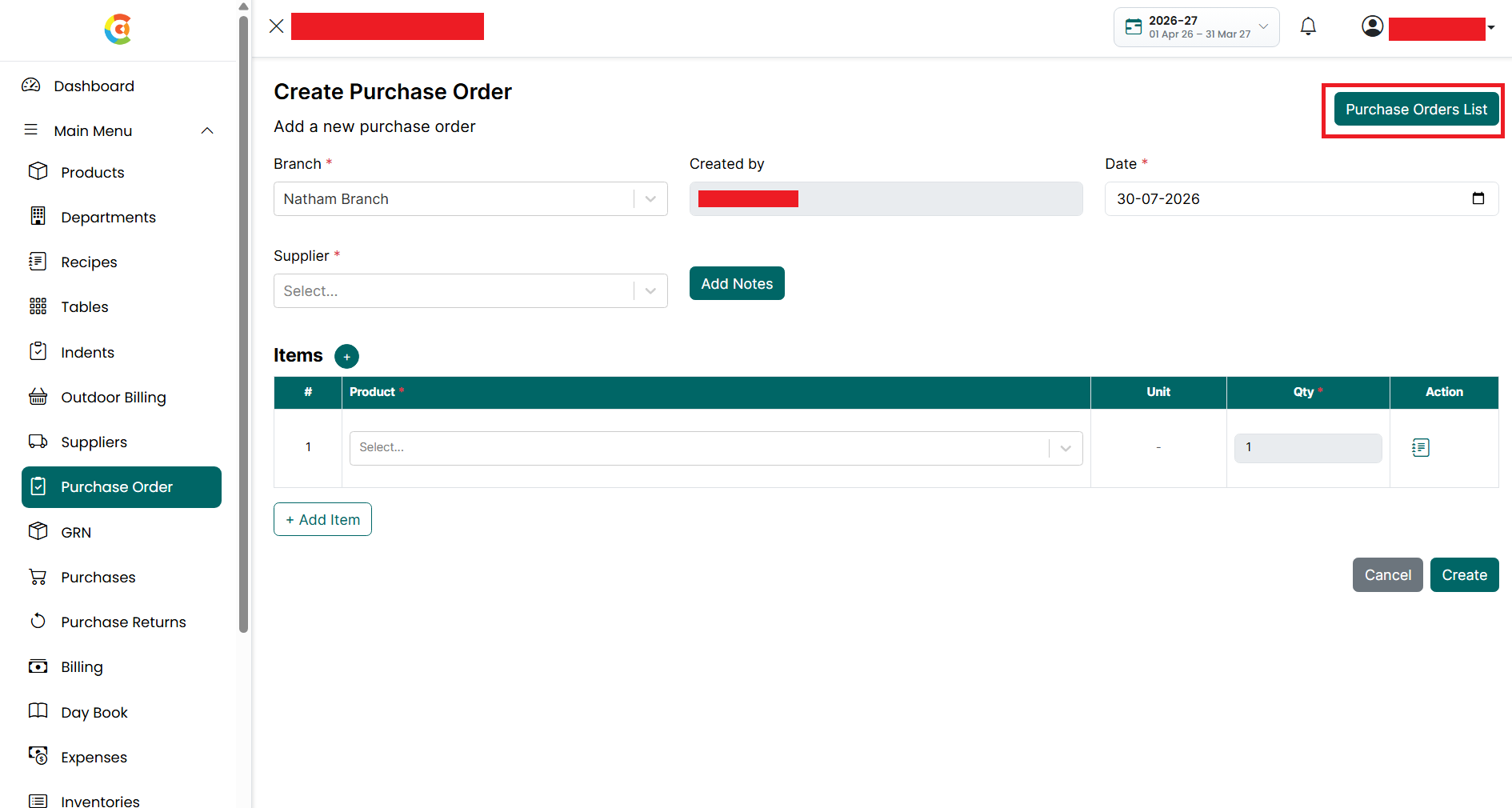
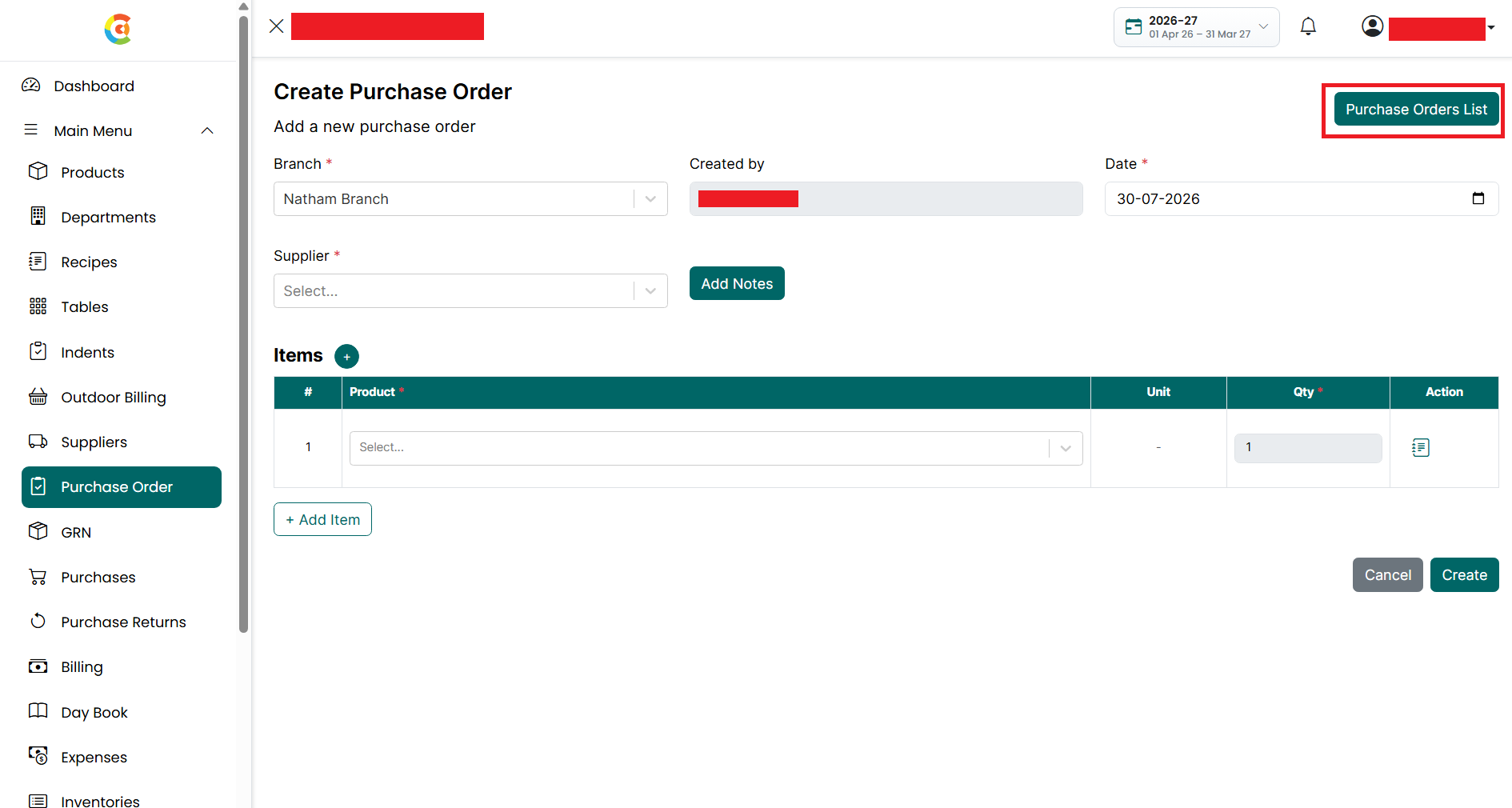
- Click the Purchase Orders List button.
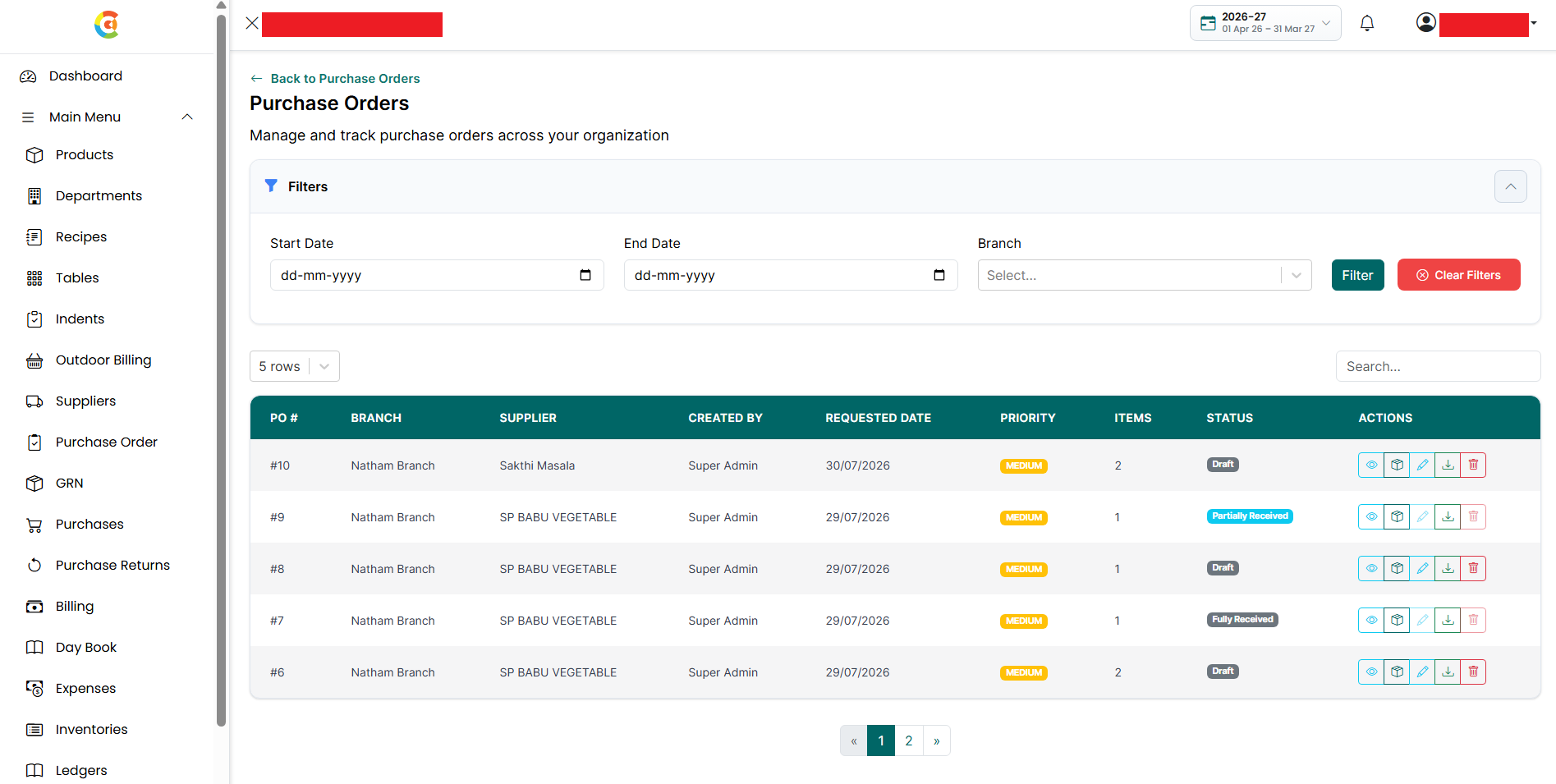
- The Purchase Order List page is displayed.
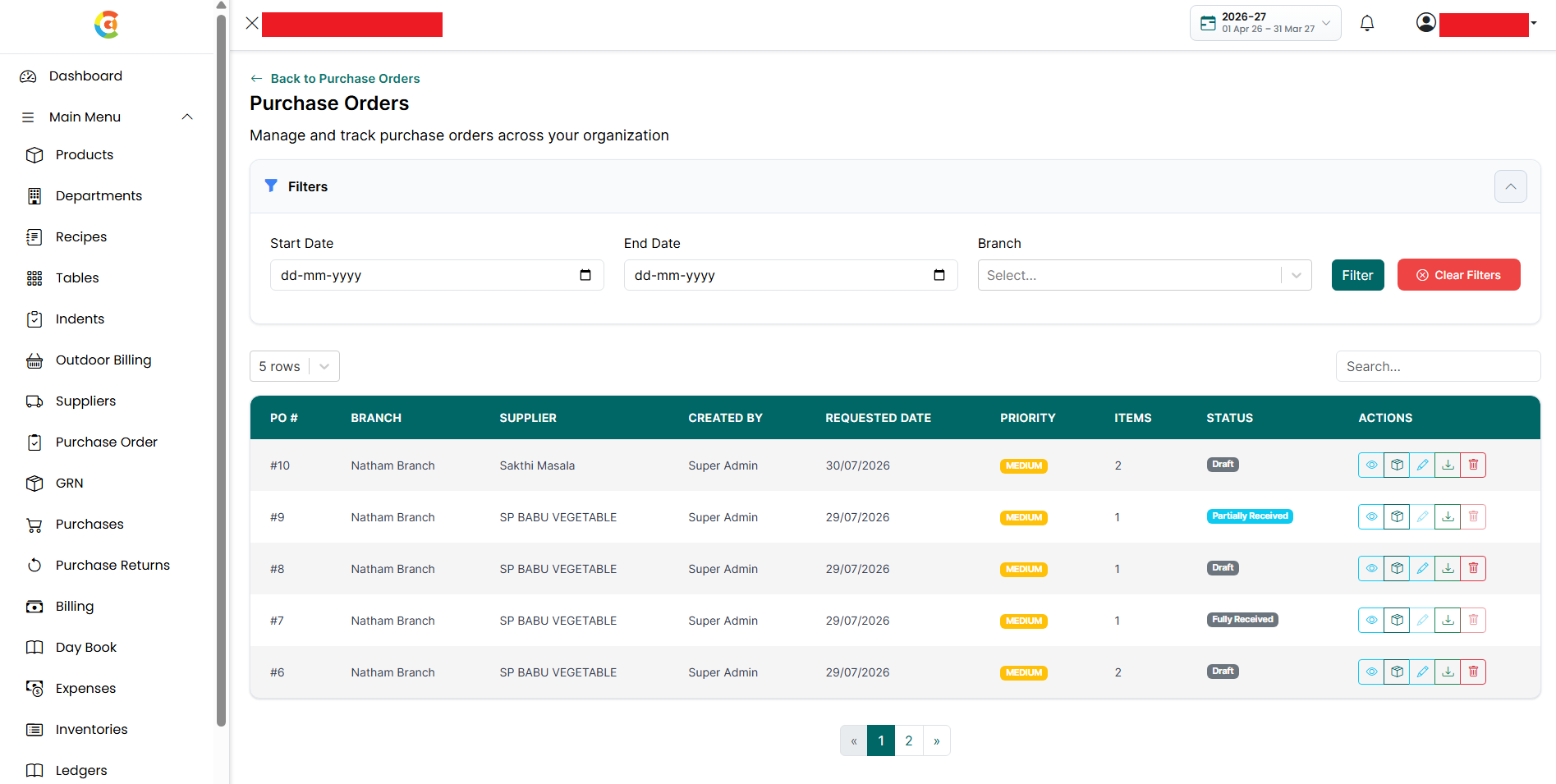
The page includes the following sections:
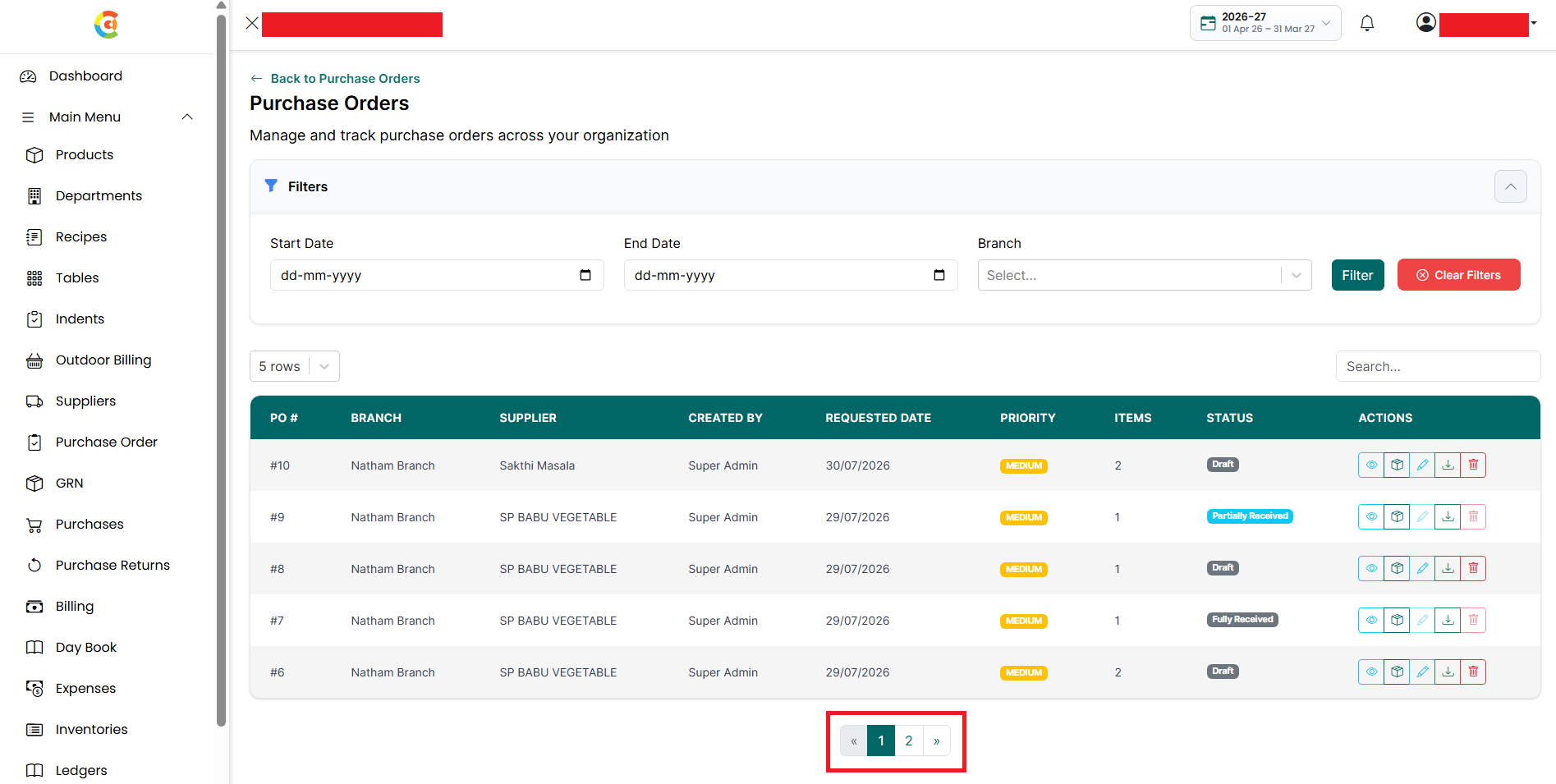
- Filters - Use the filters to display purchase orders based on the required criteria.
- Start Date - Select the starting date to view purchase orders created on or after the selected date.
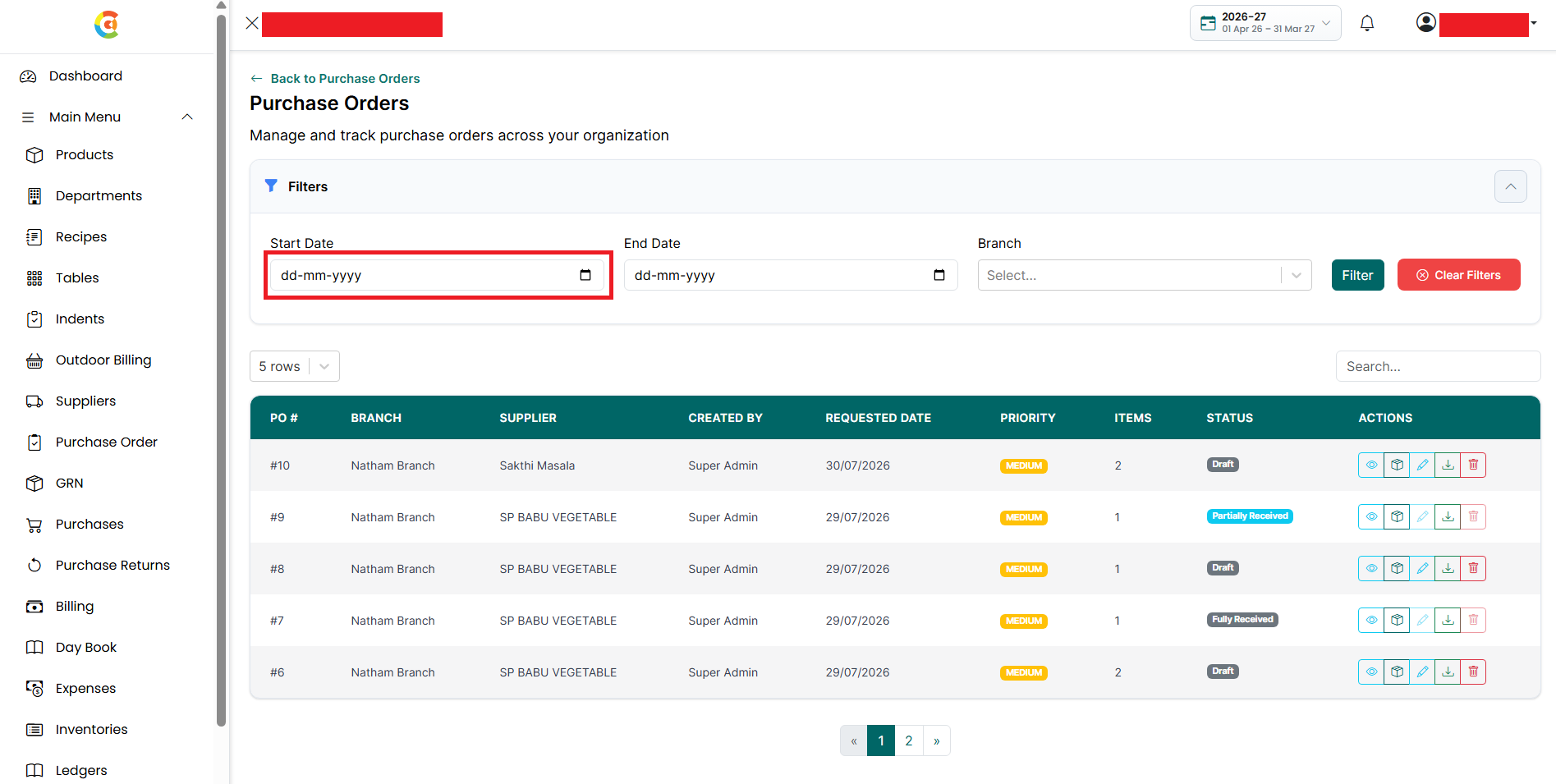
- End Date - Select the ending date to view purchase orders created on or before the selected date.
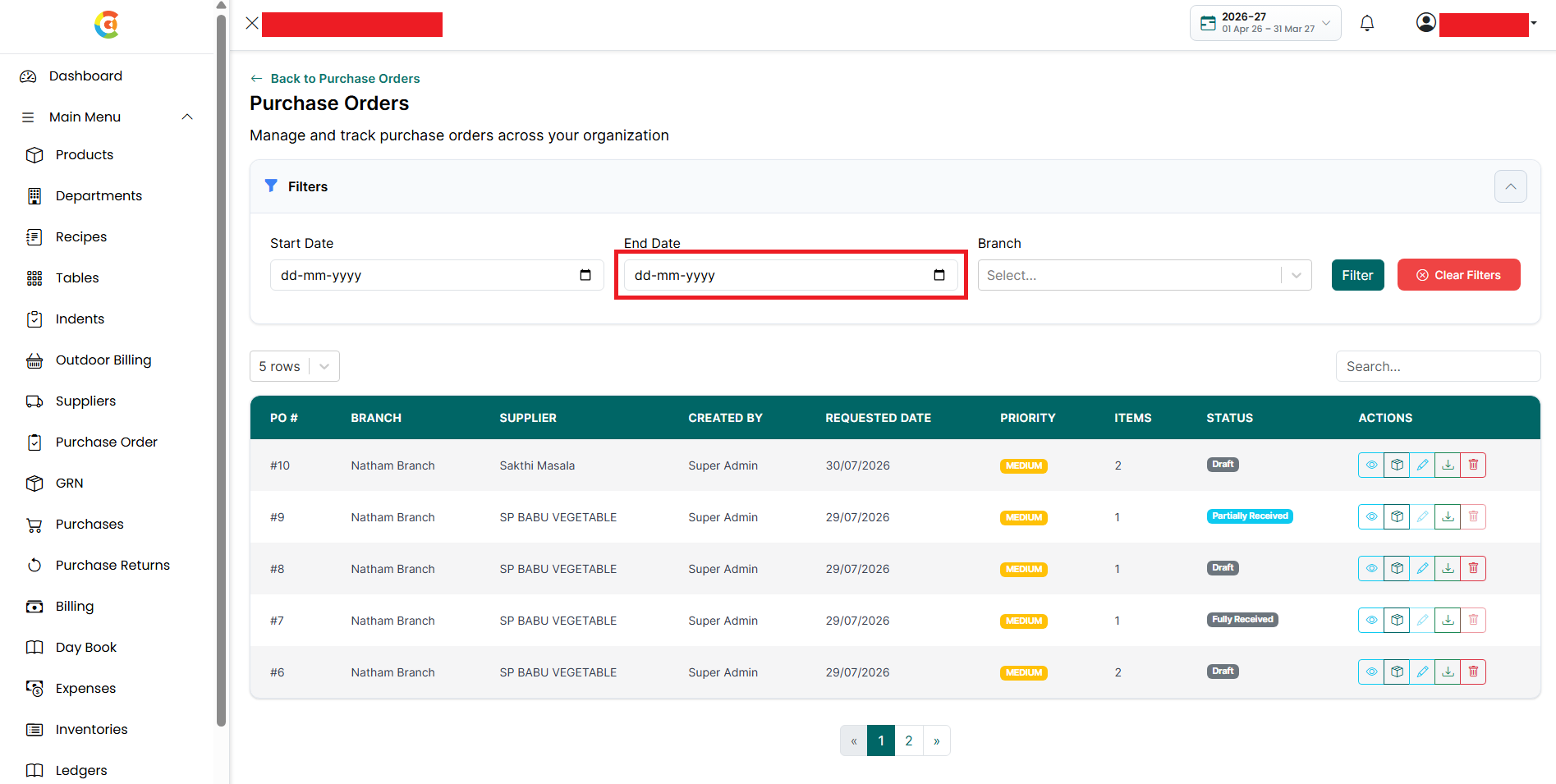
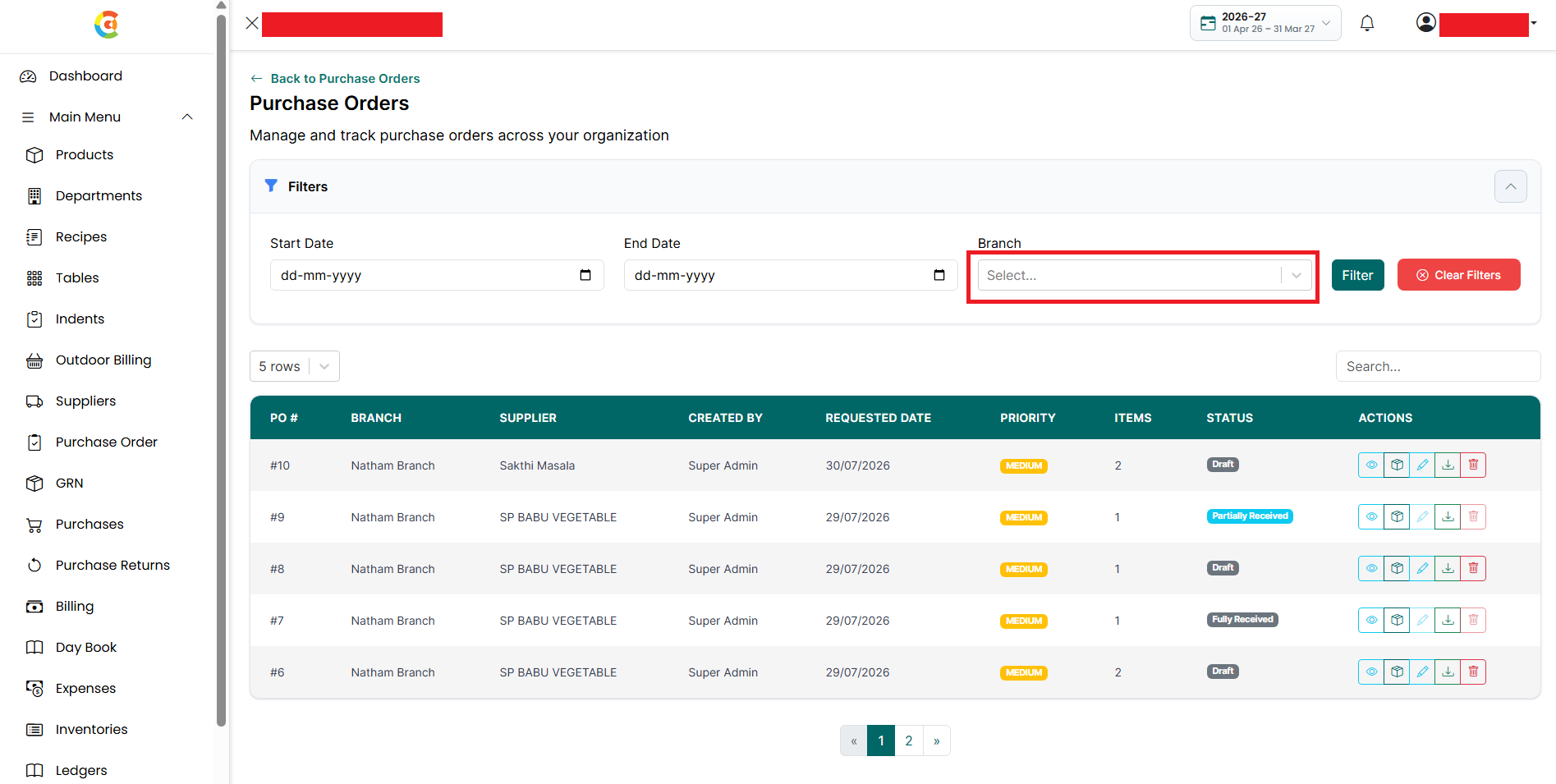
- Branch - Select a branch to view purchase orders created for that branch.
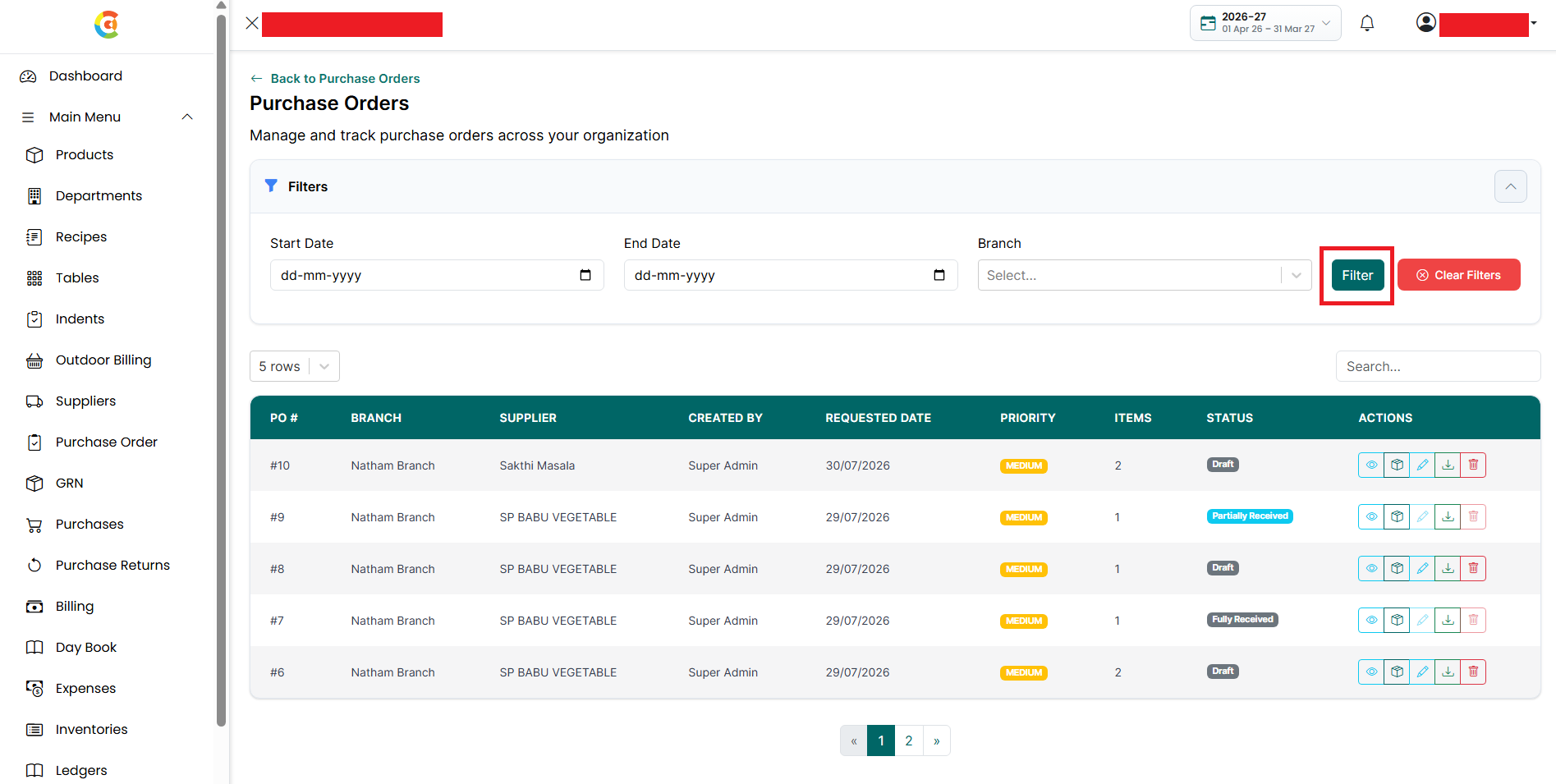
- Filter - Click the Filter button to apply the selected filters.
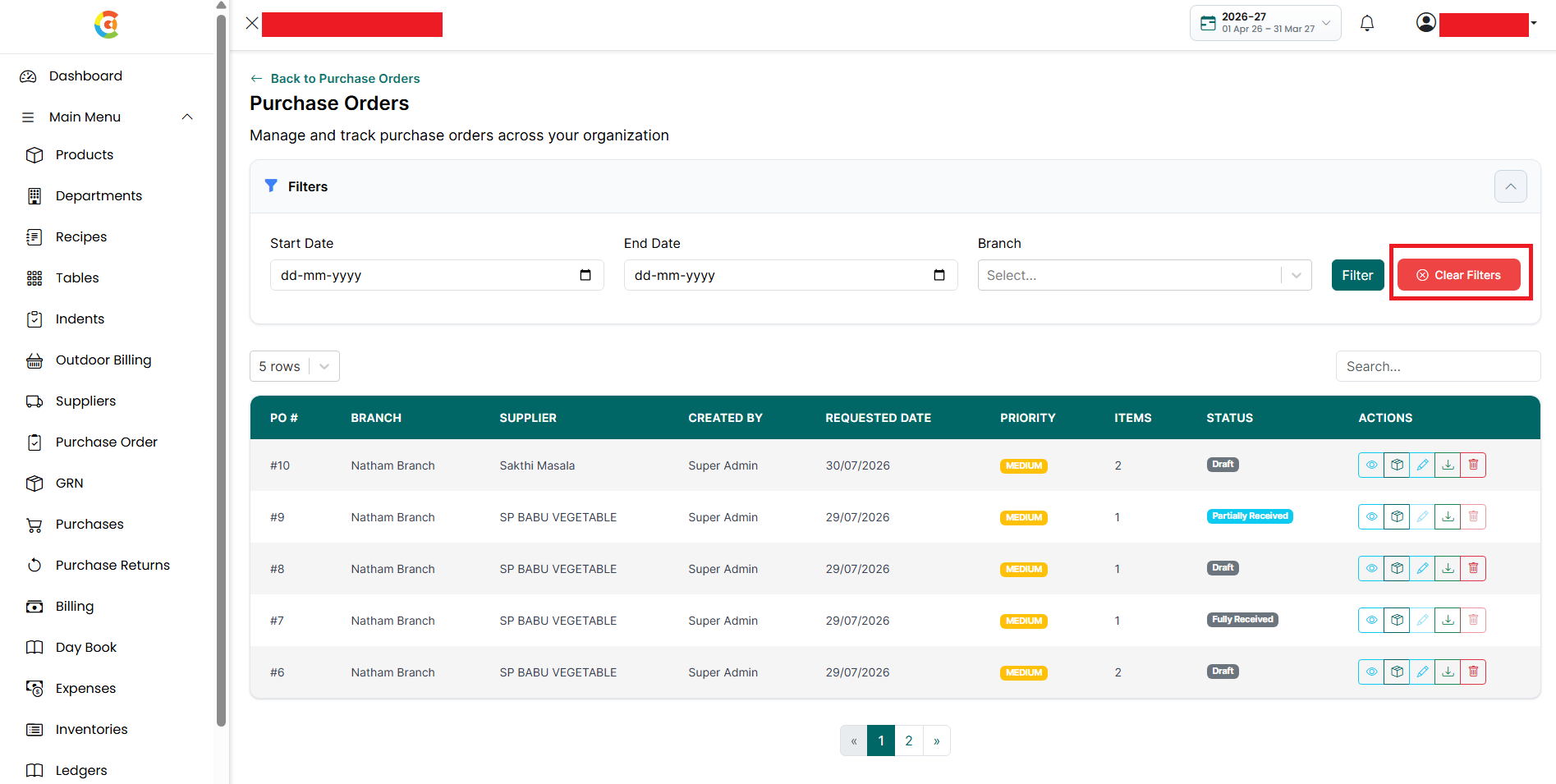
- Clear Filters - Click the Clear Filters button to remove all applied filters and display all purchase orders.
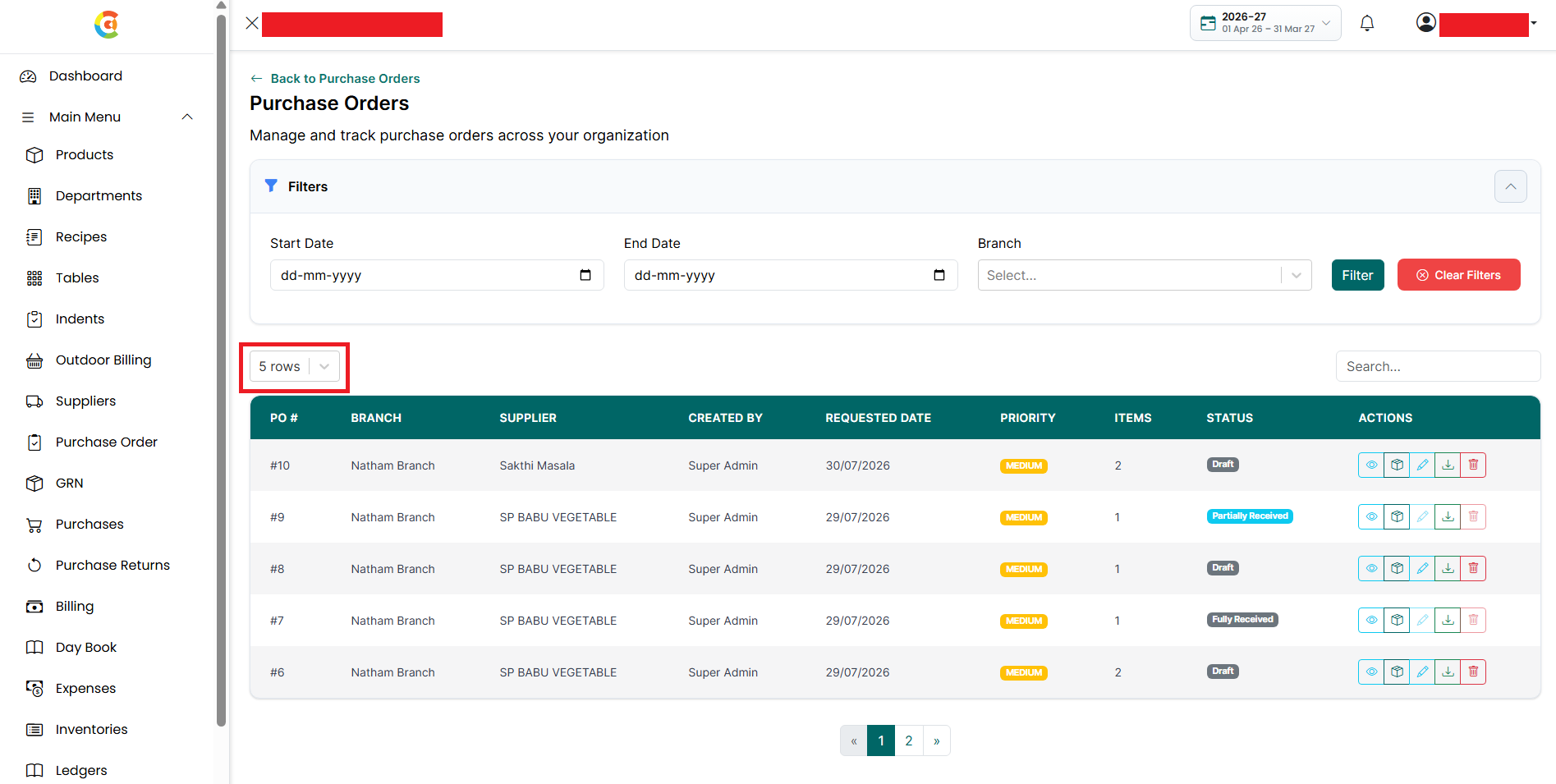
- Rows Per Page - Select how many purchase orders you want to display on a single page.
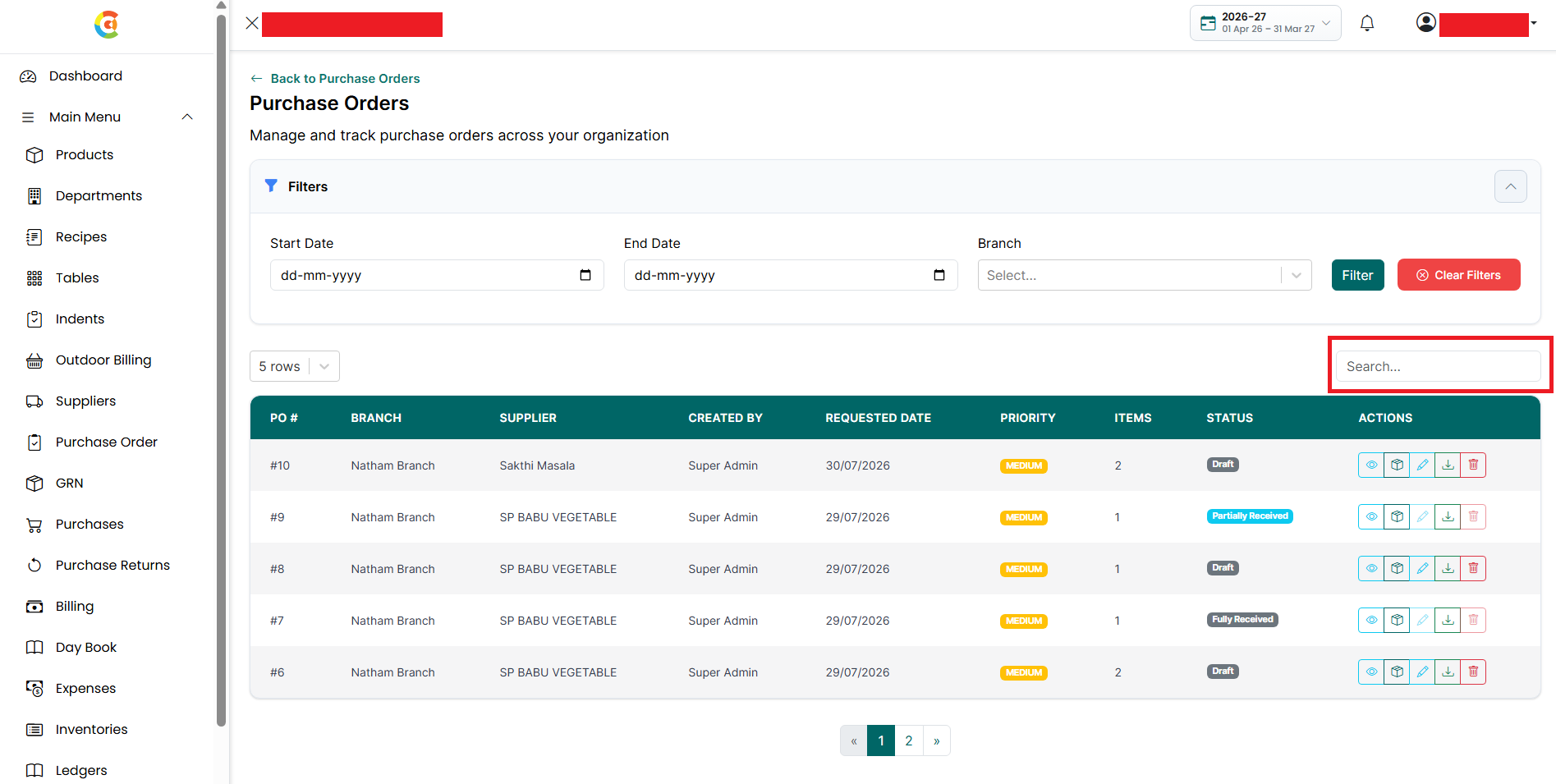
- Search - Enter the Purchase Order number, supplier name, or branch name in the Search box to quickly find a purchase order.
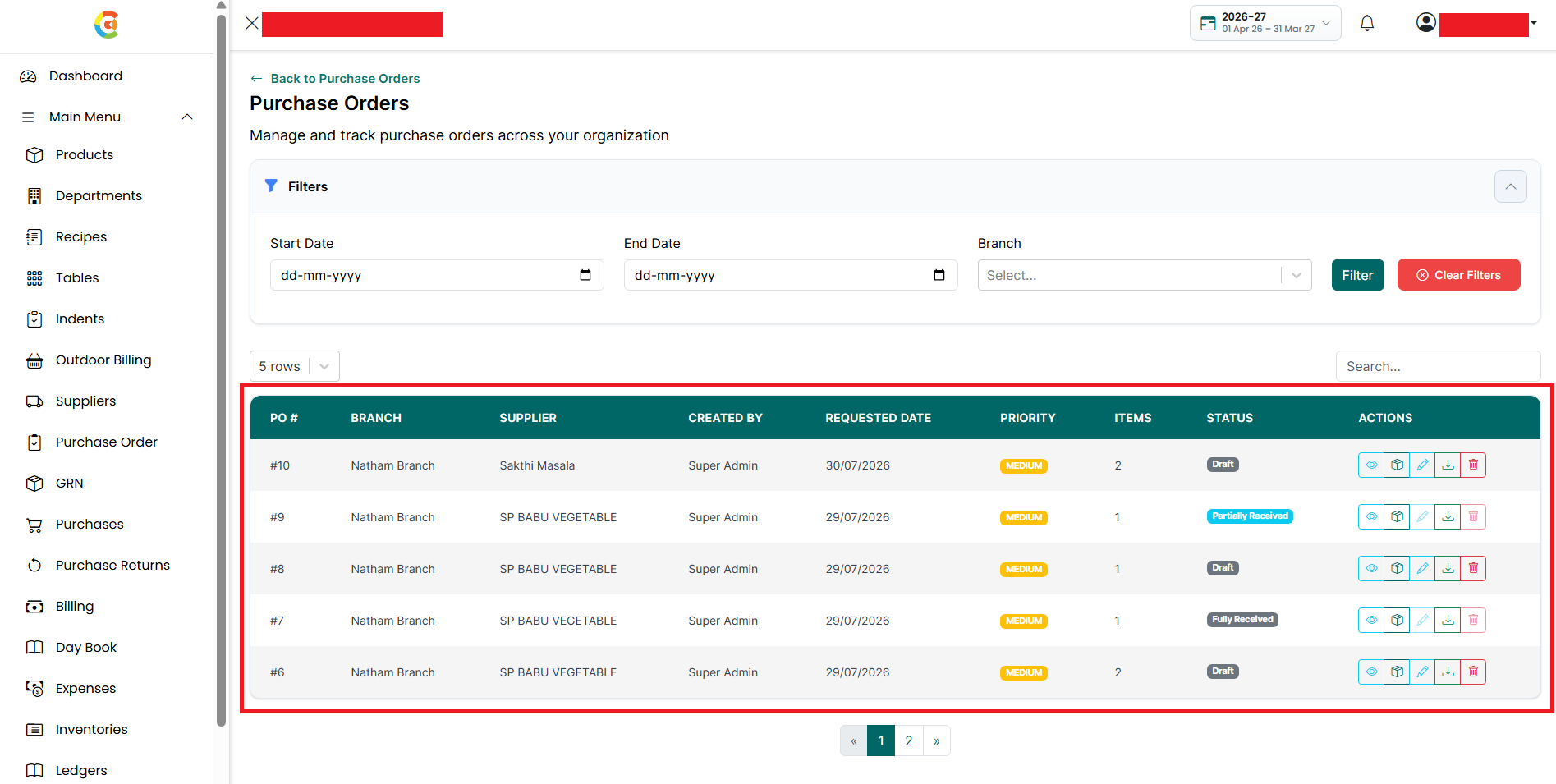
- Purchase Order List - Displays all purchase orders with the following information:
- PO # - Shows the unique Purchase Order number.
- Branch - Shows the branch for which the purchase order was created.
- Supplier - Shows the supplier selected for the purchase order.
- Created By - Shows the name of the user who created the purchase order.
- Requested Date - Shows the date on which the purchase order was created.
- Priority - Shows the priority assigned to the purchase order, such as Low, Medium, High, or Urgent.
- Items - Shows the total number of products included in the purchase order.
- Status - Shows the current status of the purchase order, such as Draft, Partially Received, or Fully Received.
- Actions - Shows the actions available for each purchase order.
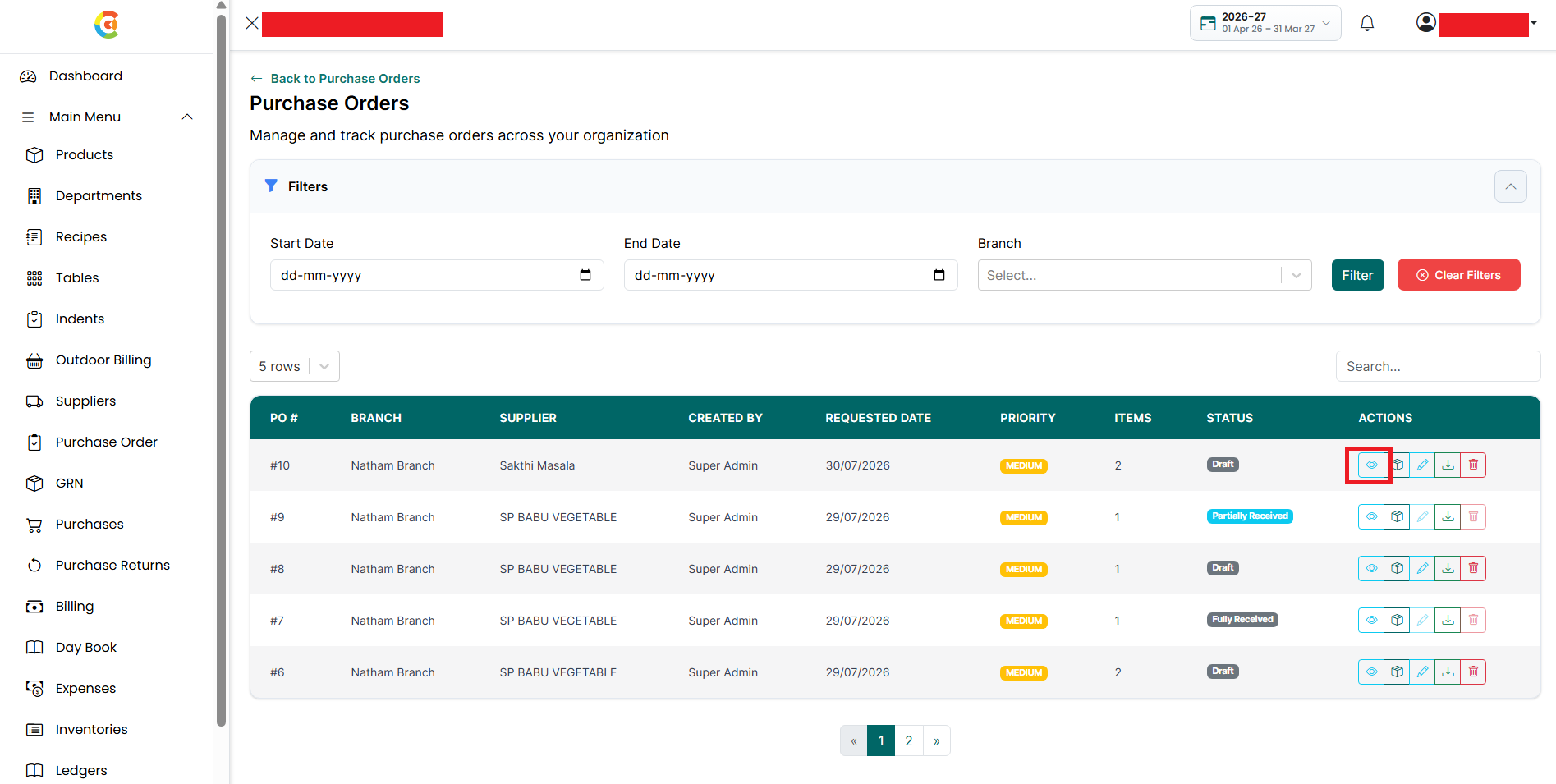
- View - Click the View icon to view the complete purchase order details.
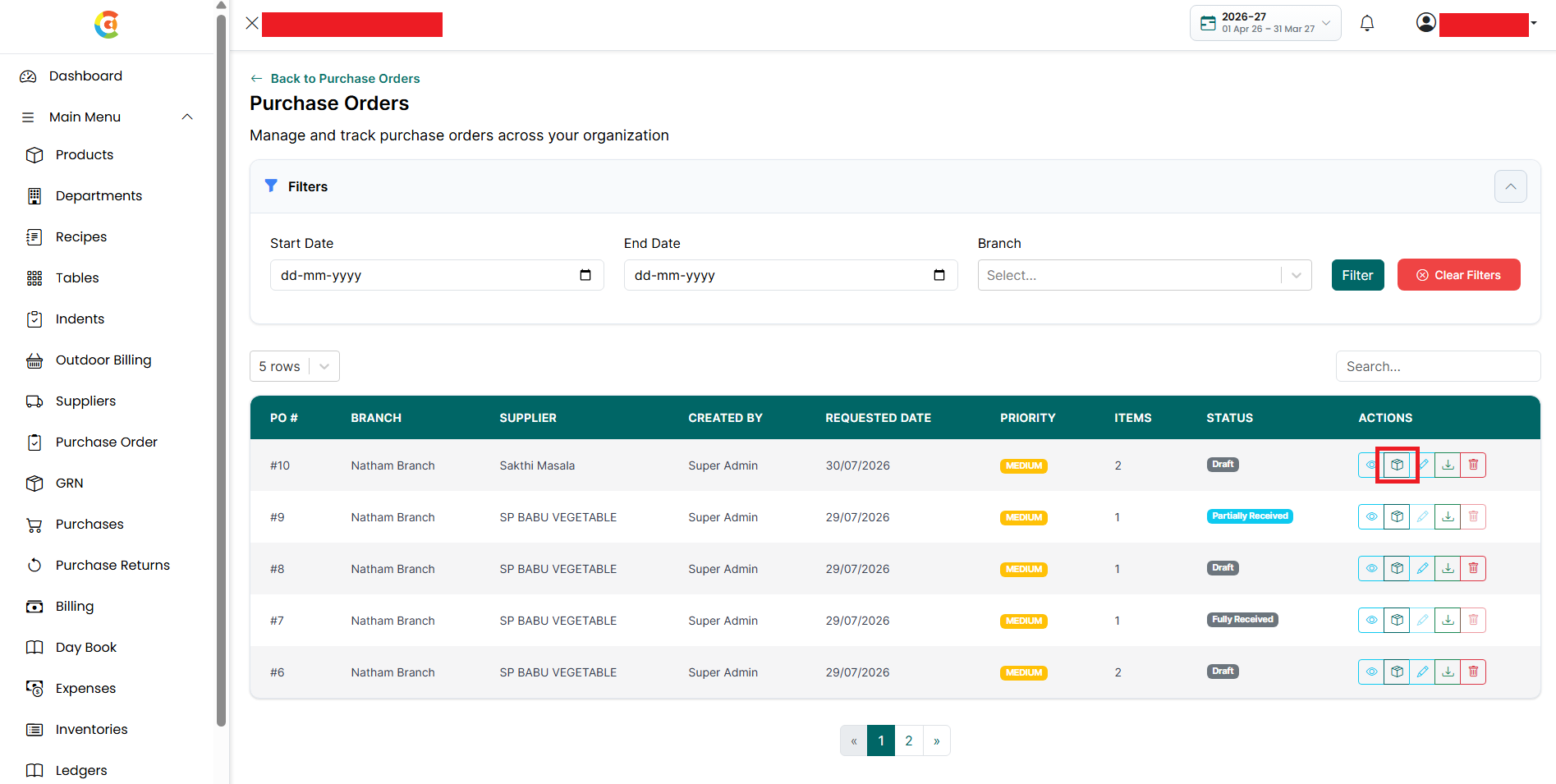
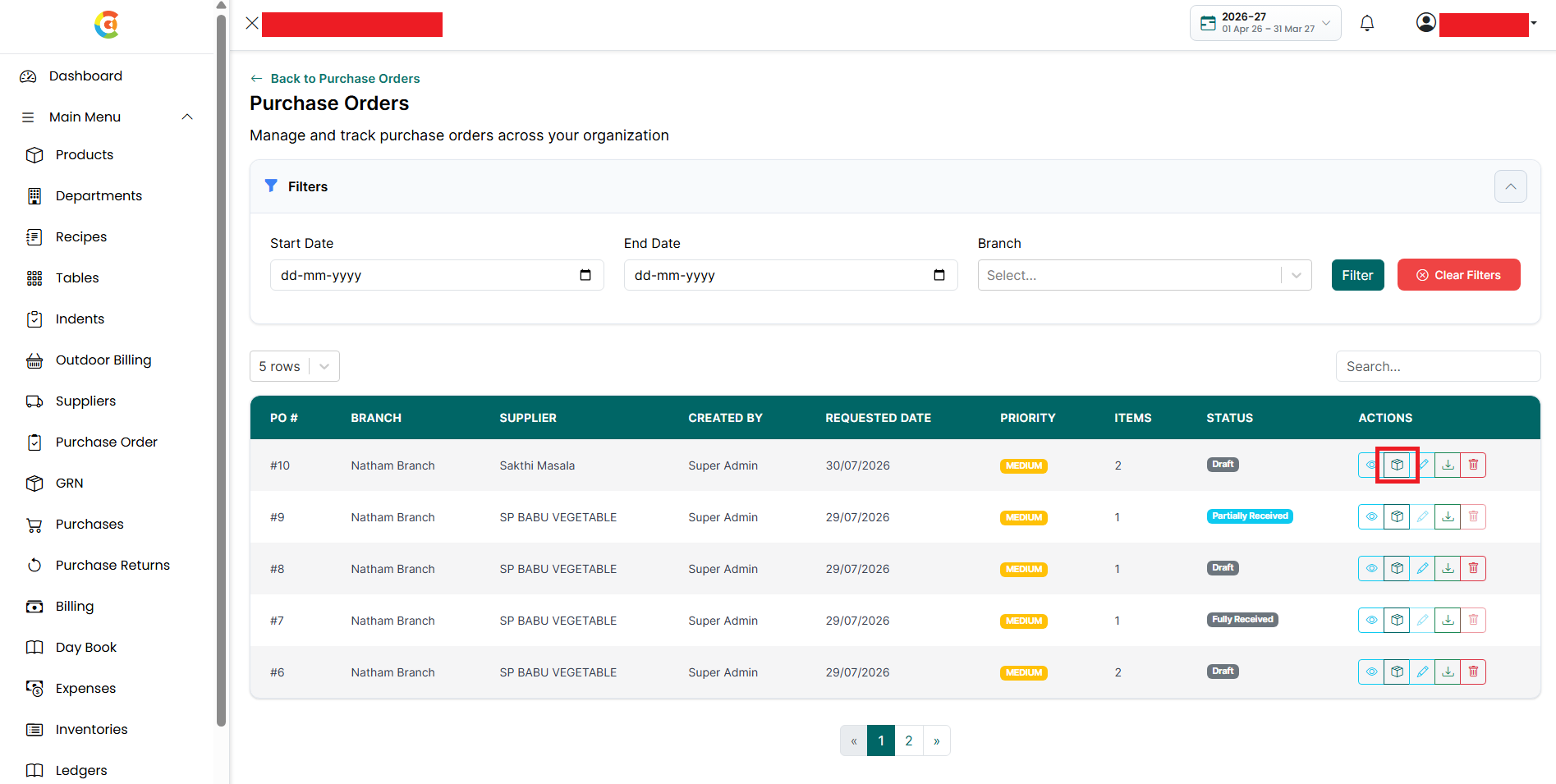
- Create GRN - Click the Create GRN icon to create a Goods Receipt Note (GRN) for the selected purchase order. This option is available only until the purchase order is Fully Received. Once the purchase order is fully received, no additional GRN can be created.
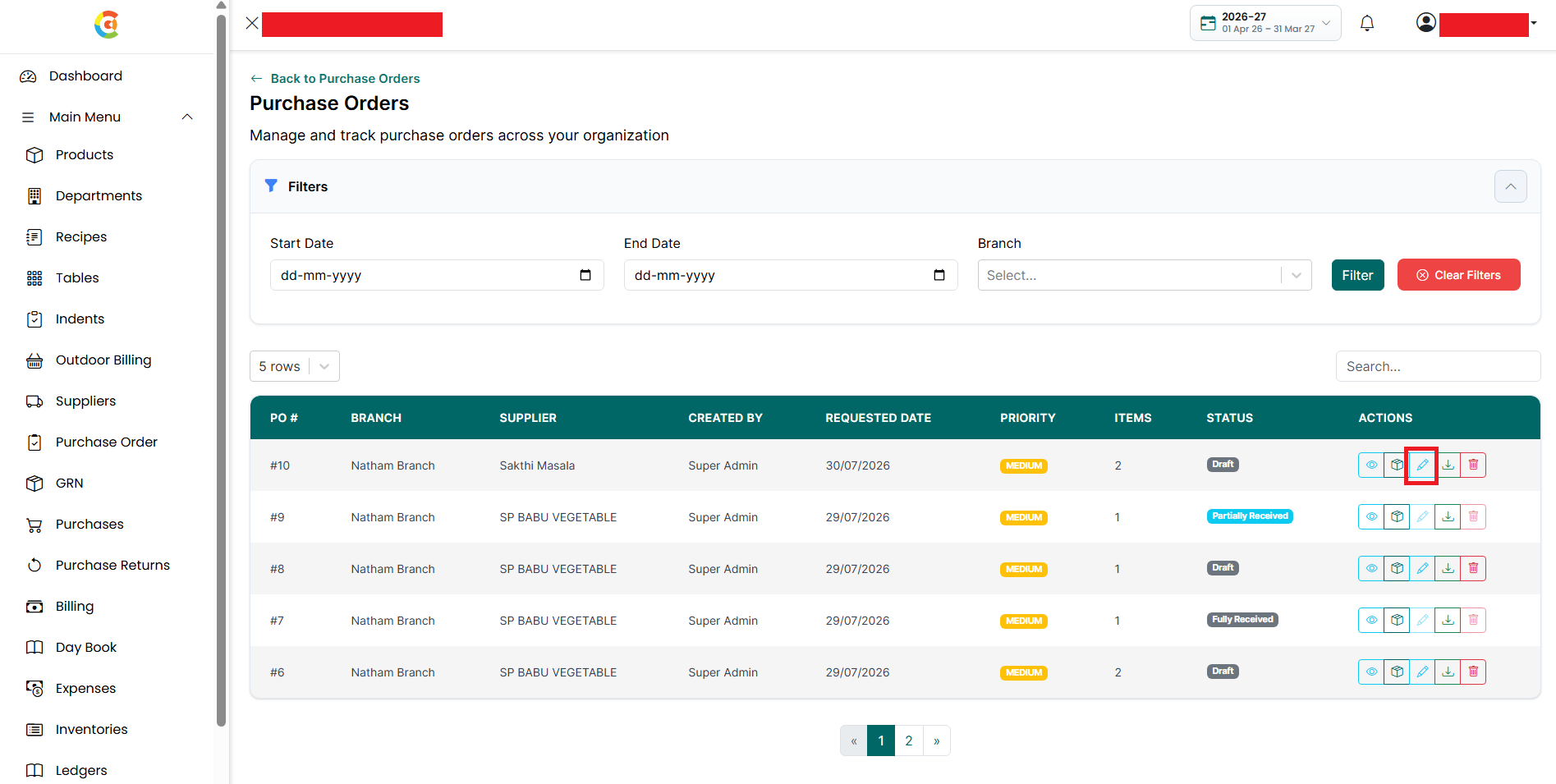
- Edit - Click the Edit icon to update the purchase order details. Purchase orders that have already been fully processed through a GRN cannot be edited.
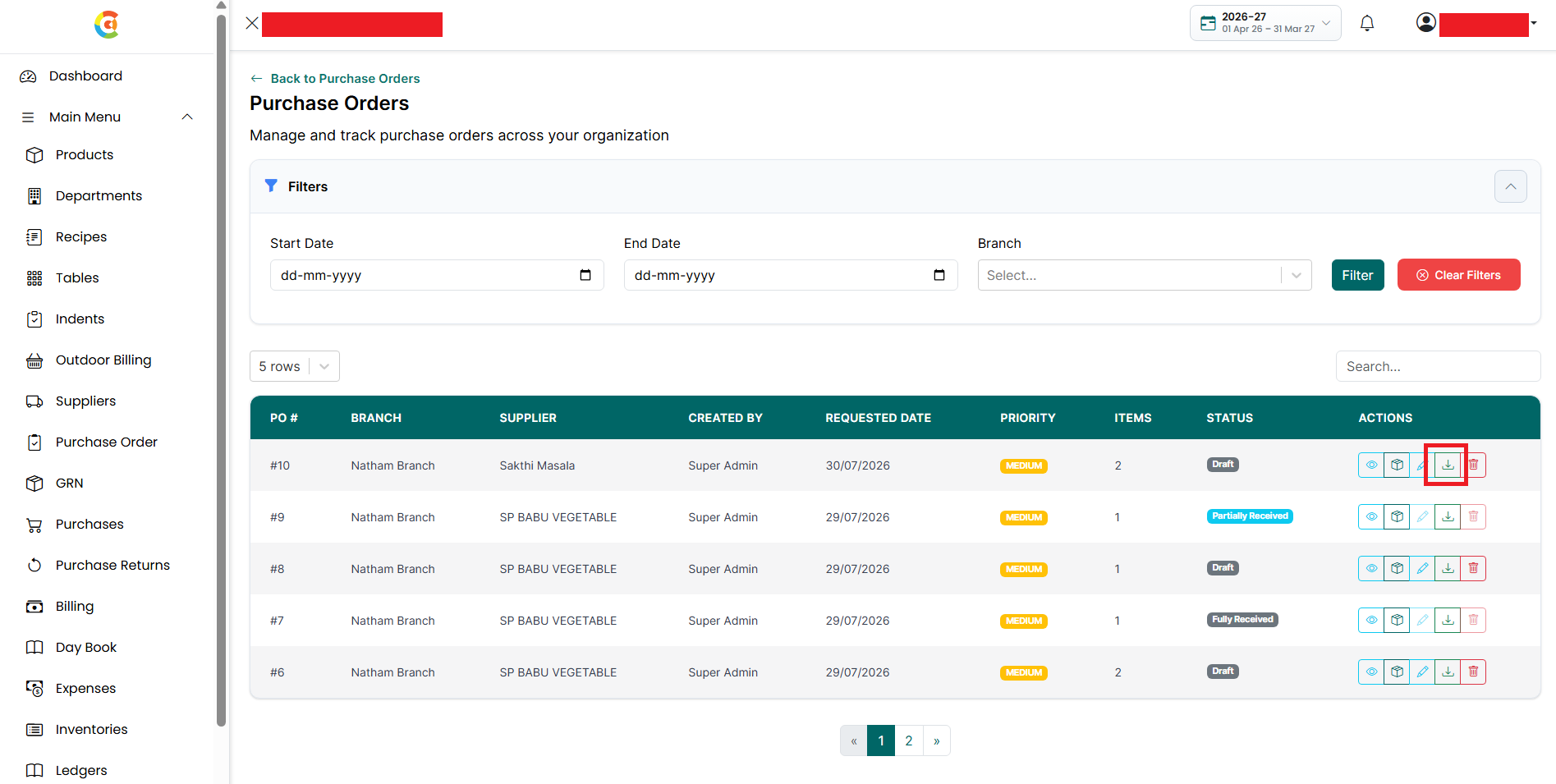
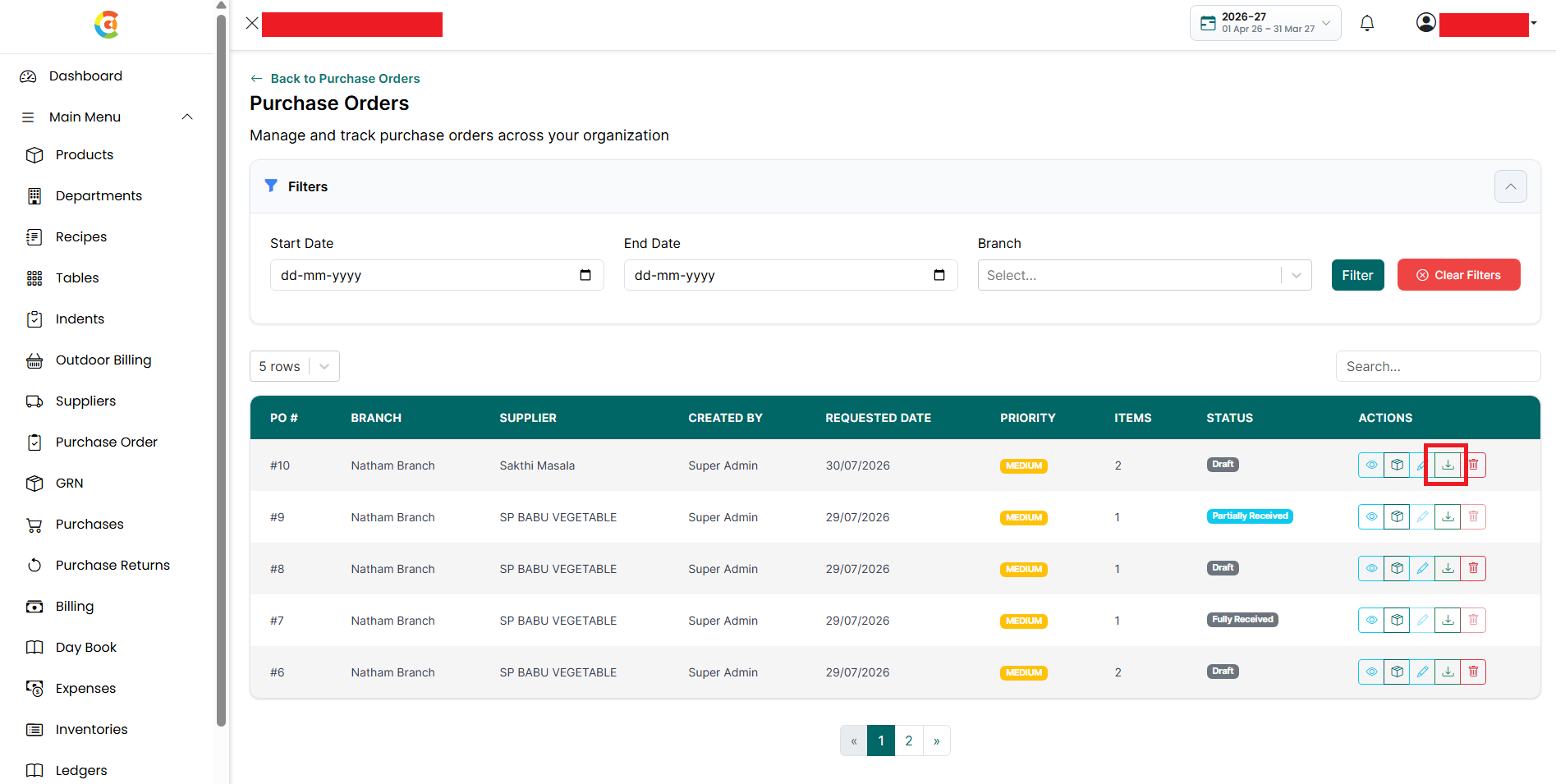
- Download - Click the Download icon to download the purchase order as a PDF.
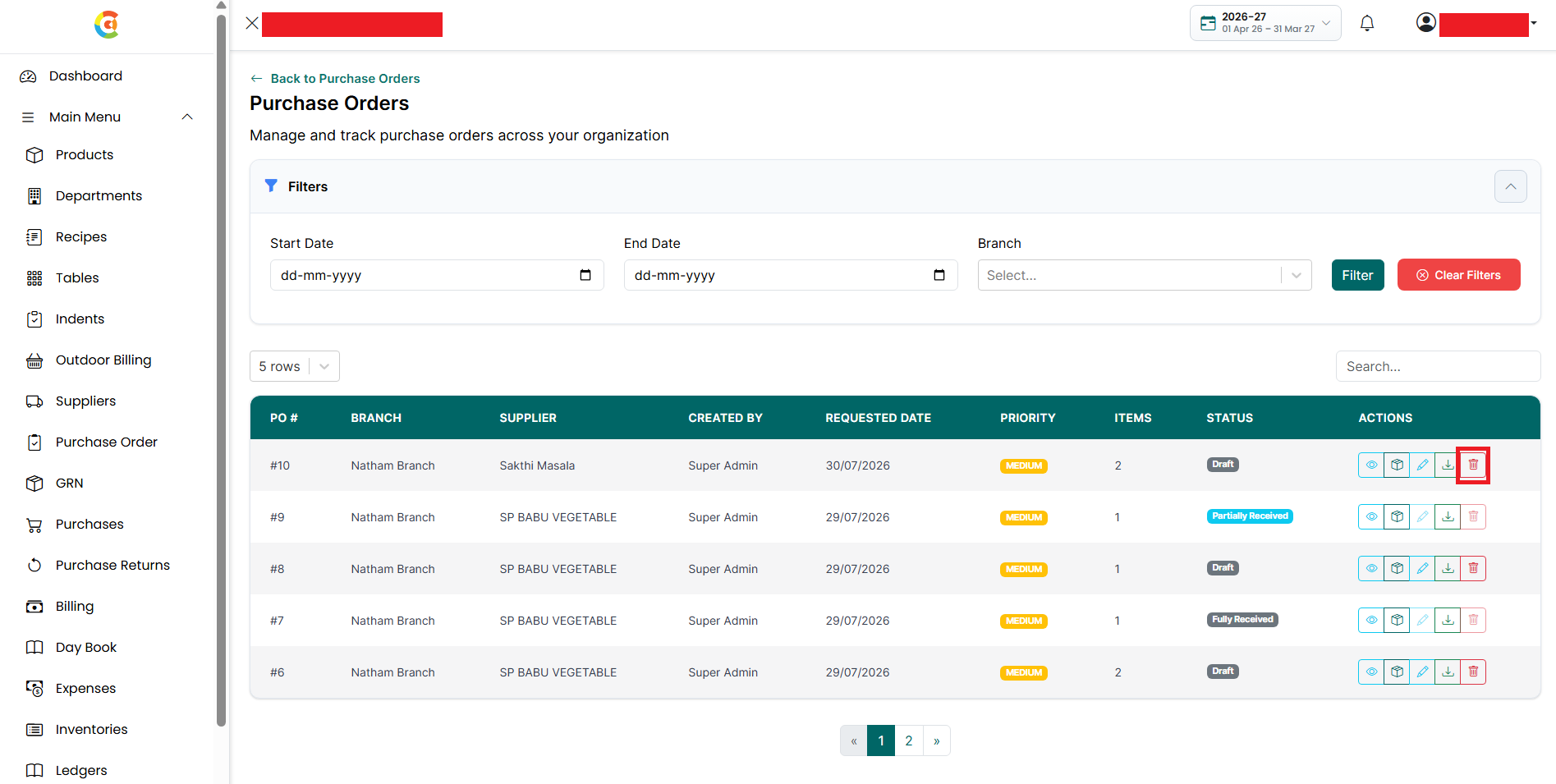
- Delete - Click the Delete icon to remove the purchase order from active use. Deleted purchase orders remain available for retrieval until they are permanently removed, if applicable. Purchase orders that are Fully Received cannot be deleted.
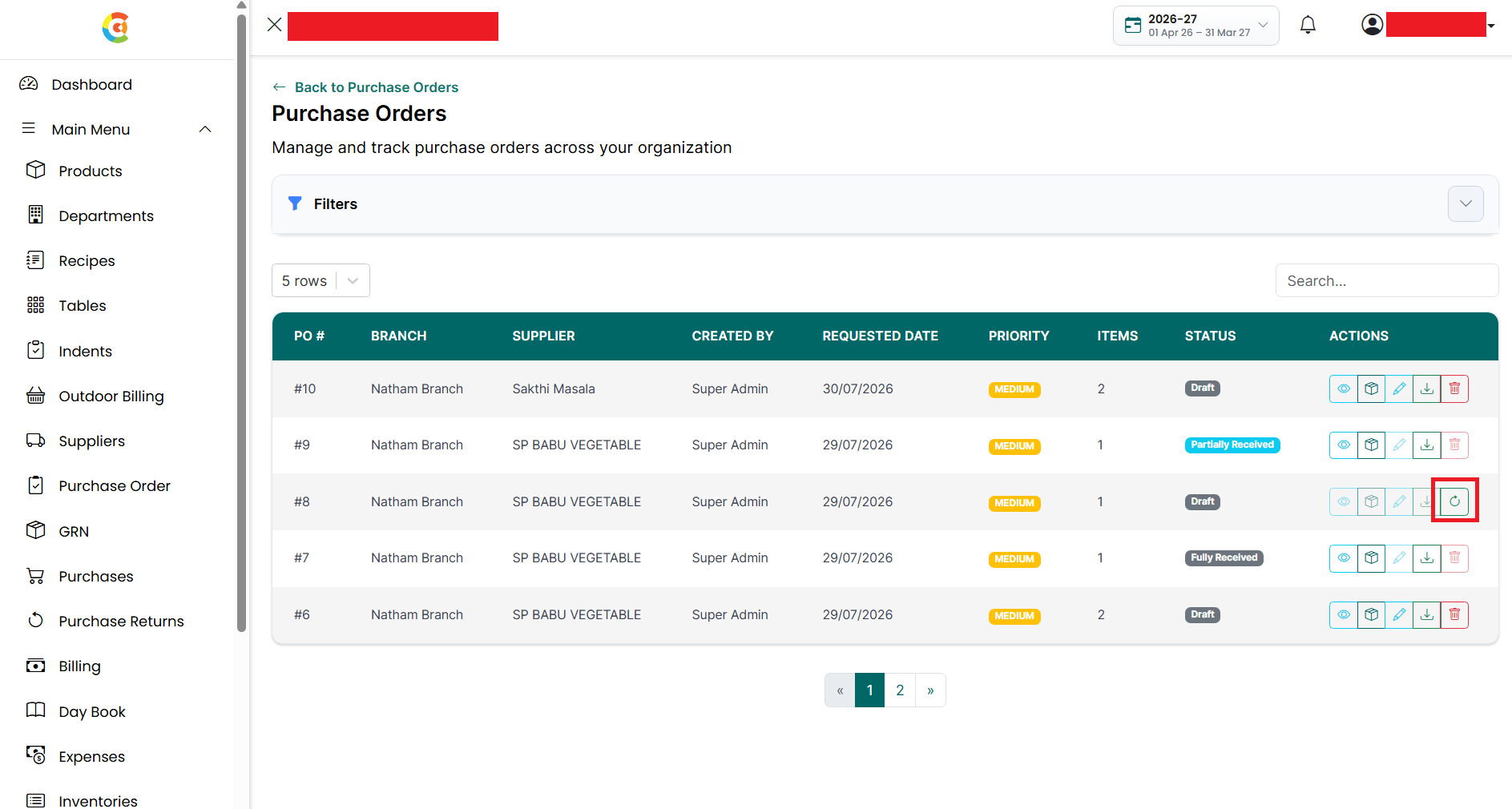
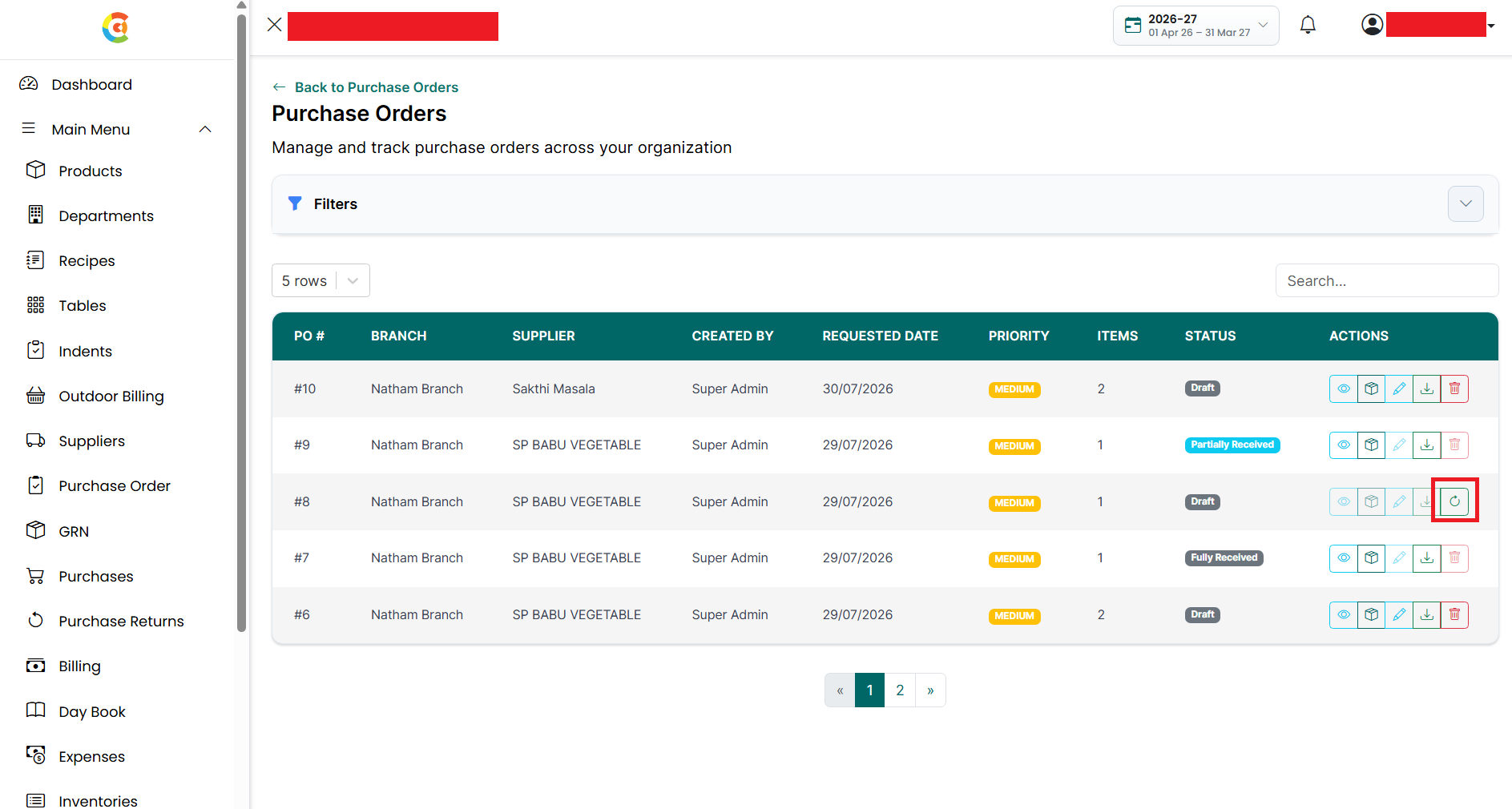
- Retrieve - If a purchase order has been deleted, the Retrieve icon is displayed instead of the Delete icon. Click it to restore the purchase order. After the purchase order is restored successfully, it becomes active again and can be viewed and used in the application.
- Pagination - Use the page numbers or the Previous and Next buttons at the bottom of the page to move between different pages.
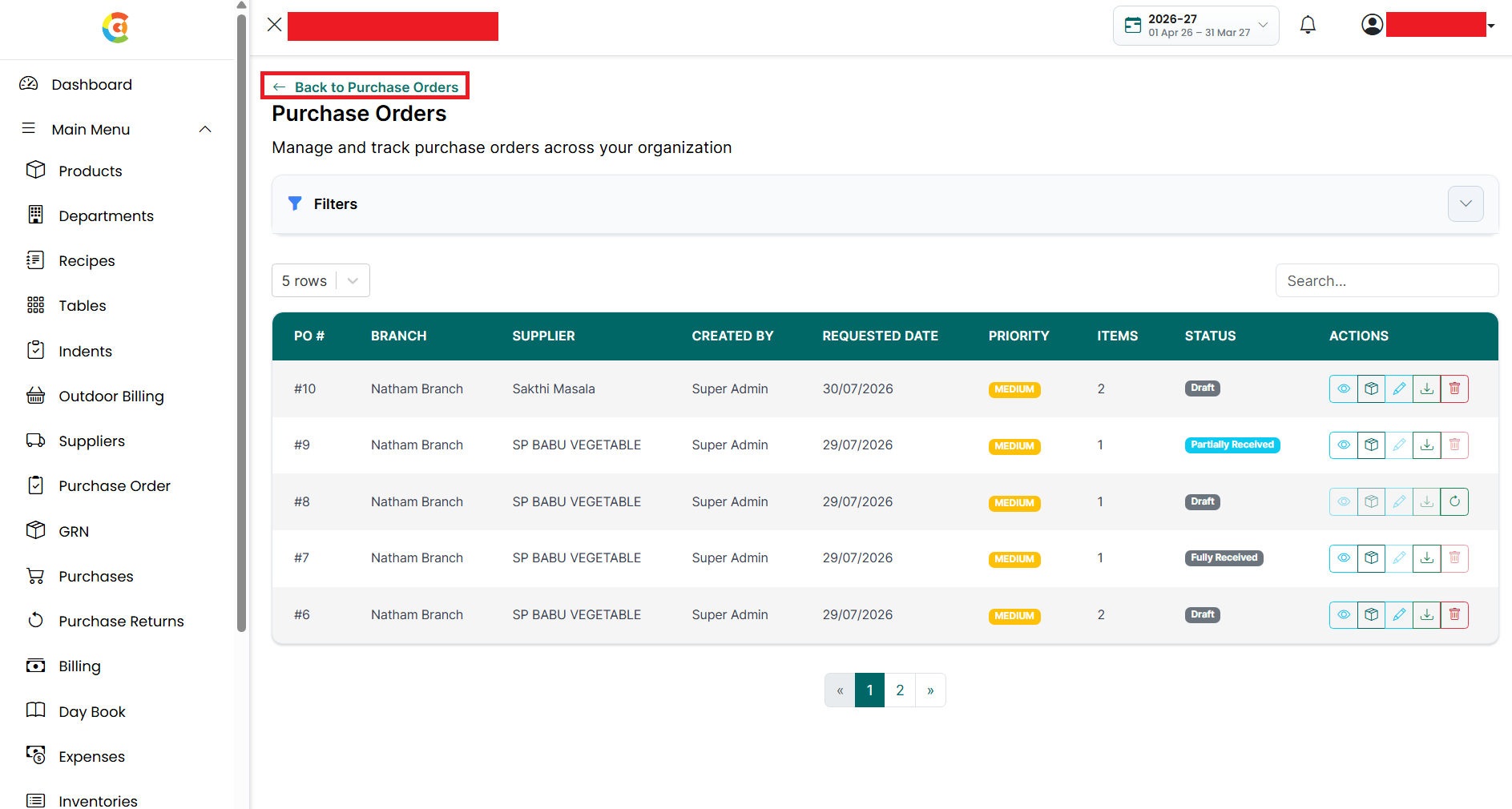
- Back to Purchase Orders - Click Back to Purchase Orders to return to the Create Purchase Order page.
Note: Purchase orders are displayed with the most recently created purchase order shown first.
View Purchase Order
To view the details of a purchase order, follow the steps below.
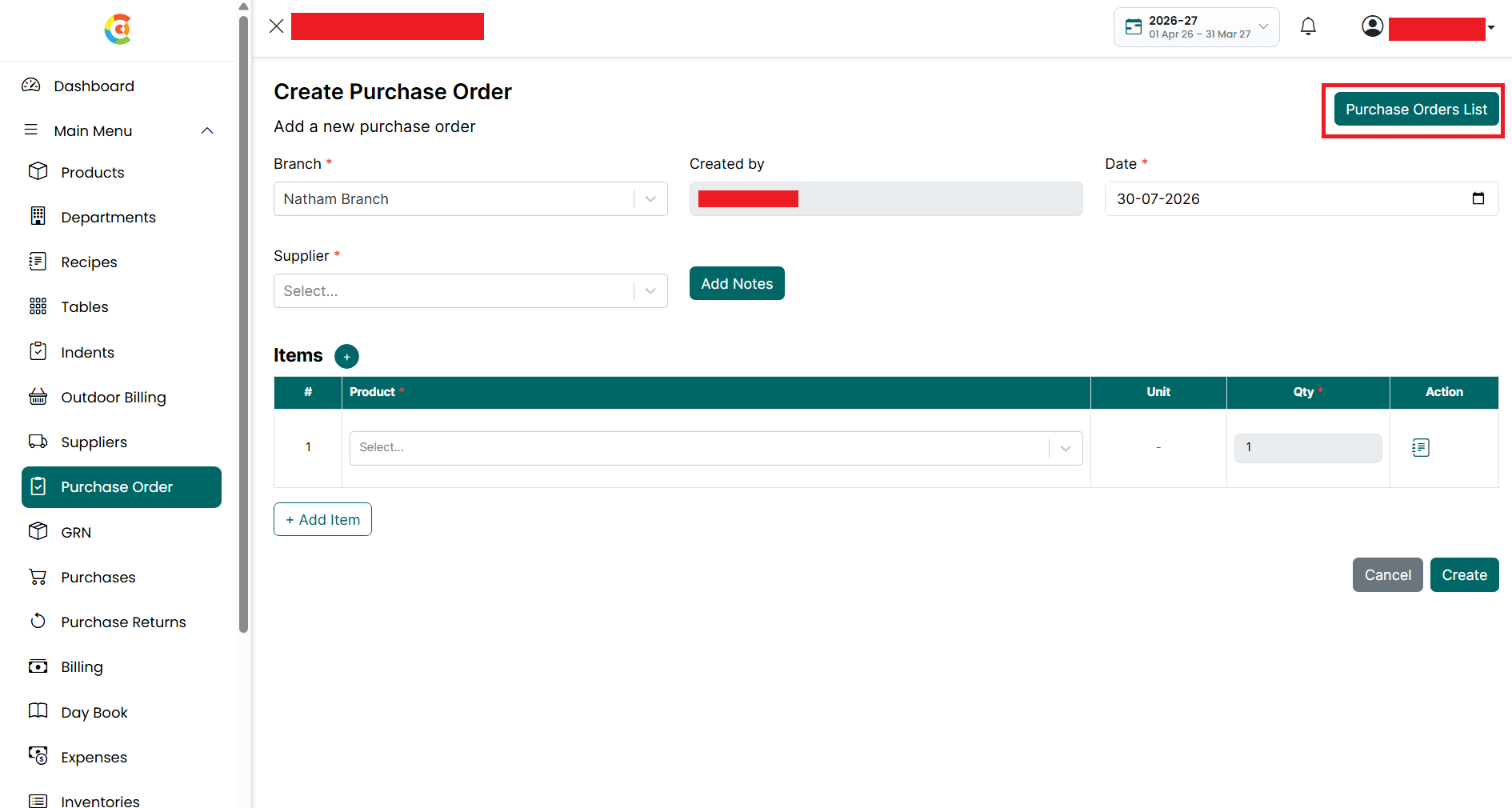
- Go to the Main Menu and click Purchase Order. The Create Purchase Order page is displayed.
- Click the Purchase Orders List button.
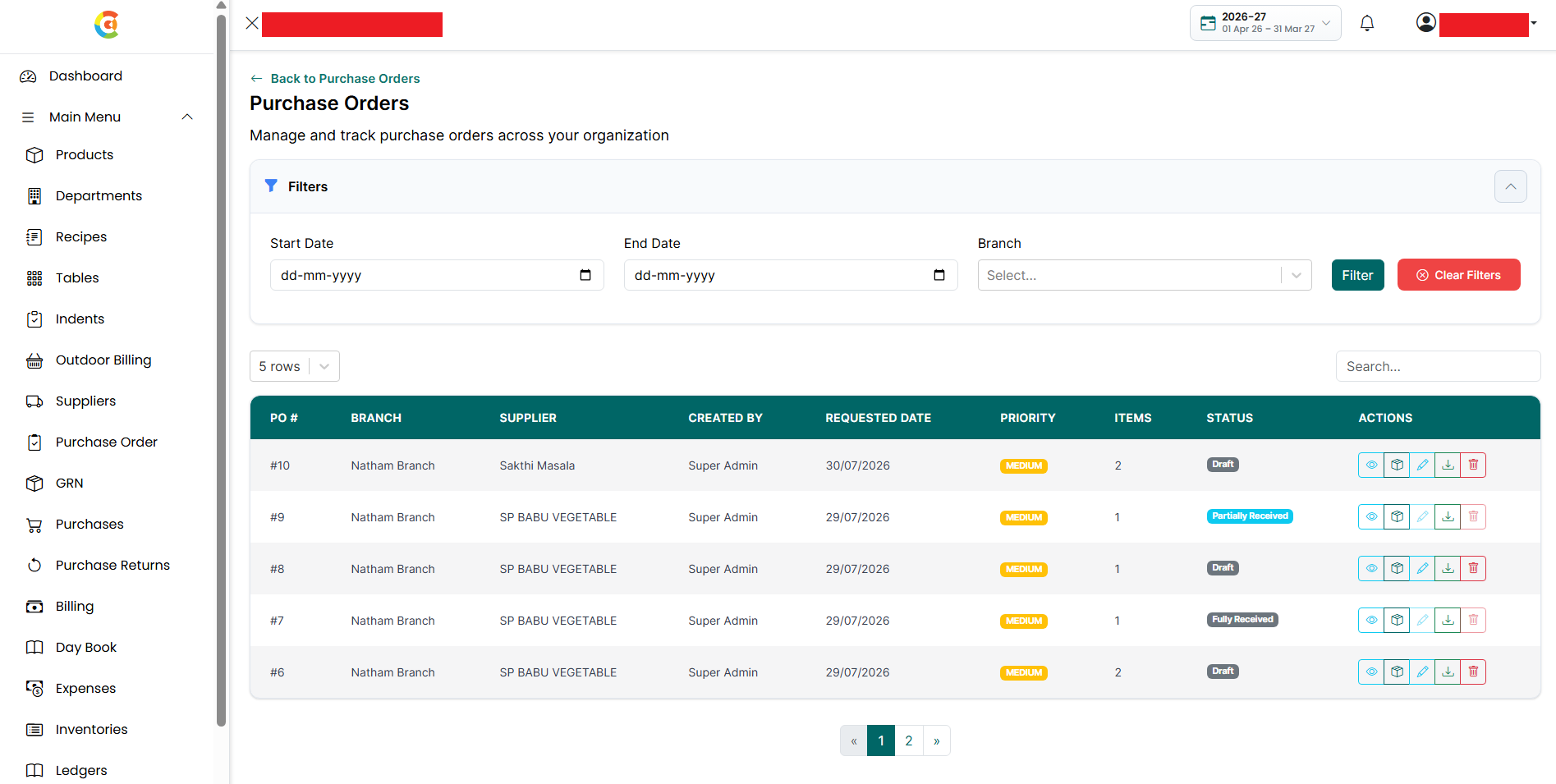
- The Purchase Order List page is displayed.
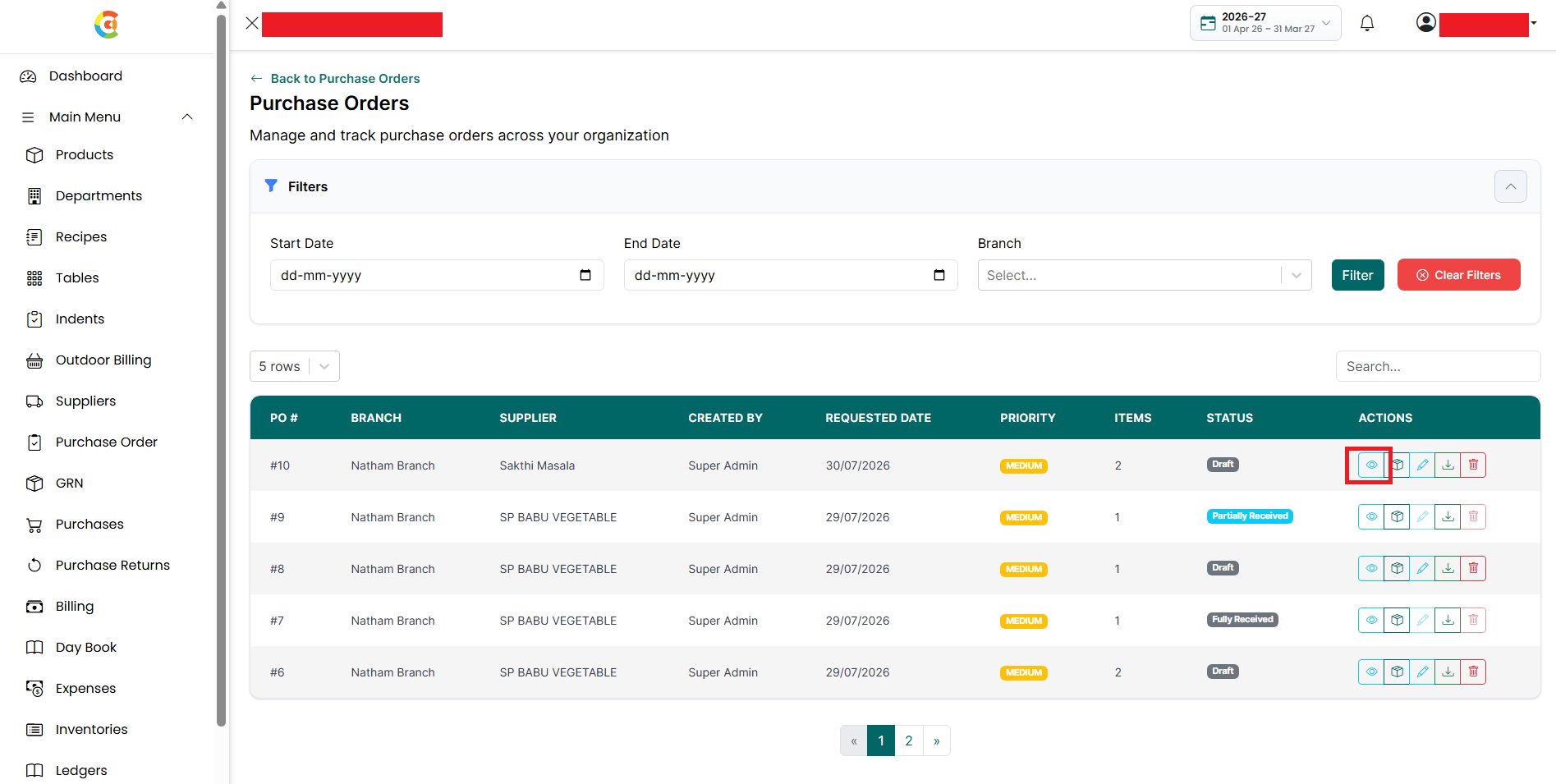
- Find the purchase order you want to view. Click the View icon.
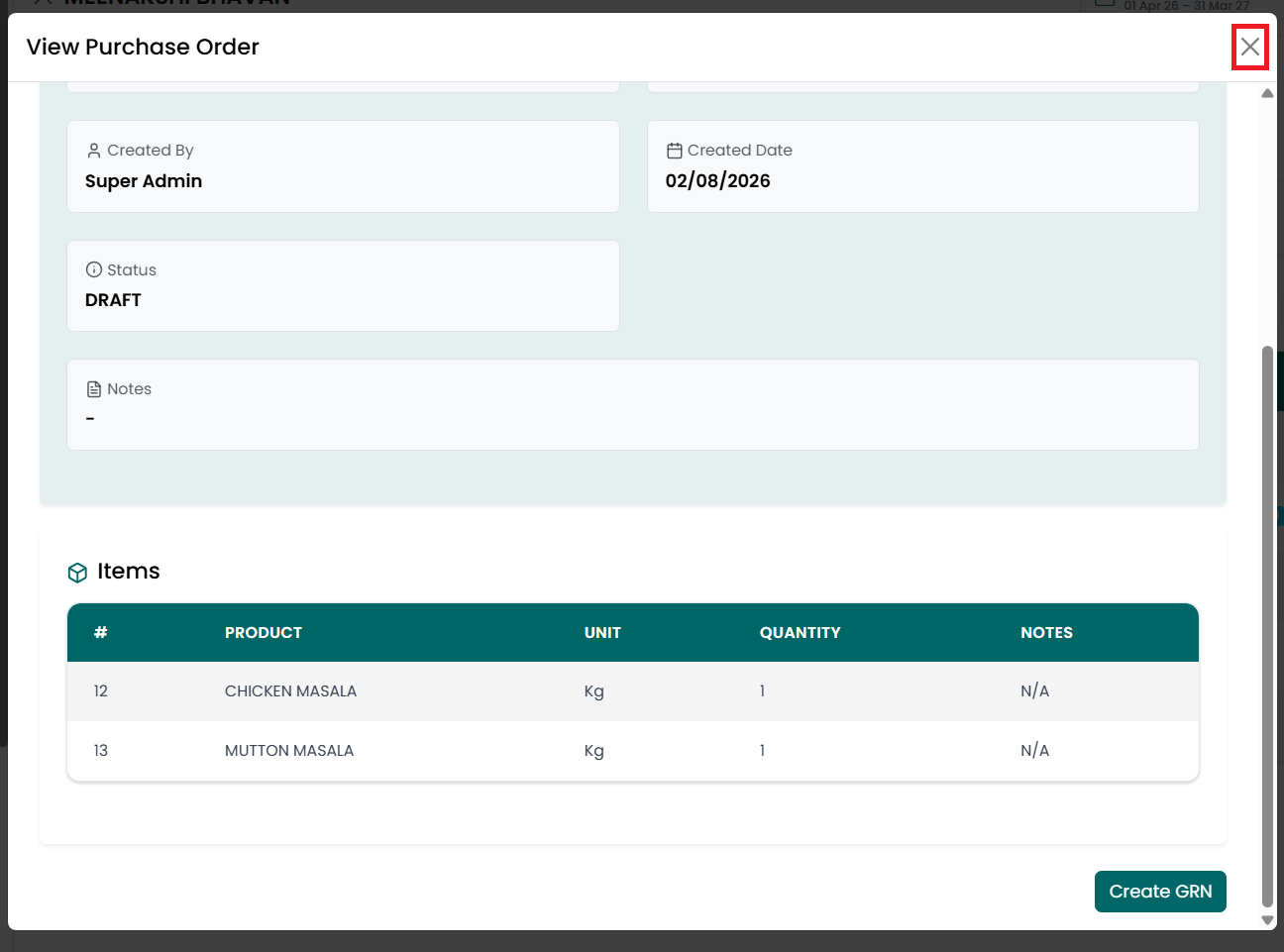
- The View Purchase Order window is displayed.
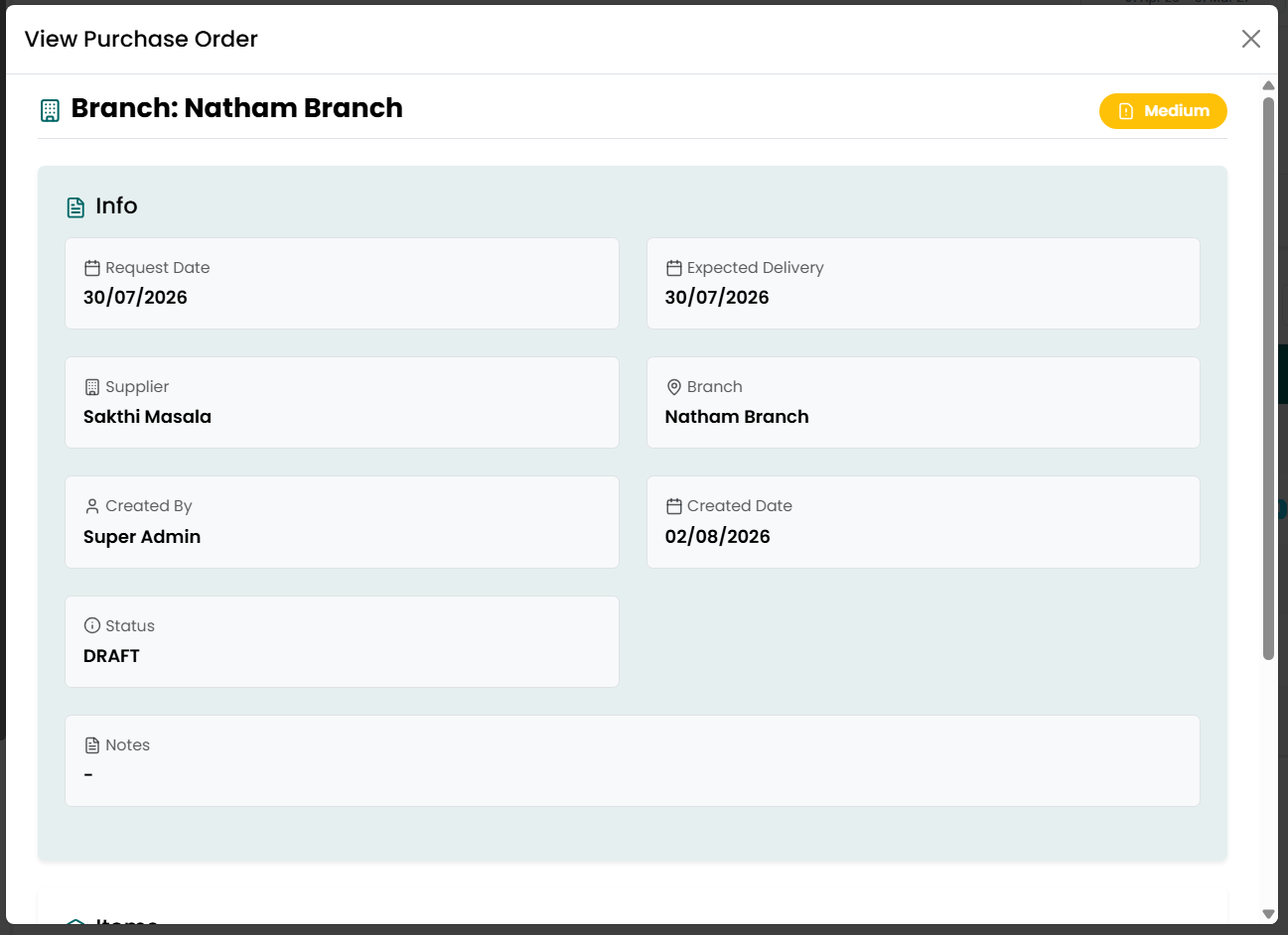
- The following information is available:
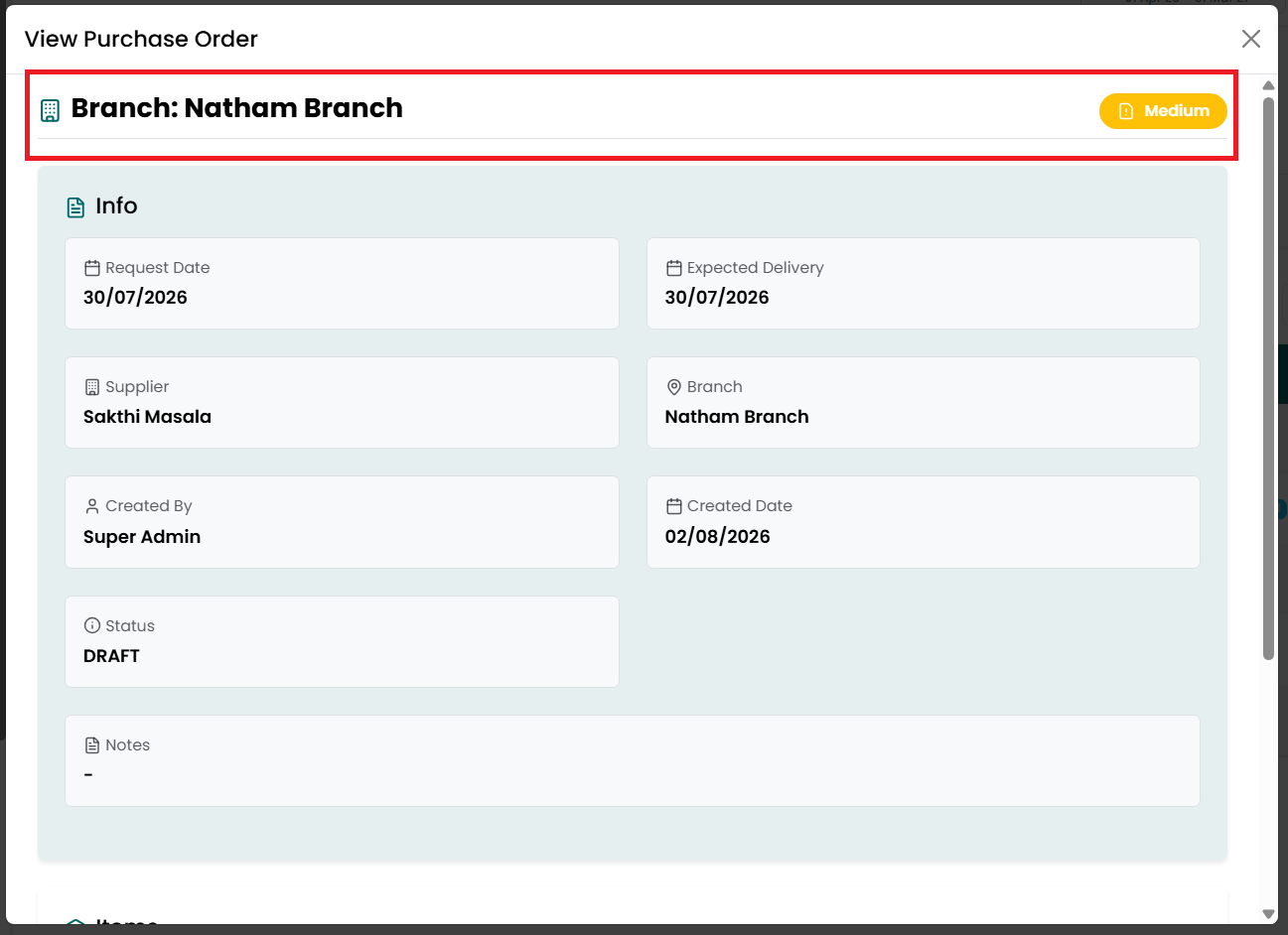
- Purchase Order Information
- Branch - Shows the branch for which the purchase order was created.
- Priority - Shows the priority assigned to the purchase order.
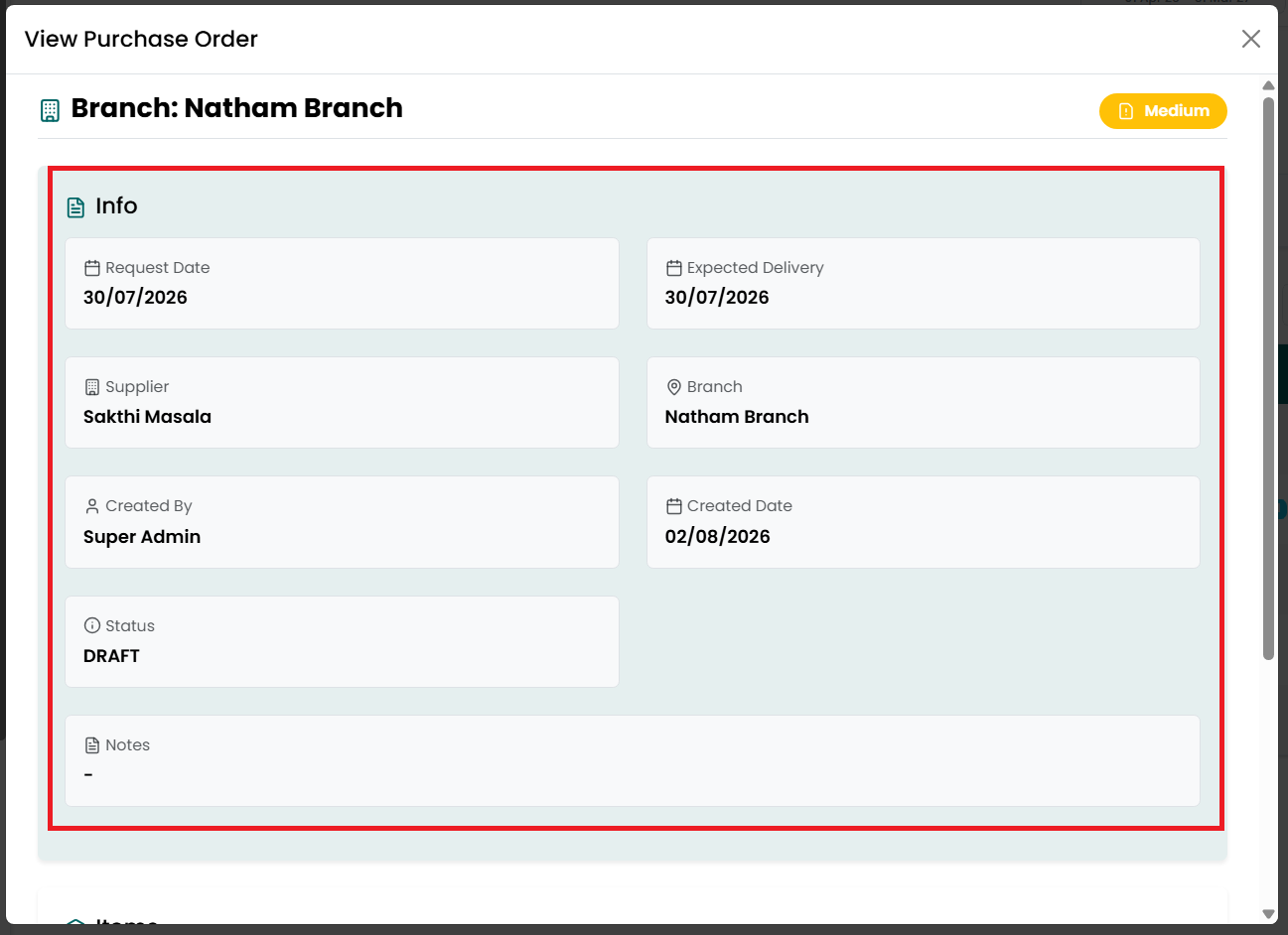
- Information
- Request Date - Shows the date on which the purchase order was created.
- Expected Delivery - Shows the expected delivery date.
- Supplier - Shows the supplier selected for the purchase order.
- Branch - Shows the branch associated with the purchase order.
- Created By - Shows the name of the user who created the purchase order.
- Created Date - Shows the date on which the purchase order was created in the system.
- Status - Shows the current status of the purchase order, such as Draft, Partially Received, or Fully Received.
- Notes - Shows any notes added while creating the purchase order.
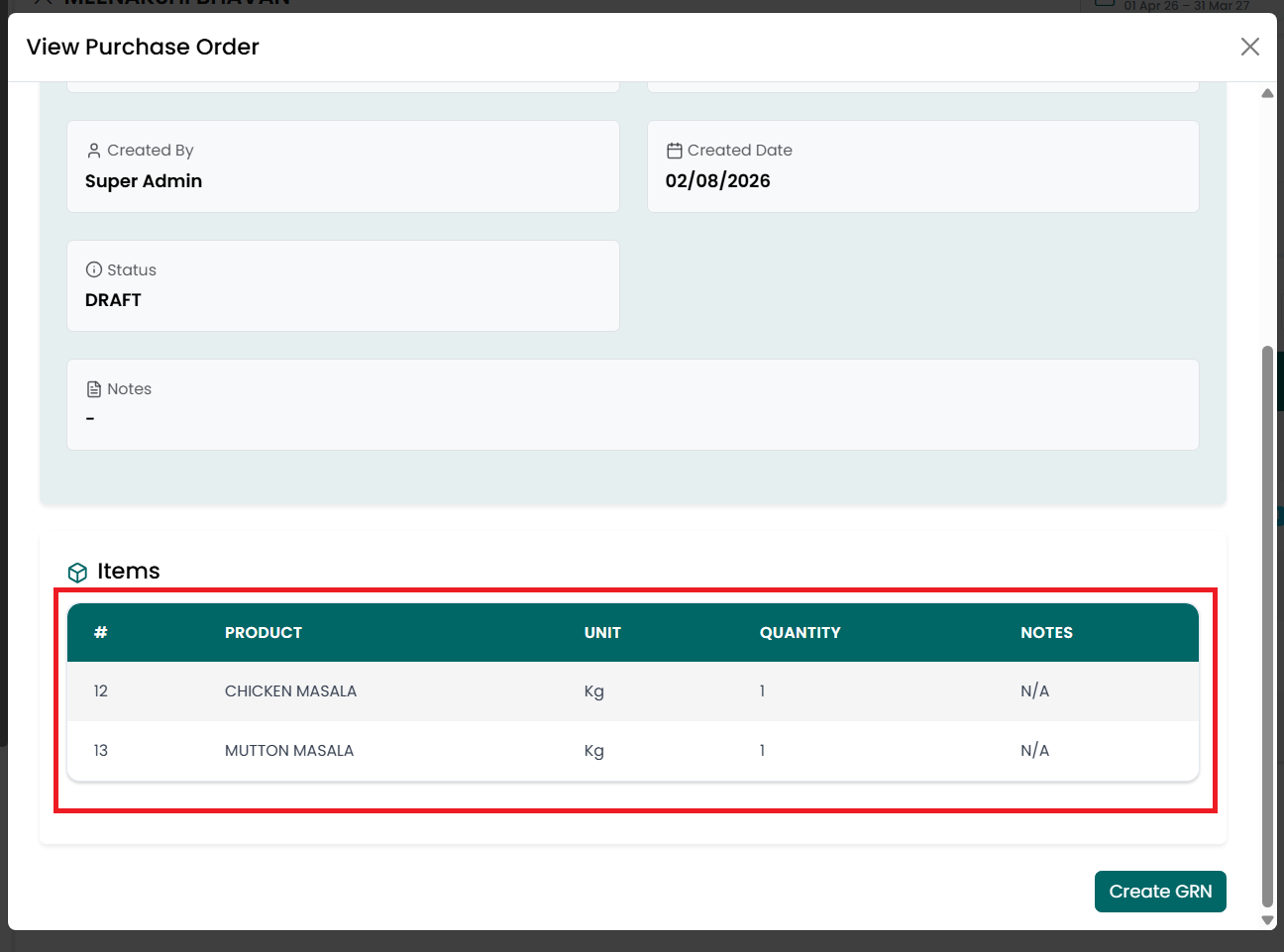
- Items
- Displays all the products included in the purchase order with the following information:
- Product - Shows the name of the product.
- Unit - Shows the unit of measurement for the product.
- Quantity - Shows the quantity ordered.
- Notes - Shows any notes added for the selected product.
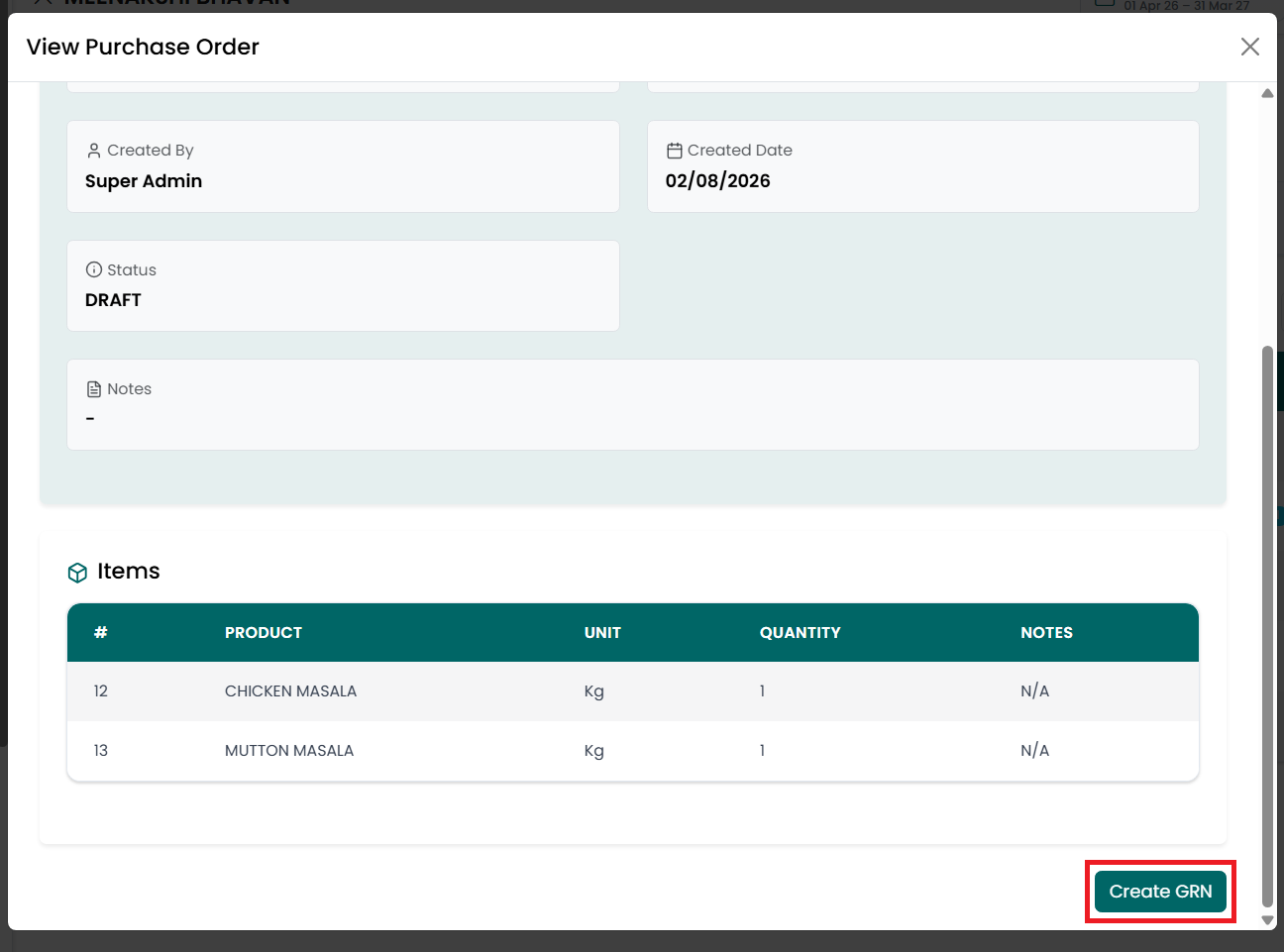
- Click Create GRN to create a Goods Receipt Note (GRN) for the selected purchase order when the ordered items are received. The Create GRN button is available only until the purchase order is fully received. Once the purchase order status changes to Fully Received, a new GRN cannot be created for that purchase order.
- Click the X icon to close the window and return to the Purchase Order List page.
Edit Purchase Order
To update an existing purchase order, follow the steps below.
- Go to the Main Menu and click Purchase Order. The Create Purchase Order page is displayed.
- Click the Purchase Orders List button.
- The Purchase Order List page is displayed.
- Find the purchase order you want to edit. Click the Edit icon.
- The Edit Purchase Order page is displayed with the existing purchase order details.
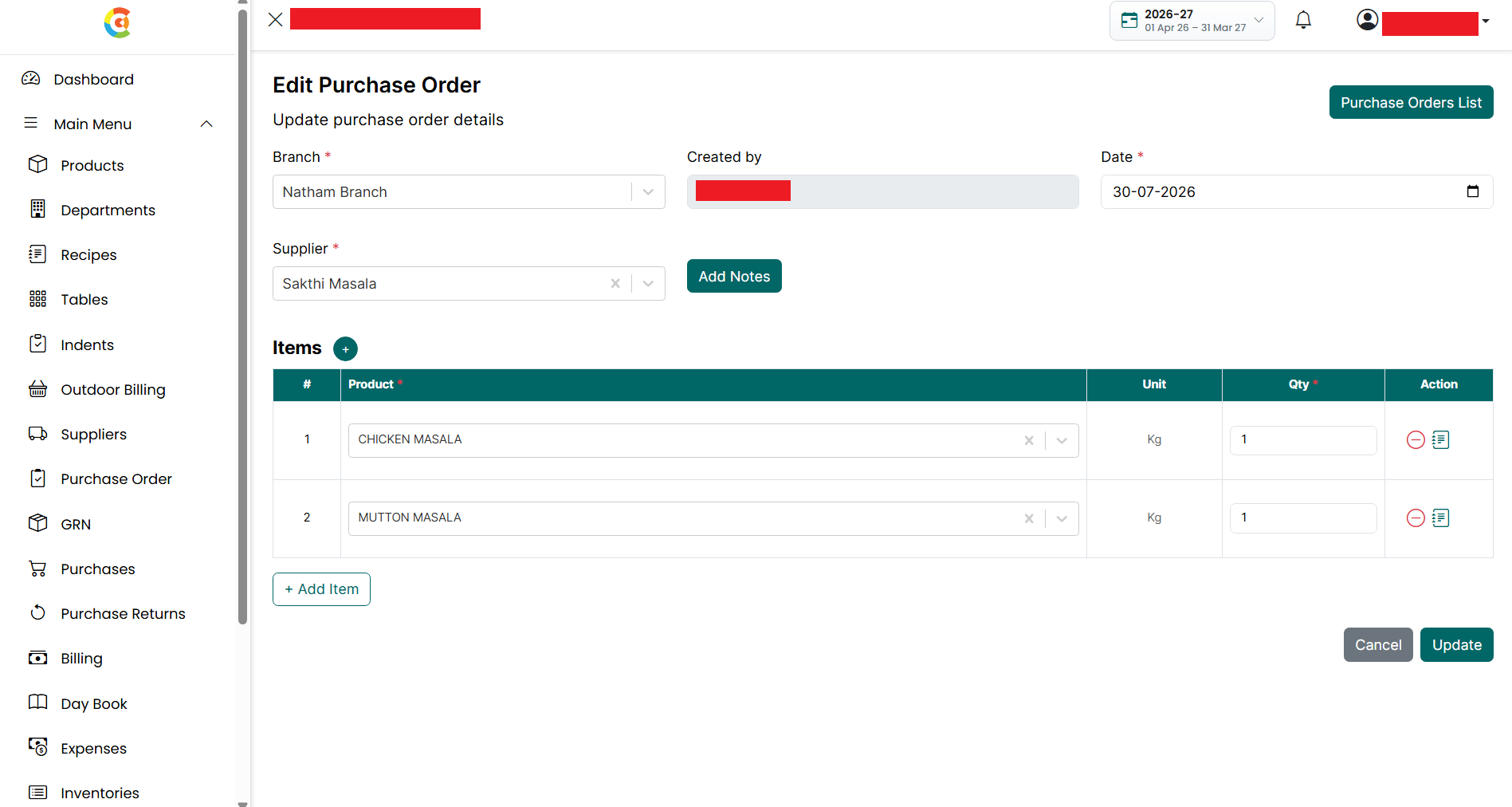
- Update the Branch, if required. This field is required.
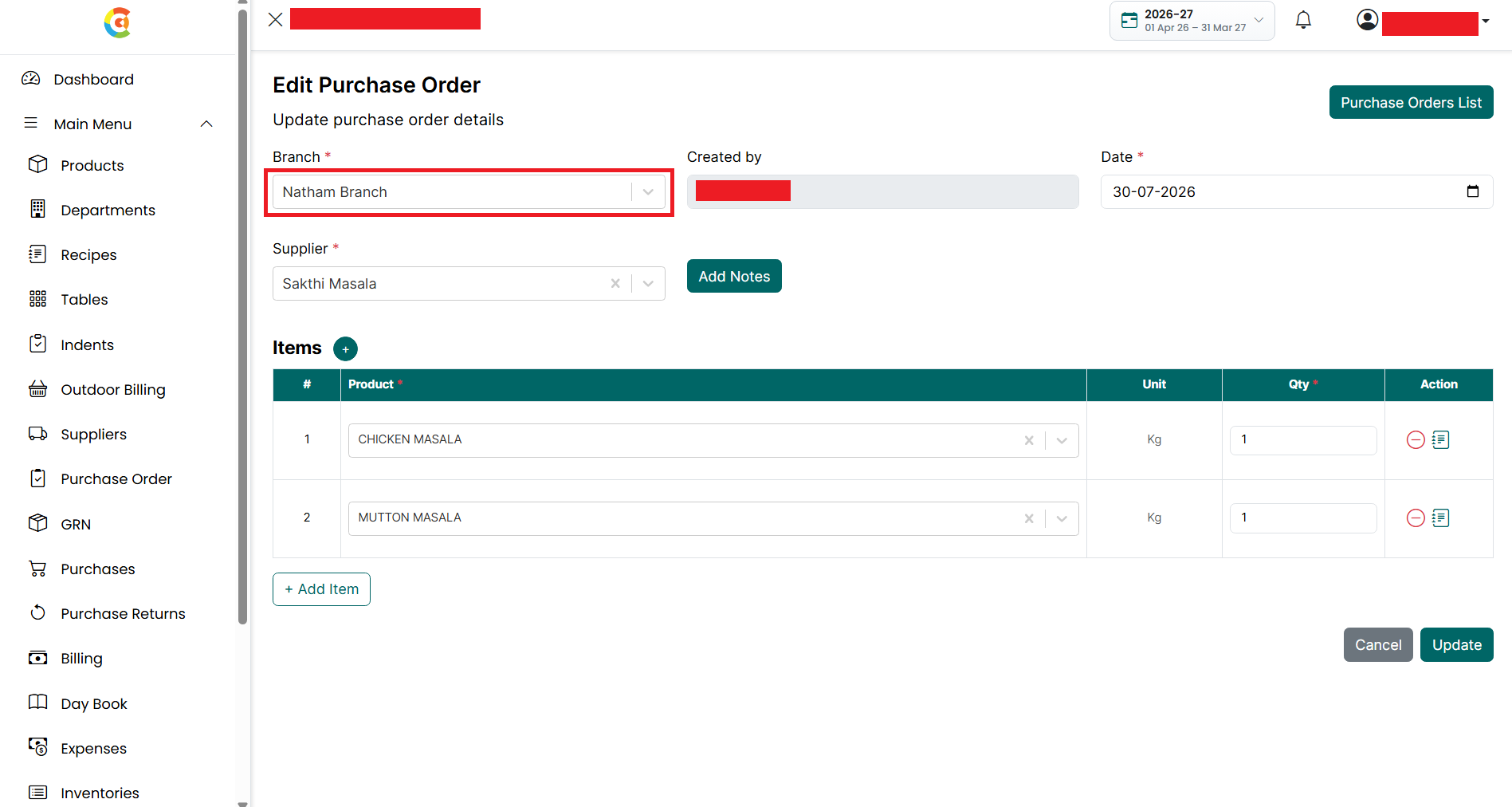
- The Created By field displays the name of the user who created the purchase order. This field is automatically populated and cannot be changed.
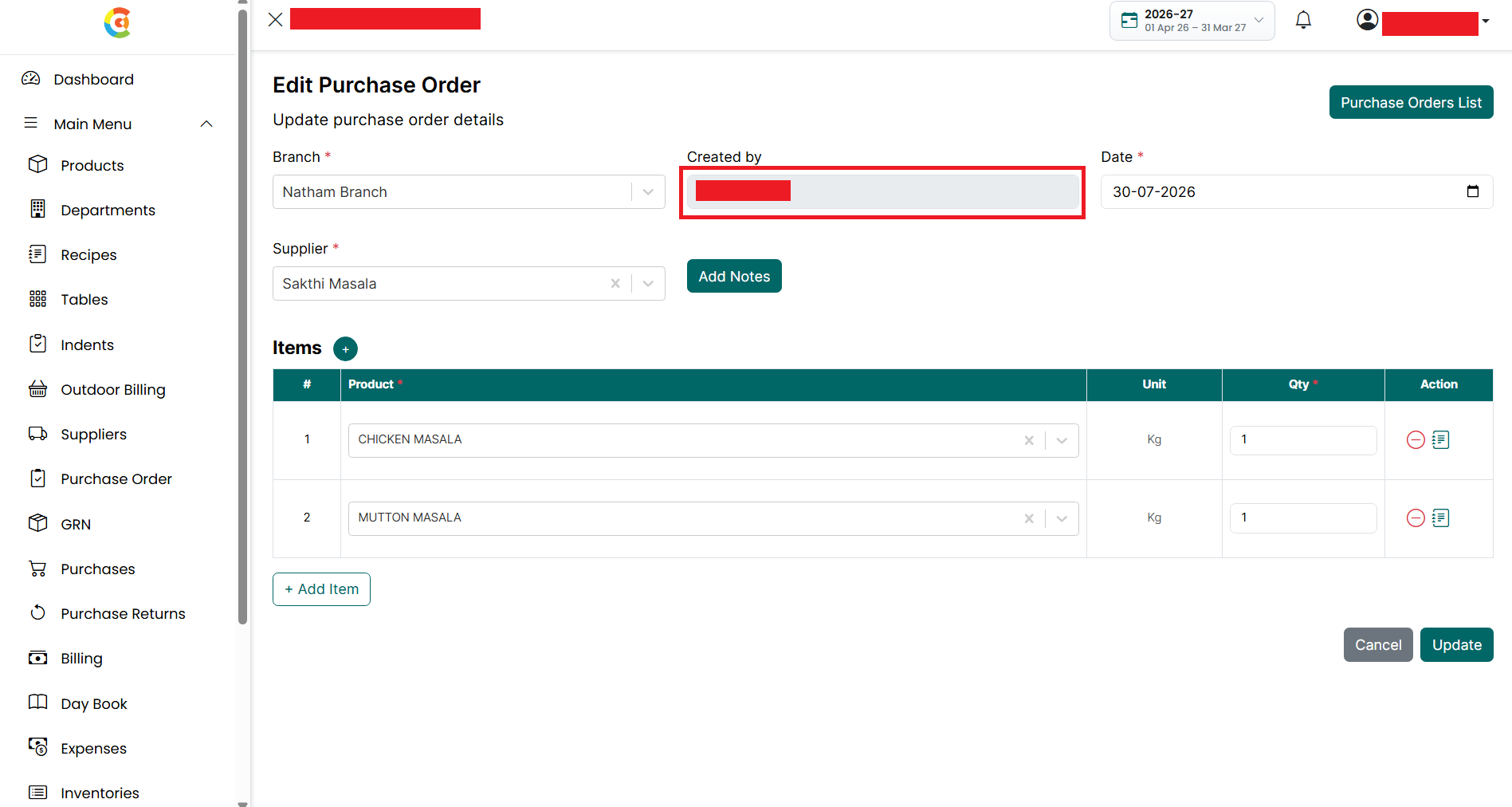
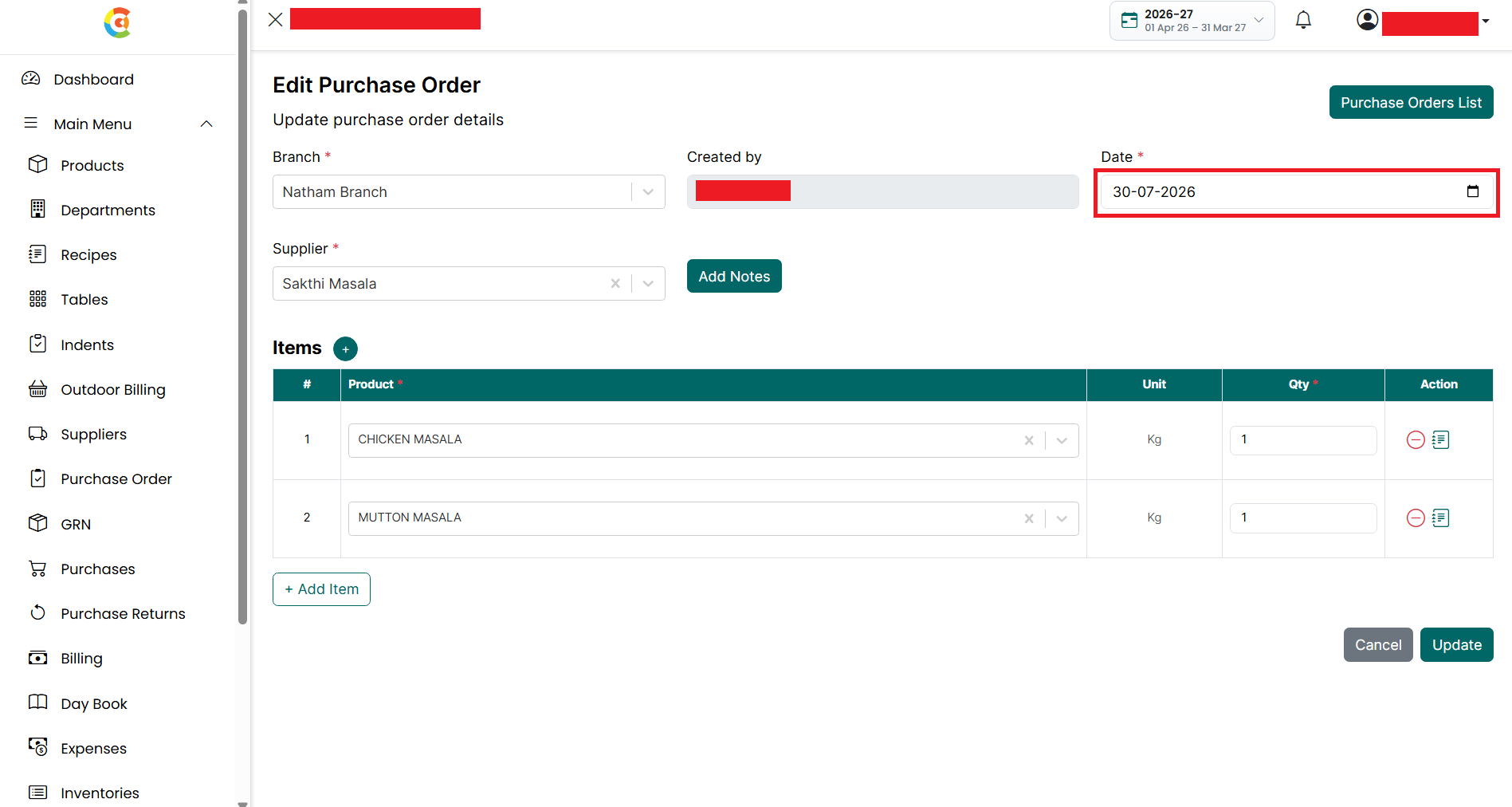
- Update the Date, if required. This field is required.
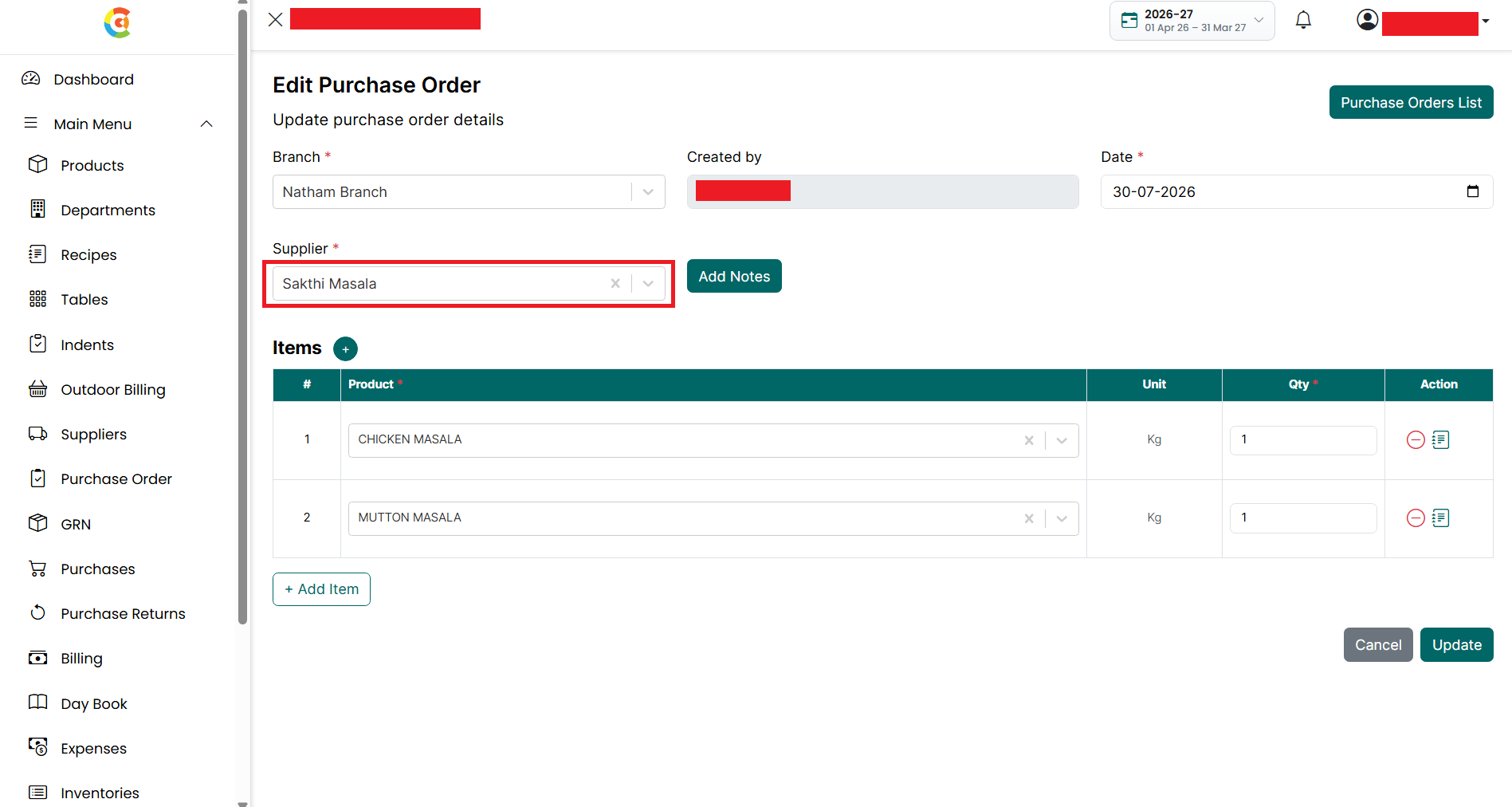
- Select a different Supplier, if required. This field is required.
- Click Add Notes if you want to add or modify notes for the purchase order. This field is optional.
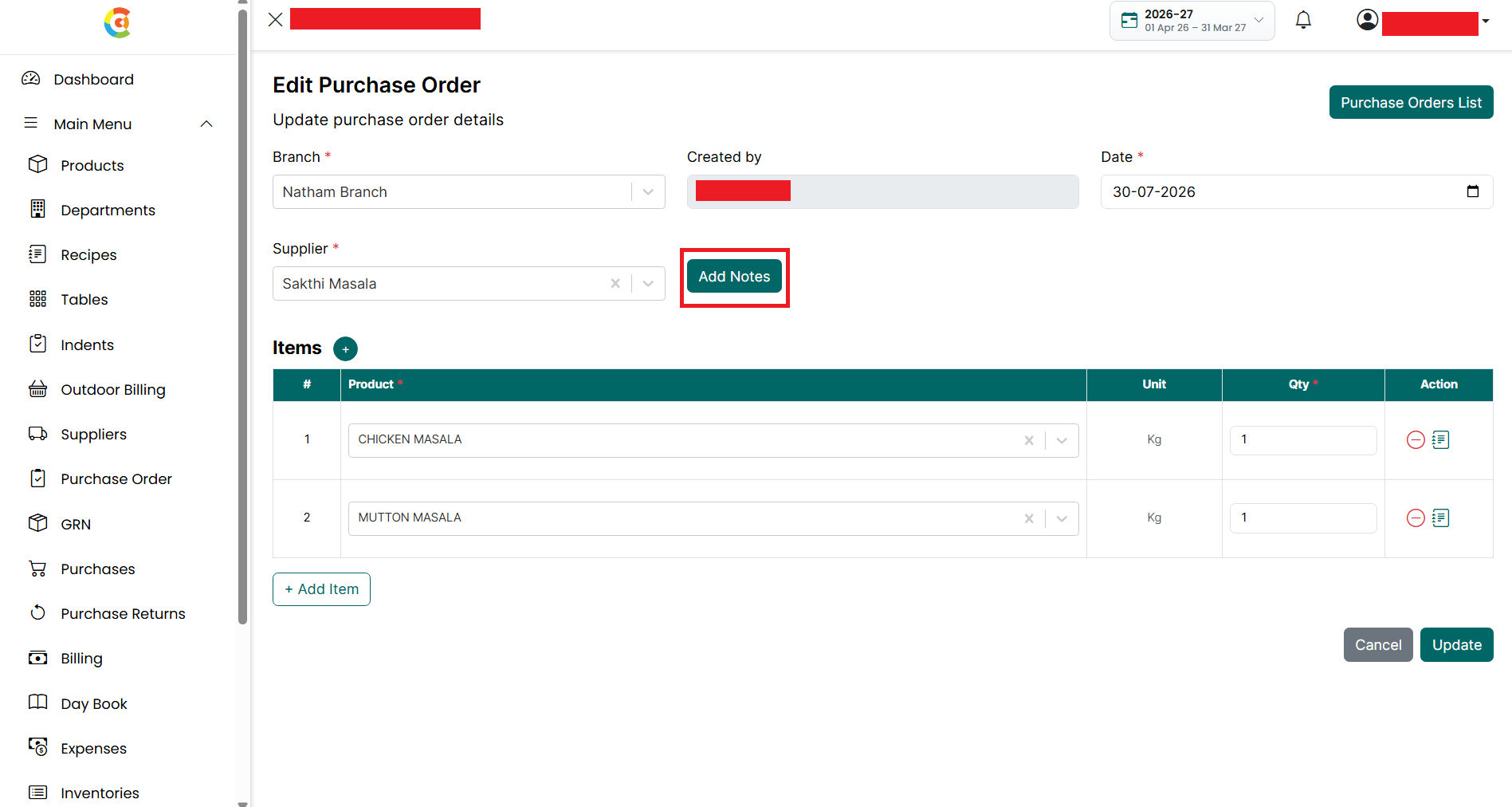
- After the Notes section is expanded, update the notes as required. Click Hide Notes to collapse the Notes section without removing the entered information.
- Items
- Update the products included in the purchase order.
- \+ (Add Product) - Click the + icon next to the Items heading to create a new product without leaving the Purchase Order page. After the product is created successfully, it becomes available in the Product dropdown.
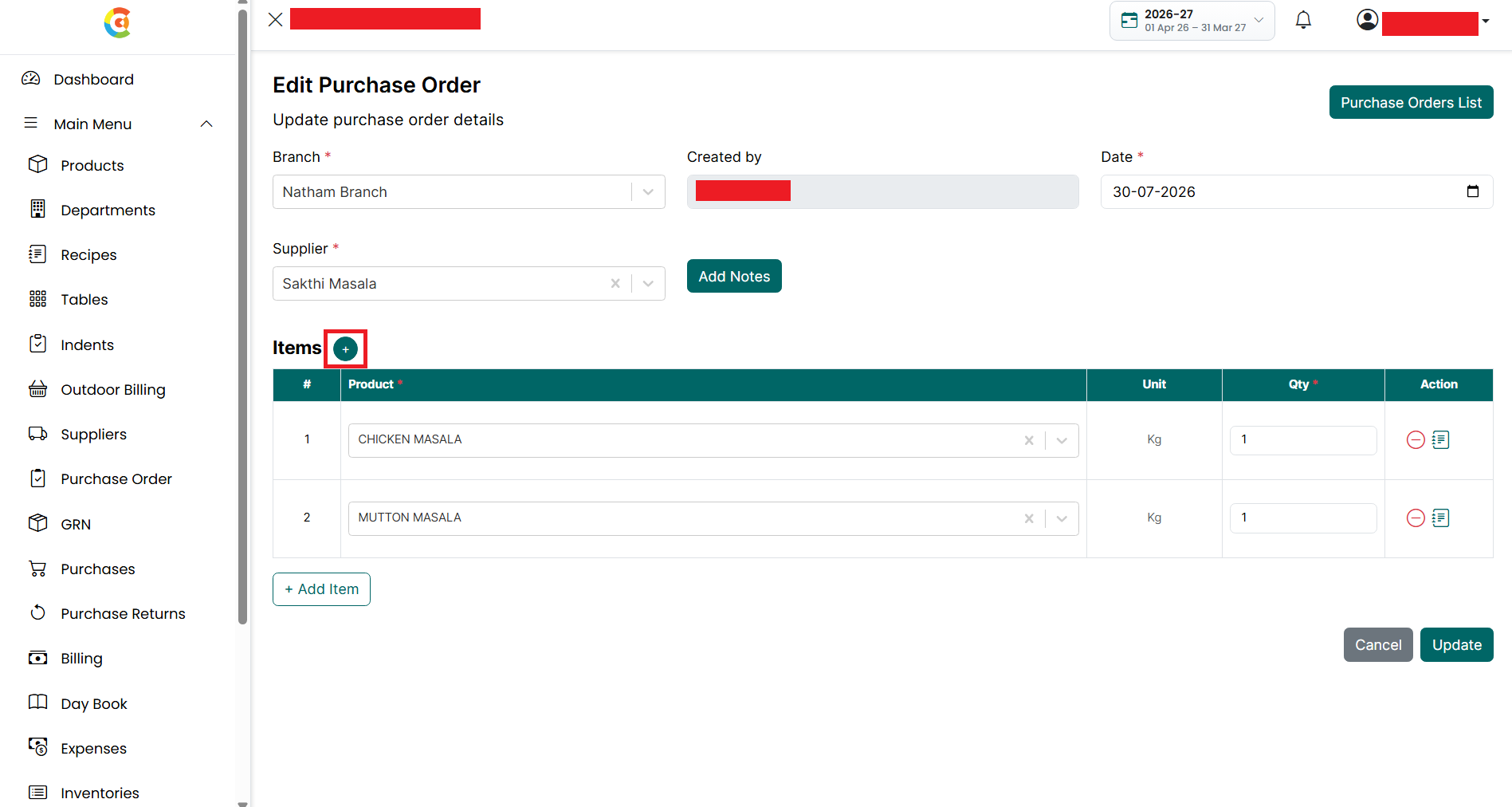
- For each item, you can update the following details:
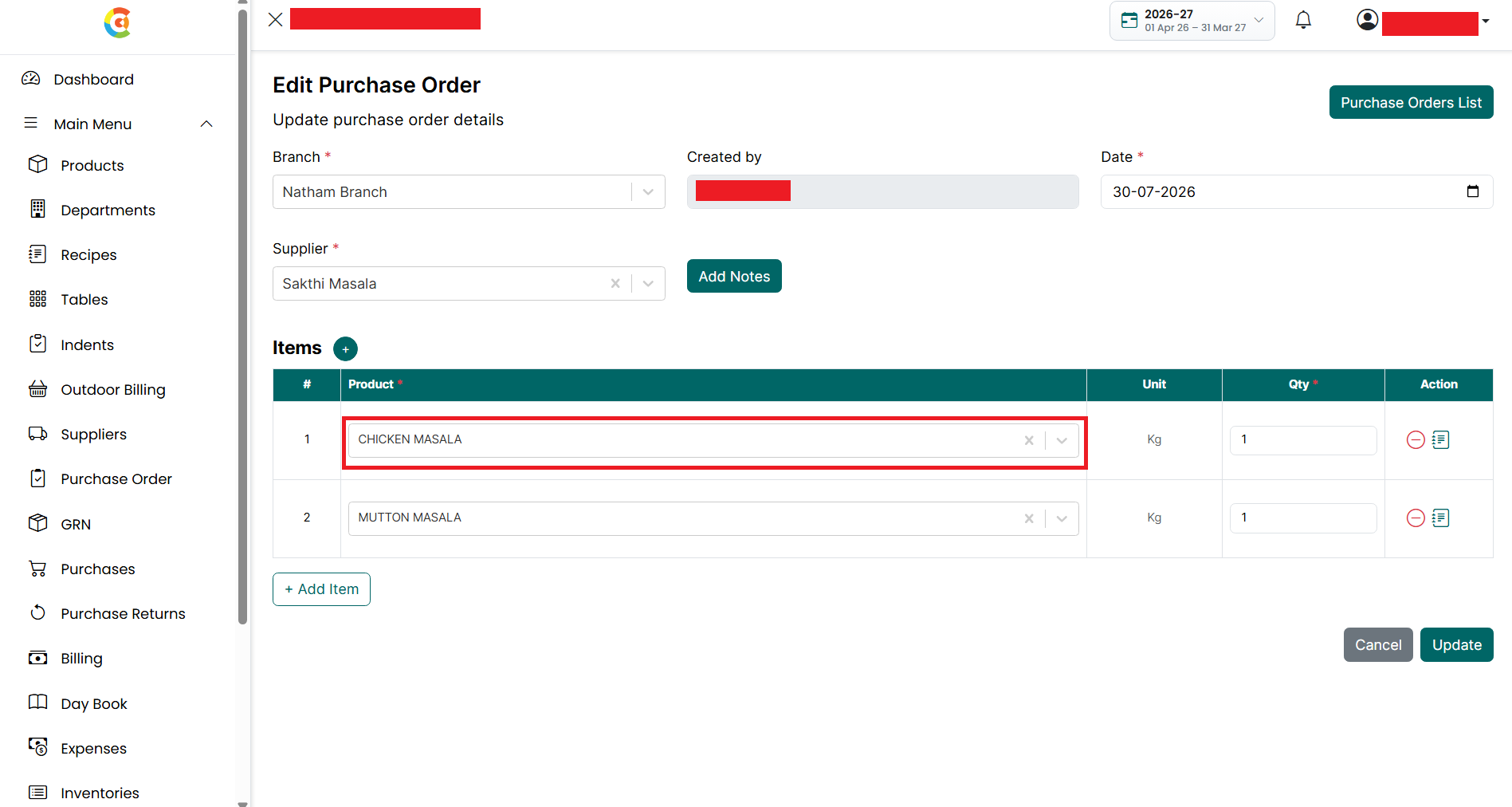
- Product - Select a different product, if required.
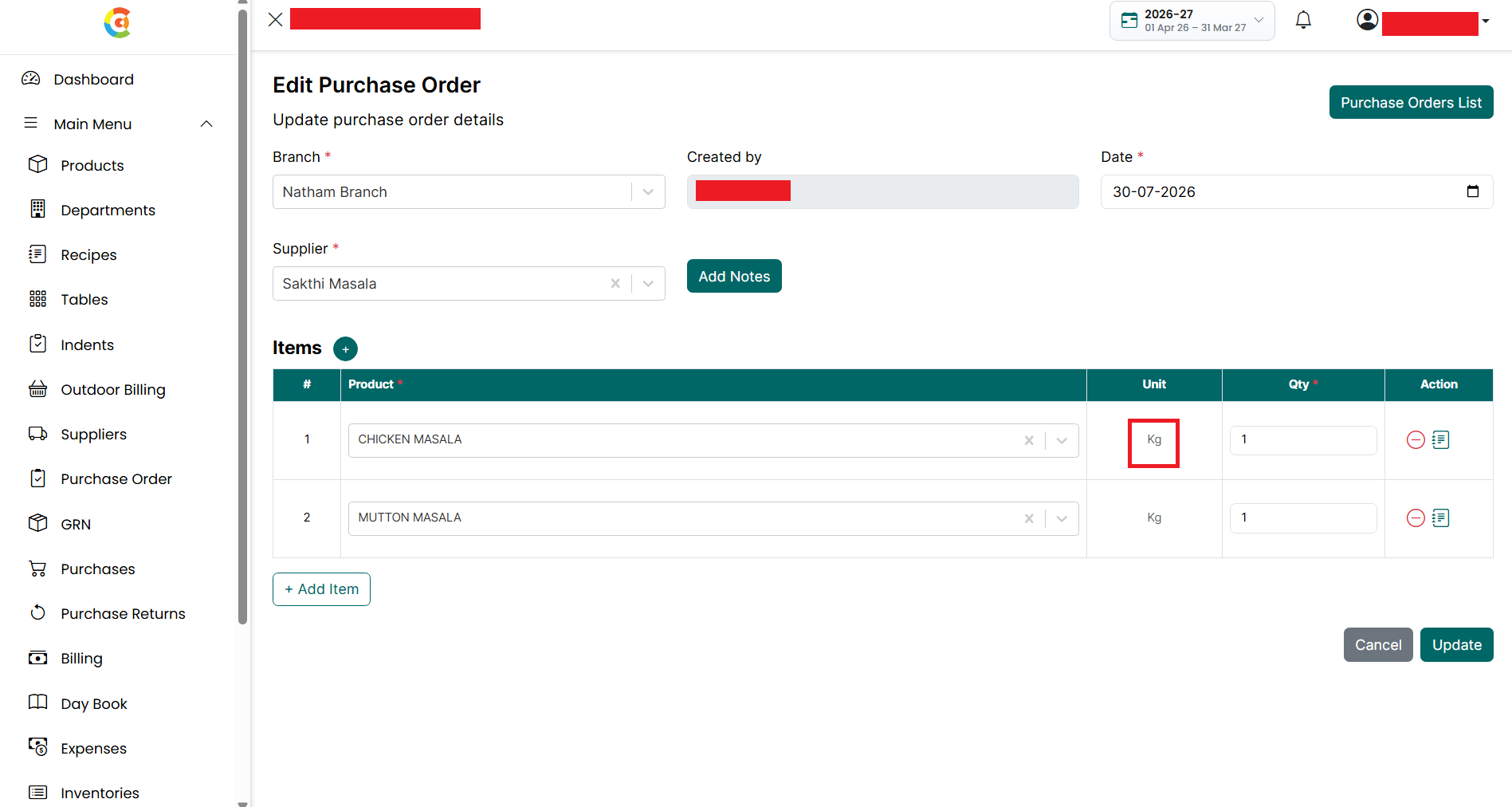
- Unit - Displays the unit of measurement for the selected product. This field is updated automatically based on the selected product.
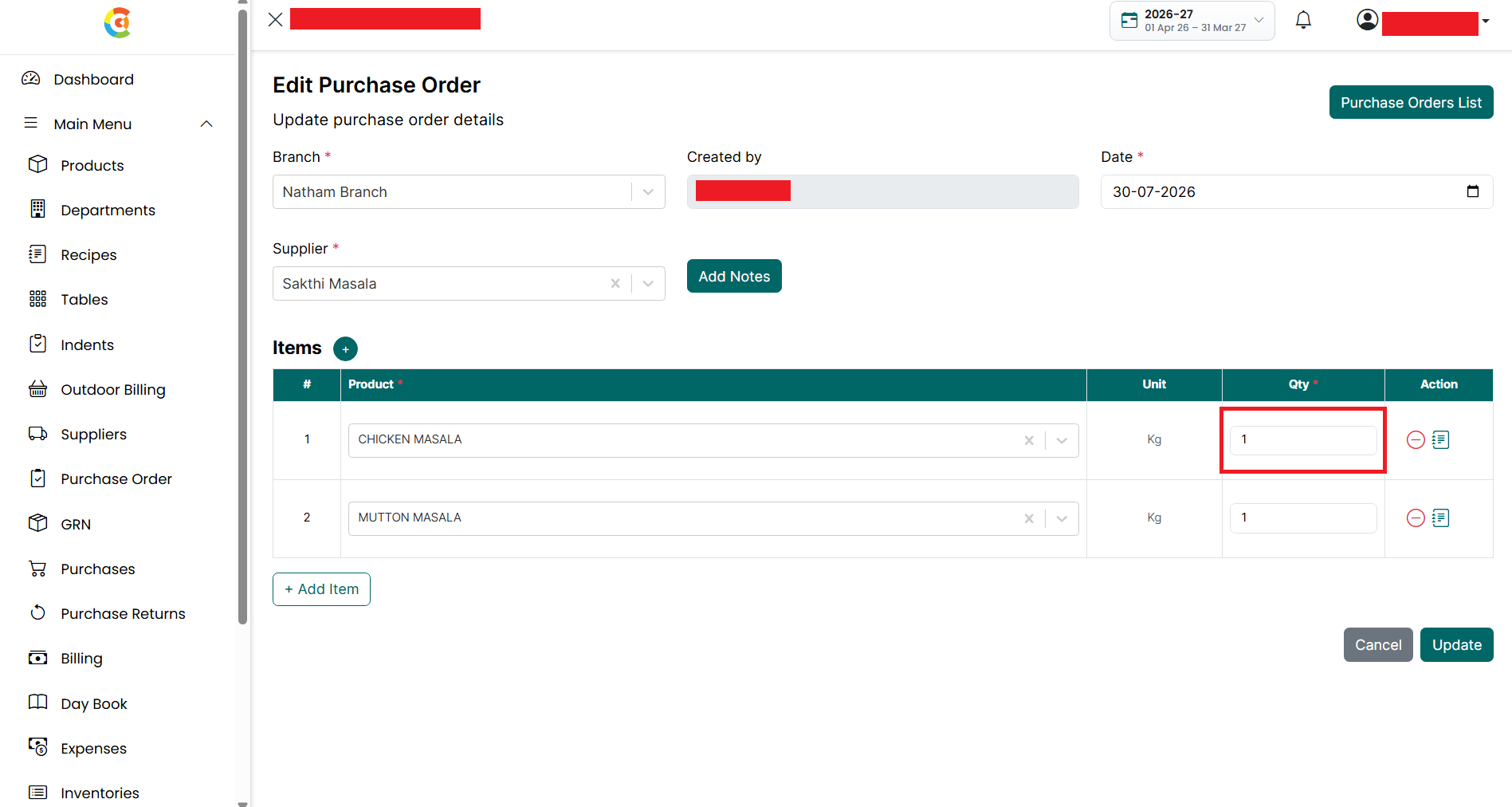
- Quantity - Update the required quantity.
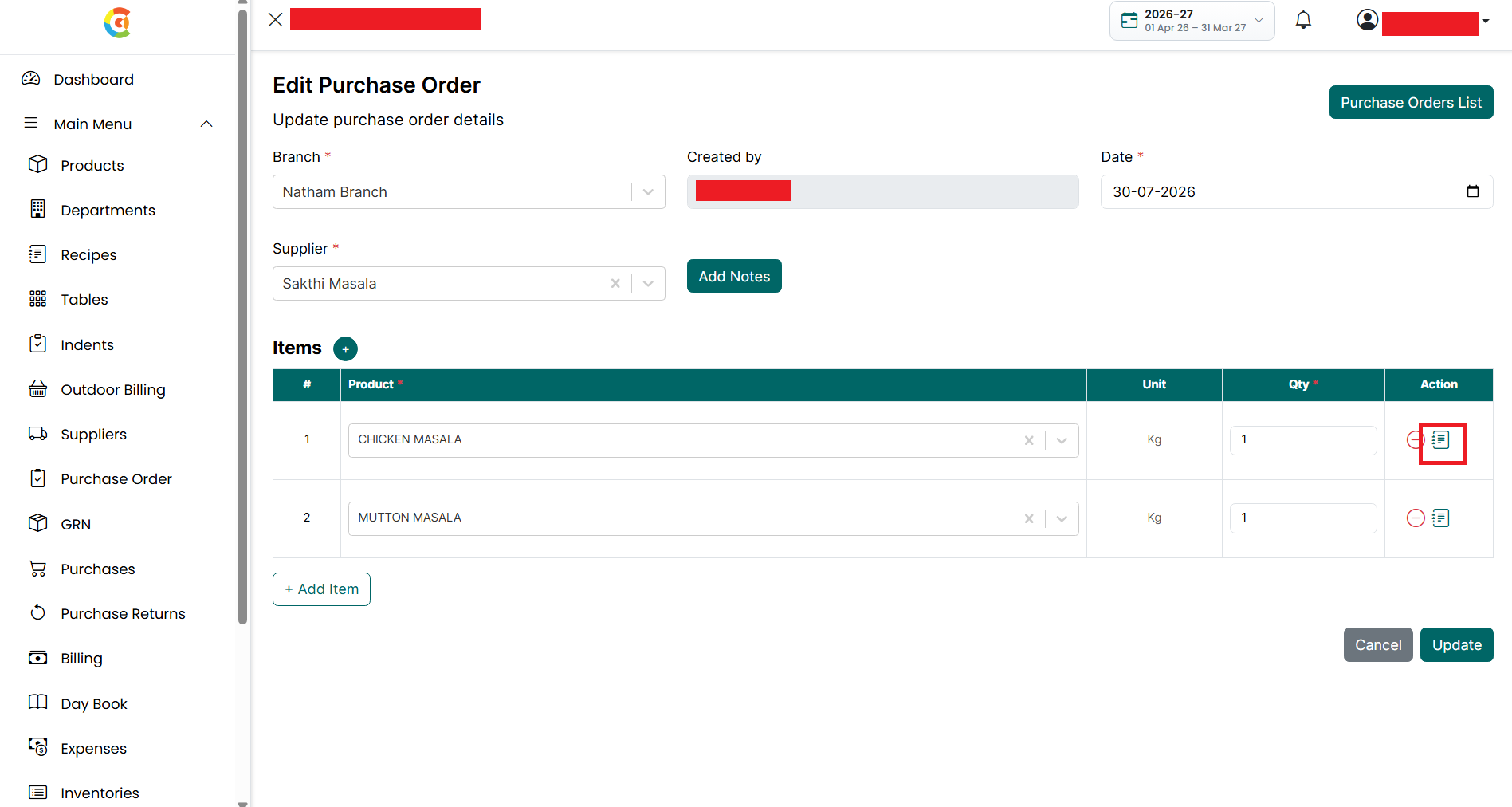
- Notes - Click the Notes icon to add or modify remarks for the selected product.
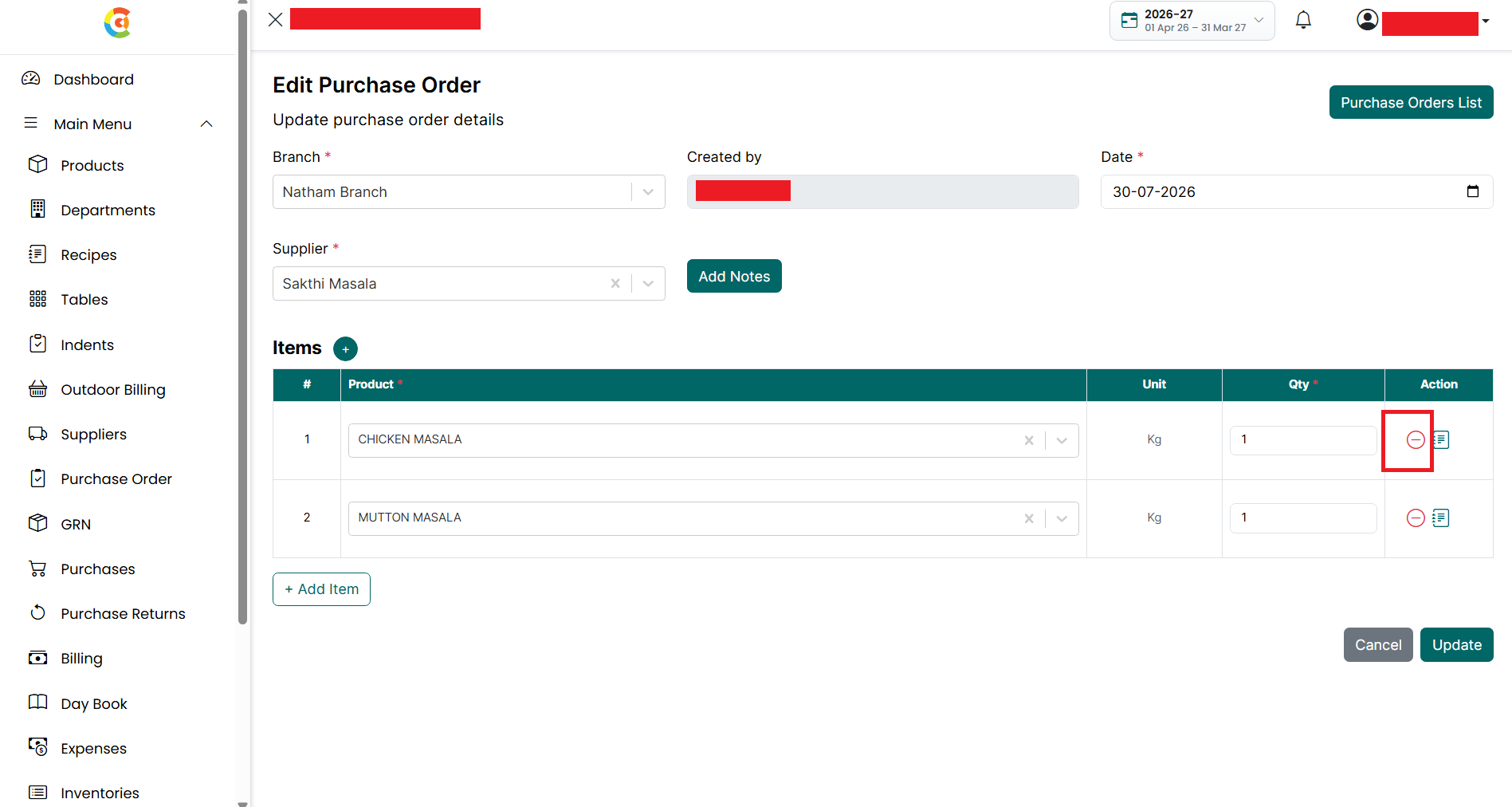
- Delete Item - Click the Delete icon to remove the selected product from the purchase order.
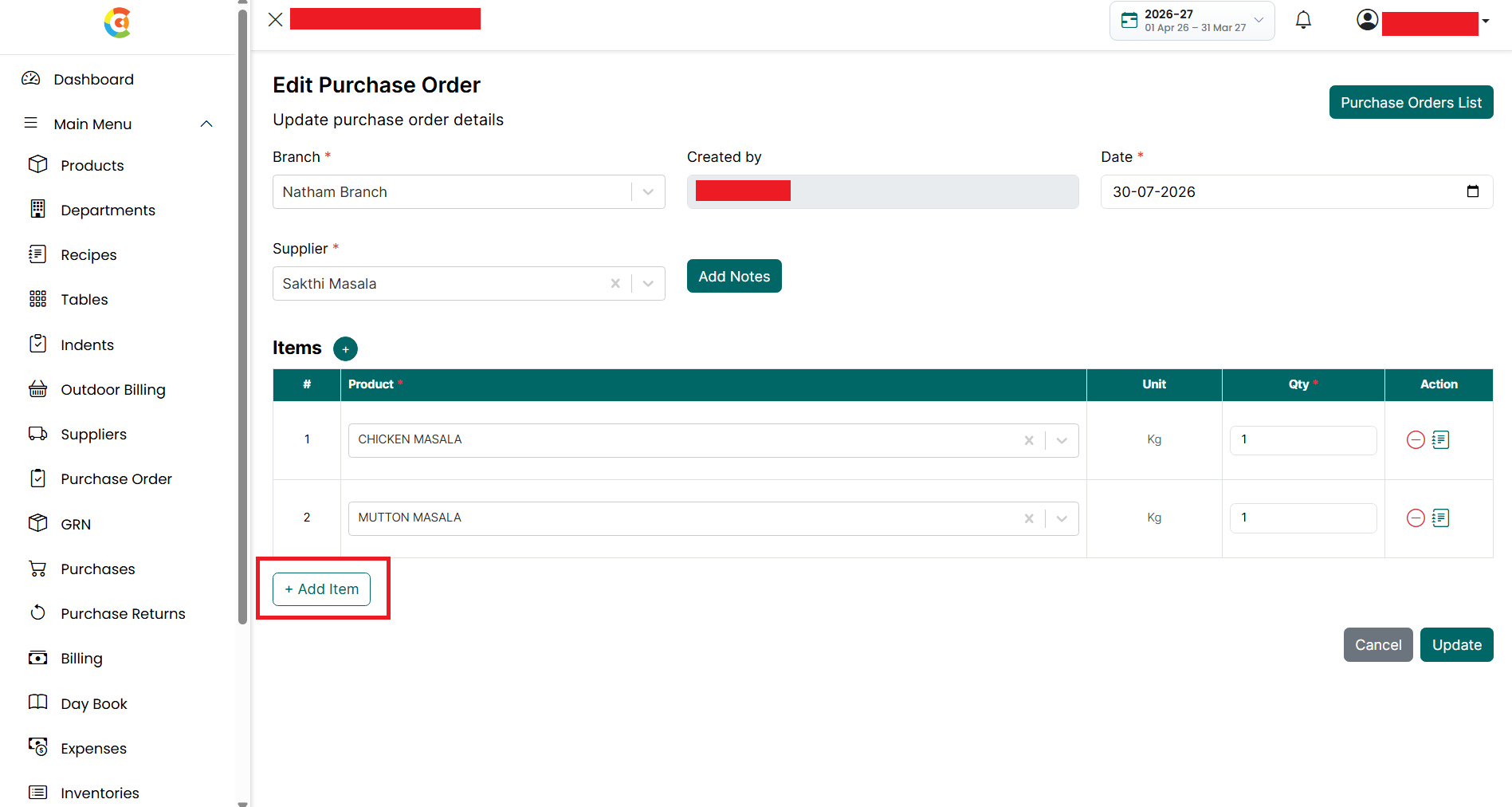
- Click + Add Item to add another product to the purchase order.
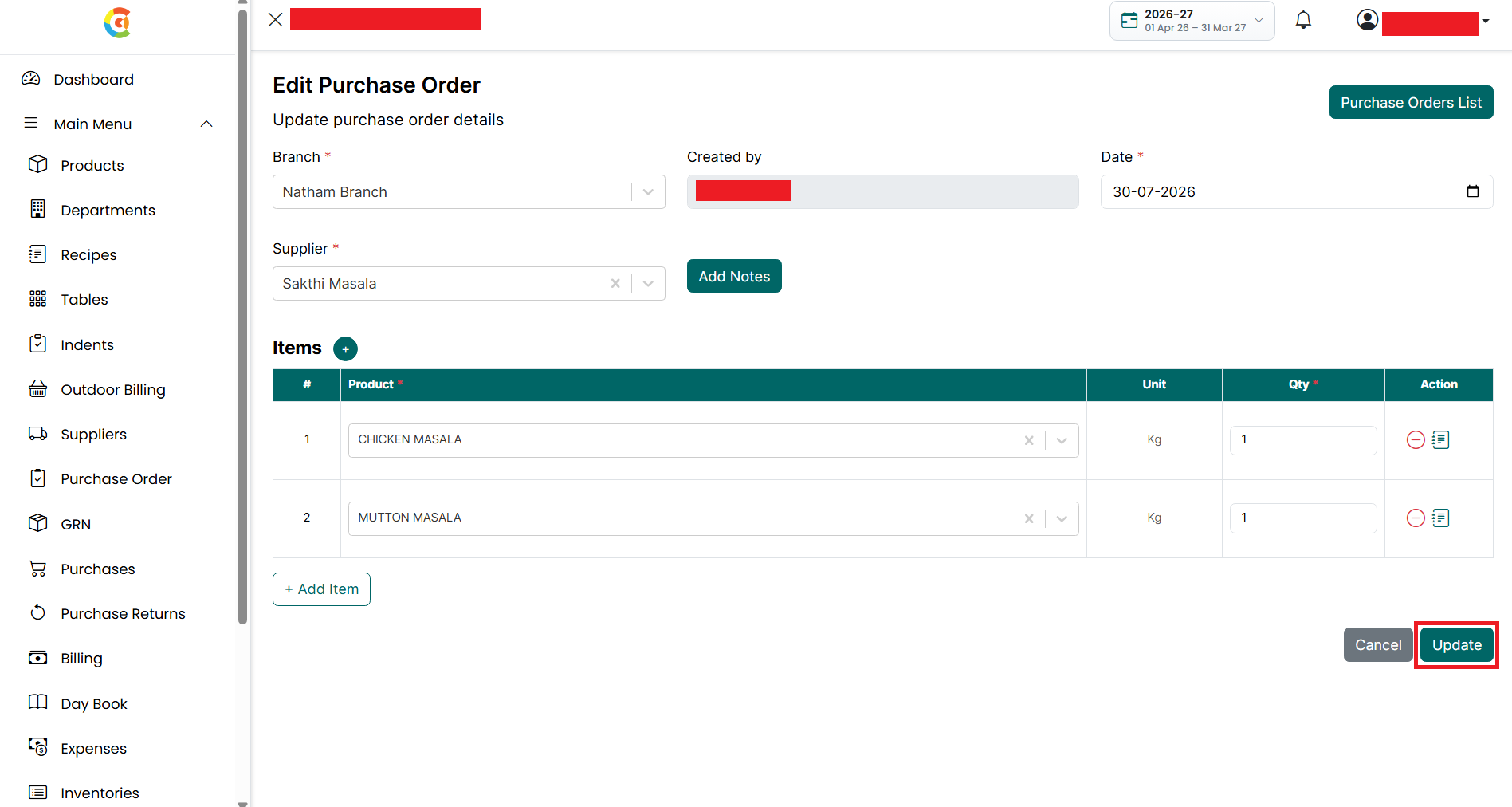
- After making the required changes, click Update to save the purchase order.
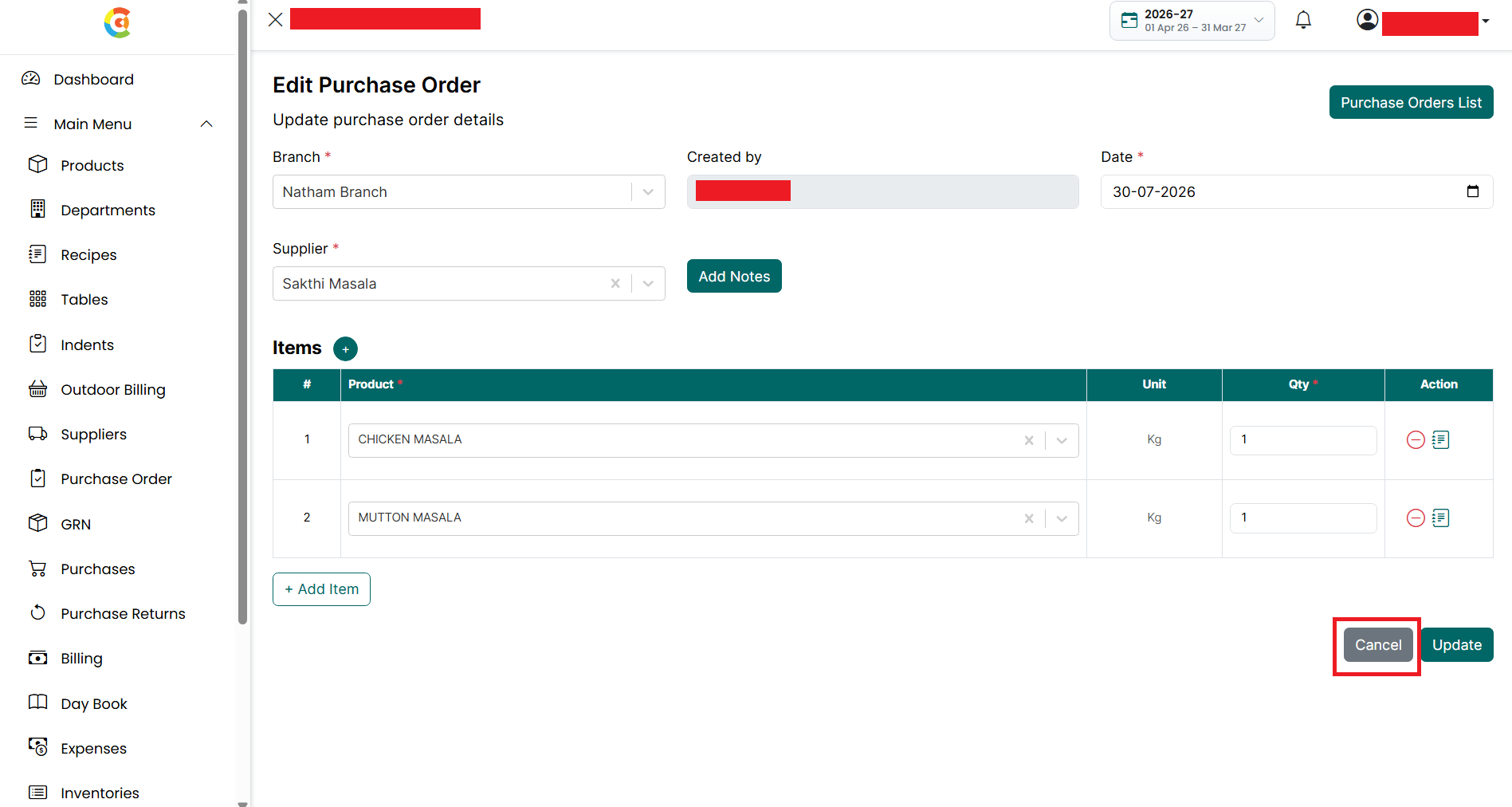
- Click Cancel to close the page without saving the changes.
- After the purchase order is updated successfully, a confirmation message is displayed.
Note: Purchase orders with the status Fully Received cannot be edited because all items have already been received through Goods Receipt Notes (GRNs). To maintain inventory accuracy and transaction history, the Edit option is not available for fully received purchase orders.
Create GRN
To create a Goods Receipt Note (GRN), follow the steps below.
- Go to the Main Menu and click Purchase Order.
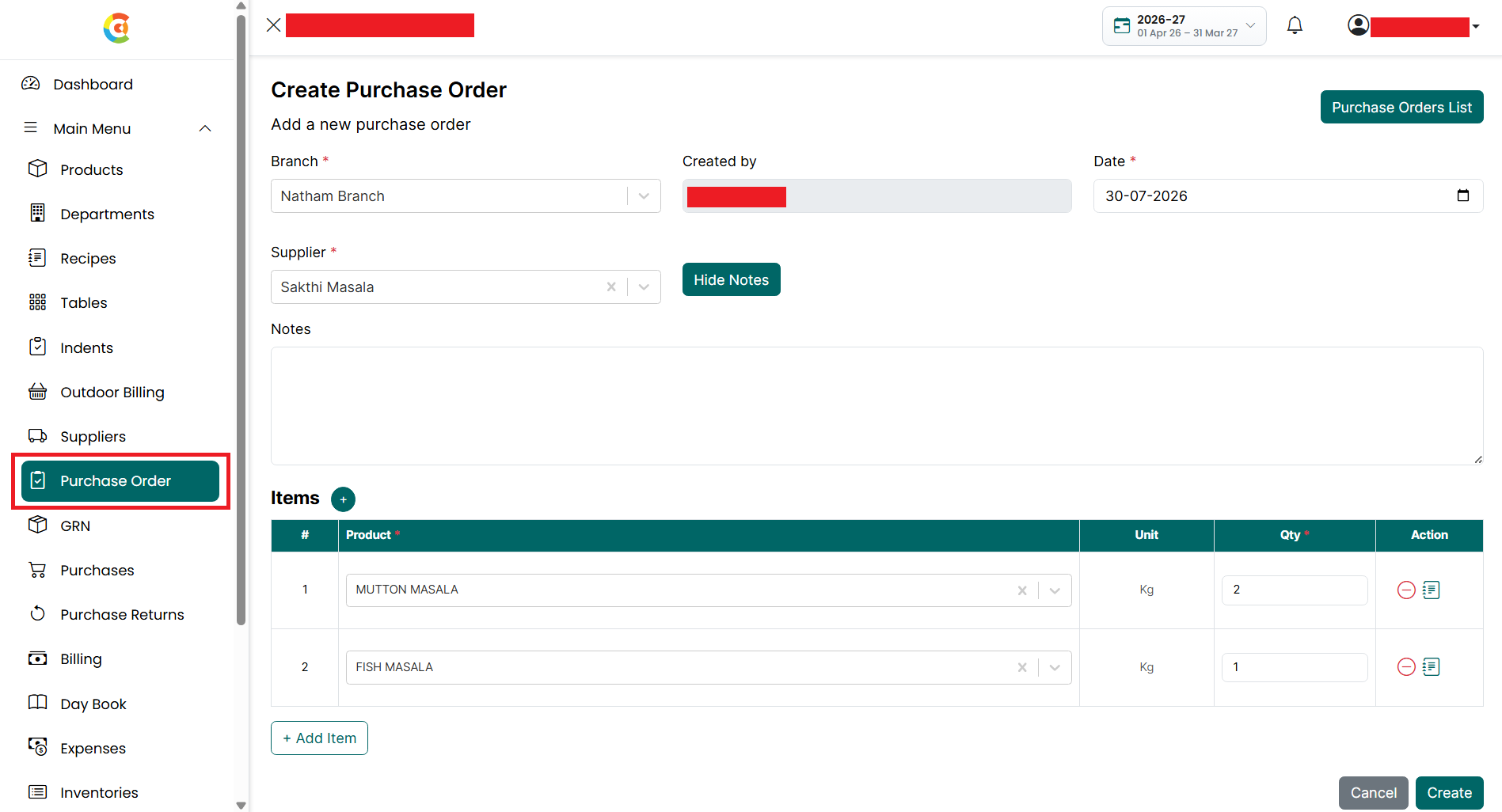
- The Create Purchase Order page is displayed.
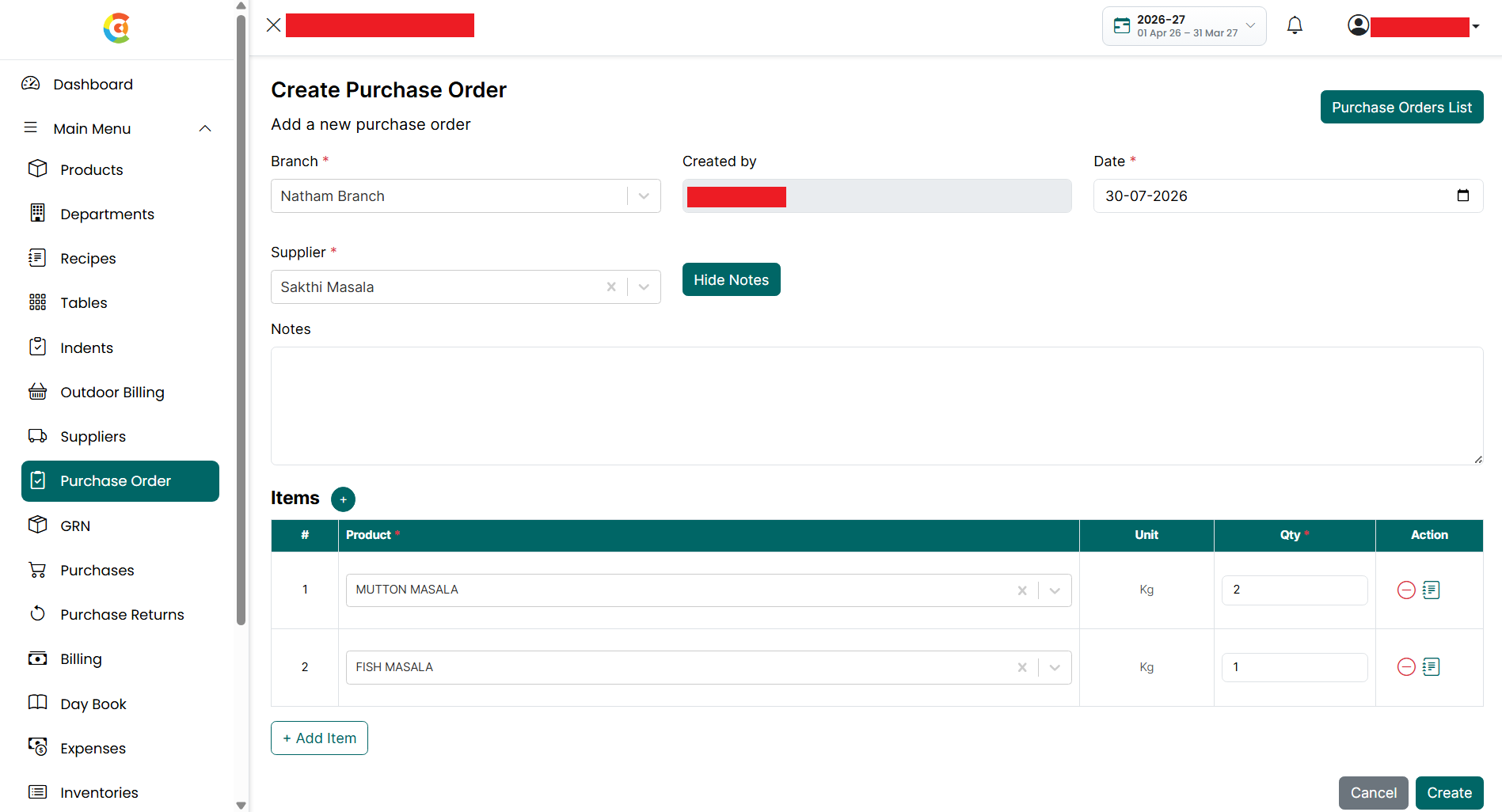
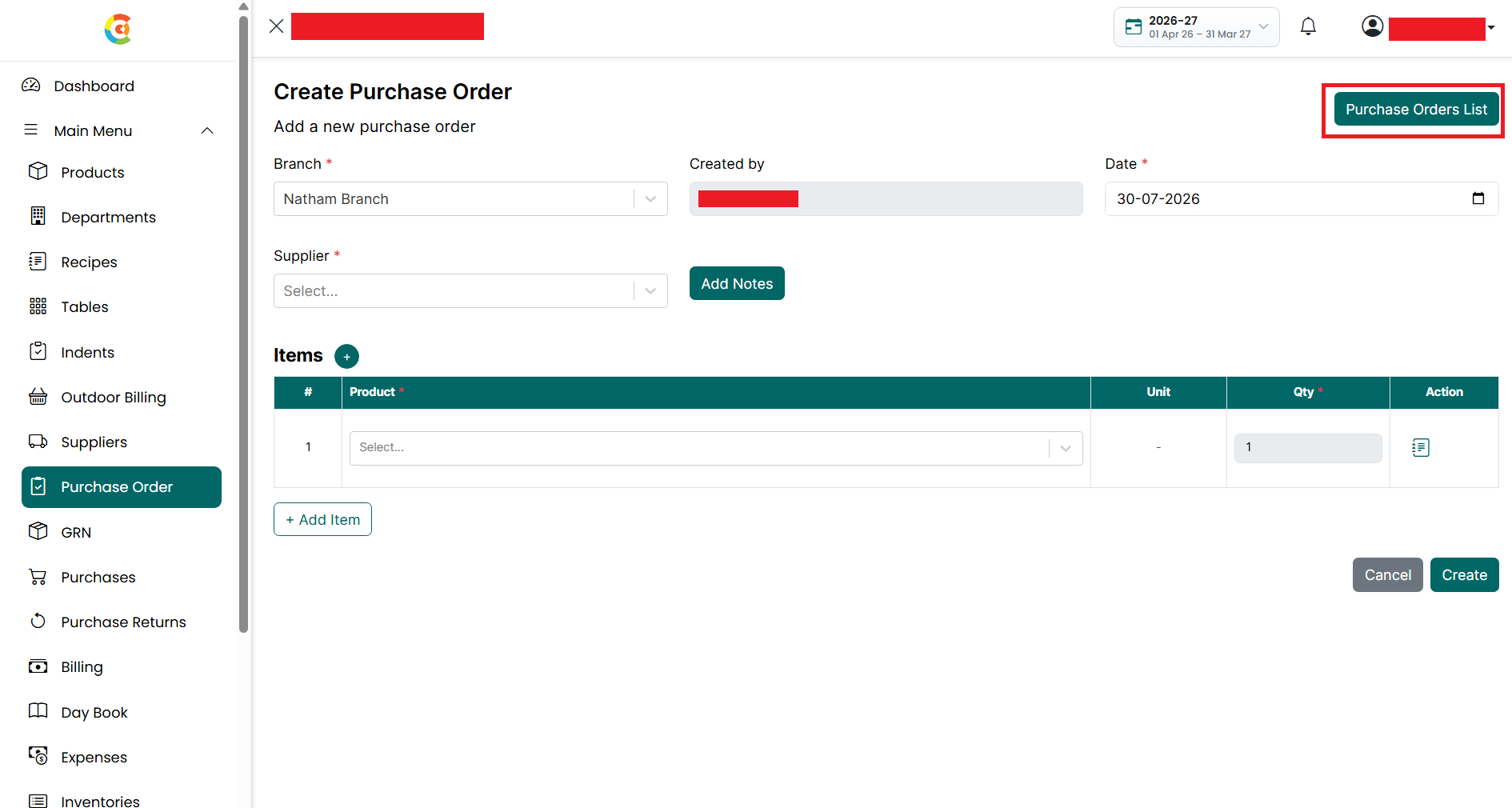
- Click the Purchase Orders List button.
- The Purchase Order List page is displayed.
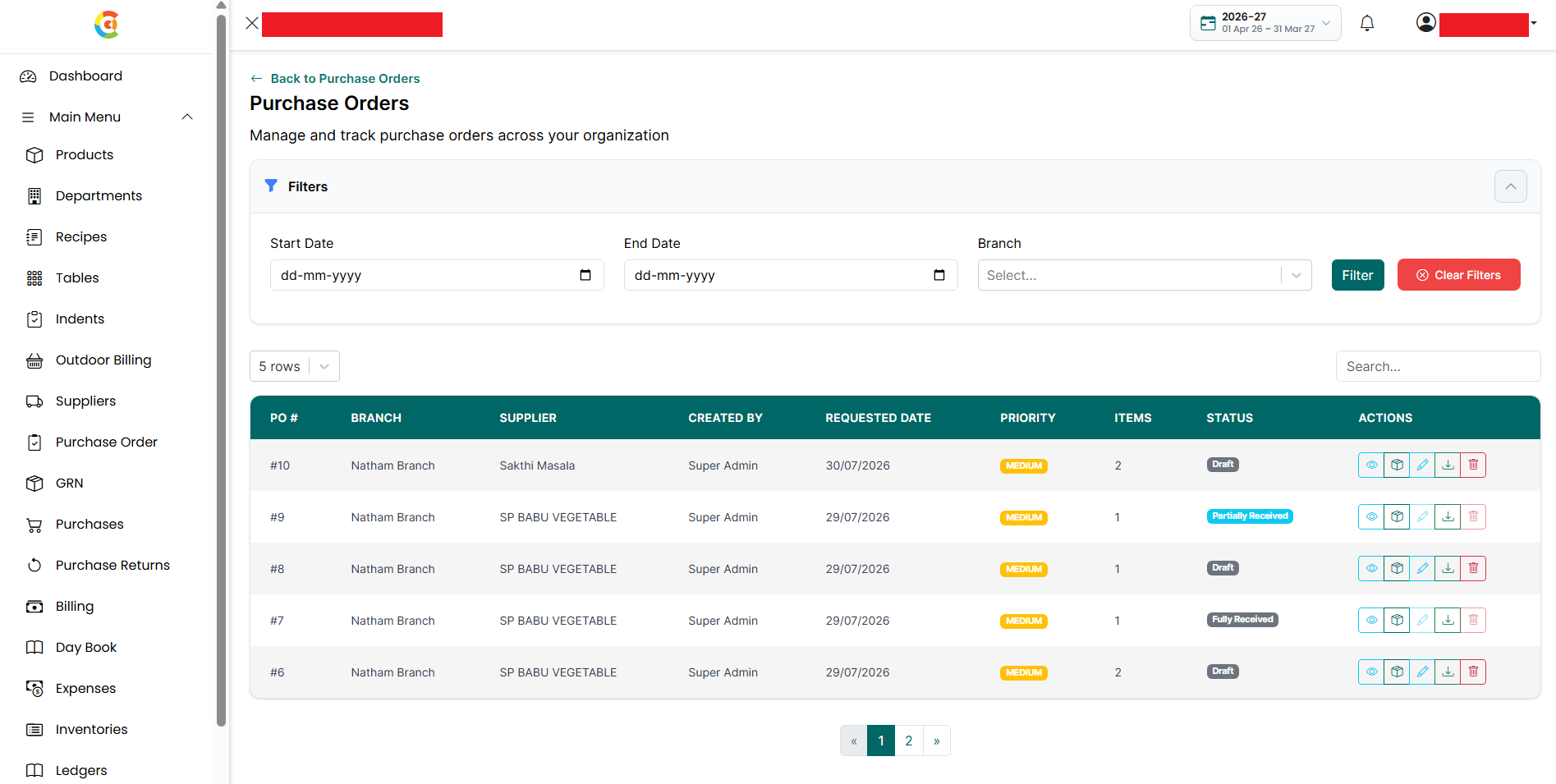
- Find the purchase order for which you want to receive the products. Click the Create GRN icon.
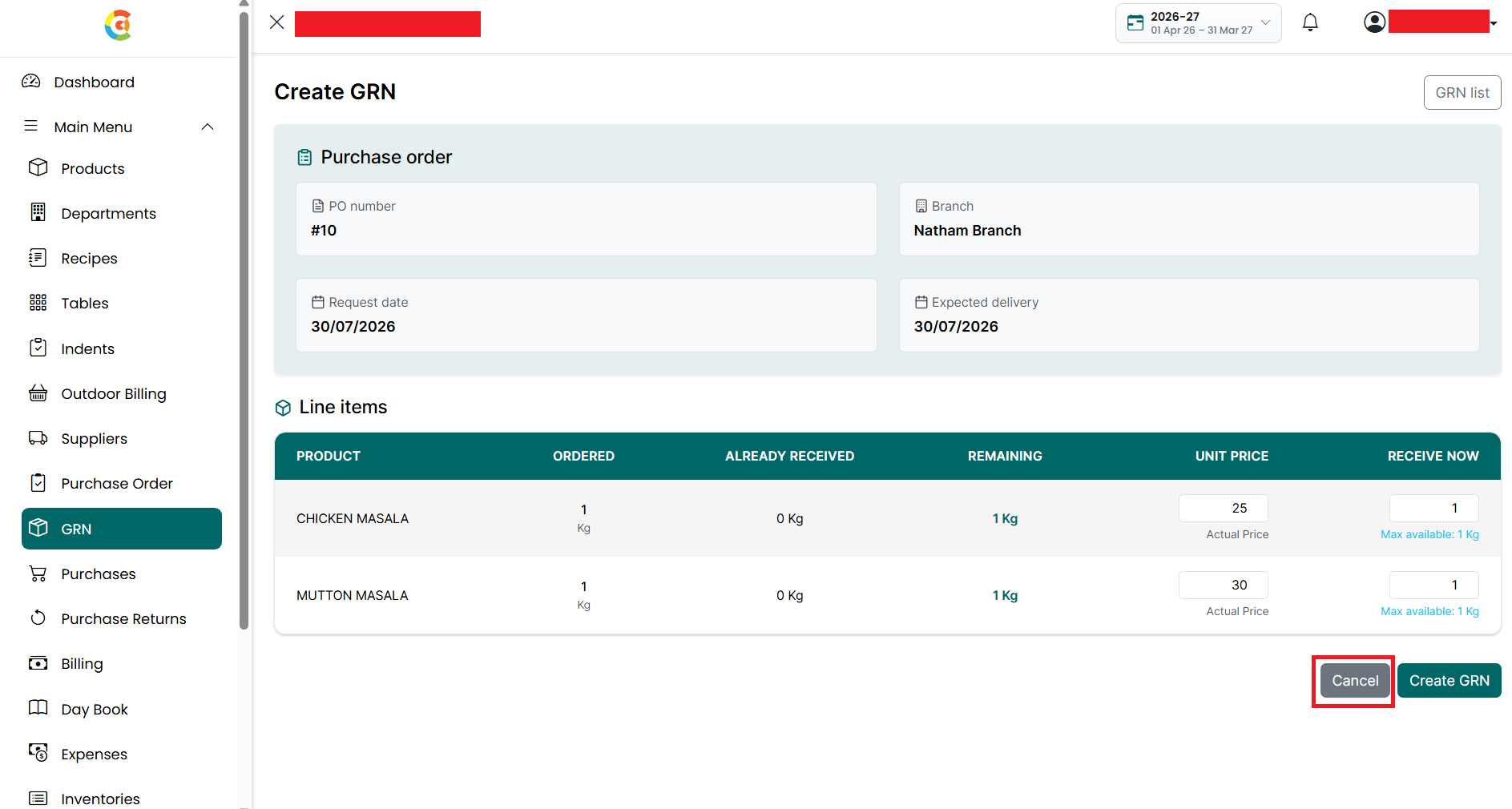
- The Create GRN page is displayed.
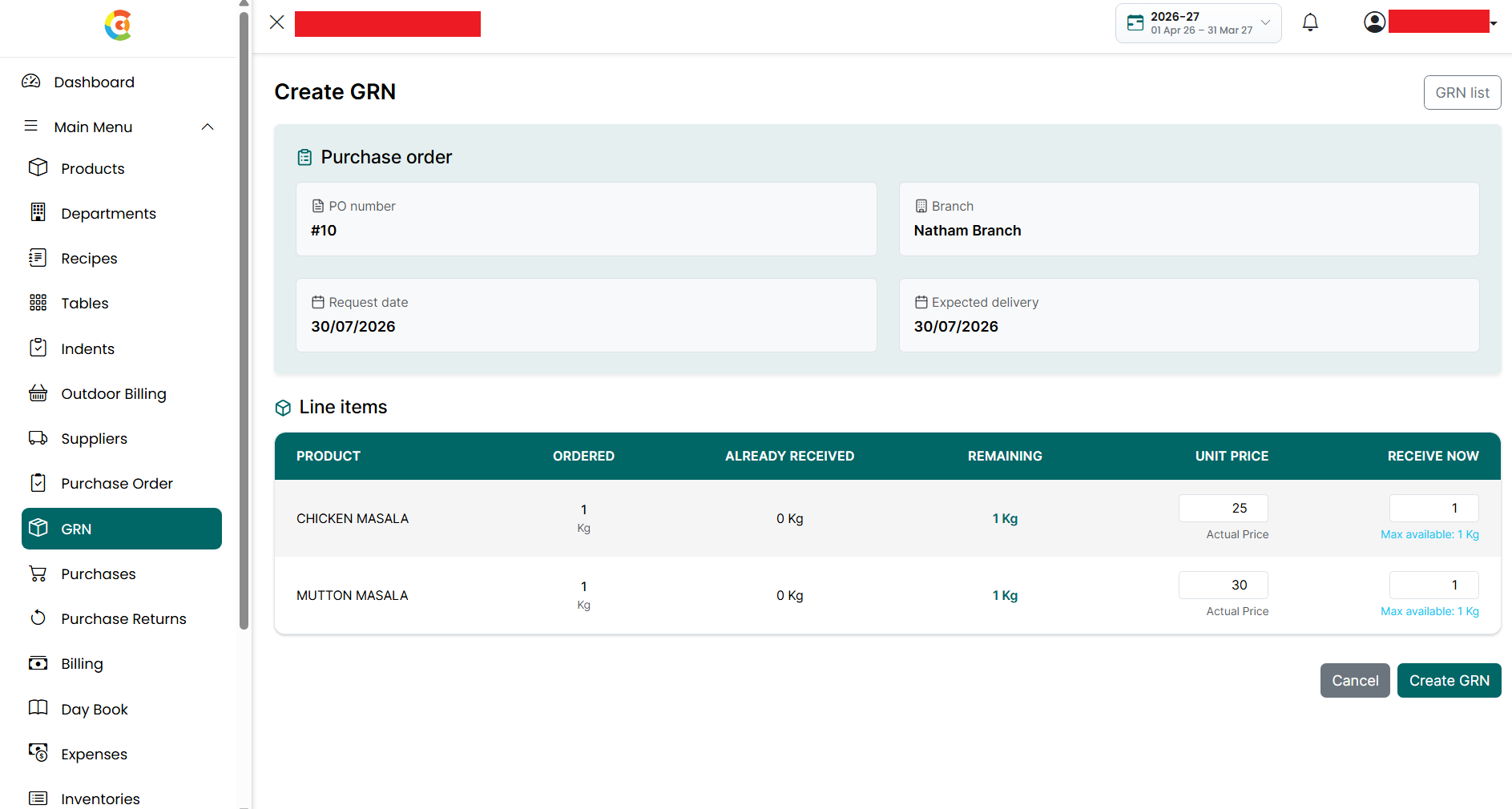
- The page includes the following sections:
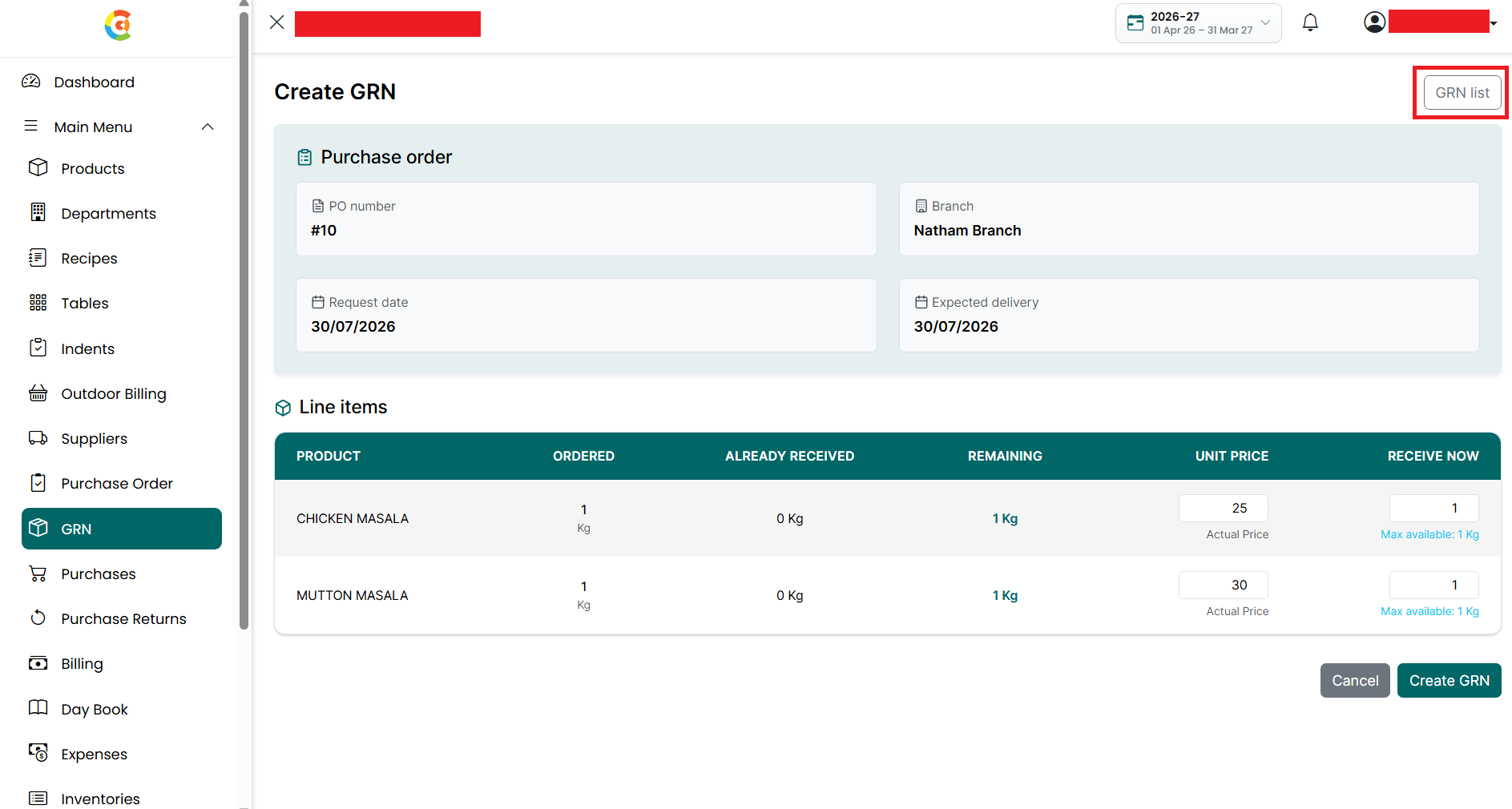
- GRN List - Click the GRN List button to view all Goods Receipt Notes created in the application.
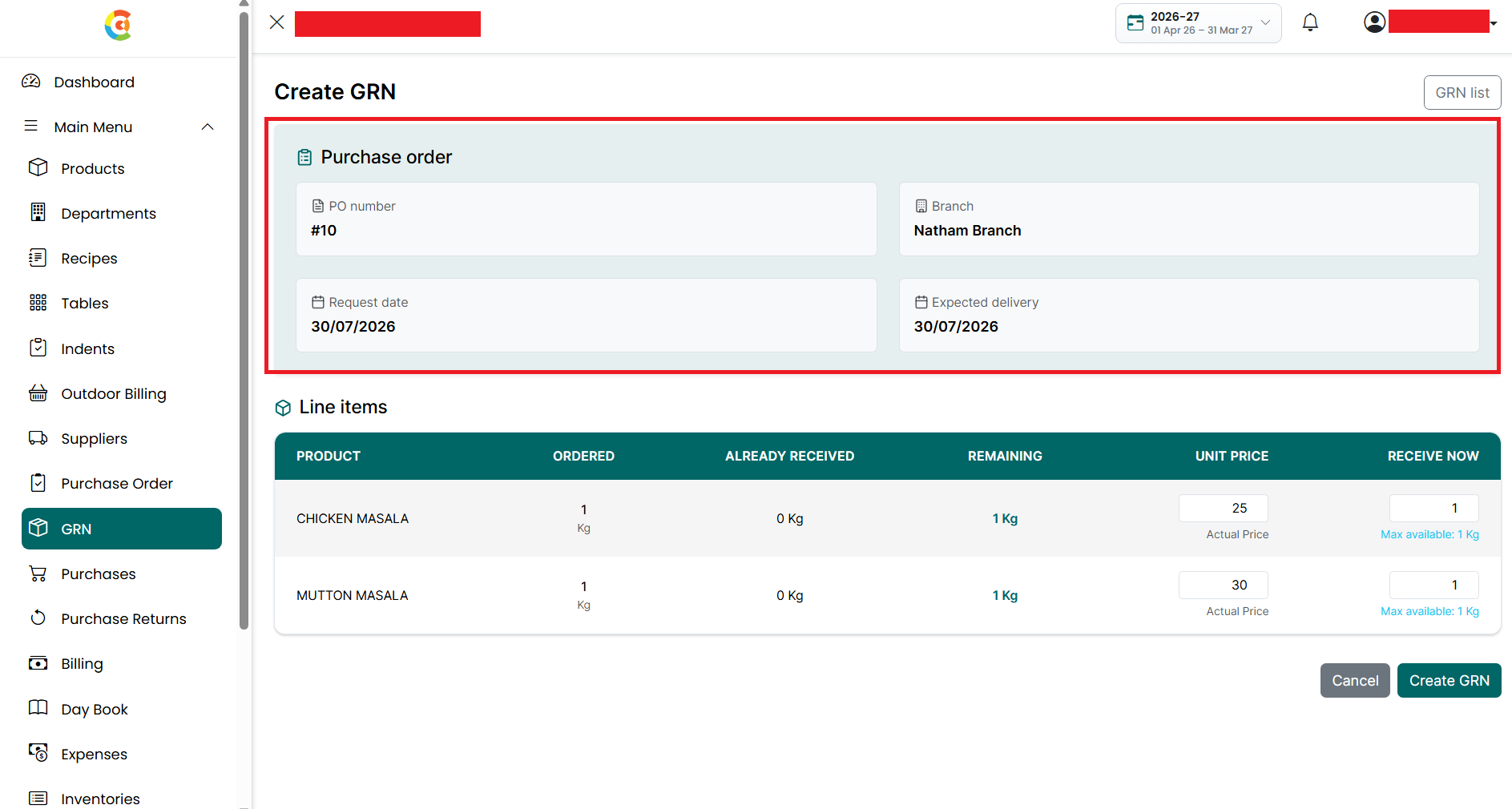
- Purchase Order - The Purchase Order section displays the details of the selected purchase order.
- The following information is available:
- PO Number - Shows the purchase order number.
- Branch - Shows the branch for which the purchase order was created.
- Request Date - Shows the date on which the purchase order was created.
- Expected Delivery - Shows the expected delivery date.
- Line Items
- The Line Items section displays all the products available in the selected purchase order.
- For each product, the following information is available:
- Product - Shows the name of the product.
- Ordered - Shows the total quantity ordered.
- Already Received - Shows the quantity that has already been received through previous GRNs.
- Remaining - Shows the quantity that is still pending to be received.
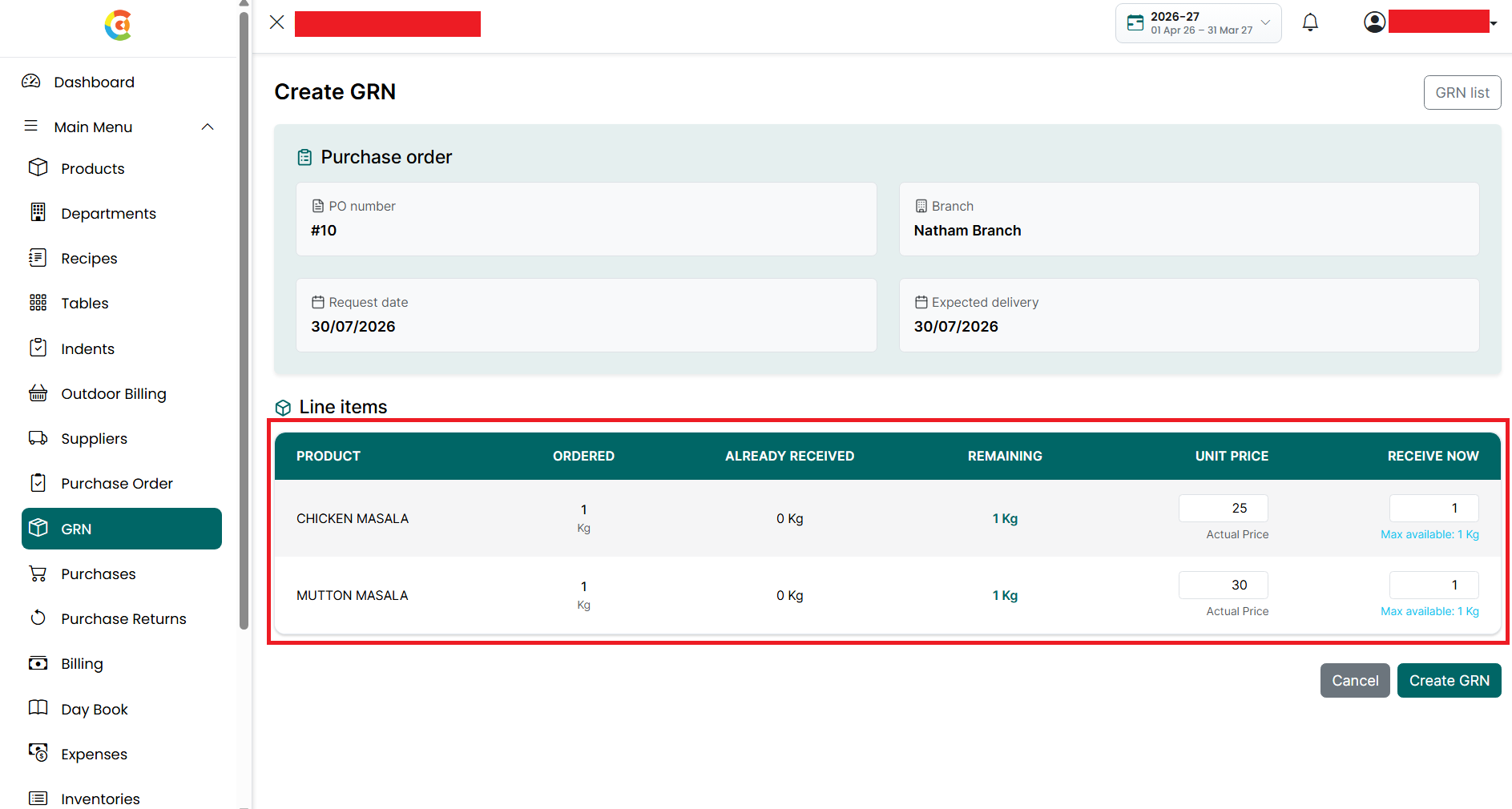
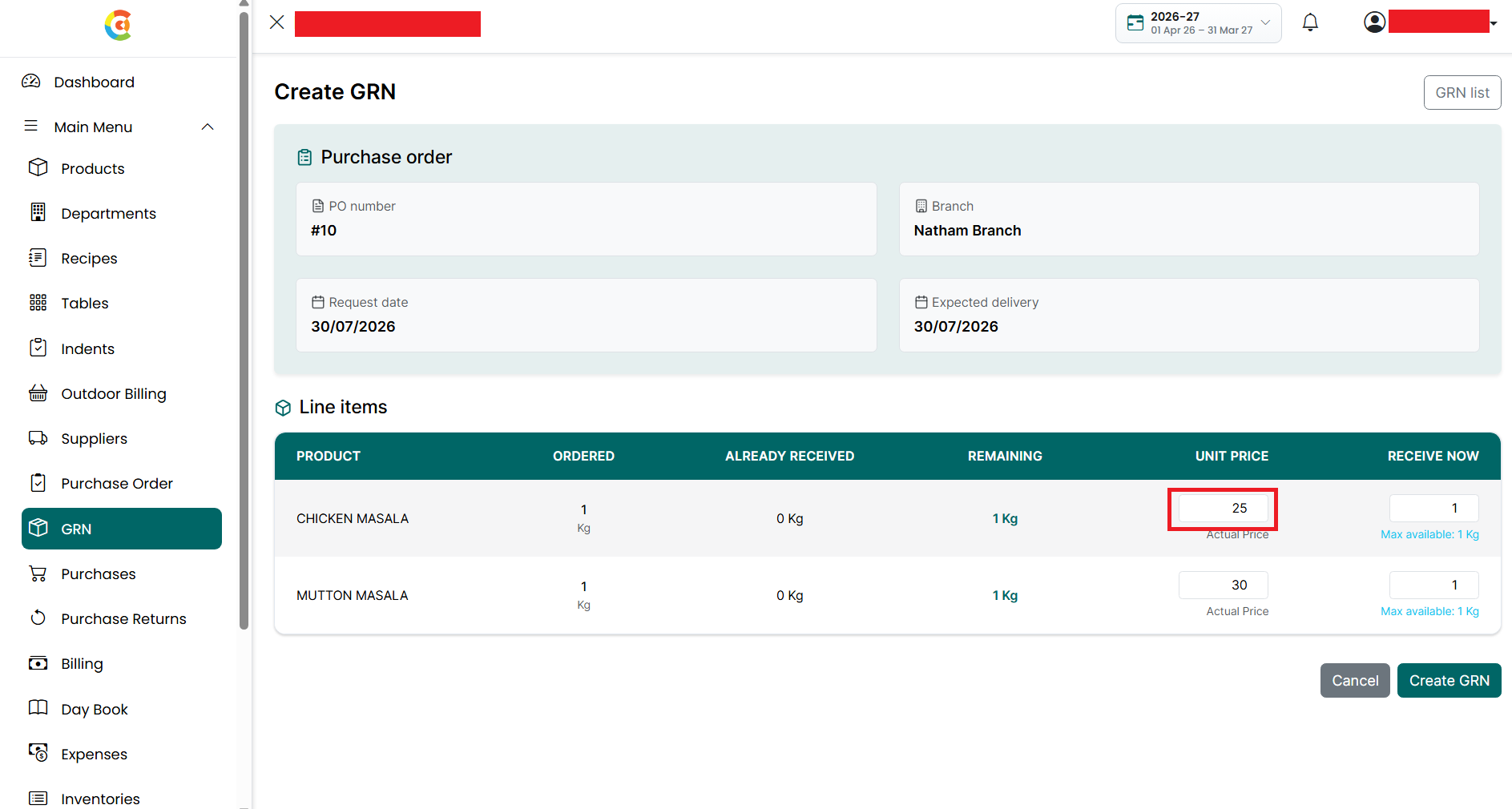
- Unit Price - Enter or update the actual purchase price of the product.
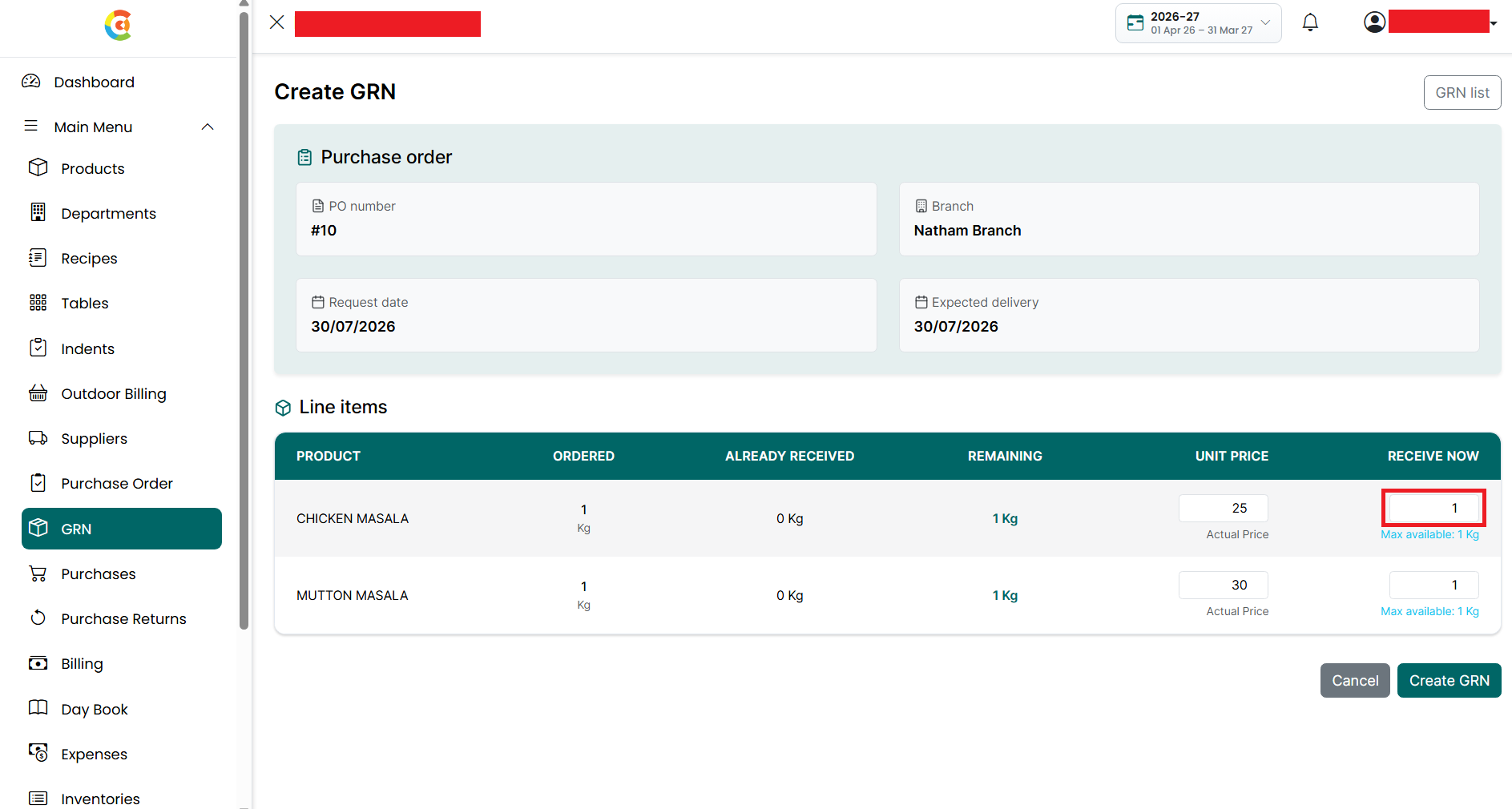
- Receive Now - Enter the quantity being received in the current GRN. The entered quantity cannot exceed the remaining quantity available for the product.
- Review all the product details before creating the GRN. Click Create GRN to save the Goods Receipt Note.
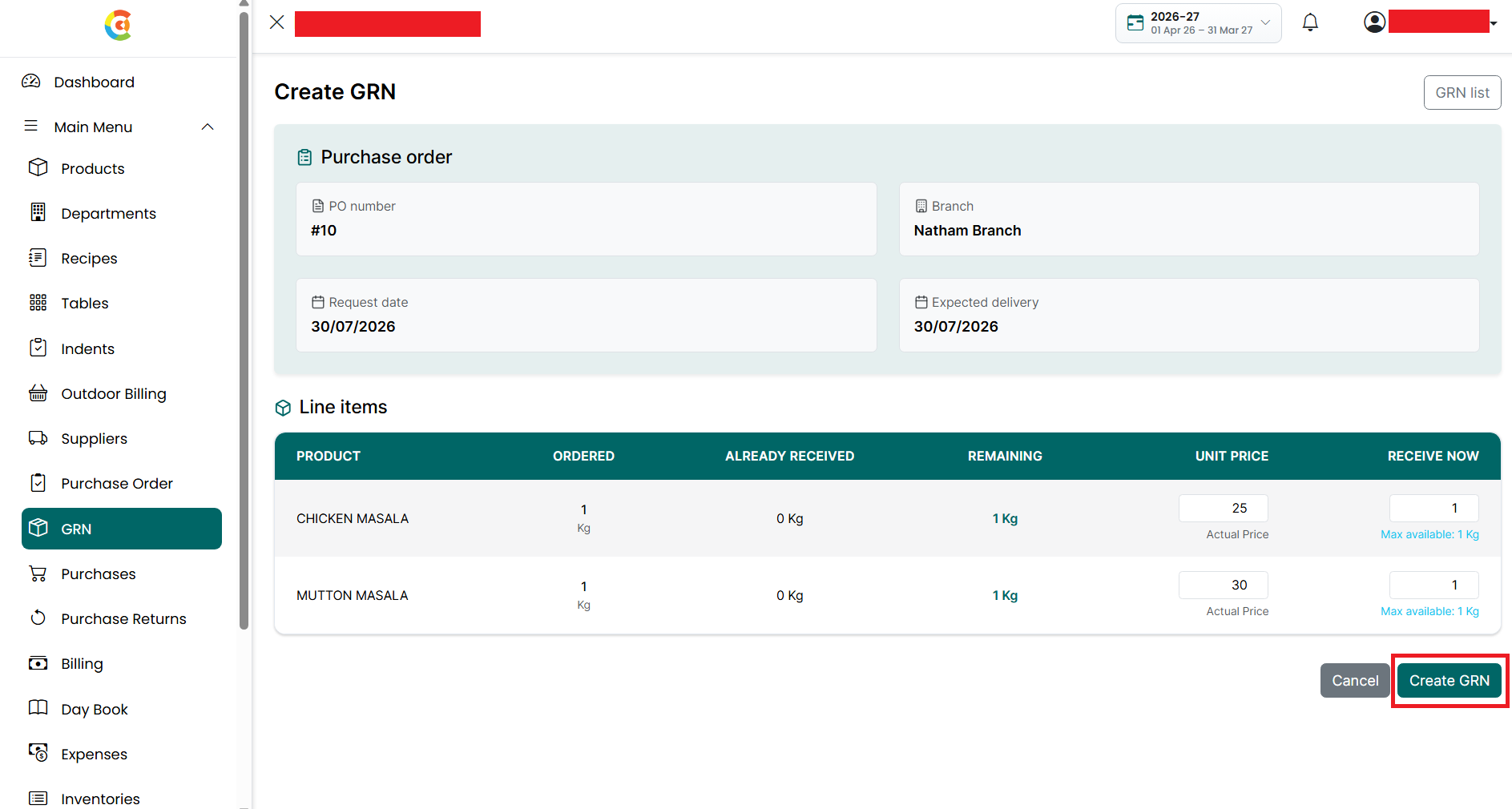
- Click Cancel to close the page without saving.
- After the GRN is created successfully, a confirmation message is displayed.
- If all the ordered quantities are received, the purchase order status is automatically updated to Fully Received.
- If only part of the ordered quantities are received, the purchase order status is updated to Partially Received, and additional GRNs can be created later until all the remaining quantities have been received.
Note: Once a purchase order reaches the Fully Received status, no additional GRNs can be created for that purchase order. The Create GRN option will no longer be available.
Download Purchase Order
To download a purchase order, follow the steps below.
- Go to the Main Menu and click Purchase Order.
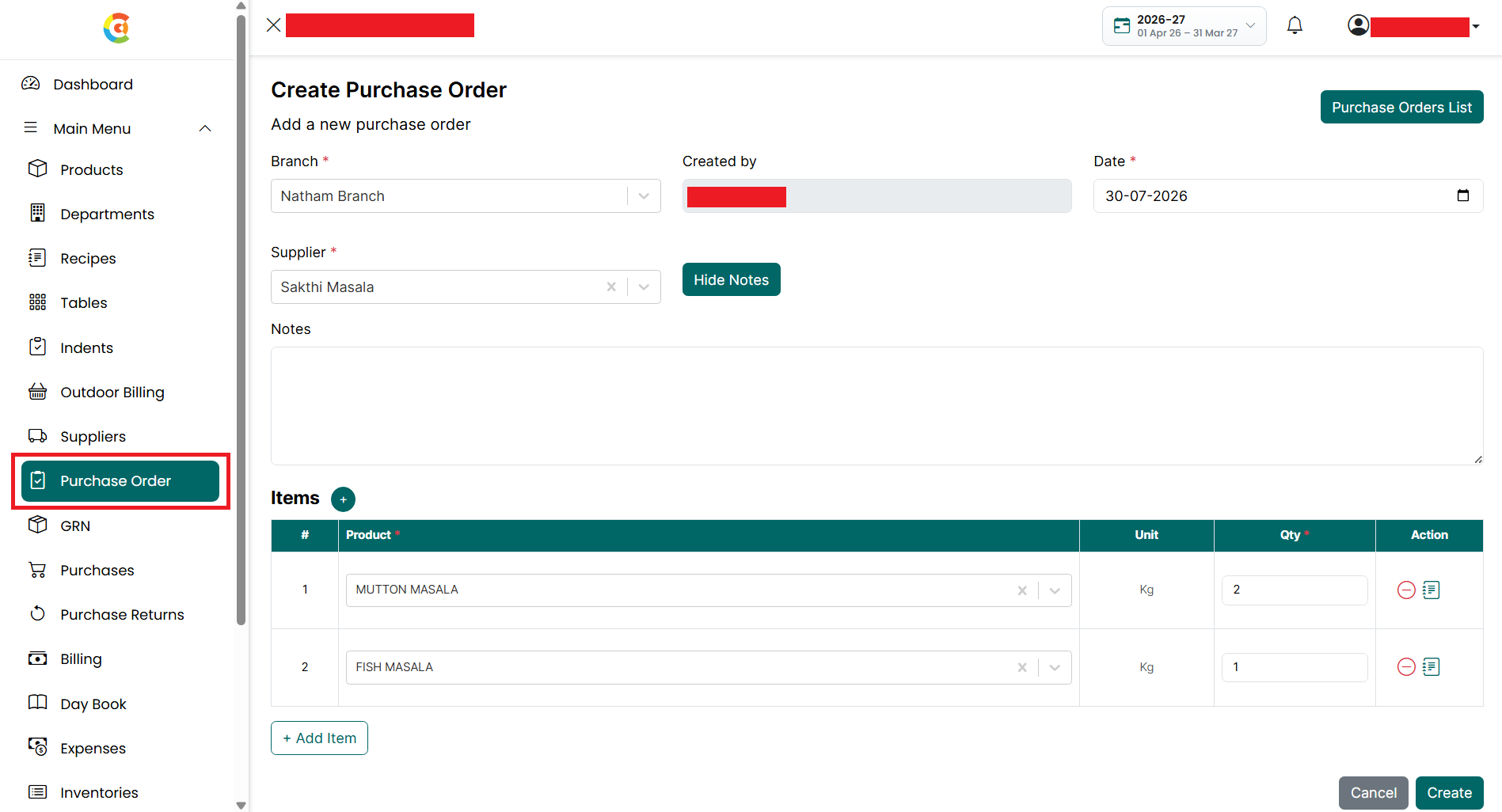
- The Create Purchase Order page is displayed.
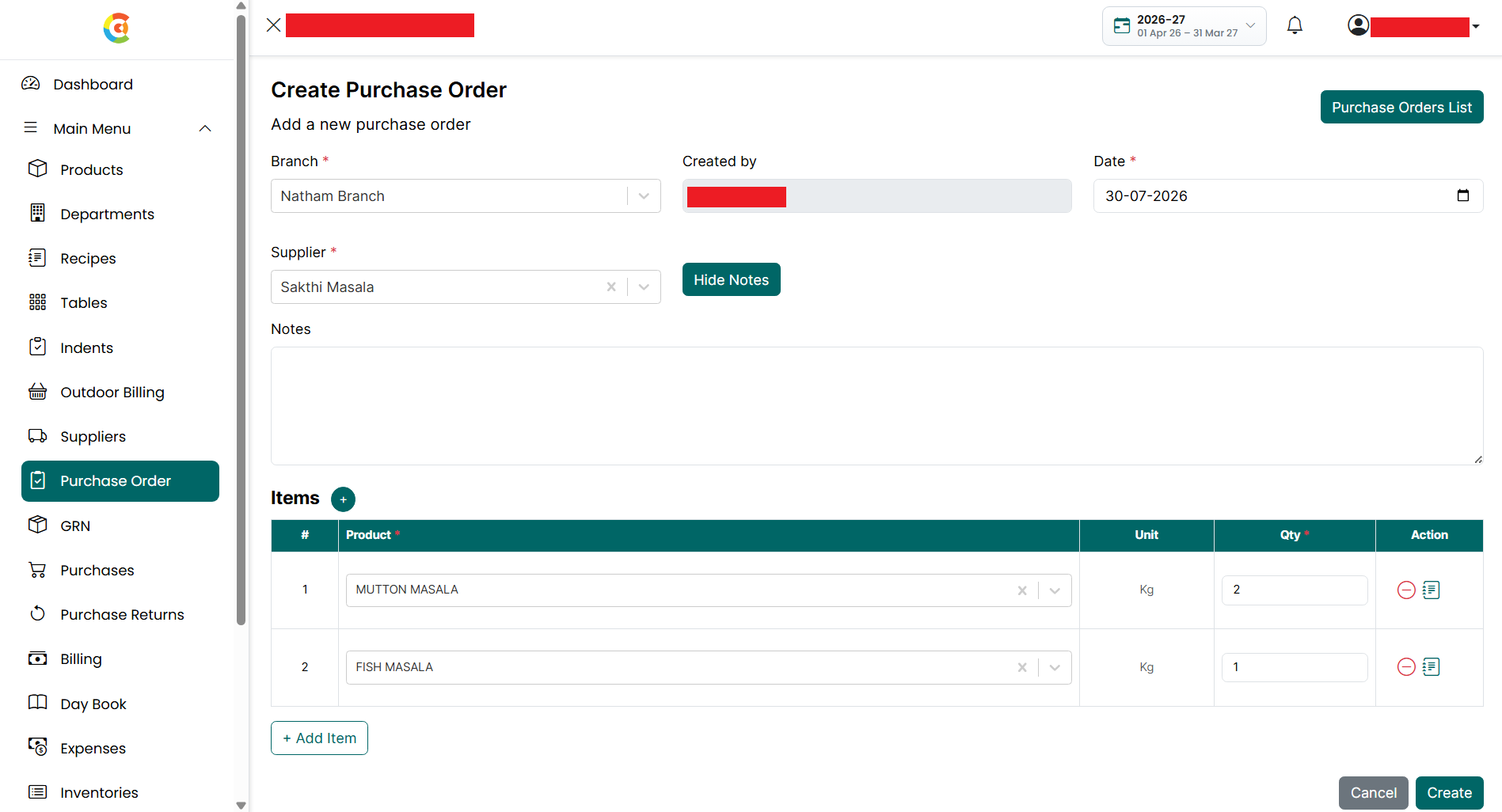
- Click the Purchase Orders List button.
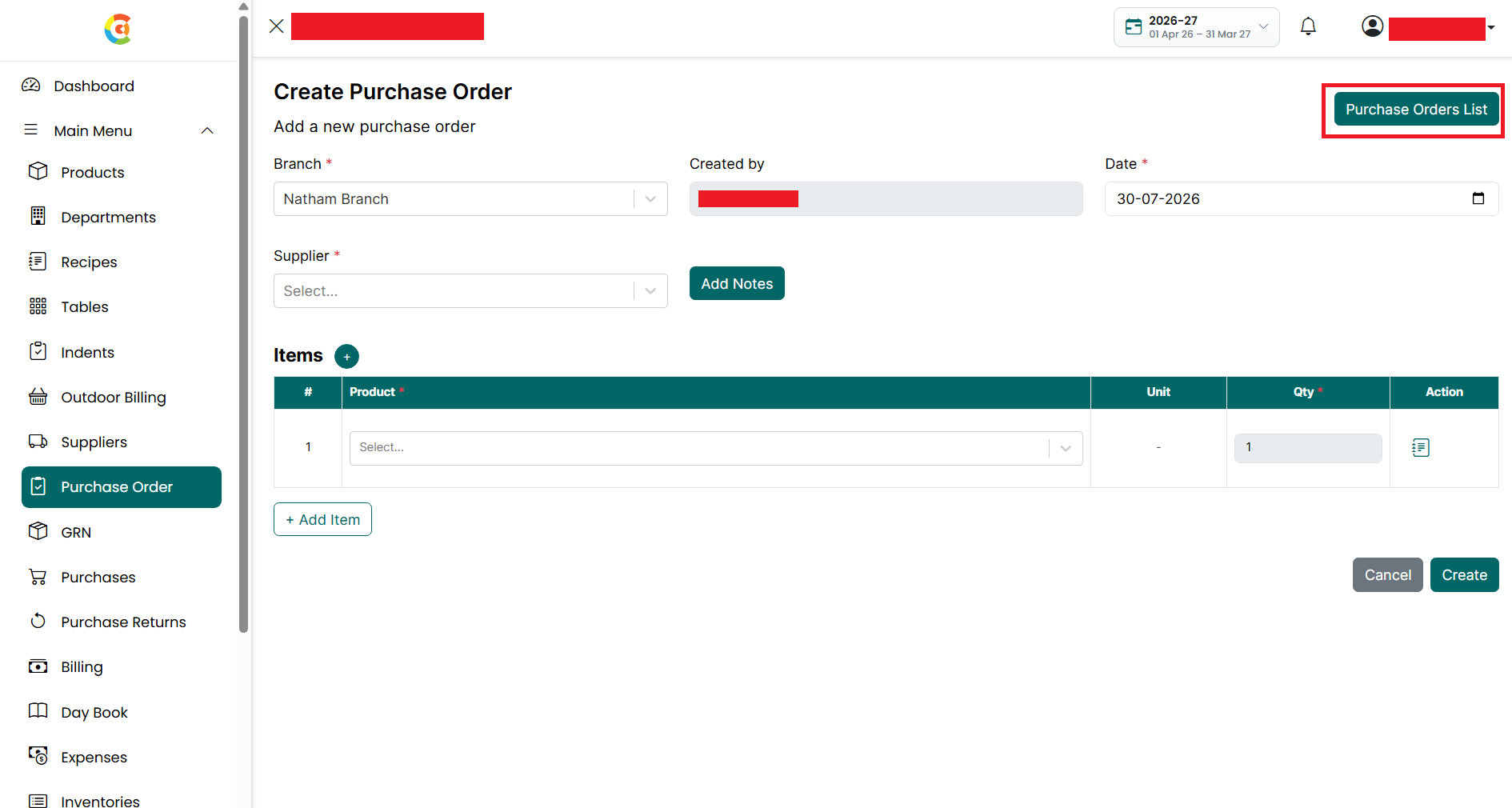
- The Purchase Order List page is displayed.
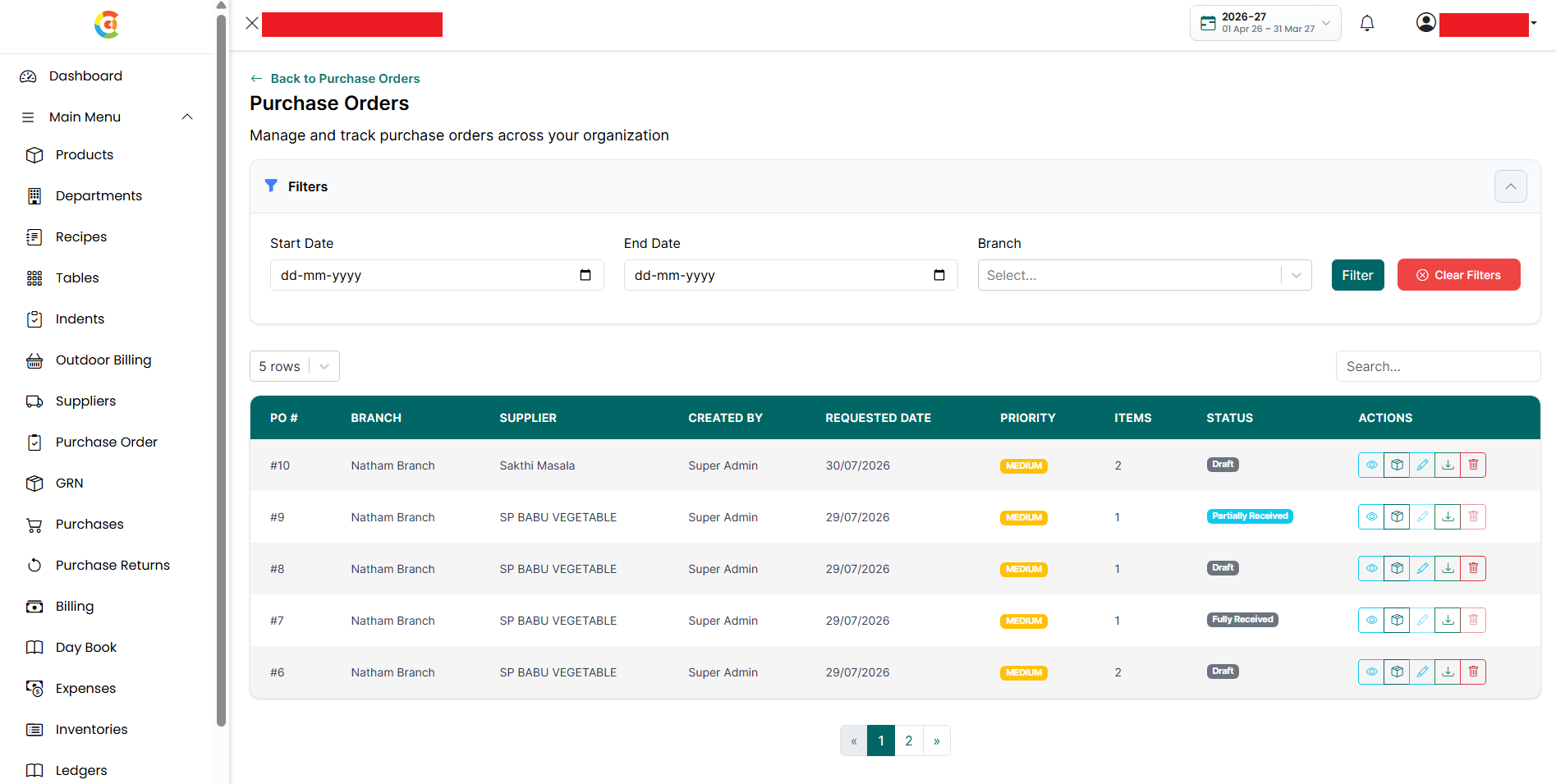
- Find the purchase order you want to download. Click the Download icon.
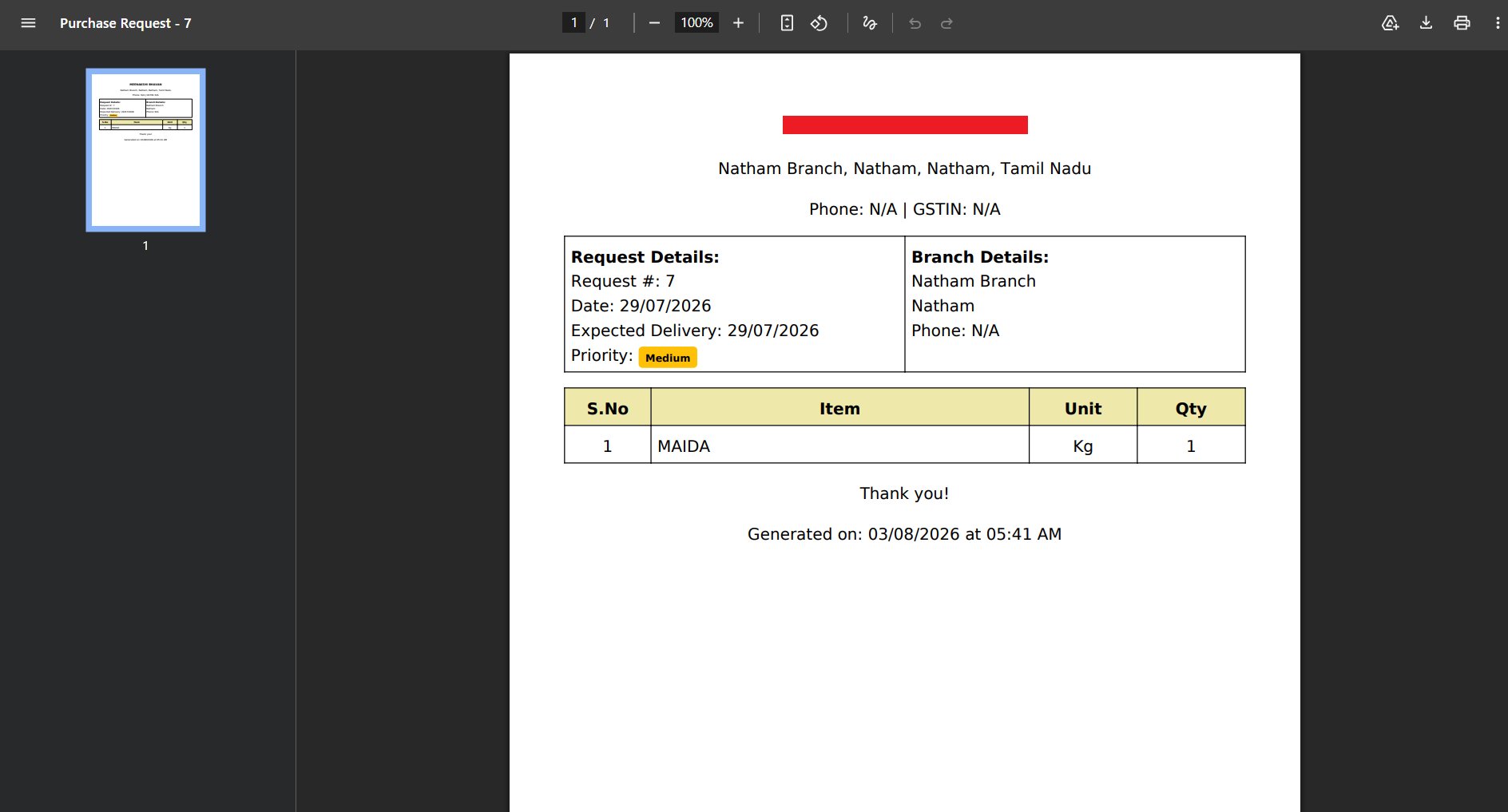
- The purchase order is downloaded as a PDF file. The downloaded PDF contains the purchase order details, including the supplier information, branch, purchase order details, and the list of ordered products.
Delete Purchase Order
To delete a purchase order, follow the steps below.
- Go to the Main Menu and click Purchase Order.
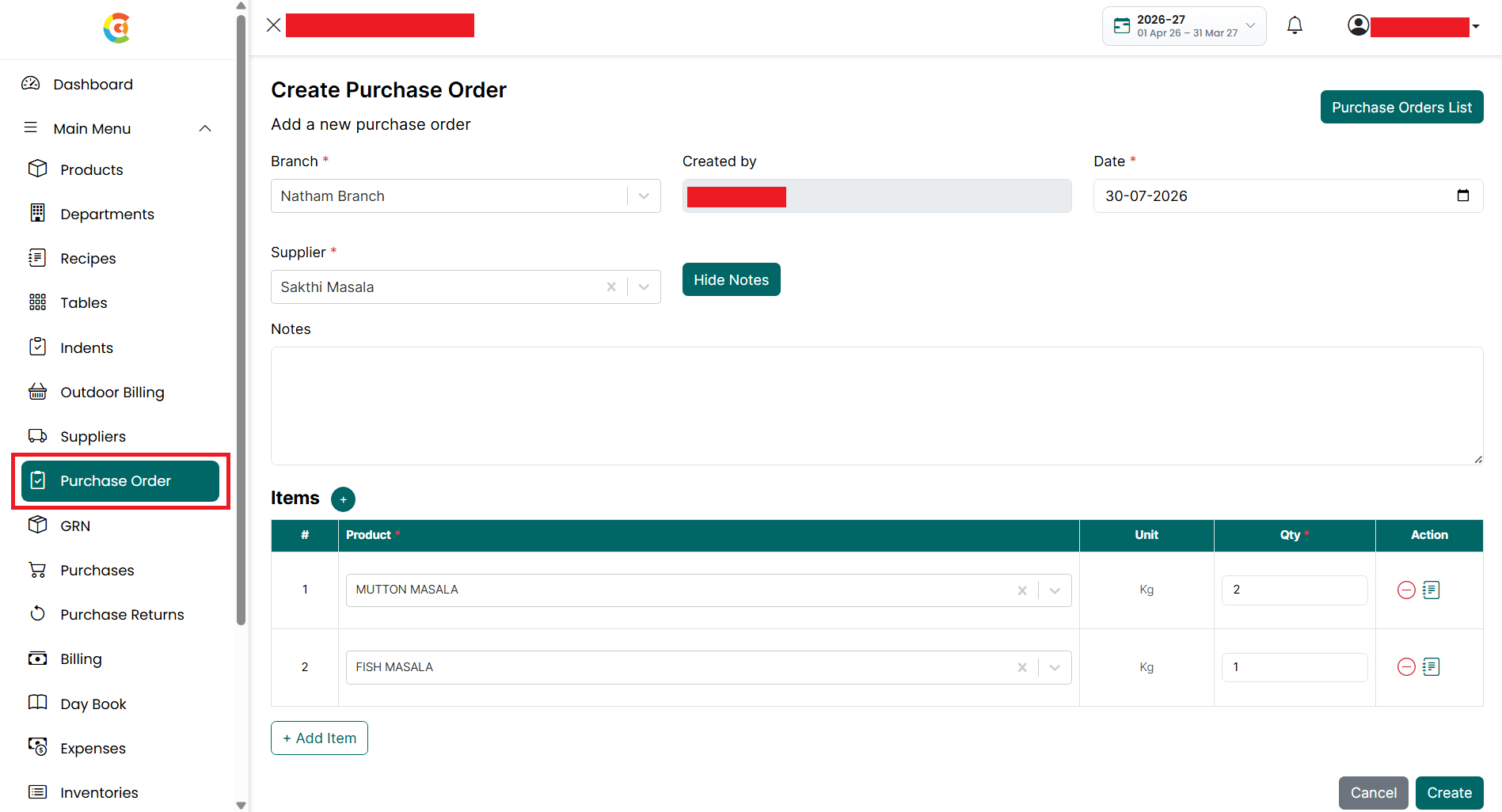
- The Create Purchase Order page is displayed.
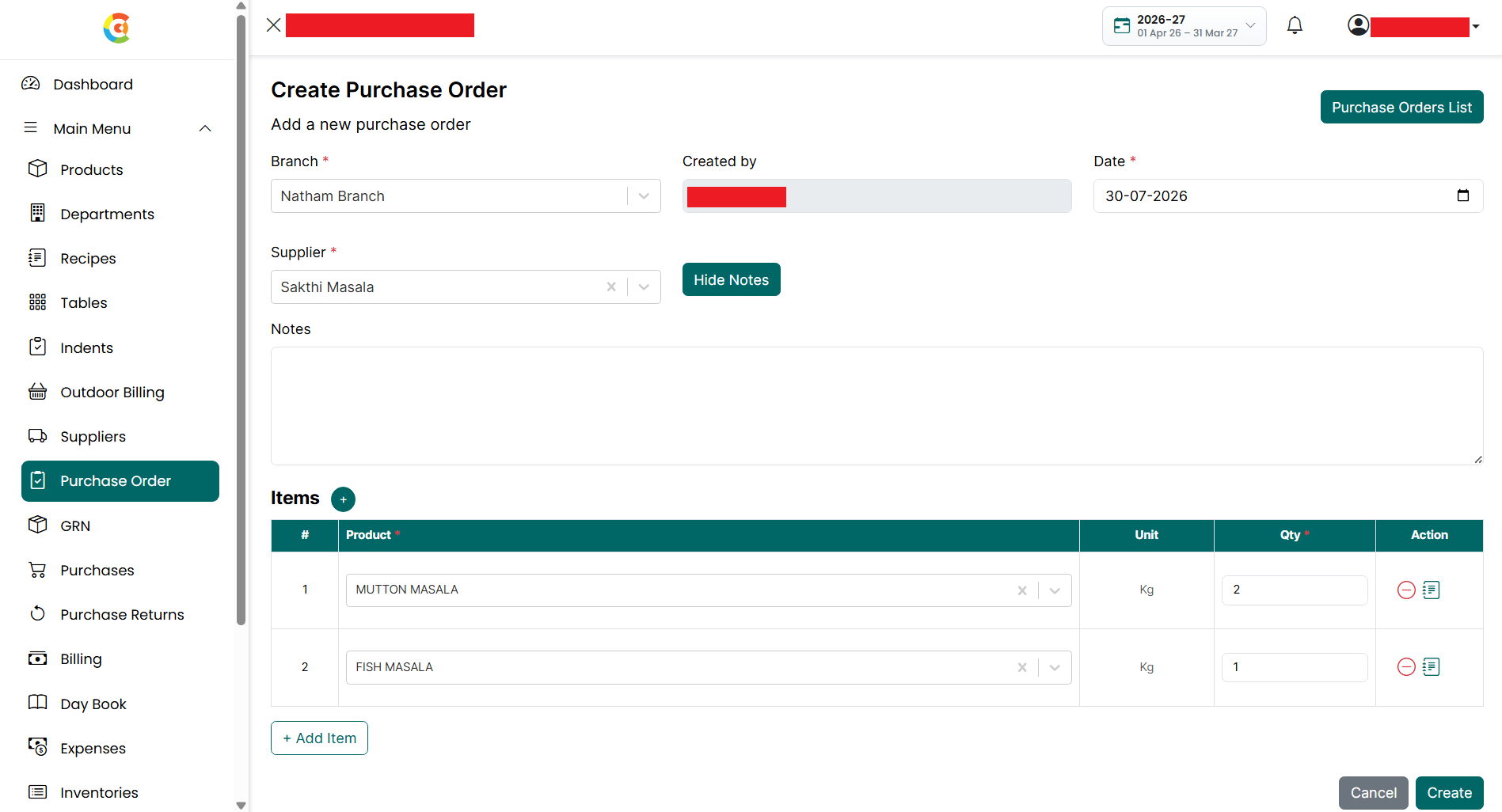
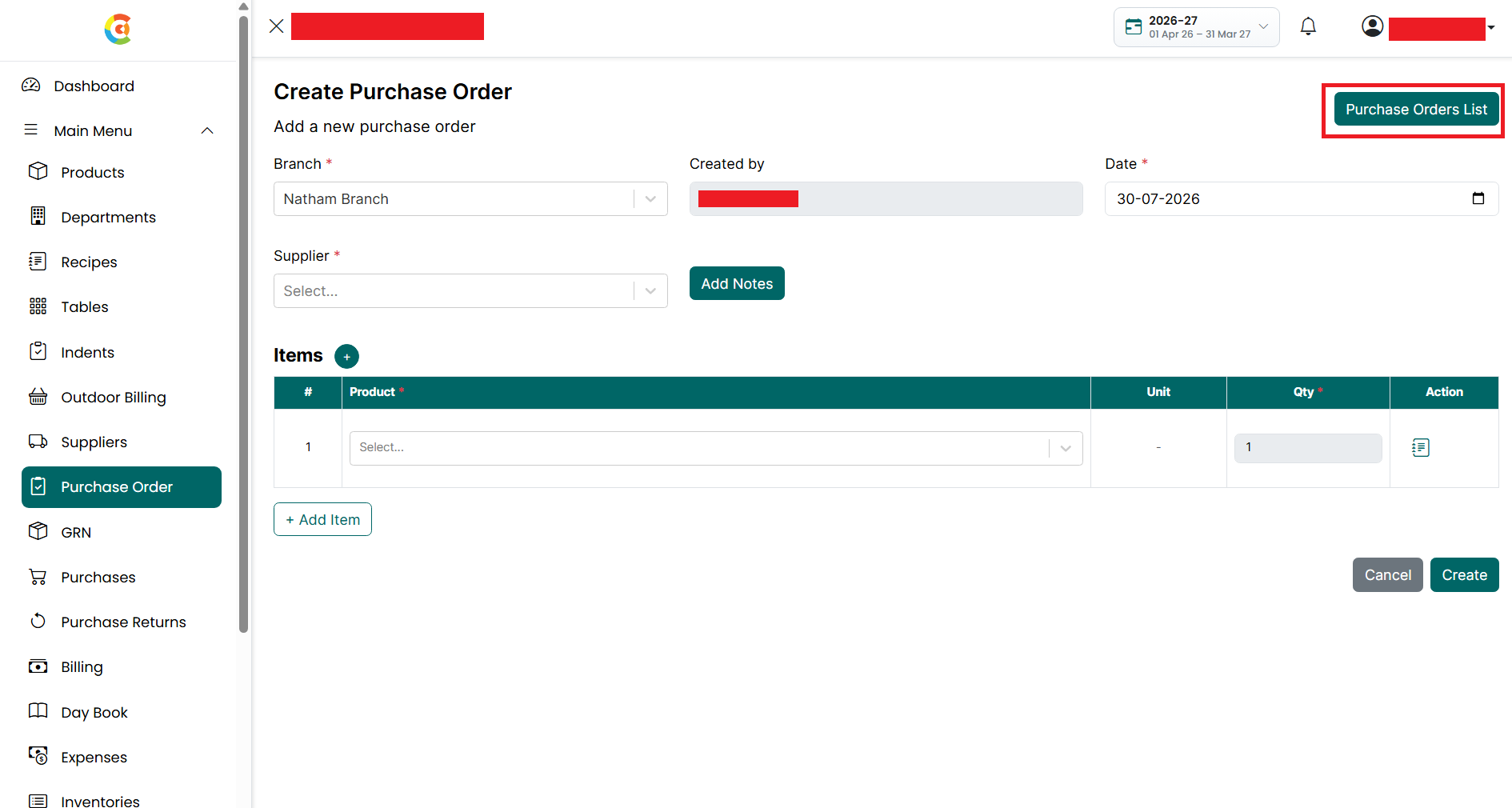
- Click the Purchase Orders List button.
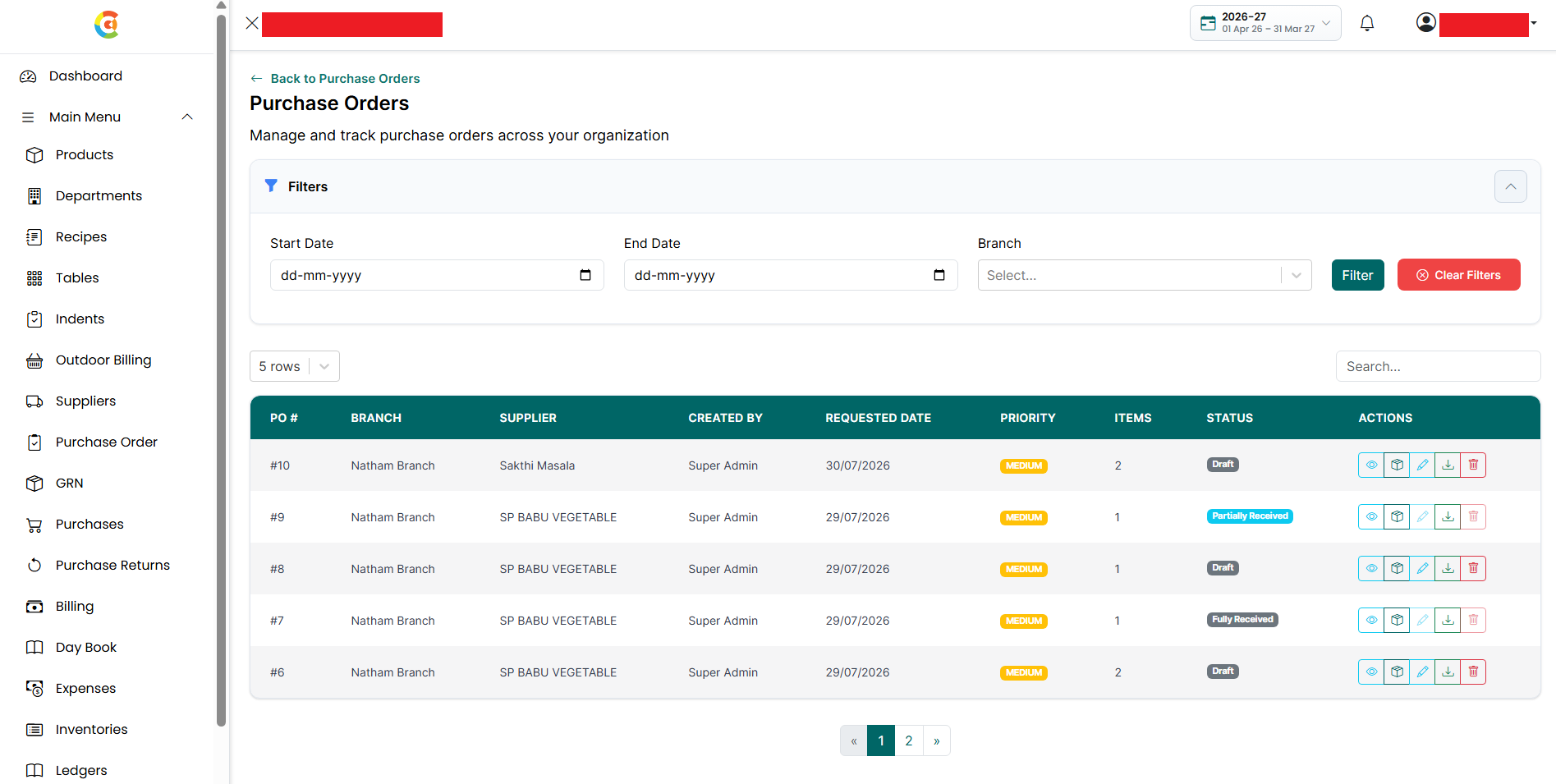
- The Purchase Order List page is displayed.
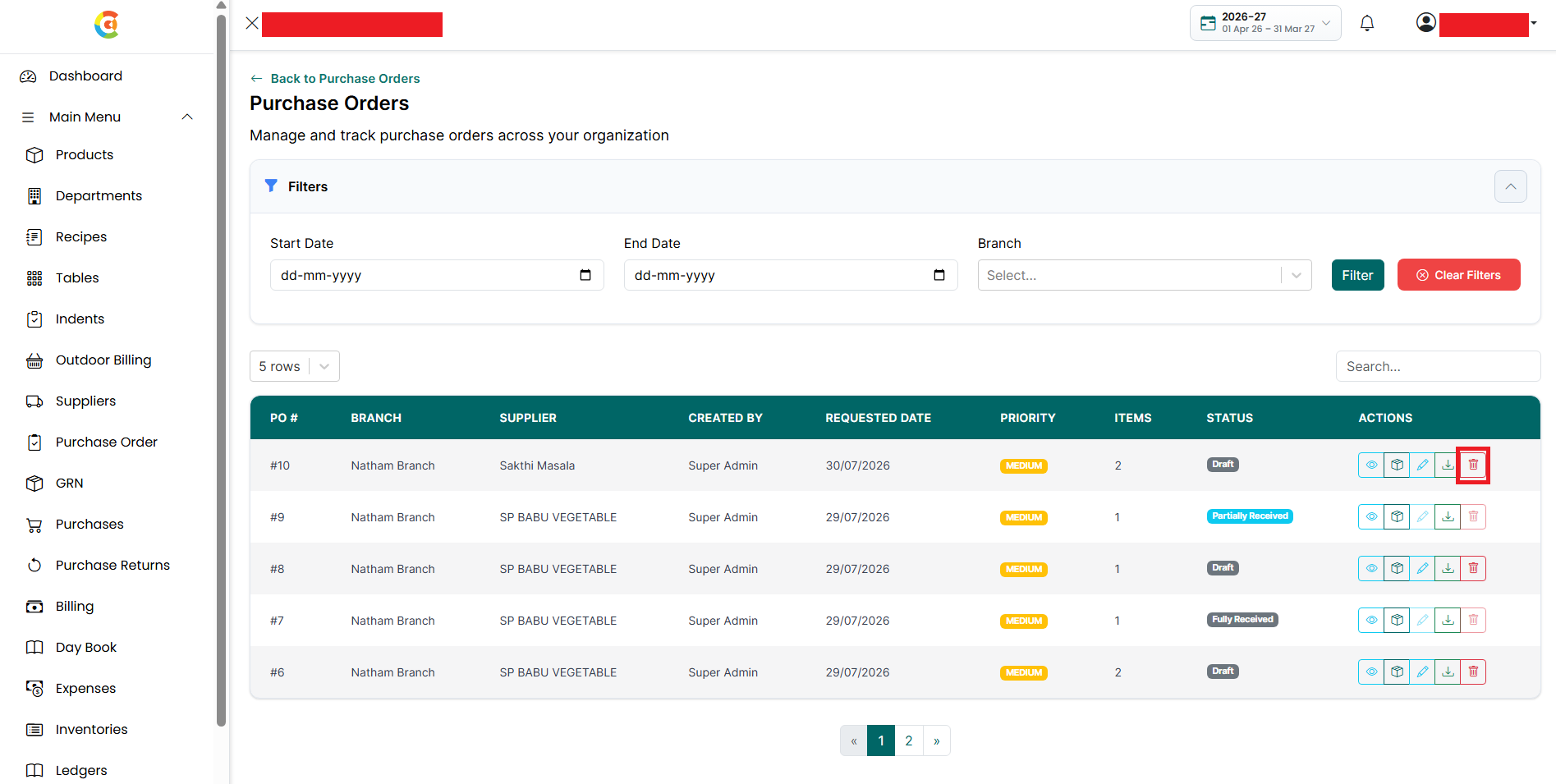
- Find the purchase order you want to delete. Click the Delete icon.
- A confirmation message is displayed asking if you want to delete the purchase order.
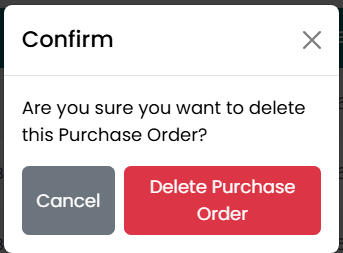
- Click Delete Purchase Order to confirm the deletion.
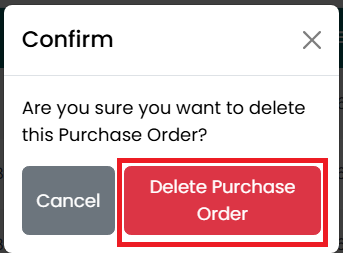
- Click Cancel or the X icon to close the confirmation window without deleting the purchase order.
- After the purchase order is deleted successfully, a confirmation message is displayed. The purchase order remains visible in the Purchase Order List page with a Retrieve option. A deleted purchase order cannot be edited, viewed, or used to create a GRN until it is restored.

Note: Purchase orders with the status Fully Received cannot be deleted because all the ordered items have already been received through Goods Receipt Notes (GRNs).
Retrieve Purchase Order
To restore a deleted purchase order, follow the steps below.
- Go to the Main Menu and click Purchase Order. The Create Purchase Order page is displayed.
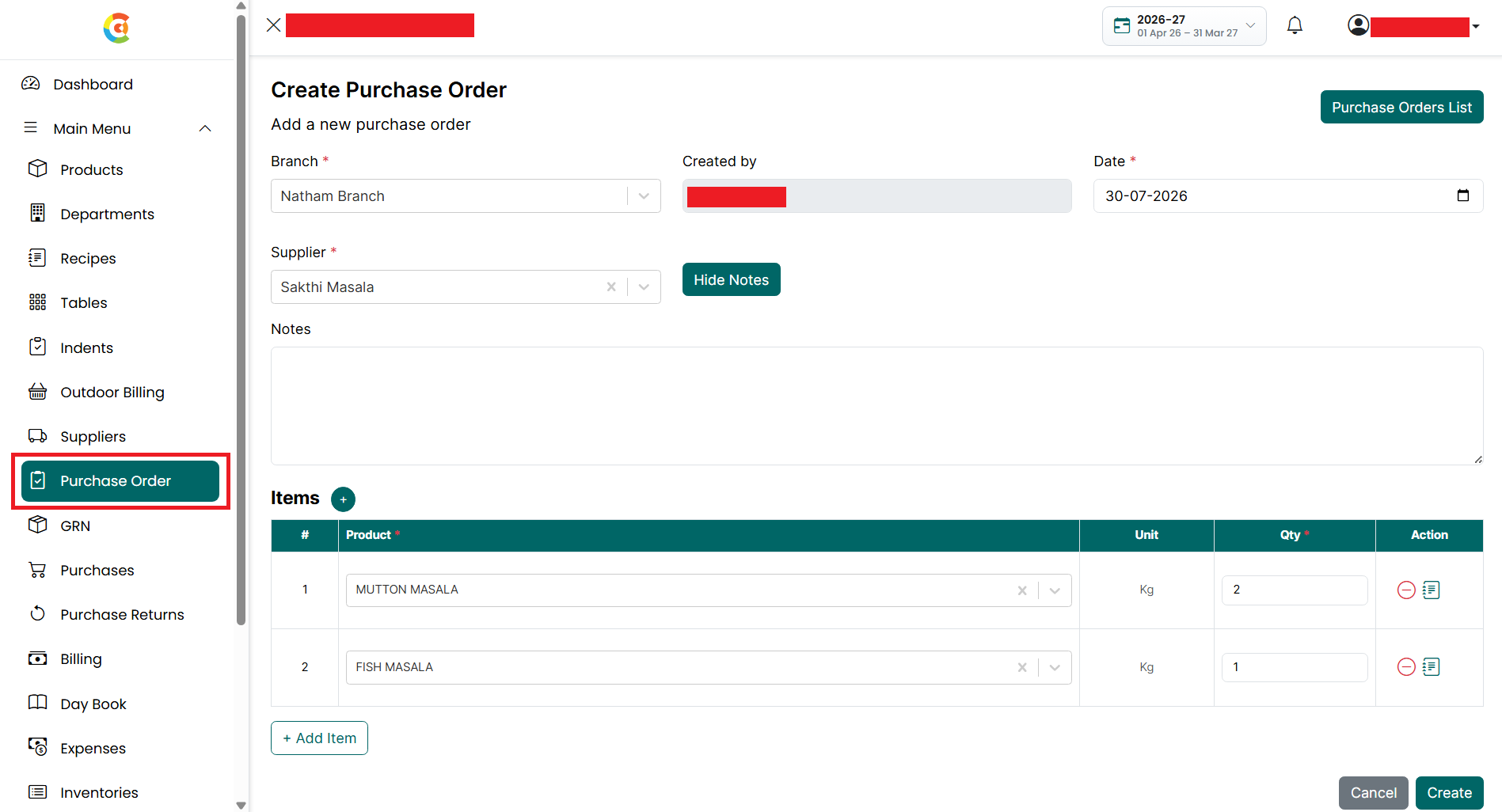
- Click the Purchase Orders List button.
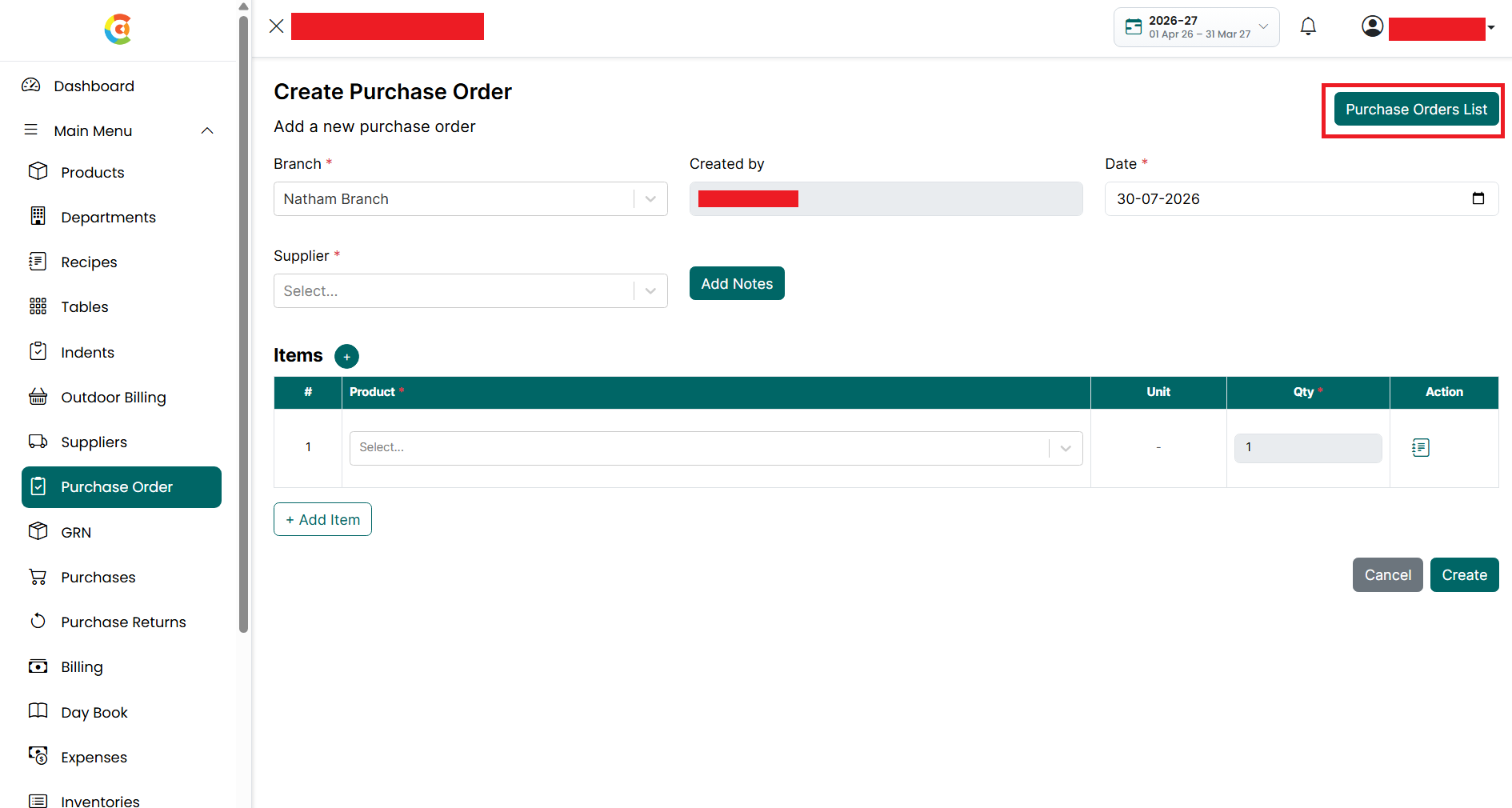
- The Purchase Order List page is displayed.
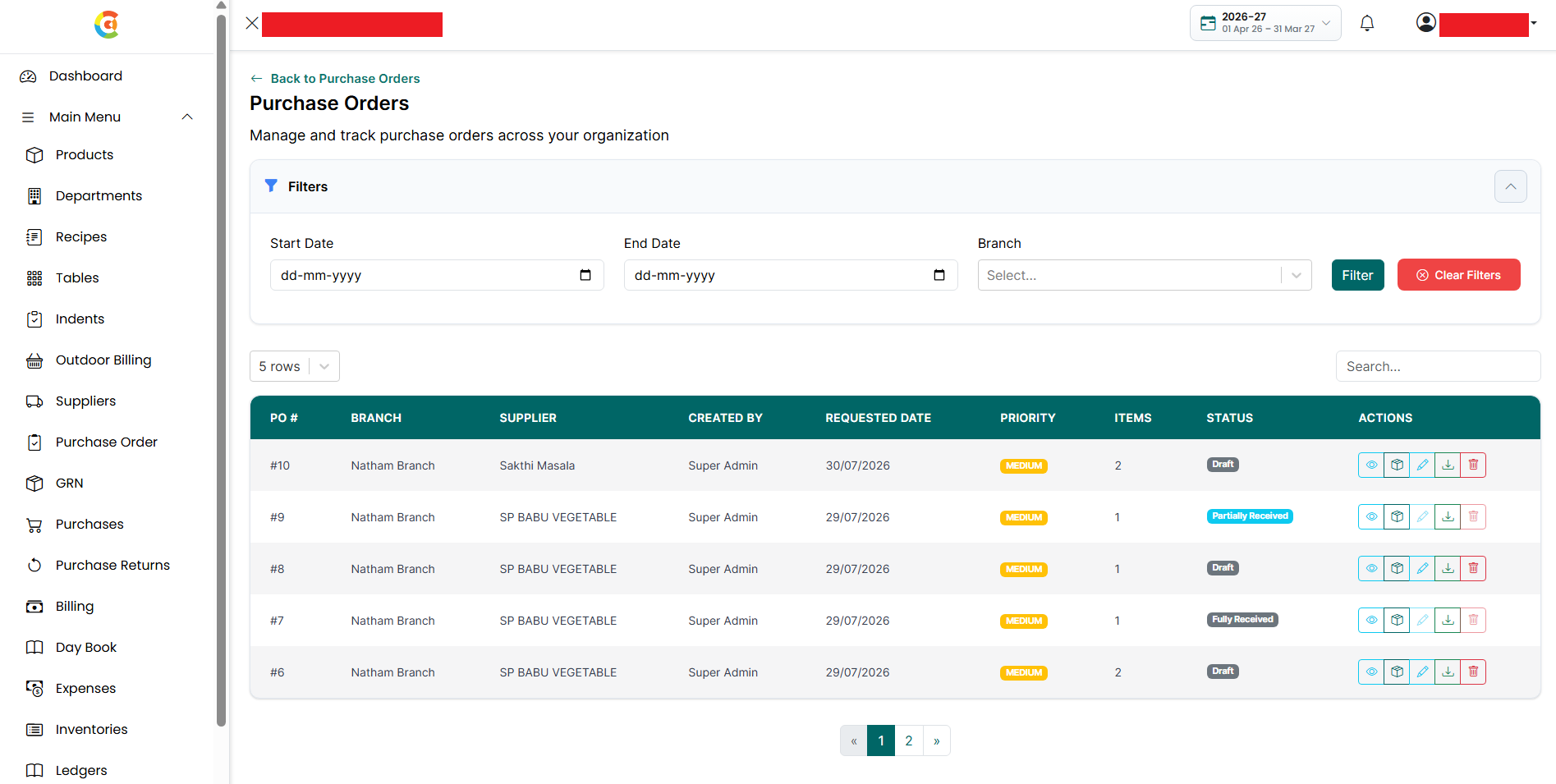
- Find the deleted purchase order. Click the Retrieve icon.
- A confirmation message is displayed asking if you want to restore the purchase order.
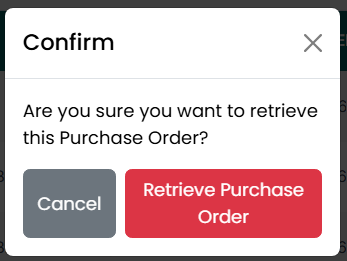
- Click Retrieve Purchase Order to restore the purchase order.
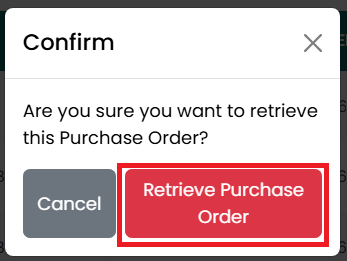
- Click Cancel or the X icon to close the confirmation window without restoring the purchase order.
- After the purchase order is restored successfully, a confirmation message is displayed. The purchase order becomes active again and can be viewed, edited, and used to create a GRN, provided it has not already reached the Fully Received status.
